DxTreeList.CustomizeContextMenu Event
Allows you to customize context menus.
Namespace: DevExpress.Blazor
Assembly: DevExpress.Blazor.Grid.v26.1.dll
NuGet Package: DevExpress.Blazor
Declaration
[Parameter]
public Action<TreeListCustomizeContextMenuEventArgs> CustomizeContextMenu { get; set; }
Parameters
| Type | Description |
|---|---|
| TreeListCustomizeContextMenuEventArgs | An object that contains data for this event. |
Remarks
The DevExpress Blazor TreeList allows you to display context menus with predefined and custom commands. Use the ContextMenus property to activate context menus for specific TreeList elements. Handle the CustomizeContextMenu event to modify the menu item collection.
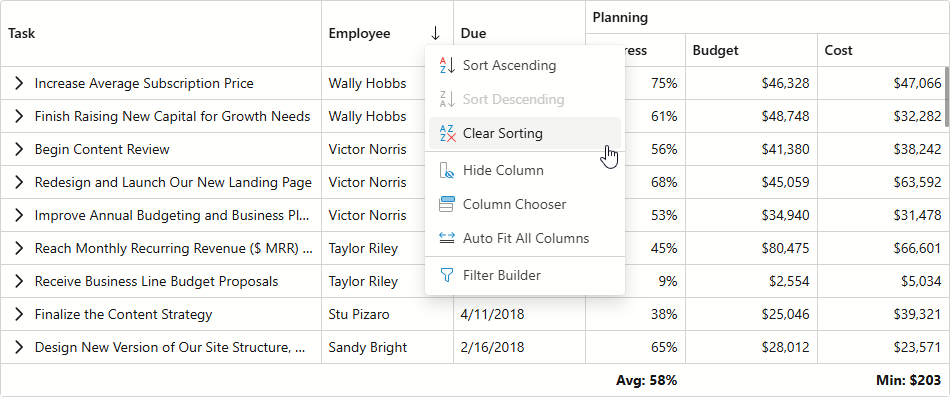
Identify Target Cells
Use the Context event argument to identify the target TreeList element and obtain contextual information.
| Target Element | Context Type | Contextual information |
|---|---|---|
| Any | ITreeListCommandContext | TreeList |
| Data Row | TreeListDataRowCommandContext | TreeList, Column, DataItem, RowVisibleIndex |
| Footer | TreeListFooterCommandContext | TreeList, Column, SummaryItems |
| Header | TreeListHeaderCommandContext | TreeList, Column |
The following code snippet customizes commands available in header and data row context menus:
@inject EmployeeTaskService EmployeeTaskService

<DxTreeList Data="TreeListData"
            KeyFieldName="Id"
            ParentKeyFieldName="ParentId"
            ContextMenus="@(TreeListContextMenus.Header | TreeListContextMenus.DataRow)"
            CustomizeContextMenu="CustomizeContextMenu">
    <Columns>
        <DxTreeListSelectionColumn Width="80px"/>
        <DxTreeListDataColumn FieldName="Name" Caption="Task" />
        <DxTreeListDataColumn FieldName="EmployeeName" />
        <DxTreeListDataColumn FieldName="StartDate" />
        <DxTreeListDataColumn FieldName="DueDate" />
    </Columns>
</DxTreeList>

@code {
    List<EmployeeTask> TreeListData { get; set; }

    protected override void OnInitialized() {
        TreeListData = EmployeeTaskService.GenerateData();
    }
    void CustomizeContextMenu(TreeListCustomizeContextMenuEventArgs args) {
        // Customizes context menu commands for the selection column header
        if (args.Context is TreeListHeaderCommandContext headerContext) {
            if (headerContext.Column is ITreeListSelectionColumn selectionColumn) {
                var isFixed = selectionColumn.FixedPosition != TreeListColumnFixedPosition.None;
                string itemText = isFixed ? "Unfix Column" : "Fix Column to the Left";
                var newValue = isFixed ? TreeListColumnFixedPosition.None : TreeListColumnFixedPosition.Left;
                args.Items.AddCustomItem(itemText, () => {
                    headerContext.TreeList.BeginUpdate();
                    headerContext.Column.FixedPosition = newValue;
                    headerContext.TreeList.EndUpdate();
                });
            }
        }
        // Adds context menu commands for data rows
        if (args.Context is TreeListDataRowCommandContext) {
            args.Items.Add(TreeListContextMenuDefaultItemNames.ExpandAll);
            args.Items.Add(TreeListContextMenuDefaultItemNames.CollapseAll);
        }
    }
}
Built-in Commands
The table below lists context menu types and built-in commands available in the TreeList:
 - The context menu includes this item by default.
 - You can add this item to the context menu.
| Menu Item | Data Row | Footer | Header |
|---|---|---|---|
| AutoFitAll | |
|
|
| ClearColumnSorting | |
|
|
| CollapseAll | |
|
|
| ExpandAll | |
|
|
| HideColumn | |
|
|
| ShowColumnChooser | |
|
|
| ShowFilterBuilder | |
|
|
| SortColumnAscending | |
|
|
| SortColumnDescending | |
|
|
Access Items
The Items event argument contains an initial item collection. This collection depends on the menu type, TreeList settings, and component state. For instance, a header context menu contains the SortColumnAscending command only if sorting is allowed (on both TreeList and column levels). The ClearColumnSorting command is disabled if the target column is not sorted.
Call a Contains method overload to check whether the context menu includes a particular item. Obtain an item by its name or index:
void CustomizeContextMenu(TreeListCustomizeContextMenuEventArgs args) {
    // Returns the first item
    IContextMenuItem firstItem = args.Items[0];
    // Returns the "Auto Fit All" item
    IContextMenuItem autoFitItem;
    if (args.Items.Contains(TreeListContextMenuDefaultItemNames.AutoFitAll))
        autoFitItem = args.Items[TreeListContextMenuDefaultItemNames.AutoFitAll];
}
Add Items
Add Built-In Items
The TreeListContextMenuDefaultItemNames class contains names of all built-in items. Pass an item name to an Add method overload to add this item to the context menu. Refer to the following section for a list of predefined items: Built-in Commands.
Note
The TreeList validates item collections for each context menu type and hides unsupported commands (even if you add these commands in the CustomizeContextMenu event handler).
void CustomizeContextMenu(TreeListCustomizeContextMenuEventArgs args) {
      // Inserts the "Auto Fit All" item at the end of the item collection
      args.Items.Add(TreeListContextMenuDefaultItemNames.AutoFitAll);
      // Inserts the "Show Column Chooser" item at the first position in the item collection
      args.Items.Add(0, TreeListContextMenuDefaultItemNames.ShowColumnChooser);
}
Add Custom Items
AddCustomItem method overloads allow you to create a custom item and add it to the item collection:
void CustomizeContextMenu(TreeListCustomizeContextMenuEventArgs args) {
    // Inserts a custom item at the first position in the item collection
    var isFooterVisible = args.TreeList.FooterDisplayMode != TreeListFooterDisplayMode.Never;
    string footerItemText = isFooterVisible ? "Hide Footer" : "Show Footer";
    var newState = isFooterVisible ? TreeListFooterDisplayMode.Never : TreeListFooterDisplayMode.Always;
    args.Items.AddCustomItem(0, footerItemText, () => {
        args.TreeList.BeginUpdate();
        args.TreeList.FooterDisplayMode = newState;
        args.TreeList.EndUpdate();
    });
    // Inserts a custom item at the end of the item collection
    if (args.Context is TreeListHeaderCommandContext headerContext) {
        if (headerContext.Column is ITreeListCommandColumn commandColumn) {
            var isFixed = commandColumn.FixedPosition != TreeListColumnFixedPosition.None;
            string fixedItemText = isFixed ? "Unfix Column" : "Fix Column to the Left";
            var newValue = isFixed ? TreeListColumnFixedPosition.None : TreeListColumnFixedPosition.Left;
            args.Items.AddCustomItem(fixedItemText, () => {
                headerContext.TreeList.BeginUpdate();
                headerContext.Column.FixedPosition = newValue;
                headerContext.TreeList.EndUpdate();
            });
        }
    }
}
Add Nested Items
Built-in context menu commands do not have nested items. Use a command’s Items property to add nested menu items:
void CustomizeContextMenu(TreeListCustomizeContextMenuEventArgs args) {
    if (args.Context is TreeListHeaderCommandContext headerContext) {
        // Inserts a custom item at the first position in the item collection
        var sortItem = args.Items.AddCustomItem(0, "Sort...");
        // Adds default items to the item collection of the inserted item
        sortItem.Items.Add(TreeListContextMenuDefaultItemNames.SortColumnAscending);
        sortItem.Items.Add(TreeListContextMenuDefaultItemNames.SortColumnDescending);
        sortItem.Items.Add(TreeListContextMenuDefaultItemNames.ClearColumnSorting);
    }
}
Remove Items
Remove method overloads allow you to remove an item with the specified name or index from the item collection. To remove all items from the collection, call the Clear() method.
void CustomizeContextMenu(TreeListCustomizeContextMenuEventArgs args) {
    // Removes the first item
    args.Items.Remove(0);
    // Removes the "Show Column Chooser" item
    args.Items.Remove(TreeListContextMenuDefaultItemNames.ShowColumnChooser);
    // Removes all items
    args.Items.Clear();
}
Customize Items
Access an item and use its properties to customize command availability, appearance, and behavior.
void CustomizeContextMenu(TreeListCustomizeContextMenuEventArgs args) {
    // Hides icons for all built-in commands
    foreach(var item in args.Items)
        item.IconUrl = string.Empty;
    if (args.Context is TreeListHeaderCommandContext headerContext) {
        // Removes the "Sort Column Descending" item
        args.Items.Remove(TreeListContextMenuDefaultItemNames.SortColumnDescending);
        // Changes the "Sort Column Ascending" item caption
        args.Items[TreeListContextMenuDefaultItemNames.SortColumnAscending].Text = "Sort";
        // Adds and configures a custom command for the command column header
        if (headerContext.Column is ITreeListCommandColumn commandColumn) {
            var isFixed = commandColumn.FixedPosition != TreeListColumnFixedPosition.None;
            string itemText = isFixed ? "Unfix Column" : "Fix Column to the Left";
            var newValue = isFixed ? TreeListColumnFixedPosition.None : TreeListColumnFixedPosition.Left;

            var fixColumnItem = args.Items.AddCustomItem(itemText, () => {
                headerContext.TreeList.BeginUpdate();
                headerContext.Column.FixedPosition = newValue;
                headerContext.TreeList.EndUpdate();
            });
            fixColumnItem.BeginGroup = true;
        }
    }
}