DxComboBox<TData, TValue> Class
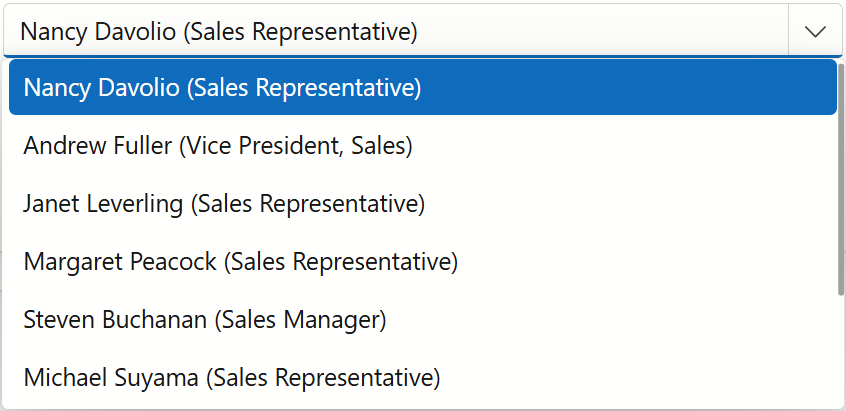
A text editor that allows users to select predefined items from the drop-down list or type custom values.
Namespace: DevExpress.Blazor
Assembly: DevExpress.Blazor.v26.1.dll
NuGet Package: DevExpress.Blazor
Declaration
public class DxComboBox<TData, TValue> :
    DxDropDownListEditorBase<TData, TValue>,
    IComboBoxComponent<TData, TValue>,
    IComboBox<TData, TValue>,
    IDropDownListEditorBase<TData, TValue>,
    IListEditorBase<TData, TValue>,
    IEditorBase,
    IDropDownOwner,
    IFocusableEditor,
    IComboBoxSelectionProviderOwner<TData, TValue>,
    IDropDownListEditorSelectionProviderOwner<TData, TValue>,
    IListEditorSelectionProviderOwner<TData, TValue>,
    IComboBoxAccessor<TData>,
    IDropDownListEditorAccessor<TData>,
    IListEditorAccessorBase<TData>
Type Parameters
| Name | Description |
|---|---|
| TData | The data item type. |
| TValue | The value type. |
Remarks
The DevExpress ComboBox for Blazor (<DxComboBox>) component displays a drop-down window with a list of items. Users can select an item from a list and type text in the editor to filter list items that contain the search string. Users can also use keyboard to navigate between items and select them. When a user presses and holds an arrow key, the editor’s window continuously navigates between items.
Add a ComboBox to a Project
Follow the steps below to add the ComboBox component to an application:
- Create a Blazor Server or Blazor WebAssembly application.
- Add the
<DxComboBox>…</DxComboBox>markup to a.razorfile. - Use the Data property to bind the ComboBox to data.
- Use the Value to specify the ComboBox’s selected value/item.
- Enable other features and capabilities).
Tip
DevExpress AI Skills help your AI assistant generate code that uses ComboBox API in accordance with DevExpress best practices:
API Reference
Refer to the following list for the component API reference: DxComboBox Members.
Static/Interactive Render Modes
Blazor ComboBox does not support static render mode. Enable interactivity to use the component in your application. Refer to the following topic for more details: Enable Interactive Render Mode.
Features and Capabilities
For in-depth information about DevExpress ComboBox for Blazor, review the following articles:
- Data Binding
- Data Shaping
- Multiple Columns
- Buttons
- Appearance Customization
- Cascading Comboboxes
- Virtual Scrolling
- Keyboard Support
- Input Validation
- HTML Attributes
Troubleshooting
If a Blazor application throws unexpected exceptions, refer to the following help topic: Troubleshooting.