DevExpress MCP Server: Configure Your AI-powered Coding Assistant
- 10 minutes to read
Tip
For best results, use the DevExpress MCP server together with DevExpress AI Skills. Skills supply curated task patterns and product-specific rules while the MCP server adds live documentation lookup and version-sensitive details.
To address growing demand for AI-assisted coding, we configured an MCP server that connects GitHub Copilot and other MCP-compatible AI tools to our documentation database.
Benefits of the DevExpress MCP Server
Once you configure our MCP Server in your IDE, AI Assistants in Agent mode can help you with the following tasks:
- Obtain answers to DevExpress-related questions.
- Autogenerate code that implements scenarios outlined within DevExpress documentation.
When you submit DevExpress-related queries, add a reference to the configured MCP server at the end of your prompt.
Important
Always review AI-generated output: check for architectural problems, security vulnerabilities, and adherence to project standards. AI-generated output can vary greatly based on the prompt, AI model used, project code clarity, etc.
DevExpress MCP Server Integration Basics
Prerequisites
Supported IDEs:
- Visual Studio 2022 (version 17.14 or later)
- Visual Studio 2026
- Visual Studio Code
- Cursor IDE
- JetBrains Rider 2025.1+
- Embarcadero RAD Studio v12+
Coding Assistants and AI Tools:
- GitHub Copilot
- JetBrains AI Assistant
- Claude Desktop
- Claude Code (CLI)
- GitHub Copilot CLI
- OpenAI Codex
- ChatGPT (Plus, Team, or Enterprise)
- Gemini CLI
- Embarcadero Kai for RAD Studio
- Other MCP-compatible AI Assistants
Since AI-related technology evolves rapidly and newer releases often include important fixes, we recommend that you always update to the latest version of your favorite IDE/plugins.
Common Setup Steps
Enable Agent Mode. You IDE may require that you activate Agent Mode for MCP server integration. Check IDE documentation.
Register the DevExpress MCP Server. Add the server endpoint to the MCP configuration:
- DevExpress Unified Component Installer or DevExpress Template Kit can register the server automatically.
- One-click Installation is available for Visual Studio, VS Code, and Cursor.
- Manual Installation is available for all supported IDEs and AI Tools.
Verify Connection. Confirm that DevExpress tools appear in your AI assistant’s available tools list:
devexpress_docs_searchsearches the documentation and returns top five matches.devexpress_docs_get_contentdownloads complete help topics by URL.
Specify Custom Instructions (optional). Define prompts that optimize how the AI assistant uses registered DevExpress tools. You can refer to these tools by name when you fine-tune your AI Assistant with custom instructions. See the following section for additional information: Optimize Your AI Assistant.
Register the MCP Server Using DevExpress Wizards
DevExpress Unified Component Installer and DevExpress Template Kit include options for DevExpress MCP Server registration.
DevExpress Unified Installer (.NET and JavaScript Products)
DevExpress Unified Component Installer v26.1.5+ can register the DevExpress MCP Server in AI coding tools installed on your machine. Use the DevExpress Documentation MCP Server checkbox on the product selection page. If you run the installer in silent mode, use the /MCP switch.
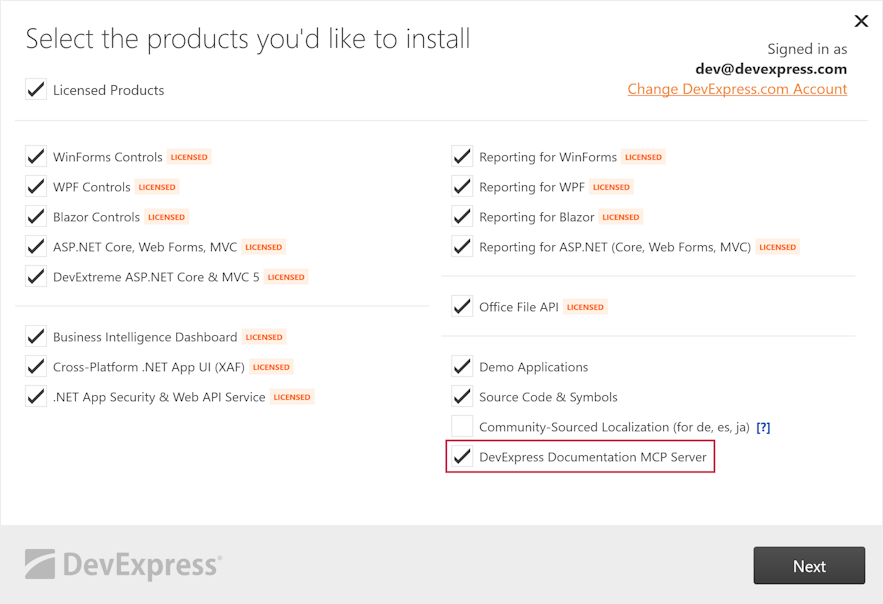
The installer registers the server in the following AI tools:
- GitHub Copilot in Visual Studio 2022 and Visual Studio 2026
- GitHub Copilot in Visual Studio Code
- GitHub Copilot CLI
- JetBrains Rider AI Assistant
- Cursor
- OpenAI Codex (CLI, IDE extension, and desktop app)
- Claude Desktop
- Claude Code
Installation notes:
- Installed server is available for the current Windows user only. Project, workspace, and machine-wide configurations remain unchanged.
- The server name is
dxdocs. The URL ishttps://api.devexpress.com/mcp/docs. If an AI tool configuration already contains this URL (under any name), the installer leaves existing configuration unchanged. - The installer skips AI tools that are not installed.
- Registration errors do not interrupt the installation. The installer does not display these errors, but writes them to the installation log.
After installation, restart your IDE or AI tool and verify the connection. If the server is missing in an AI tool, use one-click installation links or manual installation instructions.
DevExpress Template Kit
If you use the DevExpress Template Kit to create a new project, simply select the following option: Use DevExpress MCP. The Template Kit will set up the DevExpress Documentation MCP Server automatically.
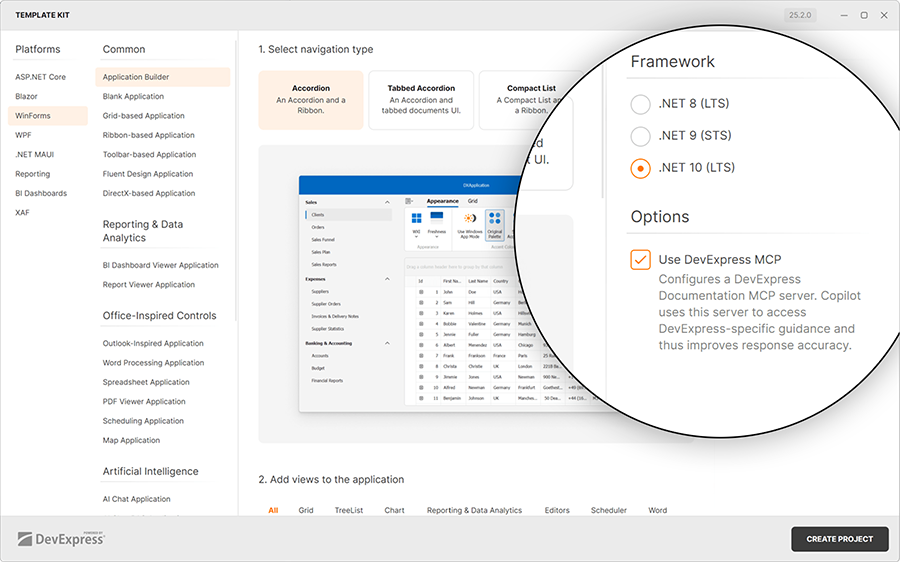
The Template Kit registers the MCP server locally (for the newly created project only). The following IDEs and AI tools are supported:
- GitHub Copilot in Visual Studio 2022/2026
- GitHub Copilot in Visual Studio Code
One-Click Installation Links
Use the following links for quick installation:




Note
If you experience issues with a one-click installation link, follow manual installation instructions listed in the next section.
Manual Installation and Related Documentation
Configuration Basics
DevExpress MCP Server endpoint: https://api.devexpress.com/mcp/docs
If specified without without parameters, this URL accesses documentation for the latest publicly available version. You can also specify a version as a parameter (no earlier than v24.2).
Note
Specify this URL in a compliant MCP client that works with Streamable HTTP. This URL does not support direct access from a web browser and may return the following error if accessed manually: “405 Method Not Allowed”.
The server operates exclusively over the Streamable HTTP protocol. If you are familiar with this technology, add the following endpoints to your AI assistant’s configuration and give it a try:
{
  "servers": {
    "dxdocs": {
      "url": "https://api.devexpress.com/mcp/docs",
      "type": "http"
    },
    "dxdocs24_2": {
      "url": "https://api.devexpress.com/mcp/docs?v=24.2",
      "type": "http"
    }
  }
}
Visual Studio 2022
Create .mcp.json in the %USERPROFILE% directory.
Visual Studio 2026
Create .mcp.json in the %USERPROFILE% directory.
VS Code
Use Command Palette → “MCP: Add Server” or create <project>/.vscode/mcp.json.
Cursor
Create <project>/.cursor/mcp.json or use Settings → Tools & Integrations → New MCP Server. Use "type": "http" in Cursor configuration.
JetBrains Rider
Go to Settings | Tools | AI Assistant | Model Context Protocol (MCP) and follow the wizard. Select the HTTP protocol and supply JSON configuration.
GitHub Copilot Plugin: Change chat mode to Agent and add tools. For additional information, see Extending GitHub Copilot Chat with MCP servers / JetBrains IDEs.
Claude Desktop
Configuration steps:
- Open Claude Desktop.
- Go to Settings → Connectors.
- Click Add custom connector.
- Enter name: “DevExpress Documentation”.
- Enter URL:
https://api.devexpress.com/mcp/docs. - Set authentication: No authentication.
- Click Add.
Learn more:
Claude Code
Run the following commands:
# Local configuration
claude mcp add --transport http dxdocs https://api.devexpress.com/mcp/docs

# Global configuration
claude mcp add --scope user --transport http dxdocs https://api.devexpress.com/mcp/docs

# Verify registered servers
claude mcp list
Learn more:
GitHub
Note: Administrative privileges required.
Navigate to Repository → Settings → Copilot → Coding agent. Add JSON configuration in the “MCP configuration” section:
{
  "dxdocs": {
    "type": "http",
    "url": "https://api.devexpress.com/mcp/docs",
    "tools": ["*"]
    }
}
- GitHub - Extending Copilot coding agent with MCP
- GitHub - Model Context Protocol and Copilot coding agent
ChatGPT
Configuration steps:
- Open ChatGPT in browser.
- Go to Settings → Connectors → Advanced settings.
- Turn on Developer mode.
- Click Create connector.
- Enter name: “DevExpress Documentation”.
- Enter URL:
https://api.devexpress.com/mcp/docs. - Set authentication: No authentication.
- Trust the application and click Create.
Learn more:
Gemini CLI
Add to .gemini/settings.json:
{
  "DevExpress MCP Server": {
    "httpUrl": "https://api.devexpress.com/mcp/docs"
  }
}
Kai for Embarcadero RAD Studio v12+ (Delphi / C++Builder)
Configure your IDE as described in the following help topic:
Asking a Question: Best Practices
To obtain most relevant answers from DevExpress MCP Server:
- Be specific about components: Mention exact DevExpress class names (such as “GridControl”, “DxPivotTable”).
- Include technology stack: Specify your platform (WinForms, WPF, Blazor, ASP.NET Core, VCL, etc.).
- Request code examples: Explicitly ask for implementation code when needed.
- Reference documentation: Use phrases like “Use dxdocs”, “search DevExpress docs”, or “according to DevExpress documentation”.
- Specify version: Mention specific DevExpress versions when working with older releases (such as “v24.2”).
Example Prompts:
- Create a WPF window with DevExpress RibbonControl and GridControl. Use dxdocs.
- Show me how to implement master-detail reports using DevExpress Reports for ASP.NET Core. Search DevExpress docs.
- Generate a DevExpress Blazor Data Grid (DxDataGrid) with inline editing. Query dxdocs for best practices.
- How do I apply a custom filter to DevExpress GridView in WinForms? Use dxdocs.
- Create a VCL application with a DevExpress report viewer. Use dxdocs for component setup.
Optimize Your AI Assistant
To get the most from the DevExpress Documentation MCP server, define instructions that guide your AI assistant on how to effectively use DevExpress tools.
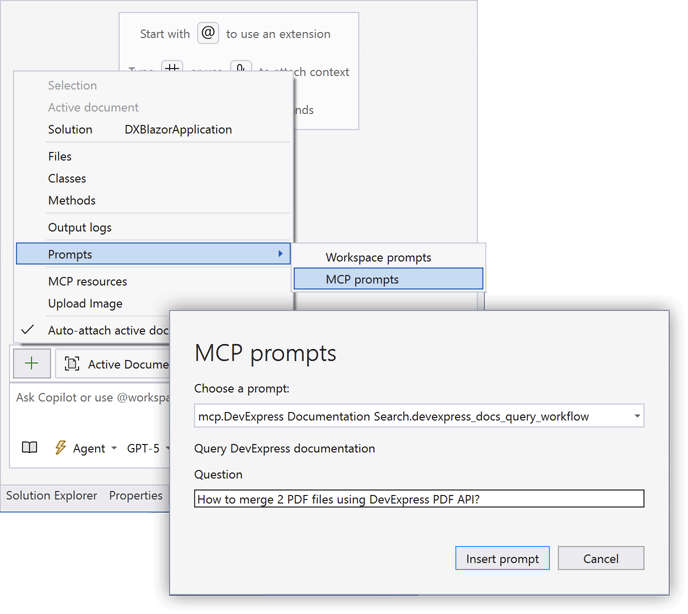
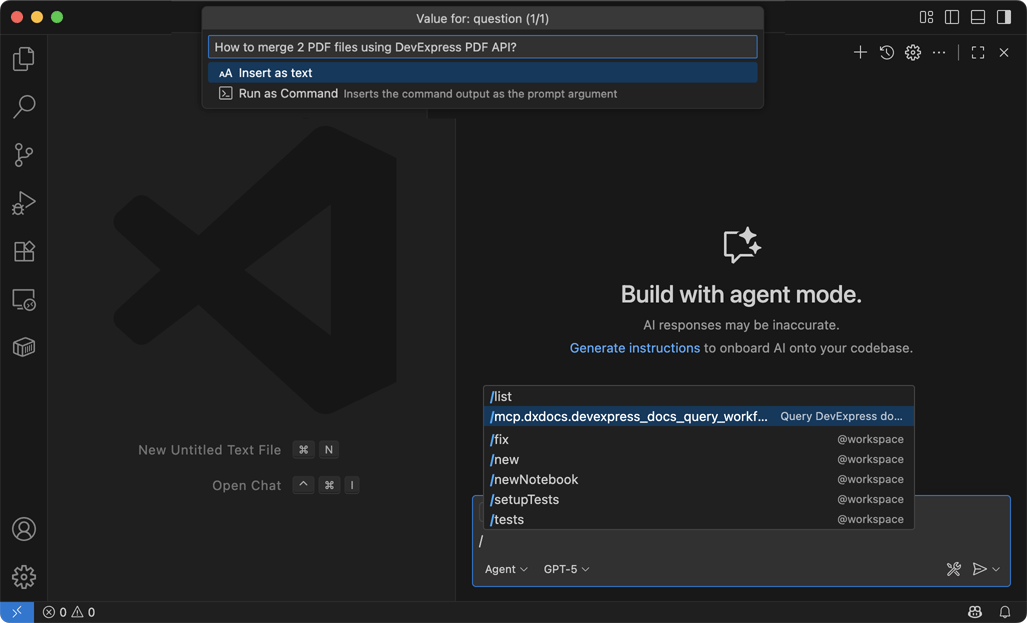
You can define custom instructions in all IDEs. Visual Studio and VS Code can use a predefined DevExpress prompt:
mcp.dxdocs.devexpress_docs_query_workflow
Visual Studio: Predefined DevExpress Prompt
- Select Prompts | MCP Prompts
- In the MCP Prompts dialog, select the DevExpress prompt
- Enter your question and press Insert
- Submit the request
VS Code: Predefined DevExpress Prompt
- Run the following command:
/mcp.dxdocs.devexpress_docs_query_workflow - Enter your question and submit the request
GitHub Copilot (VS Code, Visual Studio, JetBrains Rider)
Create or edit the file: <solution>/.github/copilot-instructions.md.
Sample instructions:
---
description: 'Answer questions about DevExpress UI Components and their API using the dxdocs server'
---

You are a .NET/JavaScript programmer and DevExpress product expert.

Your task is to answer questions about DevExpress components and their APIs using dxdocs MCP server tools.

When replying to **ANY** question about DevExpress components, use the dxdocs server to construct your answer.

## Workflow:

1. **Call devexpress_docs_search** to obtain help topics related to the user's question
2. **Call devexpress_docs_get_content** to fetch and read the most relevant help topics
3. **Reflect on the obtained content** and how it relates to the question
4. **Provide a comprehensive answer** based solely on retrieved information

## Constraints:

- **Use devexpress_docs_search only once** per question to avoid redundant queries
- **Answer questions based solely** on information obtained from MCP server tools
- If relevant code examples are available in documentation, **include those code examples**
- **Reference specific DevExpress controls and properties** mentioned in the docs
- If a user specifies a version (such as v24.2 or 24.2), invoke MCP server tools corresponding to that version (for example, "dxdocs24_2")
Learn more about GitHub Copilot custom instructions:
Cursor
Navigate to Settings → Rules & Memories. Run the Add Rule command and specify custom instructions similar to the example above.
For additional information about Rules in Cursor IDE, refer to: Rules Documentation
JetBrains Rider AI Assistant
Create a custom prompt as described in: Add and customize prompts
Claude Desktop (Using Claude Projects)
Claude Projects allow you to create dedicated workspaces with custom instructions and knowledge bases.
- Create a new Project in Claude Desktop (click Projects in the sidebar → New Project).
- Name your project.
- Click Set custom instructions and add guidelines similar to the example above.
- The DevExpress MCP Server connector will be available across all conversations within this project.
Claude Code
Claude Code uses CLAUDE.md files for custom instructions that load automatically at startup. You can create these files at different levels:
Project-level (shared with team, checked into version control):
./CLAUDE.mdor./.claude/CLAUDE.mdin your project root
User-level (personal settings across all projects):
~/.claude/CLAUDE.md
Local project (personal project-specific, automatically git-ignored):
./.claude/CLAUDE.local.md
Example CLAUDE.md content:
# DevExpress Development Instructions

When working with DevExpress components:
- Always use the dxdocs MCP server to search DevExpress documentation.
- Reference specific DevExpress control names.
- Include technology stack (WinForms, WPF, Blazor, ASP.NET Core, VCL).
- Follow DevExpress best practices from official documentation.

## Common Commands
- Build: `dotnet build`
- Test: `dotnet test`
Alternative: Use the --append-system-prompt flag for ad-hoc instructions:
claude --append-system-prompt "Use dxdocs MCP server for all DevExpress questions"
For additional information, see Claude Code Memory Management.
ChatGPT
Custom instructions can be set in Settings → Personalization → Custom instructions or included directly in your conversation prompts.