License Key for DevExpress Products
- 12 minutes to read
Your license key identifies DevExpress products/versions available to you:
- Products you purchased through DevExpress.com or authorized resellers
- Products you are evaluating during a 30-day trial period
You need a valid license key to build/deploy DevExpress-powered software projects. If your project uses unlicensed DevExpress products, the compiler or the application itself will display a warning or throw an error.
Automatic or Manual Key Registration
Automatic registration is available for DevExpress .NET products installed via the DevExpress Unified Installer. If you use other installation sources, such as NuGet or npm, obtain your license key from DevExpress.com and register that key on your machine or in your project.
| Product/Source/Platform | Automatic Registration | Manual Registration |
|---|---|---|
| .NET Products DevExpress Unified Installer Windows |
✅ Summary |
❌ Not needed |
| .NET Products NuGet Windows, macOS, Linux |
❌ N/A |
✅ Instructions |
| DevExtreme JS/TS Products npm, CDN, ZIP archives Windows, macOS, Linux |
❌ N/A |
✅ Instructions Extra Step |
Automatic Registration: DevExpress Unified Installer
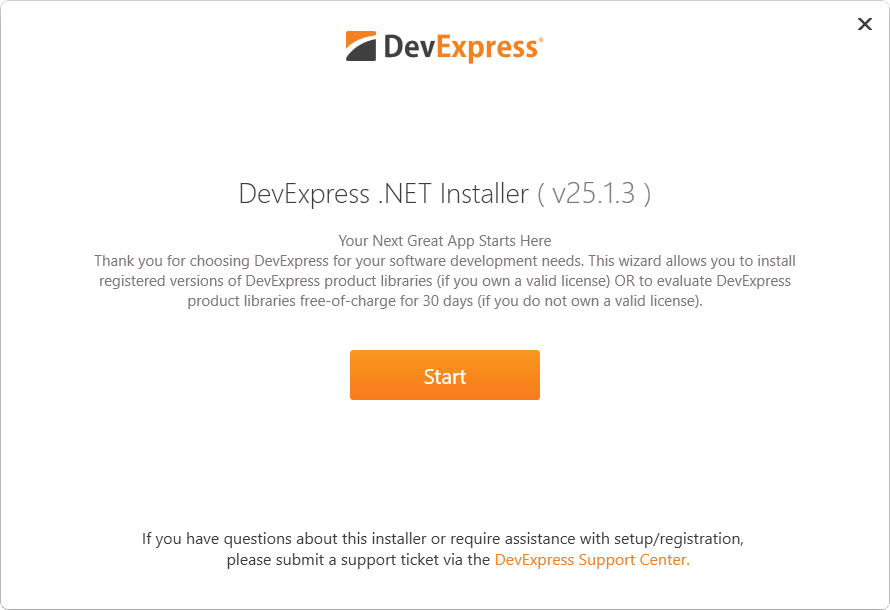
DevExpress Unified Installer handles all licensing tasks automatically. Run the installer and click Log In.
When prompted, enter your DevExpress.com account credentials.
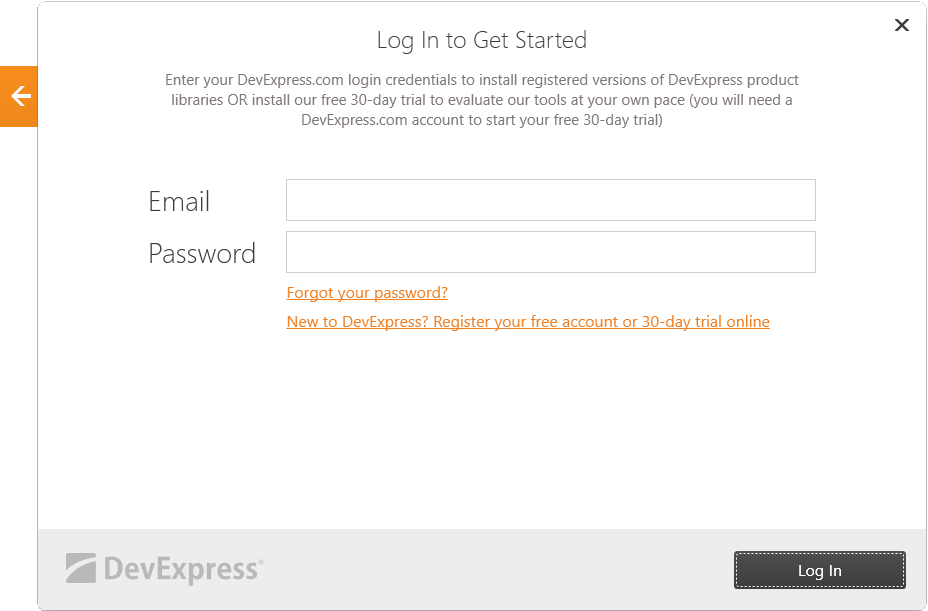
The installer then obtains your license key, writes it to the system registry and to the following key file:
%AppData%\DevExpress\DevExpress_License.txt
When you build a project that includes DevExpress .NET products, DevExpress code locates the key and allows the build process to complete successfully.
If you (or your license manager) make new purchases or change the account, run the DevExpress Unified installer in Modify mode. The wizard asks for your DevExpress.com credentials and then retrieves and registers your up-to-date license key.
Manual Registration: Obtain and Register Your Key
Log in to the DevExpress.com Download Manager. Once you reach our Download Manager webpage, locate and download your license key file.
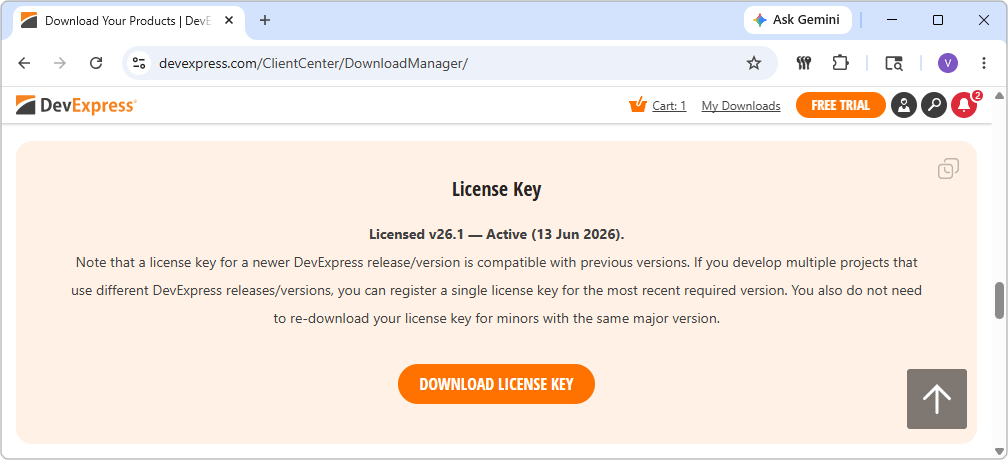
Once you obtained the key, place it into one of the locations listed below.
Option #1: Default Folder on a Local Machine (Recommended)
The DevExpress licensing algorithm searches for a valid license file in the default location/folder. File location depends on the operating system.
| OS | File Path (Case-sensitive) |
|---|---|
| Windows | %AppData%\DevExpress\DevExpress_License.txt |
| MacOS | $HOME/Library/Application Support/DevExpress/DevExpress_License.txt |
| Linux | $HOME/.config/DevExpress/DevExpress_License.txt |
Option #2: Custom Folder on a Local Machine
You can place your license key file to a folder different from the default path listed above. To do so, create an environment variable that contains the path to this custom location.
Variable name (case-sensitive): DevExpress_LicensePath
Option #3: Environment Variable on a Local Machine
You can write the key itself into an environment variable.
Variable name (case-sensitive): DevExpress_License
If your application is built inside a Docker container (not in fast mode), use the ARG instruction in your Dockerfile to initialize the license key:
ARG DevExpress_License="LCXv1..."
Option #4: Secure File in a CI/CD System
Download your license key and register it using a secure file (DevExpress_License.txt). Refer to the following help topic for more information:
Use DevExpress .NET Products in Popular Continuous Integration Systems
In that topic, you will find detailed instructions and examples for popular CI/CD systems:
Note
DO NOT publish your personal DevExpress License Key to production environments as part of your application code (or in any other resources). You DO NOT need to share the key with your application end users. This key is only required for local development or internal build farms.
Refer to the DevExpress End User License Agreement to review limitations regarding DevExpress product installation on development machines, build servers, and CI/CD build farms.
Manual Registration: Additional Step for DevExtreme JS/TS Developers
Complete this step if you use DevExtreme components for Angular, React, Vue, or jQuery (even if used alongside DevExpress ASP.NET Core/MVC5 Controls). This step emulates a similar process that takes place when you build a .NET app.
- Run the
devextreme-licenseCLI tool. This tool first locates the DevExpress license key you registered in the previous step. It then converts this key to a runtime/public key compatible with DevExtreme. - Register the newly-generated public key in your application or on required webpages.
The following sections list most popular application configurations and corresponding command variations you may use to generate your public key.
Note
The generated key is a public key that third parties cannot use to register DevExpress JS/TS products. However, we recommend excluding the generated key from version control systems. This simplifies management of licenses for individual developers in your team and ensures that your team does not commit the key by accident.
Install and Run the Public Key Generator Tool
You can run devextreme-license CLI tool if you already installed the devextreme package globally. The exact syntax you use depends on your application type and build setup. See the following sections for examples. To learn about all available arguments, execute the following command:
devextreme-license --help
If the command is not available, first check that you have Node.js® installed.
Global Installation: Use the following command to install the devextreme package globally. Once installed, run the key generator tool as necessary.
npm install --global devextreme
One-time Command Execution: You can install devextreme into a temporary folder and run the key generator tool once. Copy your public key from the command output and save it for later use.
npx --package devextreme --yes devextreme-license
Option #1: Modular Apps (Angular, React, Vue)
Add a prebuild step to the project’s package.json. Run devextreme-license to generate a DevExtreme-compatible license key based on the DevExpress License Key registered on your machine:
{
  "scripts": {
    "prebuild": "devextreme-license --out src/devextreme-license.ts --force"
  }
}
Note that this command also creates a .gitignore entry that excludes the key from source control systems. Use --no-gitignore to change this behavior.
Call the config() method in your application’s entry point. Import the key from the generated file and set the licenseKey configuration argument.
import { licenseKey } from './devextreme-license';
import config from 'devextreme/core/config';

config({ licenseKey });
Option #2: Non-Modular Applications (jQuery, CDN-based)
Run devextreme-license with the --non-modular flag to generate a DevExtreme-compatible license key based on the DevExpress License Key registered on your machine:
devextreme-license --non-modular --out src/devextreme-license.js --force
The generated file has the following content:
DevExpress.config({ licenseKey: '<generated_license_key>' });
Include this generated file in your HTML immediately after DevExtreme scripts:
<script src="./dx.all.js" type="text/javascript"></script>
<script src="./devextreme-license.js" type="text/javascript"></script>
Option #3: CI/CD Systems
Run the devextreme-license tool in a pre-build step.
{
  "scripts": {
    "prebuild": "devextreme-license --out src/devextreme-license.ts --force"
  }
}
The following steps describe how to use your license key in a GitHub repository using Actions and Secrets. You can adopt a similar approach on other version control platforms or CI servers.
- Specify a
DevExpressLicenseKeysecret in your GitHub repository. Refer to the GitHub documentation for more information: Creating secrets for a repository. Use the secret in a job-level environment variable:
jobs:
  build:
    env:
      DevExpress_License: ${{ secrets.DevExpressLicenseKey }}
Note
Refer to the DevExpress End User License Agreement to review limitations regarding DevExpress product installation on development machines, build servers, and CI/CD build farms.
Option #4: React - Apps that Use Next.js
Run devextreme-license to generate a DevExtreme-compatible license key based on the DevExpress License Key registered on your machine:
devextreme-license
To register the key in code, do the following:
- Create a
ClientComponentwith the assigned license. - Run this component in the
RootLayoutsection before rendering any content.
"use client";
import config from "devextreme/core/config";

const LicenseCheckComponent = () => {
    if (typeof window !== "undefined") {
        config({
            licenseKey: "<generated_license_key>",
        });
    }
    return null;
};

export default LicenseCheckComponent;
Note
Avoid calling the config() method within the useEffect callback. This callback occurs after component creation (too late for license validation).
If the config() method cannot be called, store the license key in the global window object as described above in basic instructions for React apps.
Option #5: Angular - Apps with Module Federation
Run devextreme-license to generate a DevExtreme-compatible license key based on the DevExpress License Key registered on your machine:
devextreme-license
In a Module Federation setup, configure the license key in all host and remote applications that use DevExtreme components.
Call the config() method early in your application, typically in the AppModule constructor or in a dedicated service:
import { NgModule } from '@angular/core';
import { BrowserModule } from '@angular/platform-browser';
import { AppComponent } from './app.component';
import { config } from 'devextreme/core/config';

@NgModule({
    declarations: [AppComponent],
    imports: [BrowserModule],
    bootstrap: [AppComponent],
})
export class AppModule {
    constructor() {
        config({ licenseKey: '<generated_license_key>' });
    }
}
For remote applications that use DevExtreme components, repeat this step in the remote’s AppModule.
To manage the license configuration, create a shared utility file. Use this utility in both host and remote AppModule:
import { config } from 'devextreme/core/config';

export function configureDevExtremeLicense() {
    config({ licenseKey: '<generated_license_key>' });
}
If the config() method cannot be called, store the license key in the global window object as described above in basic instructions for Angular apps.
Troubleshoot License Key Errors and Warnings
If the DevExpress license key on your local or build server machine is missing or invalid, you will see messages with troubleshooting instructions:
- Licensing-related warnings in build output
- Trial messages in application UI
- Warnings in the browser console (for JS/TS products)
Registration Errors - License Information Not Found
To resolve these issues, review instructions again and make sure you completed all steps. Check character casing for file, folder, and variable names. These names are case-sensitive on Unix-like system.
When you build a .NET project, you can check if license information is available. The DevExpress license verification mechanism, powered by Roslyn analyzers, embeds an attribute into your project assembly: DXLicenseInformationAttribute. This attribute contains your license key hash without PII. You can check the attribute value using your IDE or tools like ILSpy (see the image below).
Version Errors - Registered License Key Is Outdated
You may need to update your license key if you or your license manager did one of the following:
- Upgraded your DevExpress .NET or JS/TS products to the next major version. For example, you may have registered your v25.2 license key, but you are using v26.1 in your project. Note that a license key for the newer version is compatible with previous versions. If you develop multiple projects that use different DevExpress releases, you can install a single license key for the latest required version.
- Purchased a license to a product you were evaluating (30-day trial)
- Purchased an additional product
- Renewed your expired license OR extended/prolonged your trial version
- Assigned new/existing licenses to developers in your company
- Changed your DevExpress account email address
To update the key, run the DevExpress Unified Installer in Modify mode or download and register the updated key manually.
Key Type Errors - Incompatible DevExtreme Key Type
These DevExtreme project errors guide you if you accidentally registered an incorrect key type. The two main causes are:
- You registered your private DevExpress License Key instead of a public DevExtreme key.
- You use DevExtreme v26.1, but registered a DevExtreme key in an older format.
If such errors occur, carefully review DevExtreme-specific key registration intructions. You need to run devextreme-license command to generate an up-to-date public/client key and register it in your app.
Trial Period Errors - Compiler Errors and UI Watermarks
If you use a trial version of DevExpress products, and your project treats warnings as errors, you will see compilation errors in both C# and VB.NET projects. To eliminate those errors for the duration of the trial period, consider the following options:
<TreatWarningsAsErrors>False</TreatWarningsAsErrors>. Temporarily disable the Treat warnings as errors build option globally. We recommend this method for test projects that you create to try our components.<WarningsNotAsErrors>DX1000;DX1001;DX1002;</WarningsNotAsErrors>. Temporarily disable DevExpress licensing errors during the evaluation period. We recommend this method if you try DevExpress products in an existing project that follows predefined build rules or your team’s best practices.
You can set these settings in your IDE. If you use Visual Studio, open project properties, and navigate to Build | Errors and warnings.
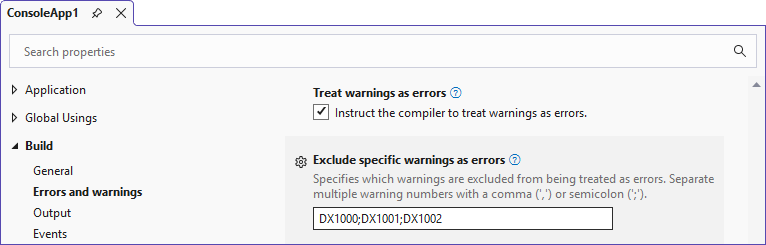
For additional information, review Suppress compiler warnings and Compiler Options to report errors and warnings.
Note
If you use a trial version of DevExpress products, end-users will see trial watermarks in the application UI and exported documents. These watermarks do not depend on compiler settings mentioned above.
As such, we do NOT recommend that you disable DevExpress compilation warnings permanently. These warnings serve as safeguards to help you avoid trial watermarks in production releases due to accidental use of unlicensed products. These protections are especially useful for larger teams or projects that utilize build farms - all scenarios where multi-seat license management is involved.
Sometimes trial messages/watermarks persist in applications after you purchased a license and registered an updated license key. Review the following help topic for troubleshooting steps: Troubleshooting - Remove the Trial Version Message
Error Code Reference
If a license key error occurs, you will see DX10XX compiler messages or W00XX browser console messages. Read error messages for guidance on how to fix the issue.
The table below outlines message codes and when you will see them.
| Compiler Code | Client Code | Why You See It |
|---|---|---|
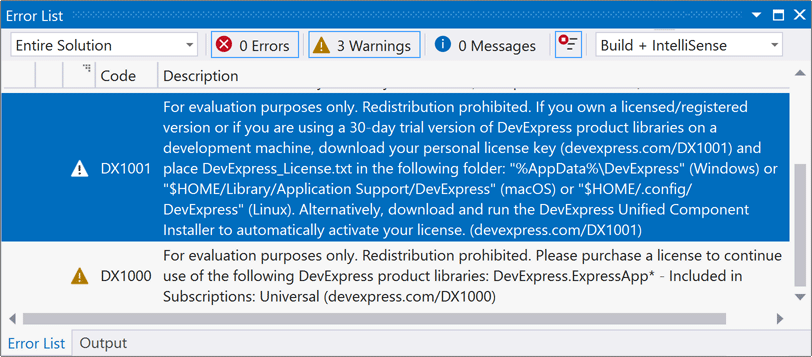
| DX1000 | W0019 | You application uses unlicensed DevExpress products and cannot be deployed to end-users. If you use a trial/evaluation version, and your trial key is properly registered, this message appears by itself. In case of any other issues, an additional message is displayed (see entries below). Follow guidance in the additional message. |
| DX1001 | W0020 | License key is missing or uses invalid format. |
| DX1002 | W0021 | License key was generated for a previous DevExpress major release. |