GridContextMenuDefaultItemNames.HideColumn Field
The Hide Column item’s name.
Namespace: DevExpress.Blazor
Assembly: DevExpress.Blazor.Grid.v26.1.dll
NuGet Package: DevExpress.Blazor
Declaration
public const string HideColumn = "HideColumn"Field Value
| Type | Description |
|---|---|
| String | The “HideColumn” string. |
Remarks
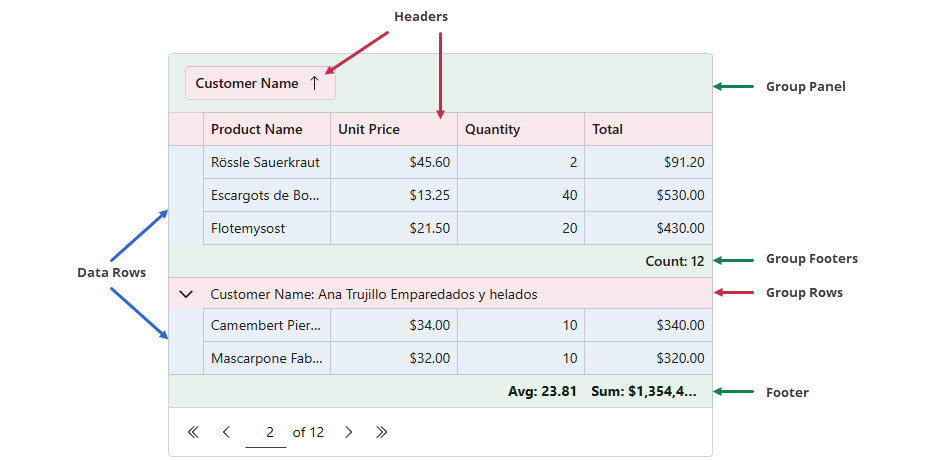
Specify the ContextMenus property to display context menus for the following Grid elements:
Hide Column is a Grid context menu item that hides the target column. This item is available in the header context menu.
Use the HideColumn field to apply the following customizations:
- Access and customize the Hide Column item.
- Add this item to data row, footer, or group footer context menus. Group panel and group row menus do not support this item and will not display it.
- Remove the item from the header context menu.
Example
The following code snippet removes the Hide Column command from the context menu associated with the Date header cell:
@inject WeatherForecastService ForecastService

<DxGrid Data="@Data"
        ContextMenus="GridContextMenus.Header"
        CustomizeContextMenu="CustomizeContextMenu">
    <Columns>
        <DxGridDataColumn FieldName="Date" DisplayFormat="D" ShowInColumnChooser="false" />
        <DxGridDataColumn FieldName="TemperatureC" Caption="@("Temp. (\x2103)")" Width="120px" />
        <DxGridDataColumn FieldName="TemperatureF" Caption="@("Temp. (\x2109)")" Width="120px" />
        <DxGridDataColumn FieldName="Forecast" />
        <DxGridDataColumn FieldName="CloudCover" />
    </Columns>
</DxGrid>

@code {
    object Data { get; set; }

    protected override void OnInitialized() {
        Data = ForecastService.GetForecast();
    }
    void CustomizeContextMenu(GridCustomizeContextMenuEventArgs args) {
        if (args.Context is GridHeaderCommandContext headerContext) {
            if (headerContext.Column is IGridDataColumn dataColumn && dataColumn.FieldName == "Date") {
                args.Items.Remove(GridContextMenuDefaultItemNames.HideColumn);
            }
        }
    }
}
See Also