DxFlyout Class
A contextual popup UI element that allows you to display hints, warnings, and other messages.
Namespace: DevExpress.Blazor
Assembly: DevExpress.Blazor.v25.2.dll
NuGet Package: DevExpress.Blazor
Declaration
public class DxFlyout :
    DxComponentBase,
    IPopupEventInfo,
    IParentPopupBranchInfo,
    IPopupLayer,
    IAsyncDisposable
Remarks
The DevExpress Flyout for Blazor (<DxFlyout>) allows you to create a flyout window in your application.

Add a Flyout to a Project
Follow the steps below to add the Flyout component to an application:
- Use a DevExpress Project Template to create a new Blazor Server or Blazor WebAssembly application. If you use a Microsoft project template or already have a Blazor project, configure your project to incorporate DevExpress Blazor components.
- Add the
<DxFlyout></DxFlyout>markup to a.razorfile. - Write code that manages the Flyout’s visibility.
- Define the Flyout’s content and appearance.
- Configure other options (see the sections below).
API Reference
Refer to the following list for the component API reference: DxFlyout Members.
Static Render Mode Specifics
Blazor Flyout does not support static render mode. Enable interactivity to use the component in your application. Refer to the following topic for more details: Enable Interactive Render Mode.
Show and Close a Flyout
Implement two-way binding for the IsOpen property to show the Flyout in code.
<DxButton Id="targetButton" aria-describedby="flyout" Click="() => IsOpen = !IsOpen">
    Show/Hide a flyout window
</DxButton>

<DxFlyout Id="flyout"
          @bind-IsOpen=IsOpen
          PositionTarget="#targetButton"
          Width=400
          BodyText="Lorem ipsum dolor sit amet, consectetur adipiscing elit.">
</DxFlyout>

@code {
    bool IsOpen { get; set; } = false;
}
You can call the ShowAsync and CloseAsync methods to show and close a flyout window asynchronously.
<DxButton Text="Show" Click="ShowWindow" aria-describedby="flyout" />
<DxButton Text="Hide" Click="HideWindow" />

<DxFlyout Id="flyout" @ref="flyoutWindow" Width="400" CloseOnOutsideClick="false"
            BodyText="Lorem ipsum dolor sit amet, consectetur adipiscing elit." />

@code {
    DxFlyout flyoutWindow { get; set; }

    async Task ShowWindow(MouseEventArgs args) {
        if (!flyoutWindow.IsInitialized)
            await flyoutWindow.InitializedTask;
            await flyoutWindow.ShowAsync();
    }
    async Task HideWindow(MouseEventArgs args) {
        await flyoutWindow.CloseAsync();
    }
}
User Capabilities
Users can close the Flyout in the following ways:
- Press Escape.
- Click outside the Flyout’s boundaries. Set the CloseOnOutsideClick property to
falseto disable this option.
Respond to Show and Close Actions
Handle the following events to process show and close actions:
- Showing
- Fires before the flyout window is displayed.
- Shown
- Fires after the flyout window is displayed.
- Closing
- Fires before the flyout window is closed.
- Closed
- Fires after the flyout window is closed.
Content and Appearance
The flyout window consists of header, body, and footer. The header and footer are initially hidden. Set HeaderVisible and FooterVisible properties to true to display these elements.
Each element can display text, a template for content, or a template for the entire element.
Display Text
Use the following properties to specify text displayed in the Flyout elements: HeaderText, BodyText, and FooterText.
<style>
    .header-footer-style {
        font-style: italic;
    }
</style>

<DxButton Id="targetButton" Click="() => IsOpen = !IsOpen">Show a flyout window</DxButton>
<DxFlyout @bind-IsOpen=IsOpen PositionTarget="#targetButton" Width=400
    BodyText="Lorem ipsum dolor sit amet, consectetur adipiscing elit, sed do eiusmod tempor
            incididunt ut labore et dolore magna aliqua. Ut enim ad minim veniam, quis nostrud
            exercitation ullamco laboris nisi ut aliquip ex ea commodo consequat."
    HeaderVisible="true" HeaderText="Header" HeaderCssClass="header-footer-style"
    FooterVisible="true" FooterText="Footer" FooterCssClass="header-footer-style">
</DxFlyout>

@code {
    bool IsOpen { get; set; } = false;
}
To customize the appearance of Flyout elements, assign CSS classes to HeaderCssClass, BodyCssClass, and FooterCssClass properties.
Display Custom Content
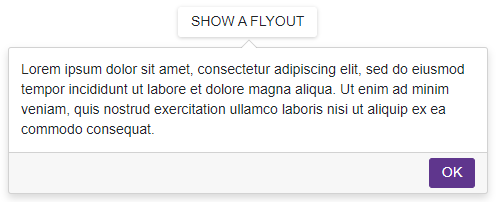
Use the following properties to display any UI render fragment in the Flyout elements: HeaderContentTemplate, BodyContentTemplate, and FooterContentTemplate. A render fragment can include formatted text, images, another component, etc. These templates affect the content area only.
These templates take priority over the Text and CssClass properties described above.
Each template has the context parameter. You can use the parameter’s CloseCallback property to implement a custom close button.
<DxButton Id="showFlyout" aria-describedby="flyout" Click="() => IsOpenFlyout = true">
    Show a flyout window
</DxButton>

<DxFlyout Id="flyout"
          @bind-IsOpen="@IsOpenFlyout"
          PositionTarget="#showFlyout"
          Position="FlyoutPosition.Bottom"
          CloseOnOutsideClick="false"
          BodyText="Lorem ipsum dolor sit amet, consectetur adipiscing elit, sed do eiusmod tempor
          incididunt ut labore et dolore magna aliqua. Ut enim ad minim veniam, quis nostrud
          exercitation ullamco laboris nisi ut aliquip ex ea commodo consequat."
          Width="400"
          FooterVisible="true">
    <FooterContentTemplate>
        <DxButton Text="OK" Click="@context.CloseCallback" />
    </FooterContentTemplate>
</DxFlyout>

@code {
    bool IsOpenFlyout { get; set; } = false;
}
Customize Entire Elements (Template)
Specify HeaderTemplate, BodyTemplate, and FooterTemplate properties to define the content and appearance of Flyout elements. You can display any UI render fragment (for instance, formatted text, images, or another component).
These templates substitute entire render fragments of the corresponding elements. Predefined appearance settings, content alignment and paddings, and the corresponding Text, CssClass, and ContentTemplate properties have no effect.
Each template has the context parameter. You can use the parameter’s CloseCallback property to implement a custom close button.
Flyout Size
Flyout calculates its sizes based on the content. Use the following properties to restrict the component size: MinWidth, MinHeight, MaxWidth, and MaxHeight.
<DxButton Id="button" aria-describedby="flyout" Click="() => IsOpen = !IsOpen">
    Show a flyout window
</DxButton>
<DxFlyout Id="flyout"
          @bind-IsOpen=IsOpen
          PositionTarget="#button"
          BodyText="@Constants.Content"
          MinWidth="200" MaxWidth="400"
          MinHeight="200" MaxHeight="400" />

@code {
    bool IsOpen { get; set; } = false;
}
The Height and Width properties allow you to specify the exact size of the flyout component. Set the Scrollable property to true to display a vertical scrollbar when the height is restricted and the content exceeds the window’s boundaries.
<DxButton Id="showFlyout" aria-describedby="flyout" Click="() => IsOpen = !IsOpen">
    Show a flyout window
</DxButton>

<DxFlyout PositionTarget="#showFlyout"
          Id="flyout"
          @bind-IsOpen="@IsOpen"
          Height="150"
          Width="300"
          Scrollable=true
          BodyText="Lorem ipsum dolor sit amet, consectetuer adipiscing elit. Maecenas porttitor congue
          massa. Fusce posuere, magna sed pulvinar ultricies, purus lectus malesuada libero, sit amet
          commodo magna eros quis urna. Nunc viverra imperdiet enim. Fusce est. Vivamus a tellus.
          Pellentesque habitant morbi tristique senectus et netus et malesuada fames ac turpis egestas.
          Proin pharetra nonummy pede." />

@code {
    bool IsOpen { get; set; } = false;
}

Flyout Position
Use the Position property to specify the Flyout position relative to a target element (PositionTarget) or to a Rectangle object (PositionRectangle).
The Offset and Distance properties set the component offset from the specified position.
<DxButton Id="show-flyout" aria-describedby="flyout" Click="() => IsOpen = !IsOpen">
    Show a flyout window

</DxButton>
<DxFlyout Id="flyout"
          @bind-IsOpen="@IsOpen" Width="210"
          BodyText="Lorem ipsum dolor sit amet"
          PositionTarget="#show-flyout"
          Position="FlyoutPosition.BottomStart" />

@code {
    bool IsOpen { get; set; } = false;
}
The Flyout recalculates its position when certain page elements are changed (for instance, when the page is scrolled or resized). You can call the RepositionAsync method to force the Flyout to recalculate its position.
Position Restrictions
Use the RestrictionMode property to specify an element that restricts the Flyout position. The available options are as follows:
- Viewport
- The Flyout position is restricted by the viewport.
- Page
- The Flyout position is restricted by the page.
- Rectangle
- The Flyout position is restricted by a rectangle’s boundaries (RestrictionRectangle).
- TargetElement
- The Flyout position is restricted by a target element’s boundaries (RestrictionTarget).
The Position and FitToRestriction properties determine how the Flyout behaves to fit the specified boundaries. When the component does not fit the restrictions, it can be hidden or closed, based on the CloseMode property value.
<OptionsContent>
    <OptionComboBox Label="Close mode:" CssClass="ow-100" Data="@CloseModes" @bind-Value="@CloseMode"/>
    <OptionCheckBox Label="Fit to container" @bind-Checked="FitToRestriction"/>
</OptionsContent>
<ChildContentWithParameters Context="Params">
    <div class="@(IsMobile ? "" : "card") flipping-overflow-container">
        <dxbl-demo-scrollable center-horizontally center-vertically id="flipping-target-container" class="flipping-overflow-content">
            <DxButton
                CssClass="flipping-button"
                RenderStyle="@ButtonRenderStyle.Secondary"
                Click="() => IsOpen = !IsOpen"
                aria-describedby="flyout-flipping">SHOW A FLYOUT</DxButton>
        </dxbl-demo-scrollable>
        <DxFlyout
            @bind-IsOpen=IsOpen
            Id="flyout-flipping"
            PositionTarget=".flipping-button"
            RestrictionTarget=".flipping-overflow-container"
            RestrictionMode="FlyoutRestrictionMode.TargetElement"
            CloseOnOutsideClick="false"
            PreventCloseOnPositionTargetClick="true"
            CloseMode="@CloseMode"
            FitToRestriction="@FitToRestriction"
            SizeMode="Params.SizeMode"
            Width="240">
            <span class="fs-75">@Constants.ContentShort</span>
        </DxFlyout>
    </div>
</ChildContentWithParameters>

@code {
@* ... *@
bool IsOpen { get; set; } = false;
bool IsMobile { get; set; }
bool FitToRestriction { get; set; }
FlyoutCloseMode[] CloseModes { get; } = Enum.GetValues<FlyoutCloseMode>();
FlyoutCloseMode CloseMode { get; set; } = FlyoutCloseMode.Hide;
@* ... *@
}
Keyboard Navigation
When a Flyout is open, focus moves to its first interactive element. A user can navigate through the component’s controls using keyboard shortcuts. Keyboard navigation is implemented on the client and server.
| Shortcut Keys | Description |
|---|---|
| Tab Shift + Tab |
Move focus to the next/previous focusable element inside a Flyout. Focus exits to surrounding page content when you move past the last/first element. |
| Esc | Closes the Flyout. |
Note
Keyboard support allows users to interact with application content in cases they cannot use a mouse or they rely on assistive technologies (like screen readers or switch devices). Refer to the Accessibility help topic for information on other accessibility areas that we address.
Troubleshooting
If a Blazor application throws unexpected exceptions, refer to the following help topic: Troubleshooting.