DxButton Class
A button control that supports advanced style and content customization options.
Namespace: DevExpress.Blazor
Assembly: DevExpress.Blazor.v26.1.dll
NuGet Package: DevExpress.Blazor
Declaration
public class DxButton :
    DxButtonBase
Remarks
The DevExpress Button for Blazor (<DxButton>) allows you to add a stylized button to your project and handle its click.
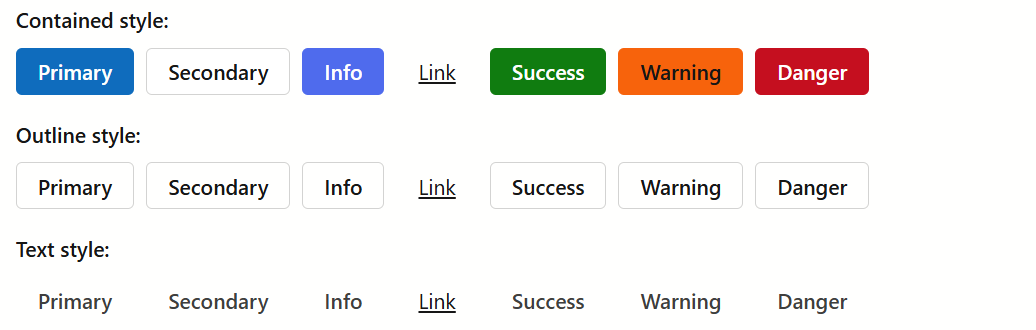
Add a Button to a Project
Follow the steps below to add the Button component to an application:
- Create a Blazor Server or Blazor WebAssembly application.
- Add the
<DxButton/>markup to a.razorfile. - Configure the component: specify the button’s content and appearance, handle button clicks, and so on (see the sections below).
API Reference
Refer to the following list for the component API reference: DxButton Members.
Static/Interactive Render Modes
Blazor Button does not support static render mode. Enable interactivity to use the component in your application. Refer to the following topic for more details: Enable Interactive Render Mode.
Button Content and Appearance
Use the Text property to specify the button’s text.
To configure button appearance, specify RenderStyle and RenderStyleMode properties.

<DxButton RenderStyle="ButtonRenderStyle.Primary"
          RenderStyleMode="ButtonRenderStyleMode.Contained"
          Text="Primary (Contained)" />
<DxButton RenderStyle="ButtonRenderStyle.Danger"
          RenderStyleMode="ButtonRenderStyleMode.Outline"
          Text="Danger (Outline)" />
<DxButton RenderStyle="ButtonRenderStyle.Link"
          RenderStyleMode="ButtonRenderStyleMode.Contained"
          Text="Link" />
To hide the button, set its Visible property to false.
Display Icons
The DxButton component supports icons. The following options are available:
- IconUrl
- Specifies the button icon URL.
- IconCssClass
- Specifies the icon’s CSS class.
- IconPosition
- Specifies the icon’s position.
The following code snippet assigns icons to buttons using Icon Library APIs:

<DxButton RenderStyle="@ButtonRenderStyle.Primary"
          Text="Accept"
          IconUrl="@Icon.CheckmarkCircle"/>
<DxButton RenderStyle="@ButtonRenderStyle.Secondary"
          Text="Cancel"
          IconUrl="@Icon.Cancel"/>
<DxButton RenderStyle="@ButtonRenderStyle.Info"
          Text="Help"
          IconUrl="@Icon.QuestionCircle"/>
<DxButton RenderStyle="@ButtonRenderStyle.Link"
          Text="Delete"
          IconUrl="@Icon.Delete"/>
Refer to the Icons help topic for additional information about icons in DevExpress Blazor components.
Size Modes
Use the SizeMode property to specify a button size. The following code snippet applies different size modes to Button components.
<DxButton Text="Small" SizeMode="SizeMode.Small" />

<DxButton Text="Medium" SizeMode="SizeMode.Medium" />

<DxButton Text="Large" SizeMode="SizeMode.Large" />

For additional information, refer to Size Modes.
Handle the Click Event
Handle the Click event to respond to the button’s click.
<DxButton Text="Click me!"
          Click="@ButtonClick">

@code {
    void ButtonClick(MouseEventArgs args) {
        Console.WriteLine("I am clicked!");
    }
}
If you use the NavigateUrl property together with the Click event’s handler, the browser handles the event first and then navigates to the specified URL.
To submit a form with a button click, set the SubmitFormOnClick option to true.
Set the Enabled property to false to disable the button.
<DxButton RenderStyle="ButtonRenderStyle.Primary"
          Text="Disabled button"
          Enabled="false" />

Custom Content
You can use the ChildContent property to add custom content to your button and customize its appearance and behavior:

    <DxButton RenderStyle="ButtonRenderStyle.Info"
              Click="@Like"
              IconCssClass="btn-icon btn-icon-like"
              SizeMode="Params.SizeMode"
              Text="Like">
        @context
        <span class="ms-1">@likes</span>
    </DxButton>
    @* ... *@
@code {
    int likes;

    void Like(MouseEventArgs args) {
        likes++;
    }
    protected override void OnInitialized() {
        likes = 1;
    }
}
Troubleshooting
If a Blazor application throws unexpected exceptions, refer to the following help topic: Troubleshooting.