Nodes Overview
- 3 minutes to read
Nodes correspond to records in a data source and are TreeListNode objects.
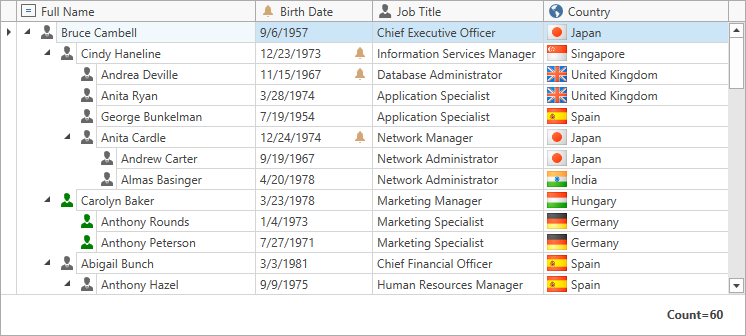
Nodes are stored as nested collections because the TreeListView displays data in a tree. The collection of root level nodes can be accessed via the TreeListView.Nodes property. Each node has its own collection of child nodes available via the TreeListNode.Nodes property. These child nodes have their own children, etc.
In bound mode, nodes are created automatically for every record in a data source. In unbound mode, you need to create nodes.
Node Elements
A node includes the following elements:
Data Cell(s)
The number of data cells depends on the number of visible columns (TreeListView.VisibleColumns).
Indent(s)
Indents specify the horizontal offset of data cells to the right, or to the left when RTL orientation is used. This offset is required to indicate nesting levels and display expand buttons and images. Specify an indent in pixels with the TreeListView.RowIndent property. The total offset depends on the node’s nesting level and on whether expand buttons and images are displayed. For example, in the image above, the root node has two indents that define the data cell offset. First-level nodes have three indents, and so on.
Expand Button
A node displays the expand button when it has child nodes. To specify the expand button’s visibility, use TreeListNode.IsExpandButtonVisible. To replace the expand and collapse glyphs, use TreeListView.TreeNodeExpandGlyphTemplate and TreeListView.TreeNodeCollapseGlyphTemplate.
Checkbox
A checkbox allows users to check or uncheck individual nodes. Embedded checkboxes can be bound to a Boolean field in the grid’s data source via the TreeListView.CheckBoxFieldName property. Enable the TreeListView.ShowCheckboxes option to display checkboxes embedded into nodes.
Image
Node images can be specified explicitly with the TreeListNode.Image property or obtained automatically from a field in the data source that contains long binary data. Specify the field name with the TreeListView.ImageFieldName property). Enable TreeListView.ShowNodeImages to display node images.
The following image displays node elements:

Root Nodes
Root nodes do not have parent nodes. The parent value of a root node does not point to a key value of any other node. Root nodes are contained within the TreeListView.Nodes collection.
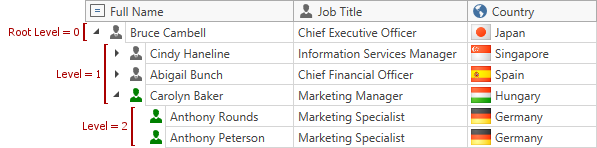
Use theTreeListView.RootValue to specify the root value explicitly, for example, to build a tree from a specific hierarchy level. When this property is set (null is the default value), the root node collection includes only nodes whose parent values match the root value. Nodes whose parent values do not reference any other node are ignored and are not displayed in the tree.
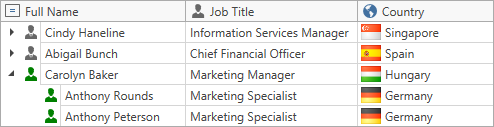
The following example shows how to modify the tree shown above to display data from a specific hierarchy level. To do this, set TreeListView.RootValue to 1. Because the service fields store integer values, the value assigned to this property must also be an integer.
<dxg:TreeListView Name="treeListView"
                  KeyFieldName="ID"
                  ParentFieldName="ParentID">
    <dxg:TreeListView.RootValue>
        <sys:Int32>1</sys:Int32>
    </dxg:TreeListView.RootValue>
</dxg:TreeListView>
The following image displays the result:
Concepts
- Bind to Hierarchical Data Overview
- TreeList View Unbound Mode
- Iterate Through Nodes
- Expand and Collapse Nodes
- Obtain Nodes
- Check Nodes
- Sort Nodes
- Filter Nodes
- Move Nodes
Examples
- How to: Bind to Self-Referential Data Structure
- How to: Implement the Child Nodes Path
- How to: Use the Child Nodes Selector to Display Hierarchical Data
- How to: Use Hierarchical Data Templates to Build a Tree
- How to: Create an Unbound Tree
- How to: Load Nodes Dynamically
- How to: Iterate Through Nodes With the TreeListNodeIterator
- How to: Sync TreeListNode Expansion with ViewModel