Sorting
- 2 minutes to read
GridControl data can be sorted by an unlimited number of columns. To sort data against a column or to change a column’s sort order, an end user can click its header. The column’s current sort order is indicated by the sort glyph (a small arrow displayed at the column header’s right edge). If the data is sorted in ascending order, the sort glyph is displayed as an up-arrow. When sorting in descending order, the sort glyph is displayed as a down-arrow.
Enable the ShowSortIndicator property to display the sort glyph within all column headers. To display the sort indicator within an individual column header, set the ColumnBase.ShowSortIndicator property to true. The column-level property has higher priority than the view-level property. Set the column’s ShowSortIndicator property to null to apply the view-level visibility flag.
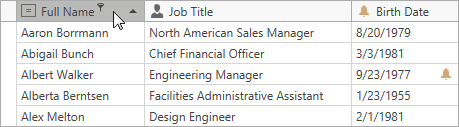
If sorting is not applied, clicking the column’s header sorts data by its values in ascending order. If sorting is already applied to the column, subsequent clicks reverse the current sort order. A regular click on a column header clears the sort settings on any other columns. To preserve the existing sort settings of other columns, hold the SHIFT key down while clicking. This can be useful when you need to sort against multiple columns.
To clear a column’s sorting, click its header while pressing the CTRL key.
Sort Indicator Visibility
Use the ColumnBase.ShowSortIndicator and DataViewBase.ShowSortIndicator properties to control sort glyph visibility at column and view levels.
The following example hides the sort indicator for the entire view (ShowSortIndicator="False") but displays it within the Order ID column header (ShowSortIndicator="True") in the TableView:
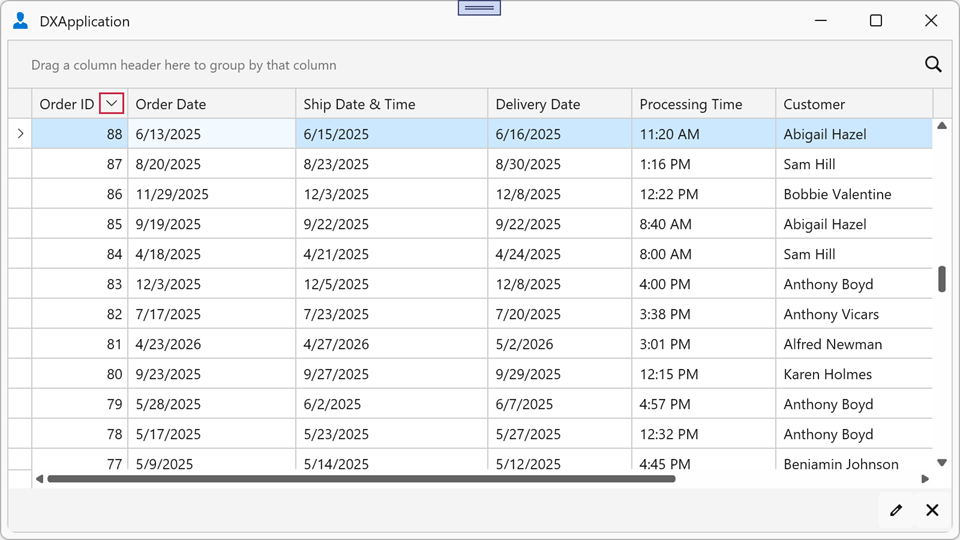
<dxg:GridControl ItemsSource="{Binding Orders}">
    <dxg:GridControl.View>
        <dxg:TableView AllowSorting="True"
                       ShowSortIndicator="False"/>
    </dxg:GridControl.View>
    <dxg:GridControl.Columns>
        <dxg:GridColumn FieldName="OrderId" Header="Order ID"
                        ShowSortIndicator="True"/>
        <dxg:GridColumn FieldName="ShipDate" Header="Ship Date"/>
        <dxg:GridColumn FieldName="CustomerName" Header="Customer"/>
    </dxg:GridControl.Columns>
</dxg:GridControl>
Availability
To allow end users to sort data, set the View’s DataViewBase.AllowSorting property to true. Individual columns have the ColumnBase.AllowSorting property that allows default behavior specified by the view to be overridden.
Sorting in code is always allowed.
Note
The GridControl ignores custom CellTemplates when users sort data. Use other techniques to format cell values if you want to affect sort operations.
Concepts
- Sorting in Code
- Sorting Modes and Custom Sorting
- Sorting Group Rows by Summary Values
- TreeListView Sorting Specifics
- End-User Capabilities: Sorting