Create and Configure Report Parameters
- 7 minutes to read
This topic describes how to create and configure a parameter in a report template using the Report Designer dialog. The configured parameter becomes available in report queries, filters, expressions, calculated fields, and application code.
Create a Parameter
Follow these steps to create a report parameter:
- Open a report in the Report Designer.
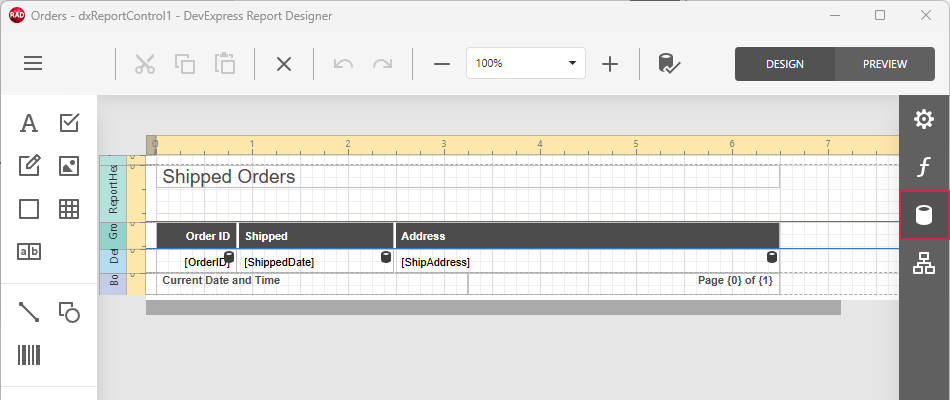
Click the Fields button on the right navigation bar to open the Field List pane:
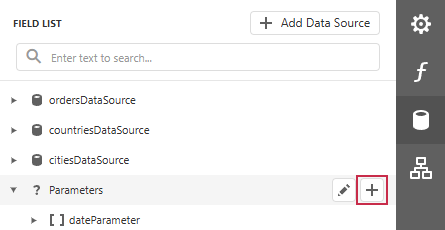
Click the Plus button in the Parameters section title:
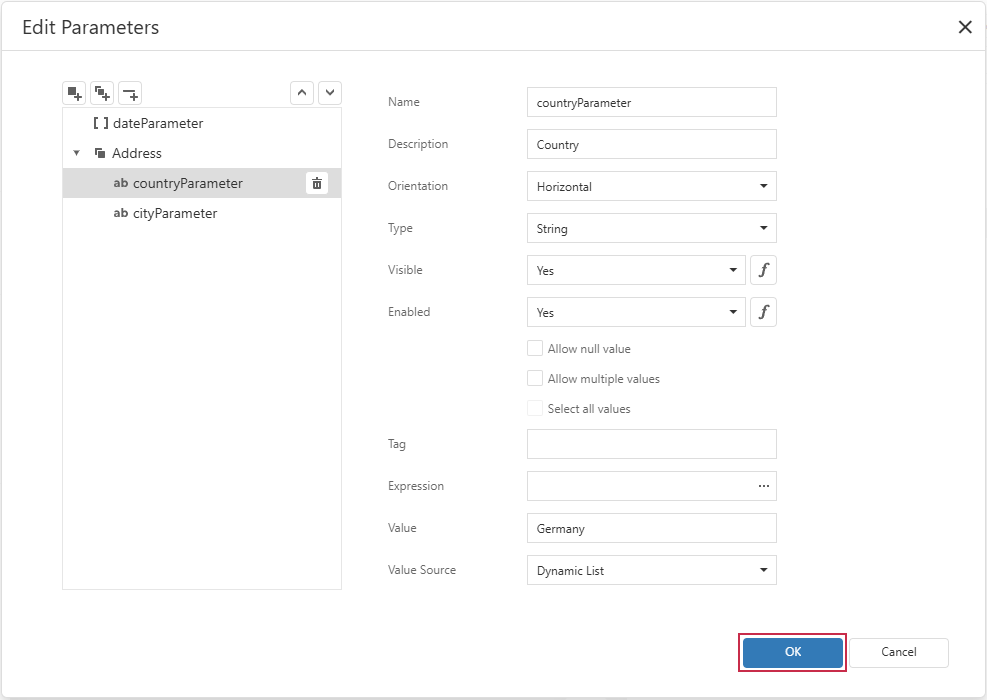
Specify parameter options.
Click the OK button to save the parameter:
Note
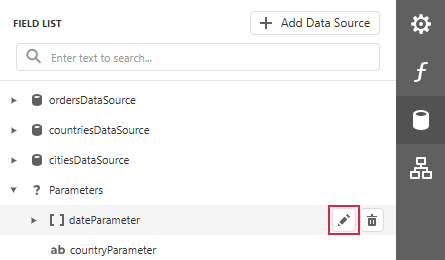
New parameters appear at the bottom of the Parameters section in the Field List pane. To modify a parameter, click the Pencil button next to the parameter name.
Parameter Options
Add Parameter and Edit Parameters dialogs include the following options:
- Name
- Specifies the unique identifier used to reference the parameter in queries, filters, and expressions.
- Description
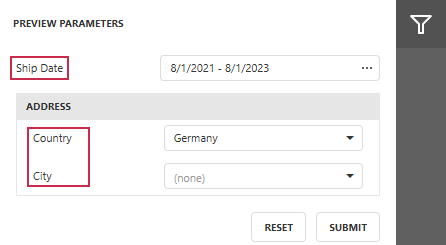
Specifies the parameter label displayed in the end-user UI. If the Description field is empty, Name is used as the parameter label.
- Orientation
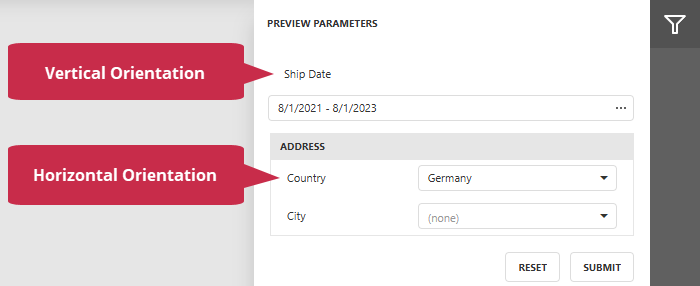
Specifies the layout of the parameter label and editor. Horizontal places the label and editor next to each other. Vertical places the editor below the label.
- Type
- Specifies the parameter value type and determines which editor is displayed for the parameter.
- Visible
- Specifies whether the parameter editor is displayed in the end-user UI. A hidden parameter still applies to queries, filters, and expressions.
- Enabled
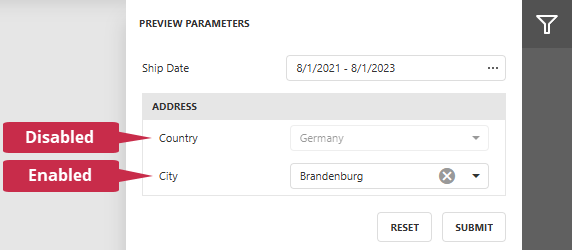
Specifies whether users can change the parameter value. Disable the editor to display a read-only value.
- Allow null value
Allows the parameter to have an empty value.
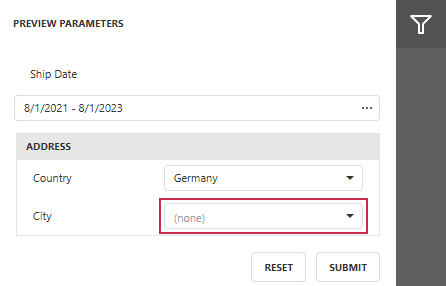
- Allow multiple values | Select all values
Allows users to select multiple parameter values. Enable the Select all values option to preselect all items in the parameter value list.
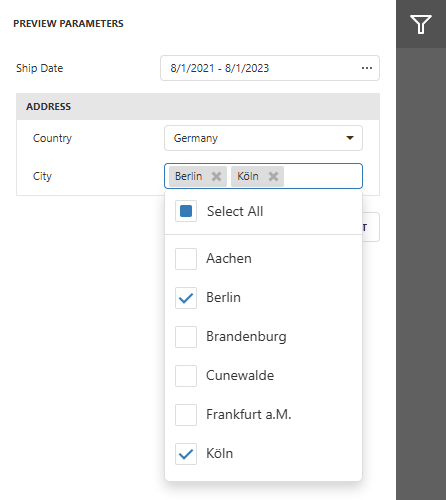
- Tag
- Stores custom information associated with the parameter. The tag does not affect parameter appearance or behavior.
- Expression
- Calculates the default parameter value at runtime. Construct the expression in the Expression Editor. The calculated value overrides the value specified in the Value field.
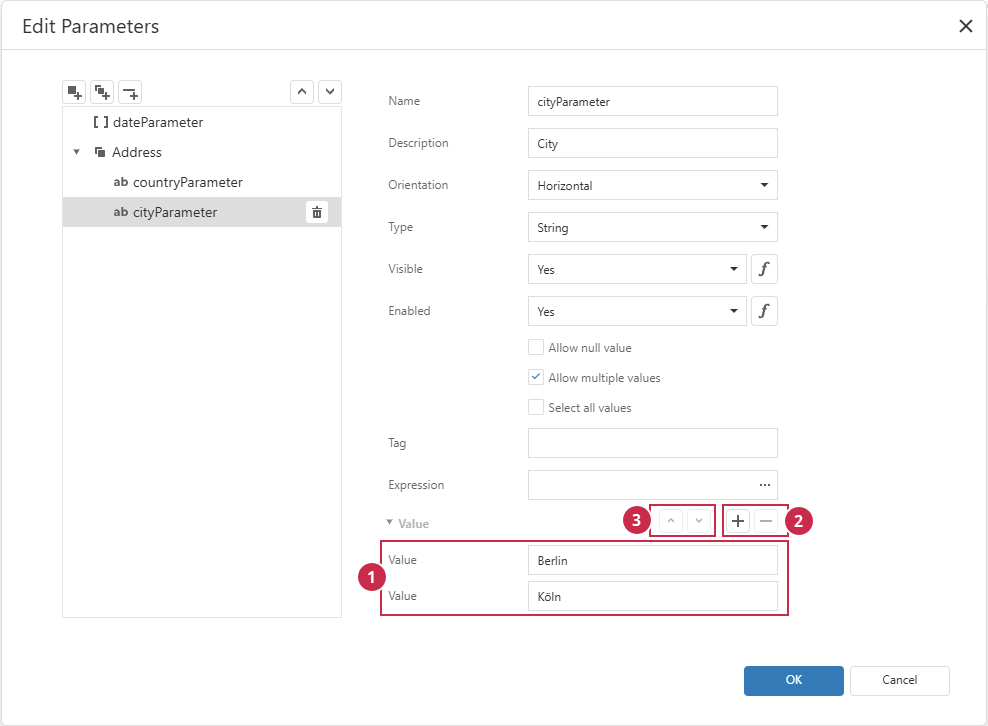
- Value
Specifies the default value for a single-value parameter or values for a multi-value parameter.
1. Specify a value. The parameter type determines which value editor is displayed.
2. Click the Plus button to add a value or the Minus button to remove the selected value. These buttons are displayed for multi-value parameters only.
3. Click the Up or Down arrow button to move the selected value in the list. These buttons are displayed for multi-value parameters only.
- Value Source
- Specifies how the parameter obtains its values: a single value or expression (None), a static list, a dynamic list loaded at runtime from a data source, or a date/time range (Range Parameters).
Value Sources
The Value Source option determines whether users enter a value directly or select from a predefined set. The selected source determines additional parameter options displayed in the parameter editor.
None
Use the value specified in the Value or Expression field.
Static List
Use this value source for a short set of values that rarely change, such as order status or display modes. When users select a label from the list, the report receives the corresponding parameter value.
- Define parameter values (Value) and user-friendly labels (Description) displayed in the end-user UI.
- Click the Plus button to add a new value or the Minus button to remove the selected value.
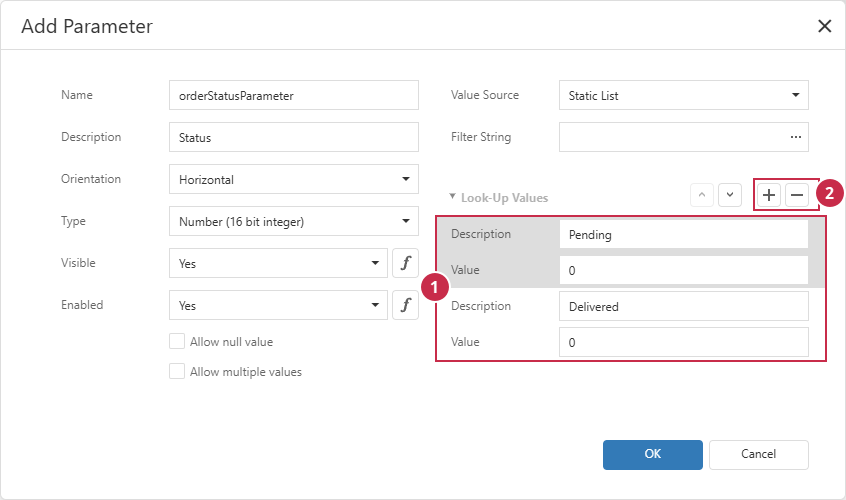
To rearrange static values:
- Click a Value/Description row to select the value.
- Click the Up or Down arrow button to change the value order in the list.
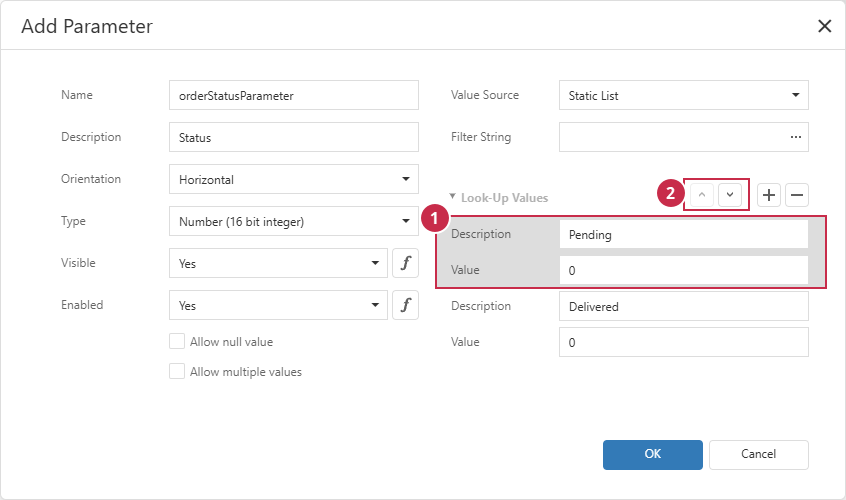
Enable Allow multiple values to allow users to select more than one list item. Select all values preselects all list items.
Tip
Reference another report parameter in the Filter String field to create cascading parameters.
Dynamic List
A dynamic list loads parameter values from a data source. Use this value source when available values can change, such as customers, products, or locations.
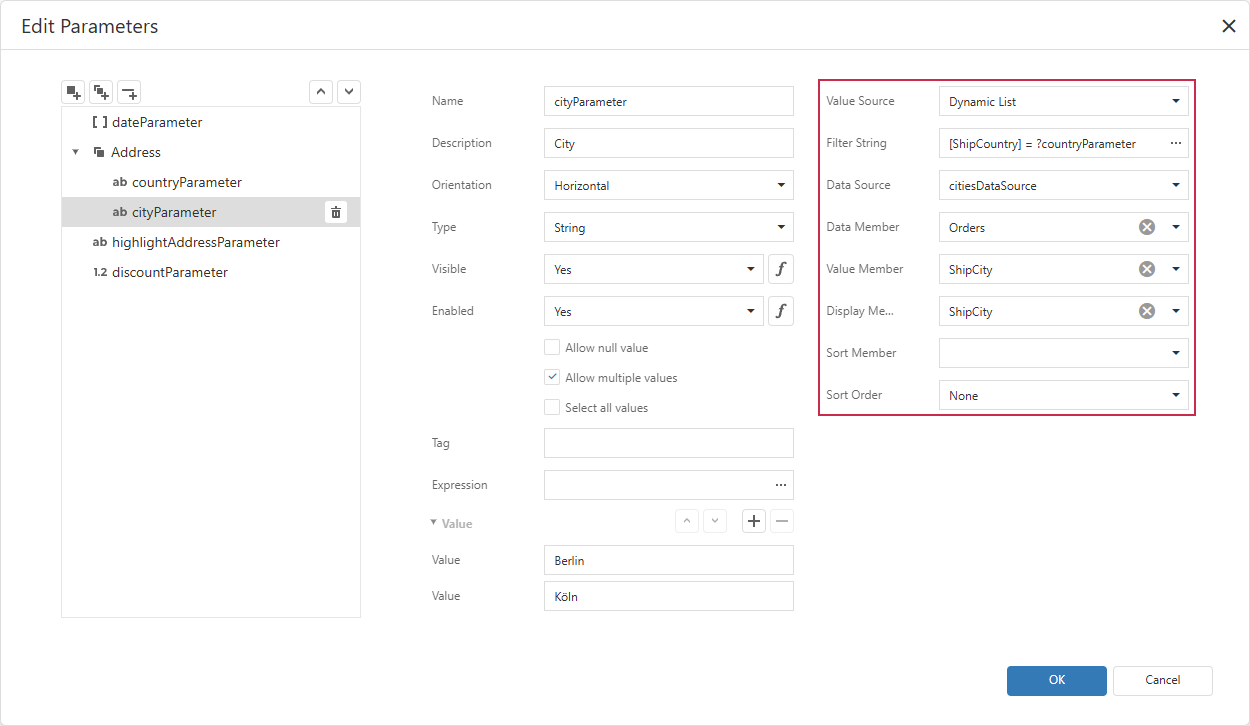
- Filter String
- Specifies criteria used to filter parameter values. Reference another report parameter to create cascading parameters.
- Data Source
- Specifies the data source that supplies parameter values.
- Data Member
- Specifies the table or query in the parameter value source (Data Source).
- Value Member
- Specifies the data field used as the report parameter value.
- Display Member
- Specifies the data field used as the label displayed in the end-user UI.
- Sort Member
- Specifies the data field used to sort the value list. If sorting is not configured, values retain their order in the data source.
- Sort Order
- Specifies whether values are sorted in ascending or descending order.
Tip
Enable Allow multiple values to allow users to select more than one list item. Select all values preselects all list items.
Range Parameters
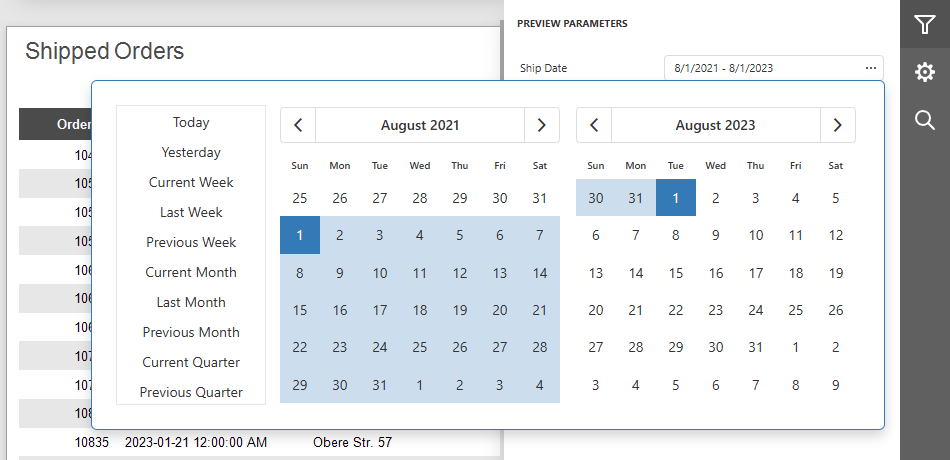
The Range Parameters source is available for Date, Date and Time, and Time parameter types. It creates separate start and end values and displays a range editor in the report preview.
The parameter editor contains separate Start Parameter and End Parameter sections for range boundaries. These boundaries are treated as separate named parameters with globally unique names.
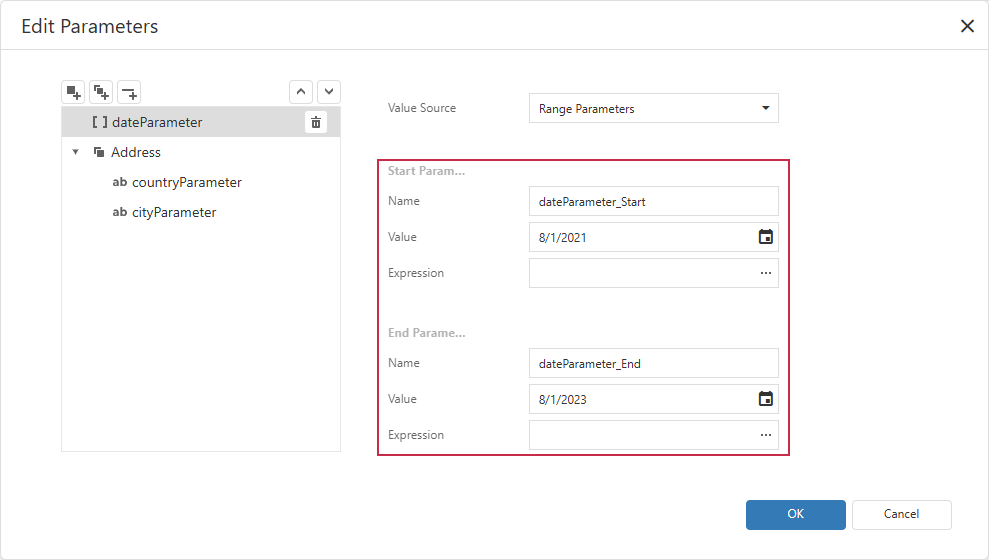
- Name
- Specifies the unique identifier used to reference the start or end boundary in queries, filters, and expressions.
- Value
- Specifies the default date/time value for the boundary.
- Expression
Calculates the boundary’s default value at runtime. Use this option for relative values, such as the current date.
The calculated value overrides the value specified in the Value field.
Next Steps
Review the following help topics for detailed information on report parameter usage:
- Filter Data Using Report Parameters
- Report parameters allow you to filter out data at different app hierarchy levels (report, data source, and URL). Each technique demonstrated in this topic is best used in corresponding scenarios and software configurations.
- Use Parameter Values in Expressions
- This topic contains step-by-step instructions on how to display context-dependent values, reference parameters in report expressions to apply conditional formatting, and add calculated fields to the report (discounted prices, totals, date intervals, etc.),
Related Tutorials
The following tutorials demonstrate how to create a parameter, assign its value, and pass the value to a data source:
- Follow this tutorial to create an application that obtains data from a stored database procedure and pass a report parameter as a procedure parameter.
- Follow this tutorial to filter report data at the SQL database level based on user input. This technique improves performance and reduces memory footprint.
Related GitHub-Hosted Sample Project
Related Compiled Demo
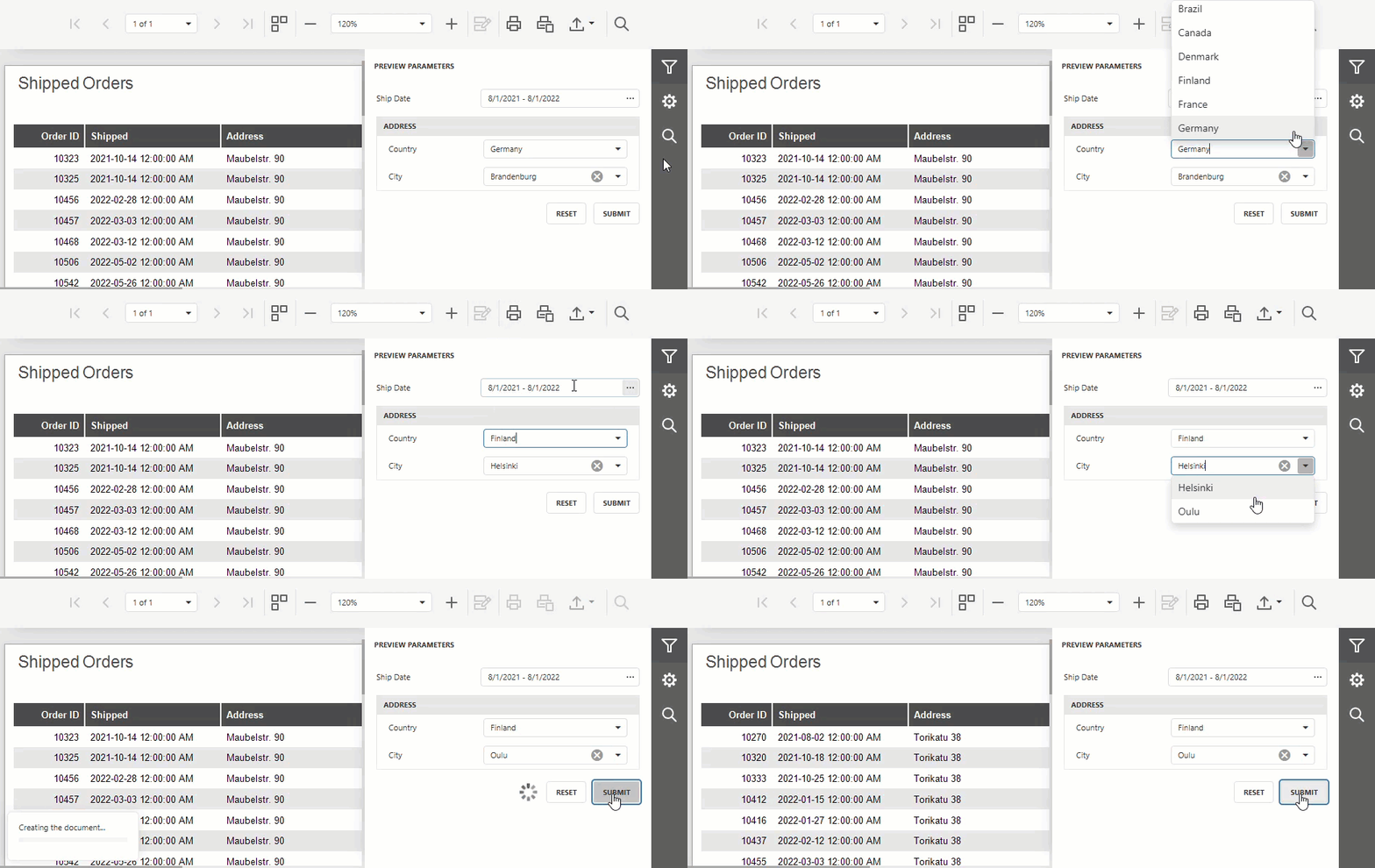
To see TdxReport/TdxReportControl parameter-based data filtering functionality in action, run the Report Designer/Viewer demo in the VCL Demo Center installed with compiled DevExpress VCL demos. Click Filter (the top button in the sidebar on the right) to display the PREVIEW PARAMETERS pane. Use editors to modify available parameter values and click SUBMIT to apply pending changes.
Compiled DevExpress demos ship with source code installed in the Public Documents folder (%PUBLIC%) for all users (default). You can find all project and source code files for the Report Designer/Viewer demo in the following folder:
%PUBLIC%\Documents\DevExpress VCL Demos\MegaDemos\Product Demos\ExpressReports\
Tip
Project and source code files for all compiled DevExpress VCL Demos are maintained in a public repository hosted on GitHub: