Use Parameter Values in Expressions
- 3 minutes to read
A report expression is a formula designed to calculate values, format data, and modify report element appearance. Reference parameters in expressions to change report content and appearance dynamically without custom code:
- Display values
- Display user input in report elements, such as labels or table cells.
- Apply conditional formatting
- Modify report appearance based on parameter values and hide or display individual report elements based on specific conditions.
- Calculate values
- Perform calculations that combine report fields with user-supplied data.
Display Parameter Values in a Report
Drag a parameter from the Field List pane onto a report band to display its value in the report. When the parameter value changes, refresh the report to display the updated value.
- Open the REPORT FIELDS pane in the Report Designer and expand the Parameters section.
- Drag the parameter onto the target report band. If you drag a parameter to an empty space, the Report Designer automatically creates a new element.
- Position the element and modify its formatting as required.
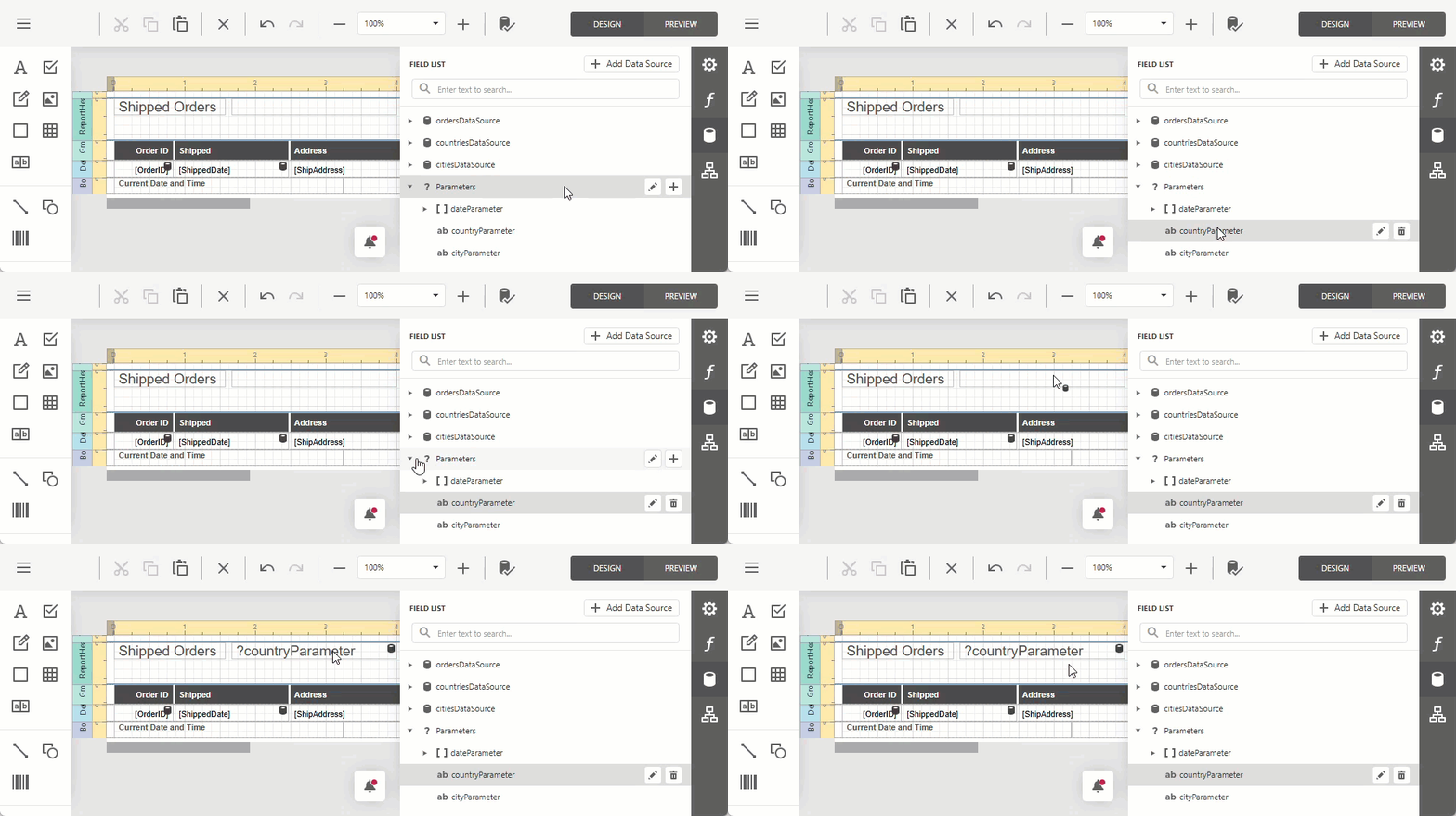
Customize Element Text
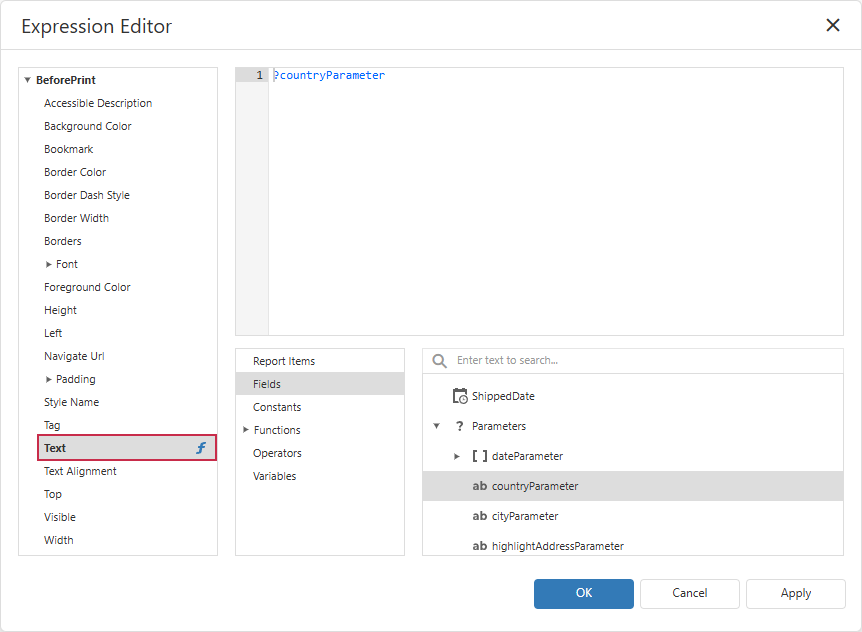
Set the element’s Text expression to calculate report element content based on parameters, data fields, variables, and constants:
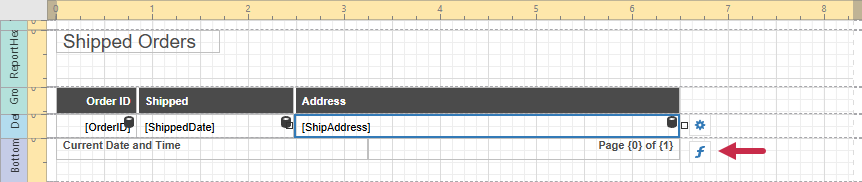
Select a report element and click the Expression button:
Select the Text property in the left pane of the Expression Editor:
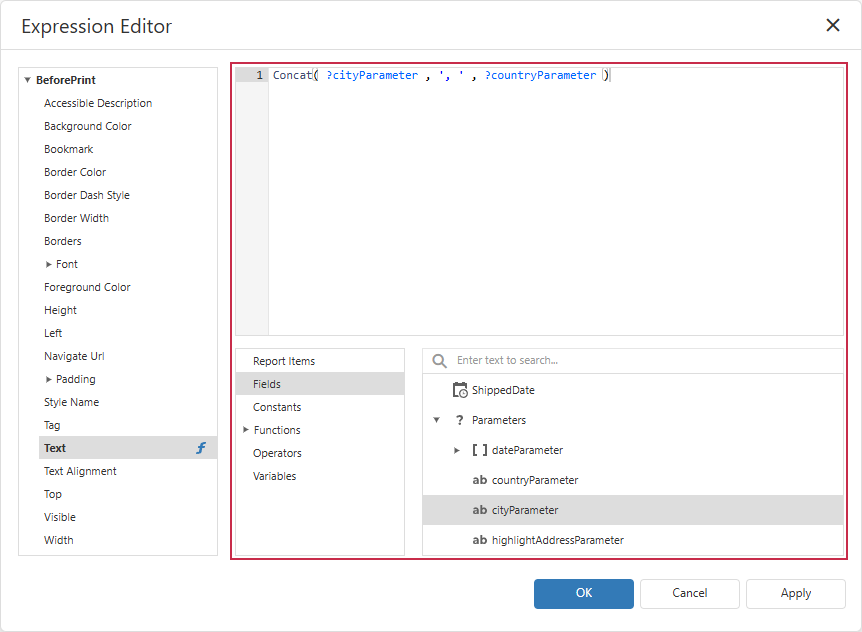
Use operators and functions to combine or compare parameter references with other data:
Change Report Appearance Using Parameters
Report parameters can modify report element style, layout, and visibility. Create expressions that map parameter values to element properties to build flexible report templates that adapt to user input.
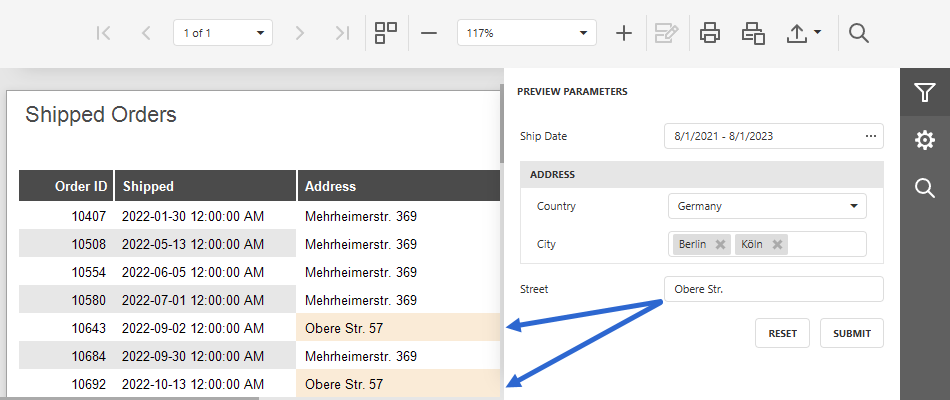
Follow the steps below to apply a parameter-based conditional formatting rule to report records:
Select the report element and click the Expression button:
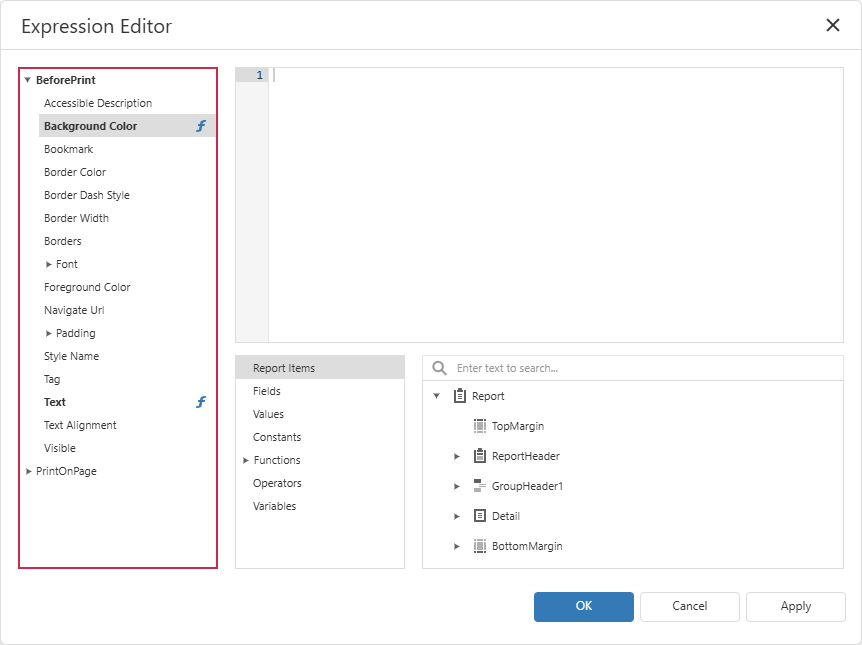
Select an appearance property in the left pane of the Expression Editor:
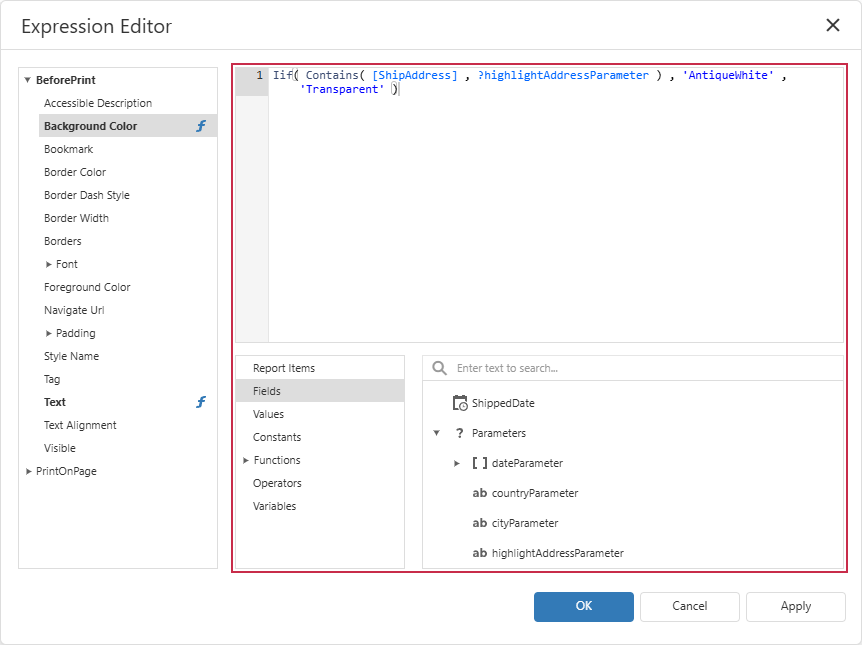
Expand the Parameters node and double-click a parameter to add it to the expression. Combine the parameter reference with fields, functions, or other parameters as required:
Click the OK button to apply the expression.
Calculate Values
Combine report fields with parameters in an expression to calculate values, such as discounted prices, totals, or date intervals.
The following tutorial creates a calculated field with a discounted price based on the parameter value:
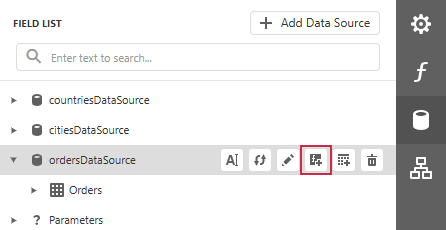
Add a calculated field to a data source:
Expand field properties and click the ellipsis button in the Expression field to open the Expression Editor dialog:
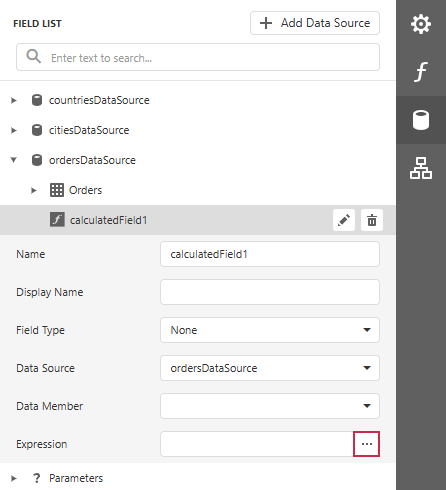
Combine parameters with data source fields using operators and functions. For example, the following expression calculates a discounted price:
[Orders.UnitPrice] * ( 1 - ?discountParameter )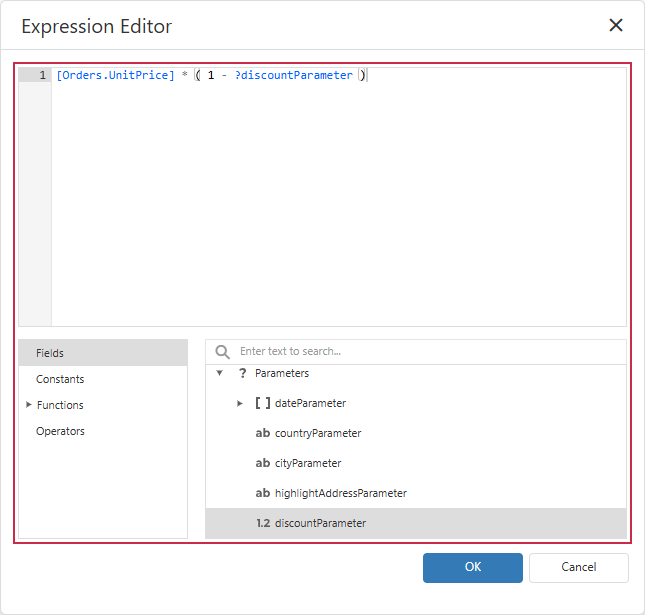
Click the OK button to save the expression.
Refer to the following tutorial for a complete walkthrough: Calculate Discounted Price.
Related GitHub-Hosted Sample Project
Related Compiled Demo
To see TdxReport/TdxReportControl parameter-based data filtering functionality in action, run the Report Designer/Viewer demo in the VCL Demo Center installed with compiled DevExpress VCL demos. Click Filter (the top button in the sidebar on the right) to display the PREVIEW PARAMETERS pane. Use editors to modify available parameter values and click SUBMIT to apply pending changes.
Compiled DevExpress demos ship with source code installed in the Public Documents folder (%PUBLIC%) for all users (default). You can find all project and source code files for the Report Designer/Viewer demo in the following folder:
%PUBLIC%\Documents\DevExpress VCL Demos\MegaDemos\Product Demos\ExpressReports\
Tip
Project and source code files for all compiled DevExpress VCL Demos are maintained in a public repository hosted on GitHub: