Report Parameters
- 5 minutes to read
Report parameters are dynamic values that replace constants in report queries, filters, expressions, and calculated fields. Parameters allow users to transform or filter data in the same report without changes to its template. For example, users can specify a date range or select customers, and then generate the report with new data.
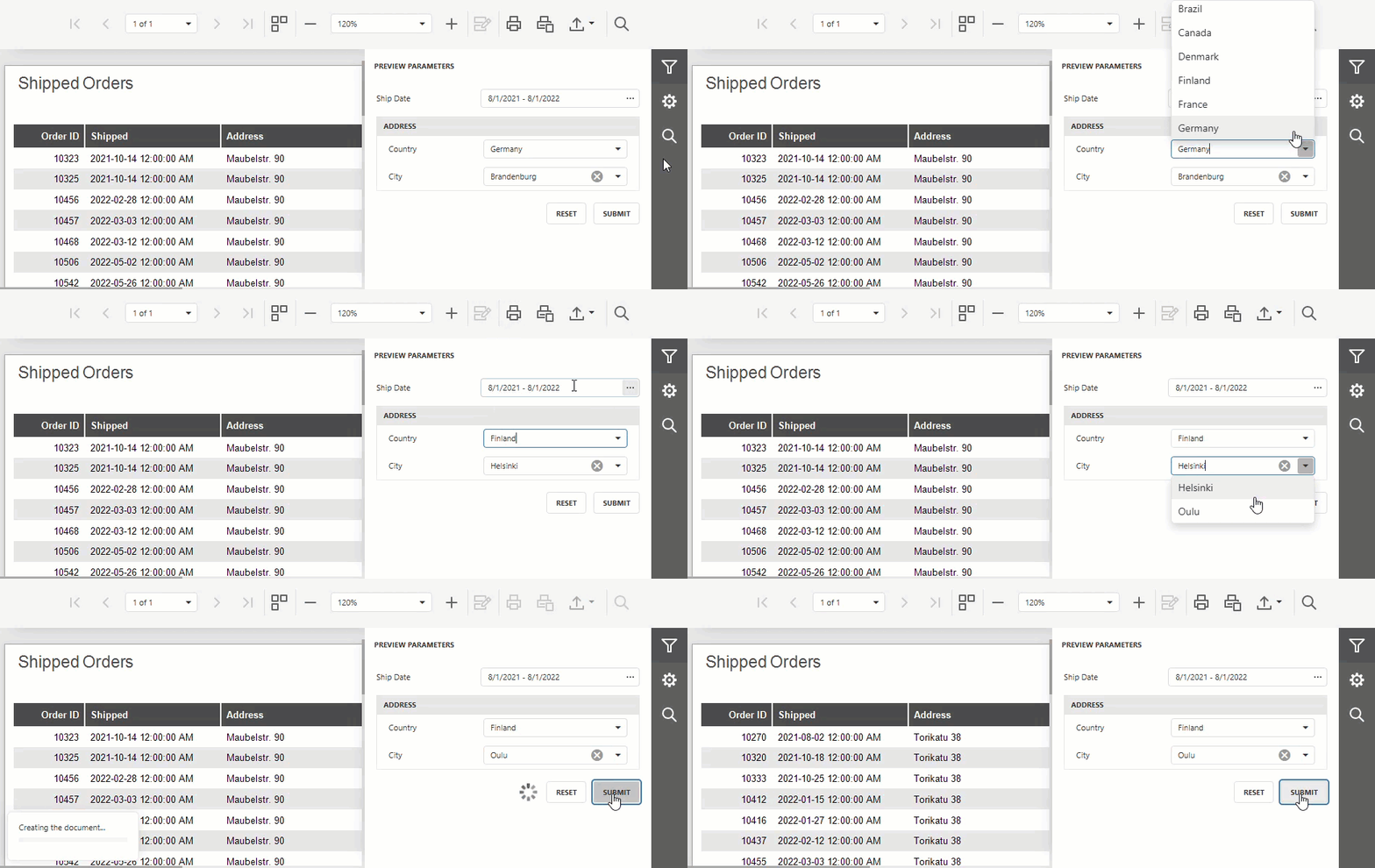
To use a report parameter:
- Create and configure a parameter in the Report Designer.
- Reference the parameter in a report element, filter, expression, query, stored procedure, or another parameter.
- Supply a value in the Preview Parameters panel or in code.
Create and Reference Parameters
Create and manage report parameters in the Parameters section of the Field List pane:
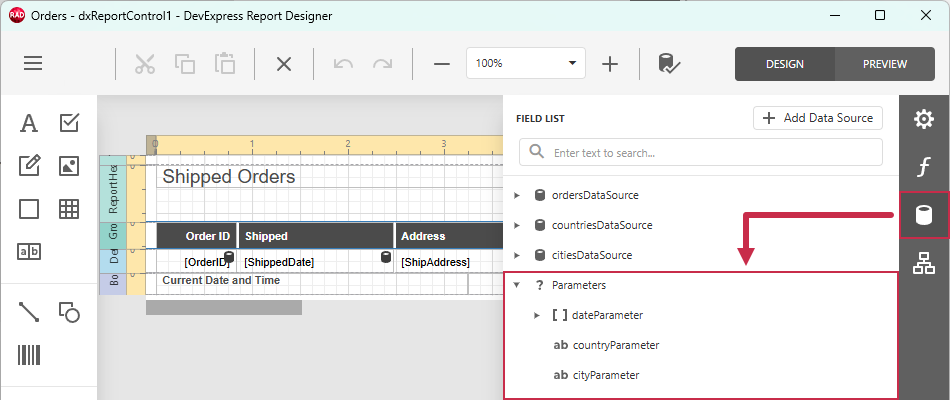
For each parameter, specify a unique name, data type, and default value or value source. In addition, you can also specify a label, visibility, editor state, and other settings. Refer to the following help topics for detailed information on parameter creation and usage:
Supply Parameter Values in the Report Viewer
The Preview Parameters panel displays an editor for each visible parameter. The parameter type and value source determine the editor type and available values.
Click the Parameters icon (1) in the right navigation bar to open the panel. Specify parameter values and click the SUBMIT button (2) to update the report:
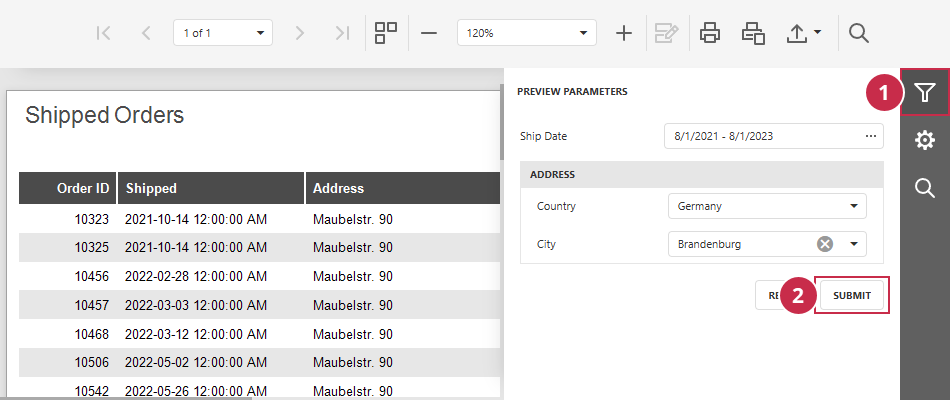
The Preview Parameters panel is fully customizable. You can arrange parameter editors into groups, add separators, and require users to enter parameters before generating the report.
Refer to the following help topic for detailed instructions: Preview Parameters Panel.
Access Parameters in Code
Use the TdxReport.Parameters / TdxCustomReportControl.Parameters collection to read or change report parameter properties at runtime. The collection is automatically populated from the report template. The parameter list is read-only but you can assign parameter values and change appearance settings (such as Enabled and Visible).
Use the following collection members according to the required parameter access scenario:
- ParamByName returns a parameter by name or raises an exception if the target parameter does not exist.
- FindParam returns a parameter by name or returns
nilornullptrif the target parameter does not exist. - Items and Count allow you to access or iterate through parameters by index.
Code Example: List Report Parameters
uses
  dxReport.Control,      // Declares the TdxReportControl class
  dxReport.Parameters,   // Declares the TdxReportParameter class
  dxMessageDialog,       // Declares the TdxMessageDialogForm class
  System.StrUtils;       // Provides advanced string management routines

procedure TForm1.cxButton1Click(Sender: TObject);
var
  AList: TStringList;
  AParameter: TdxReportParameter;
begin
  // Create a TStringList instance
  AList := TStringList.Create;
  try
    // Iterate through report parameters
    for AParameter in dxReportControl1.Parameters do
      AList.Add(Format('- %s', [
        // Use the parameter Name if Description is missing
        IfThen(AParameter.Description <> '', AParameter.Description, AParameter.Name)
      ]));
    // Display the parameter list or a notification message if the list is empty
    if AList.Count > 0 then
      dxShowMessage(AList.Text)
    else
      dxShowMessage('The report has no parameters.');
  finally
    AList.Free;
  end;
end;
Tutorials
The following tutorials demonstrate how to create a parameter, assign its value, and pass the value to a data source:
- Follow this tutorial to create an application that obtains data from a stored database procedure and pass a report parameter as a procedure parameter.
- Follow this tutorial to filter report data at the SQL database level based on user input. This technique improves performance and reduces memory footprint.
Sample GitHub Projects
This section lists all public GitHub repositories (DevExpress-Examples) that demonstrate primary usage scenarios for report parameters:
Related Compiled Demo
To see TdxReport/TdxReportControl parameter-based data filtering functionality in action, run the Report Designer/Viewer demo in the VCL Demo Center installed with compiled DevExpress VCL demos. Click Filter (the top button in the sidebar on the right) to display the PREVIEW PARAMETERS pane. Use editors to modify available parameter values and click SUBMIT to apply pending changes.
Compiled DevExpress demos ship with source code installed in the Public Documents folder (%PUBLIC%) for all users (default). You can find all project and source code files for the Report Designer/Viewer demo in the following folder:
%PUBLIC%\Documents\DevExpress VCL Demos\MegaDemos\Product Demos\ExpressReports\
Tip
Project and source code files for all compiled DevExpress VCL Demos are maintained in a public repository hosted on GitHub: