Cascading Report Parameters
- 3 minutes to read
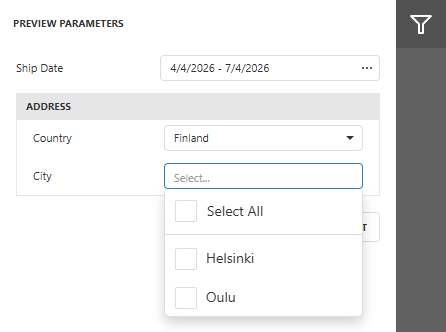
Cascading parameters link related selections. A value selected in a primary parameter filters out choices available in a dependent parameter.
Tip
Use cascading parameters to shorten value lists and prevent incompatible selections. For example, after a user selects a country, the City parameter lists only the cities within the country.
Create Cascading Parameters
Follow the steps below to create main (Country) and dependent (City) parameters that load their values from report data sources.
Step 1 — Create a Primary Parameter
- Create a report parameter named
countryParameter. Set the parameter’s Value Source to Dynamic List and bind it to the
ShipCountryfield from theOrderstable: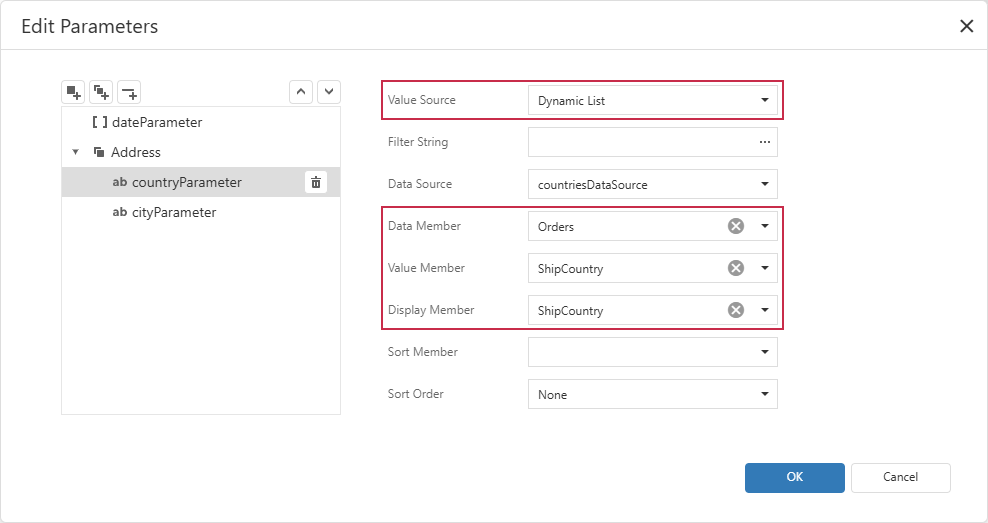
Step 2 — Create a Dependent Parameter
- Create a report parameter named
cityParameter. Set the parameter’s Value Source to Dynamic List and bind it to the
ShipCityfield from theOrderstable: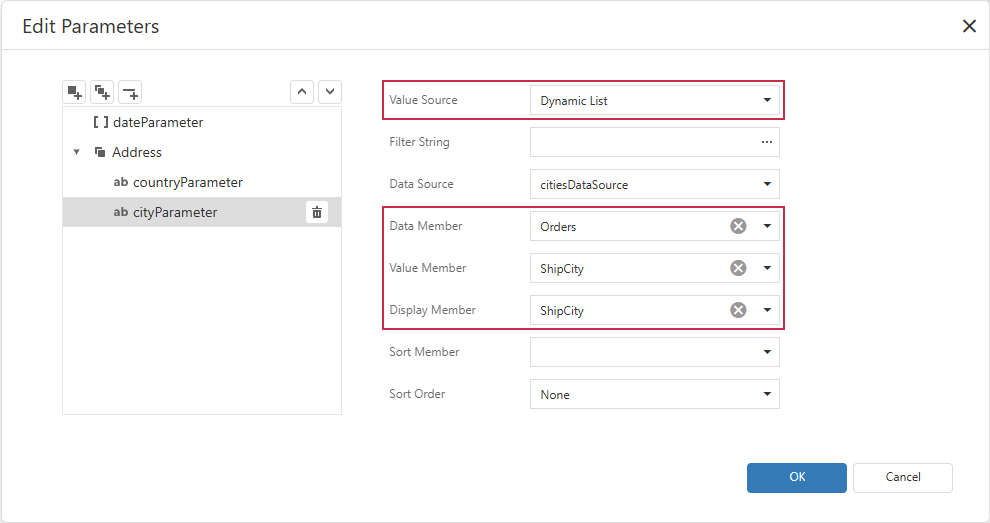
Important
Ensure that the data source also contains the
ShipCountryfield by which parameter values will be filtered.Click the ellipsis button in the Filter String field to open the Filter Editor and define a condition that binds
cityParametertocountryParameter: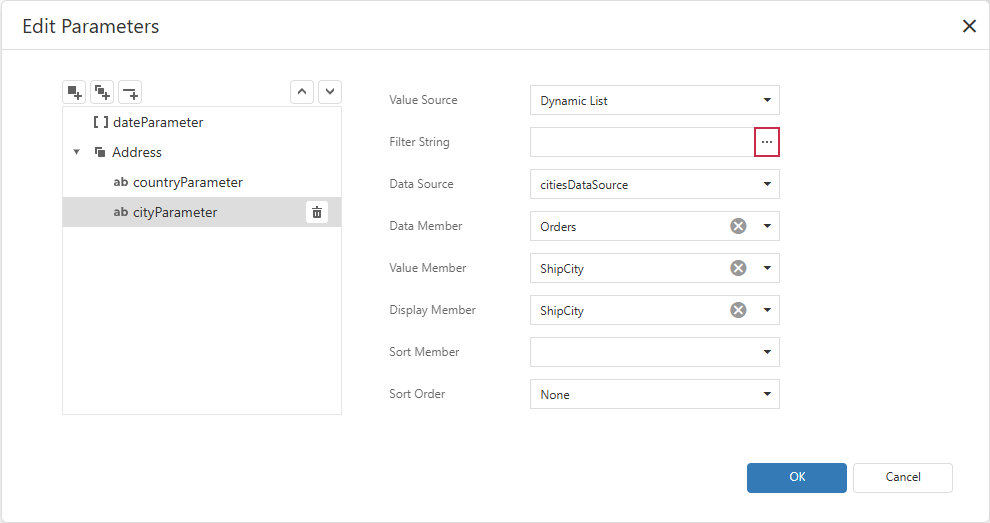
Bind the Parameters
In the Filter Editor dialog, add a condition that compares the ShipCountry field from the city data source with the countryParameter value:
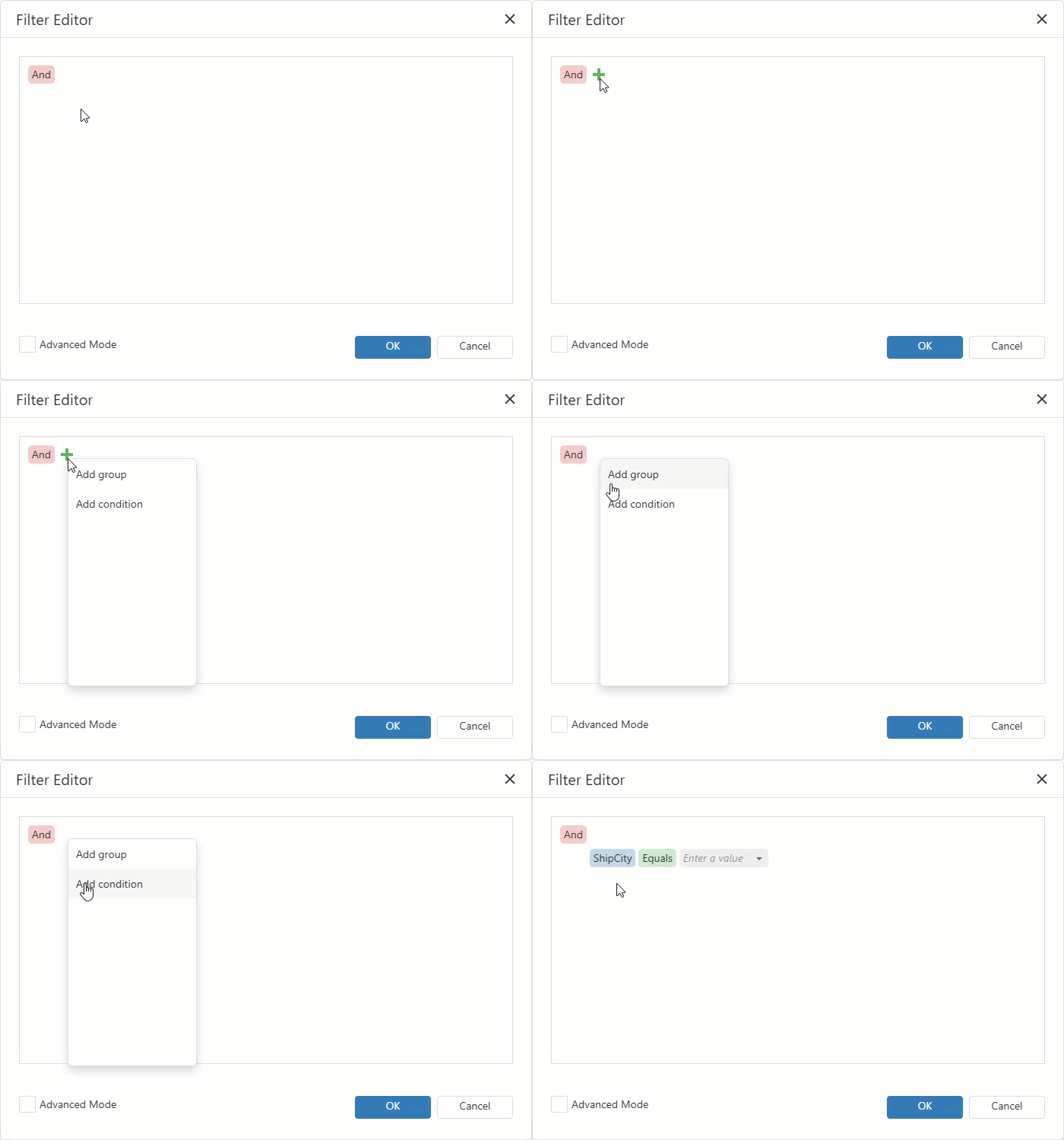
Hover the And group, click the Plus button, and select Add condition from the drop-down menu:
Tip
Enable Advanced Mode to enter a raw text query rather than click through dropdowns. To reference a report parameter, prefix the parameter name with
?(for example,?countryParameter).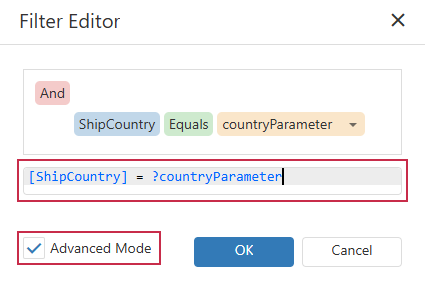
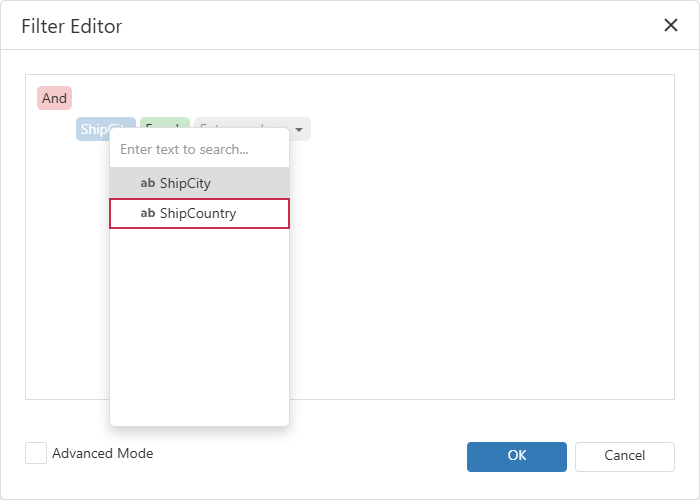
Click the left operand and select the field in the dependent parameter’s data source that corresponds to the primary parameter:
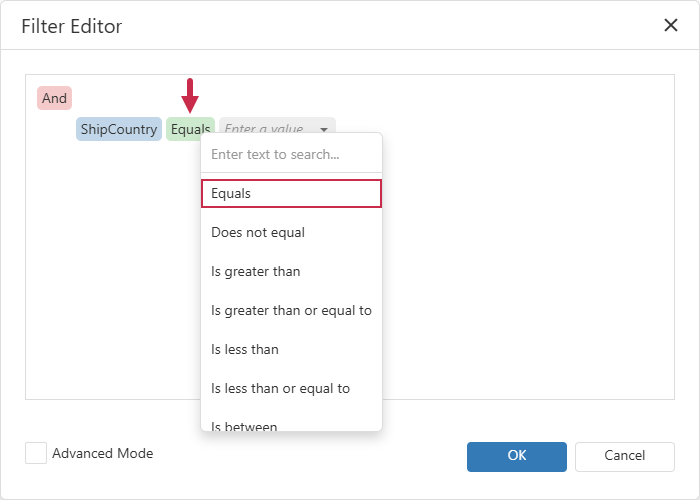
Click the central part of the filter condition and select a comparison operator from the drop-down menu:
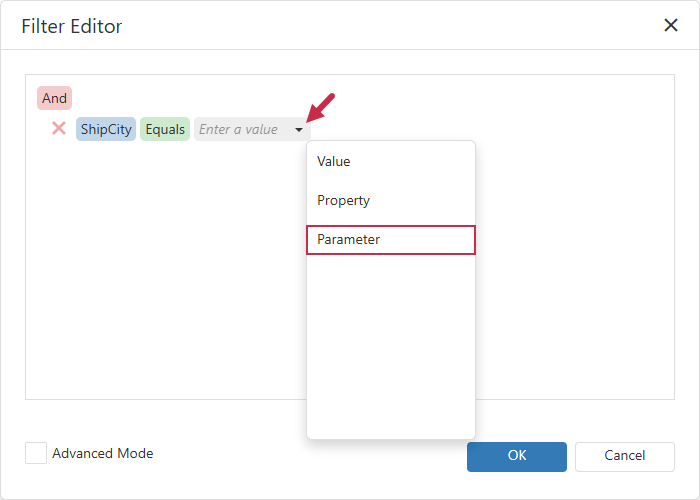
Click the arrow next to the right operand and select Parameter from the drop-down menu:
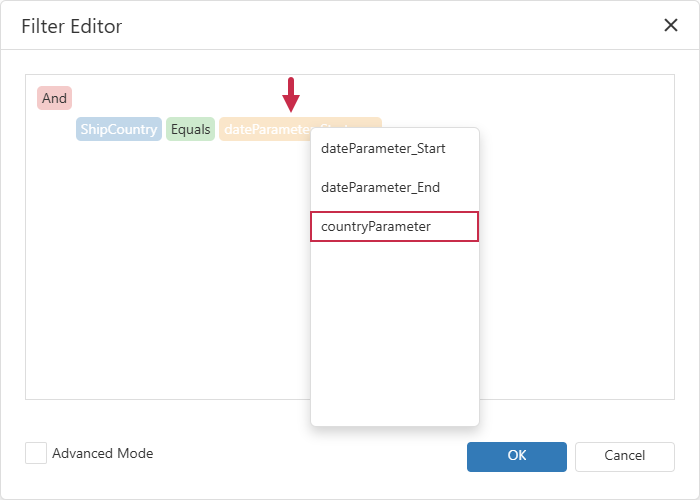
Click the parameter name in the right operand and select countryParameter from the drop-down menu:
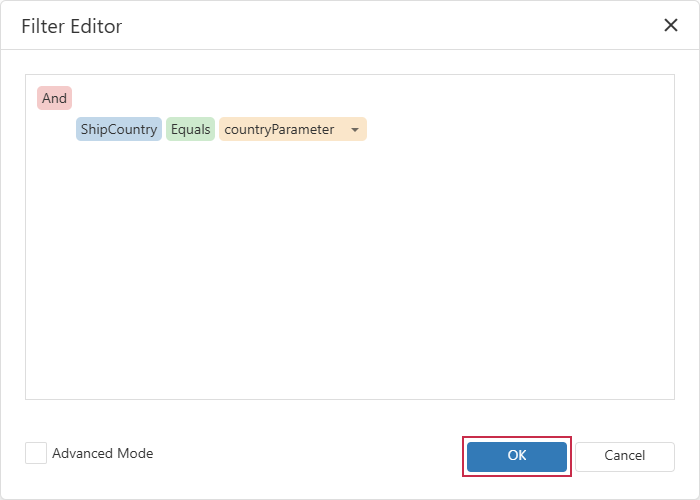
Click the OK button to apply changes:
Step 3 — Preview the Result
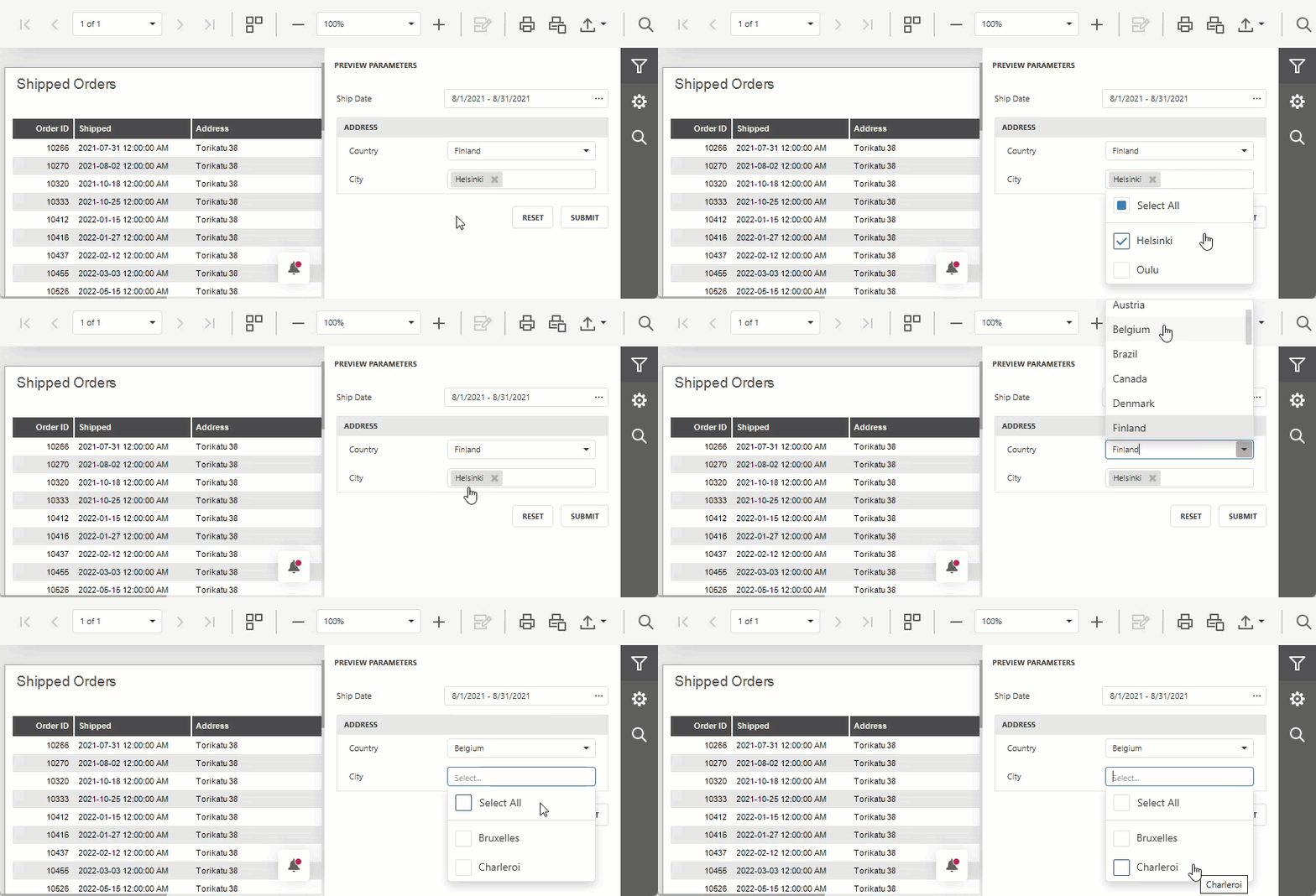
Save cityParameter and preview the report. Select a country to update values in the City drop-down list.
Notes
- A dependent parameter can reference only parameters that precede it in the collection. Create a primary parameter before its dependent parameters or reorder parameters to ensure that each primary parameter precedes its dependent parameters.
- You can add more dependent parameters to create a cascade with multiple hierarchy levels. For example, a City parameter can depend on Country, and a Store parameter can subsequently depend on both Country and City.