TdxReport Class
An AI-powered Report Generator component.
Declaration
TdxReport = class(
    TcxCustomComponent
)
Remarks
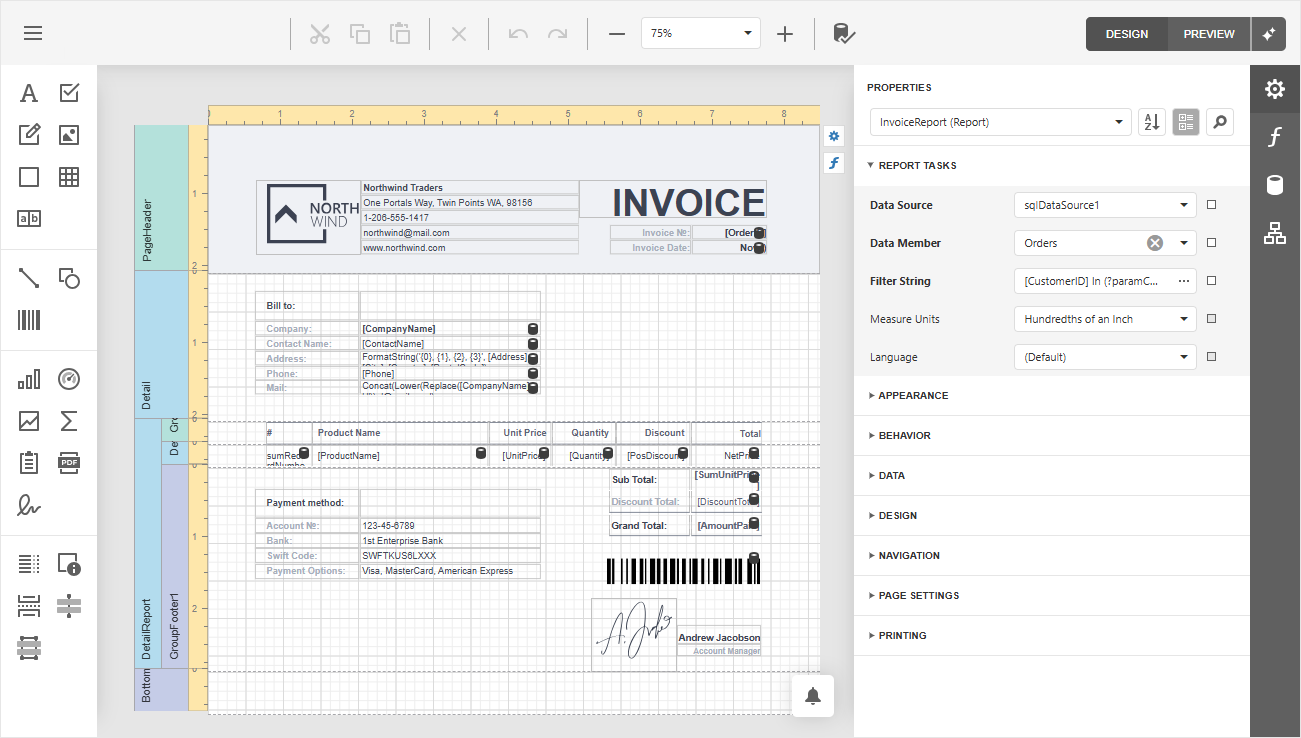
TdxReport is a non-visual component designed to generate customizable reports based on templates populated with placeholder fields. Report generator implementation is based on the DevExpress Javascript Report Designer and Viewer adapted for use in native VCL apps (using modern web-based design capabilities based on WebView and ASP.NET Core).
All required .NET and JS dependencies are embedded into one self-contained EXE file transparently.
Prerequisites & Deployment
Note
- ExpressReports will require the purchase of our VCL Subscription + OR an active VCL Subscription (regular) with any active .NET subscription that includes DevExpress Reports for ASP.NET/JavaScript (these subscriptions include: Reporting, ASP.NET & Blazor (includes DevExtreme), DXperience, or Universal).
- ExpressDashboards will also require the purchase of our VCL Subscription + OR an active VCL Subscription (regular) with an active Universal Subscription that includes DevExpress Business Intelligence (BI) Dashboard.
Ensure that your development environment meets ExpressDashboards and ExpressReports prerequisites:
- Microsoft Windows 10 or newer.
- Embarcadero RAD Studio IDE 12.3 or newer (Community Edition IDEs are not supported).
- DevExpress VCL v26.1.x.
- The EdgeView2 SDK package installed from the GetIt package manager.
Tip
Refer to the following topic for detailed information: VCL Reports/Dashboards App Deployment.
Tutorials
Load JSON data from a remote source, define the report layout, and bind the data to the report at design time using the Report Wizard dialog. Display the resulting report in a VCL application.
Featured Components:
TdxReport| TdxBackendDataConnectionManager | TdxBackendInMemoryJSONConnectionFollow this tutorial to create a table report and bind it to data using standard FireDAC components (TFDQuery and TFDConnection) shipped with the RAD Studio IDE.
Featured Components:
TdxReport| TdxBackendDataConnectionManager | TdxBackendDataSetJSONConnection
Tip
Refer to the following topic for a complete list of TdxReport/TdxReportControl tutorials and related GitHub-hosted sample projects: VCL Reports: Getting Started.
Bind to Data
TdxReport can populate placeholder fields in a template from different data sources stored in memory or a database. To manage multiple data sources, use the TdxBackendDataConnectionManager component.
Tip
You can create data connection components directly in code without TdxBackendDataConnectionManager.
Refer to data connection class descriptions for detailed information and code examples.
Data Connection Components
- TdxBackendDataSetJSONConnection
A component designed to work with data in one or multiple VCL-compatible datasets (TDataSet descendants).
Use the TdxBackendDataSetJSONConnection component if you need to use TdxDashboardControl/TdxDashboard and
TdxReport/TdxReportControl components together with VCL-compatible data sources.Refer to the following help topic for step-by-step instructions on using the TdxBackendDataSetJSONConnection component in your project:
VCL Reports/Dashboards: How to Use Data Source and Data Set Components
- TdxBackendInMemoryJSONConnection
A component designed for interaction with local (in-memory) or remote JSON data accessible through a Web API service endpoint.
Refer to the following help topic for step-by-step instructions on using the TdxBackendInMemoryJSONConnection component as a data source for TdxDashboard/TdxDashboardControl and
TdxReport/TdxReportControl:VCL Reports/Dashboards: How to Use Memory-Based or Remote API Data Sources
- TdxBackendDatabaseSQLConnection
A DevExpress XPO-based component designed to fetch data from the following relational databases:
SQLite | Microsoft SQL Server/Azure SQL | PostgreSQL | Oracle Database | MySQL | Firebird
Tip
This component is based on the DevExpress XPO ORM engine (powered by ADO.NET).
TdxBackendDatabaseSQLConnection has built-in support for Microsoft SQL/Azure SQL and SQLite engines (you can use them without additional dependencies and extra configuration).
Refer to the following topic for a complete list of supported database engines and corresponding connection string examples:
Main API Members
The list below outlines key members of the TdxReport class. These members allow you to configure templates, generate reports, and export report content in different target formats.
Report Content & Layout
- Clear
- Clears the current report name, layout, and parameters.
- EnableCustomSql
Specifies if custom SQL queries are enabled at the
TdxReportcomponent level.Important
Enable custom SQL queries only if you follow best practices and implement user read/write privileges at the database level using tools available for your relational database management system.
- FilterString
- Specifies filter criteria for report data.
- GroupName
Specifies a group (report name scope) for the
TdxReportcomponent.Note
All report components with the same GroupName and ReportName property values share the same template/layout definition.
- Language
- Allows you to switch between available UI and report template localizations. Refer to the following topic for information on localization techniques: VCL Reports Localization.
- Layout
- Provides access to the report REPX template (as individual XML strings).
- OnLayoutChanged
- Allows you to respond to any report layout changes.
- OnResolveConnection
- Allows you to map different data connection components to the same data source name referenced within the current report layout definition.
- Parameters
Provides access to the read-only collection of report parameters.
Note
The Parameters collection is automatically populated and updated from the current report template definition.
- ReportName
- Specifies the name used as an identifier for the report template/layout definition.
End-User Interaction
- ExportFormats
- Specifies export formats available to users in the Report Preview dialog.
- OnExport
- Allows you to execute custom code in response to preview file download operations or to prevent users from downloading previews.
- OnDesignerFormShow | OnViewerFormShow
- Allow you to customize Report Designer and Report Viewer dialog form settings (position, dimensions, caption, etc.).
- OnPrintPreview
- Allows you to respond to print preview operations and obtain preview content as a PDF document.
- ShowDesigner | ShowViewer
Display Web-based Report Designer and Report Preview dialogs. Global skin and palette settings (defined using the Application Settings dialog or a TdxSkinController component) affect these dialogs.
Tip
You can click the Designer… or Viewer… item in the
TdxReportcomponent’s context menu to display corresponding dialog at design time.
Report Import & Export
- ExportTo
- Exports the current report to a file or stream in any supported format.
- ExportToCSV | ExportToDOCX | ExportToHTML | ExportToMHT | ExportToPDF | ExportToRTF | ExportToText | ExportToXLS | ExportToXLSX
- Export the current report to a file or stream in corresponding formats.
- ExportToImage
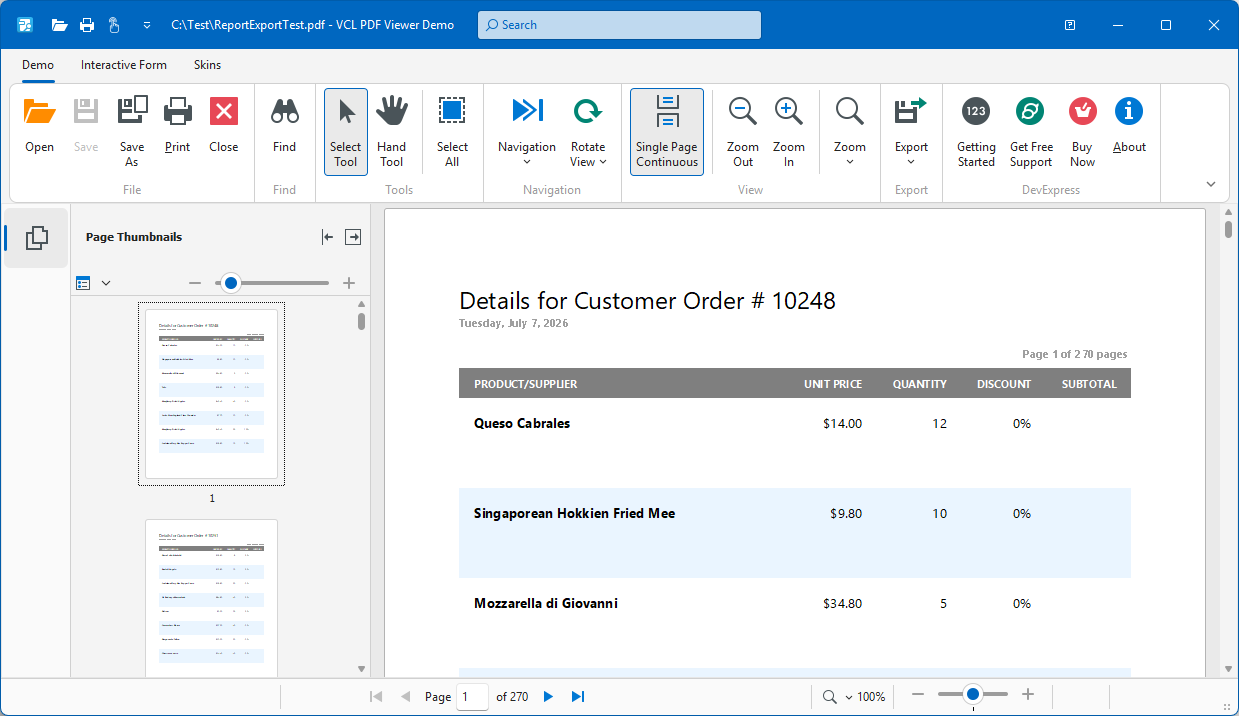
Exports the current report to a file or stream as an image (PNG is the default image export format).
Tip
The current image format is defined in Export Options available in the modal Report Designer dialog.
- GetExportResultFileName
- Returns the full report file name for export operations.
- LoadDocument
- Imports a previously generated report document from a file or stream in the XML-based report archive (REPX) format.
- SaveDocument
- Exports the current report to a file or stream in the XML-based report archive (REPX) format.
Code Examples
Generate and Export Report Content to PDF File
The following code example configures a memory-based data source (TdxBackendInMemoryJSONConnection), loads an REPX layout, and exports generated content to a file in the Portable Document (PDF) format without user interaction:
uses
  dxBackend.ConnectionString.JSON,  // Declares the TdxBackendInMemoryJSONConnection component
  dxSplashForms,                    // Declares the TdxSplashFormManager class and related types
  dxReport;                      // Declares the TdxReport class
// ...

procedure TMyForm.cxButtonExportToPDFClick(Sender: TObject);
var
  AReport: TdxReport;
  AJSONDataConnection: TdxBackendInMemoryJSONConnection;
  AMemoryStream: TMemoryStream;
  AJSONData: string;
begin
  // Define a table that consists of three columns ("id", "Region", and "Sales") and five data rows:
  AJSONData :=

  '[{"id": 1, "Region": "Asia",          "Sales": 4.7685},' +  // Row #1
   '{"id": 2, "Region": "Australia",     "Sales": 1.9576},' +  // Row #2
   '{"id": 3, "Region": "Europe",        "Sales": 3.3579},' +  // Row #3
   '{"id": 4, "Region": "North America", "Sales": 3.7477},' +  // Row #4
   '{"id": 5, "Region": "South America", "Sales": 1.8237}]';   // Row #5

  AJSONDataConnection := TdxBackendInMemoryJSONConnection.Create(Self);  // Creates a data connection
  try
    AJSONDataConnection.Name := 'JSONData';        // Assigns a name to the created data connection
    AJSONDataConnection.SetJSONValue(AJSONData);   // Assigns the defined JSON data string
    AReport := TdxReport.Create(Self);       // Creates a TdxReport container
    try
      AReport.Layout.LoadFromFile('MyReportLayout.repx');  // Loads an REPX Report layout
      AReport.ReportName := 'MyReport';                         // Defines a Report name
      AMemoryStream := TMemoryStream.Create;                    // Creates a memory stream
      TdxSplashFormManager.WaitForm.Show(Self);    // Displays a Wait Form before the export operation
      try
        // Export Report content to the created memory stream in the PDF format:
        AReport.ExportToPDF(AMemoryStream);
        AMemoryStream.SaveToFile(AReport.ReportName + '.pdf');   // Saves the resulting PDF file
      finally
        AMemoryStream.Free;         // Releases the memory stream
        TdxSplashFormManager.WaitForm.Hide;        // Hides the Wait Form once the operation is complete
      end;
    finally
      AReport.Free;              // Releases the TdxReport container
    end;
  finally
    AJSONDataConnection.Free;       // Releases the data connection
  end;
end;
Connect to a SQL Database and Edit Report Templates
The following code example uses the TdxBackendDatabaseSQLConnection component to connect to a demo database (devav.sqlite3), displays the Report Designer dialog, and saves all changes made to the UserReport.repx file:
uses
  dxReport,                        // Declares the TdxReport component and related types
  dxBackend.ConnectionString.SQL;  // Declares the TdxBackendDatabaseSQLConnection component
// ...

procedure TMyForm.Button1Click(Sender: TObject);
var
  ADataConnection: TdxBackendDatabaseSQLConnection;
  AReport: TdxReport;
begin
  ADataConnection := TdxBackendDatabaseSQLConnection.Create(Self); // Creates a database connection
  try
    ADataConnection.Name := 'SQLite Database Connection';
    // Specify a connection string required to connect to a demo database (devav.sqlite3)
    ADataConnection.ConnectionString := 'XpoProvider=SQLite;' +  // Specifies the database engine type
      'Data Source=C:\Users\Public\Documents\DevExpress VCL Demos\MegaDemos\' +
      'Product Demos\ExpressReports\Data\devav.sqlite3';
    AReport := TdxReport.Create(Self);               // Creates a TdxReport component
    try
      AReport.ShowDesigner;                          // Displays the Report Designer dialog
      AReport.Layout.SaveToFile('UserReport.repx');  // Saves the report template state to a file
    finally
      AReport.Free;          // Releases the created TdxReport component
    end;
  finally
    ADataConnection.Free;    // Releases the database connection component
  end;
end;
Related GitHub-Hosted Example Projects
Related Compiled Demo
To see the TdxReport component in action, run the Report Designer/Viewer demo in the VCL Demo Center installed with compiled DevExpress VCL demos. Click different items in the sidebar on the left to switch between demo features.
Tip
You can find full source code for the installed compiled Report demo in the following folder:
%PUBLIC%\Documents\DevExpress VCL Demos\MegaDemos\Product Demos\ExpressReports\