Preview Parameters Panel
- 3 minutes to read
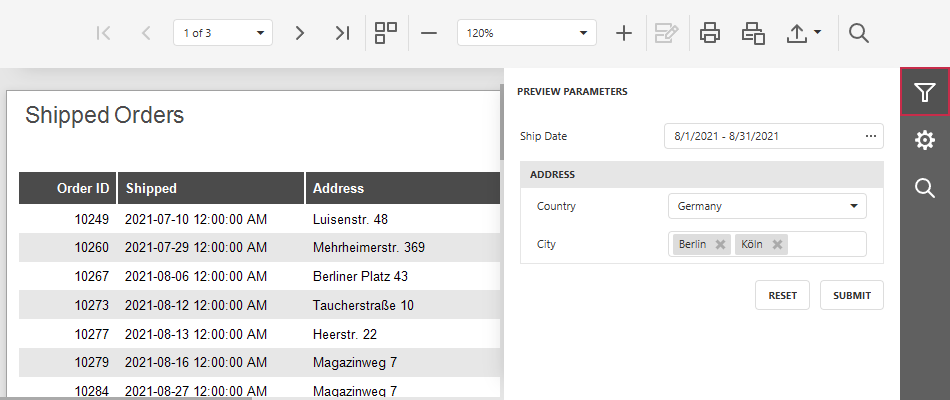
The Report Viewer automatically populates the Preview Parameters panel with editors (one for each visible report parameter). Parameter settings determine editor type, label, layout, and available values. These editors allow users to modify parameter values and populate the same report template with different data.
Note
The RESET button discards pending changes in parameter editors and restores default parameter values.
Parameters Panel Configuration
The Preview Parameters panel layout arranges parameter editors sequentially according to the parameter creation order. You can use the Report Designer to customize the panel layout as follows:
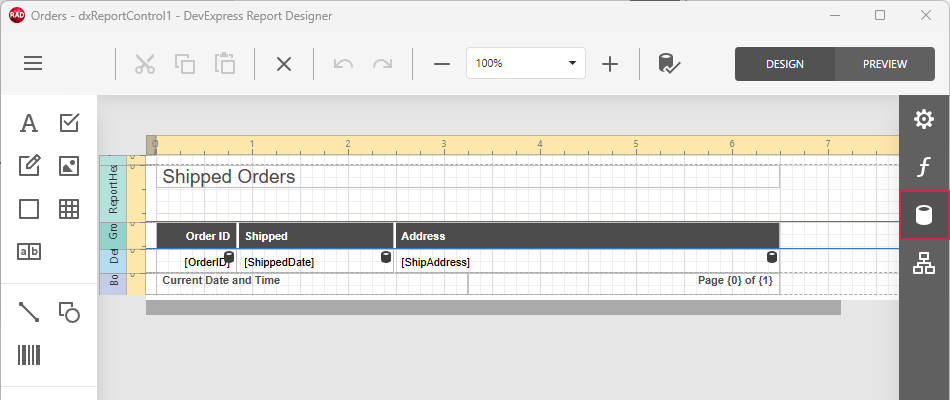
Click the Fields icon in the right navigation bar:
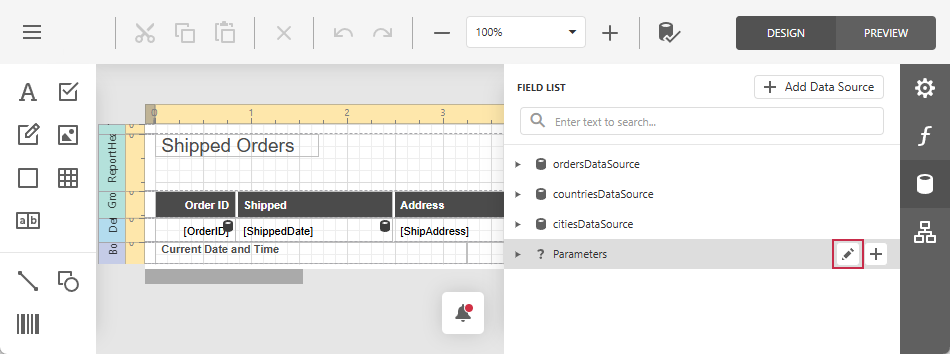
Hover the Parameters section header and click the Pencil button to open the parameters editor:
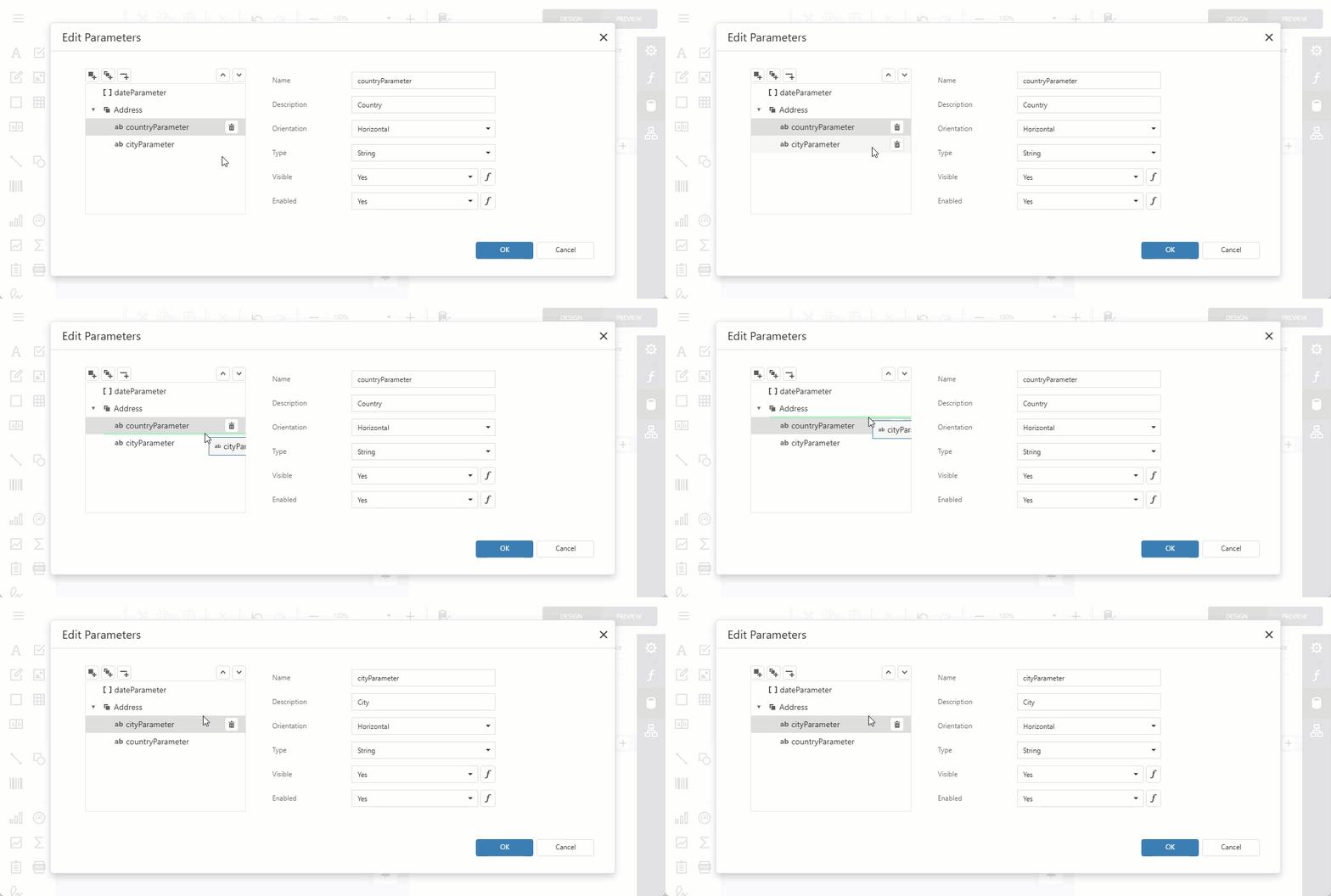
Drag-and-drop parameters in the left pane of the Edit Parameters dialog to rearrange them:
Note
If a parameter depends on another parameter, always place the “parent” parameter above the “child” parameter.
Group Related Parameters
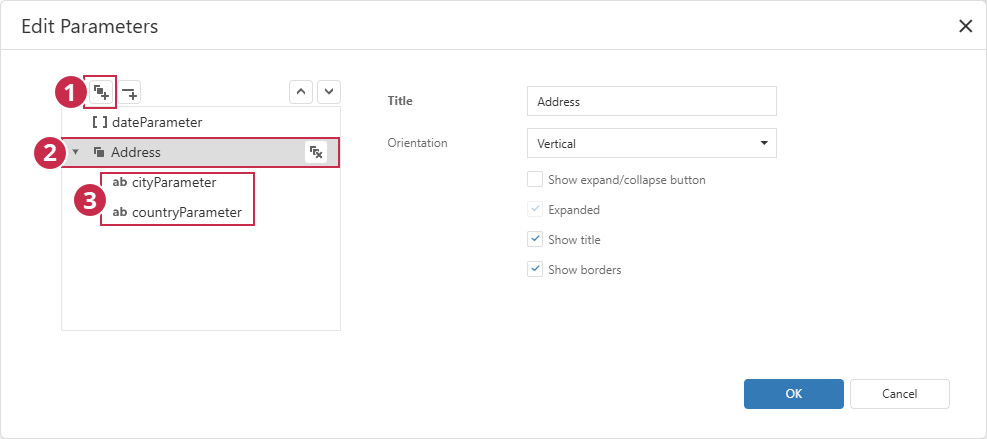
Click Add Group (1) to create a section (group) for related parameters. Specify group properties (2) and drag parameters into the new section (3):
Use the following options to customize group appearance:
- Title
Specifies the group title.
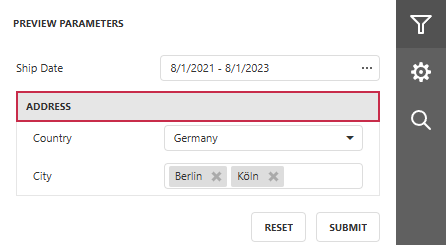
- Orientation
Arranges parameter editors in a horizontal row or a vertical column.
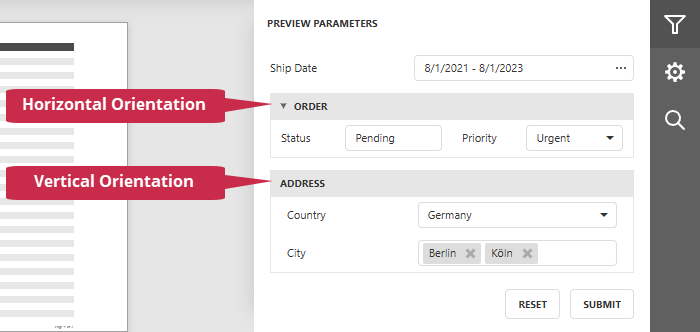
- Show expand/collapse button
Displays a button that allows users to expand or collapse the group.
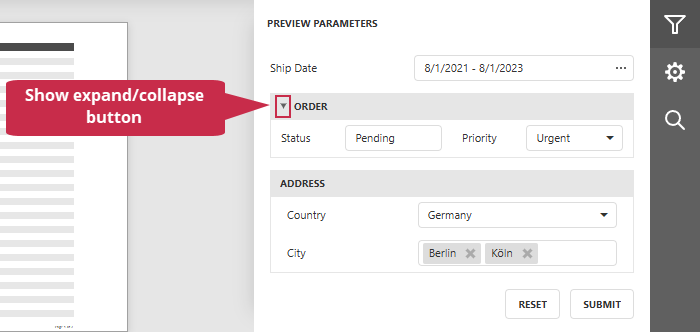
- Expanded
- Specifies whether the group is initially expanded. This option is available only when Show expand/collapse button is enabled.
- Show title
Displays the group title.
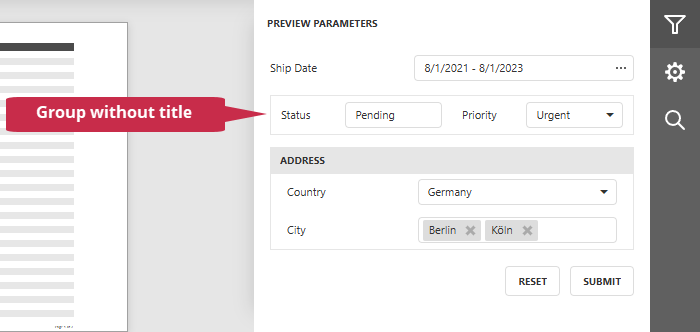
- Show borders
- Displays borders around the group.
Add Separators
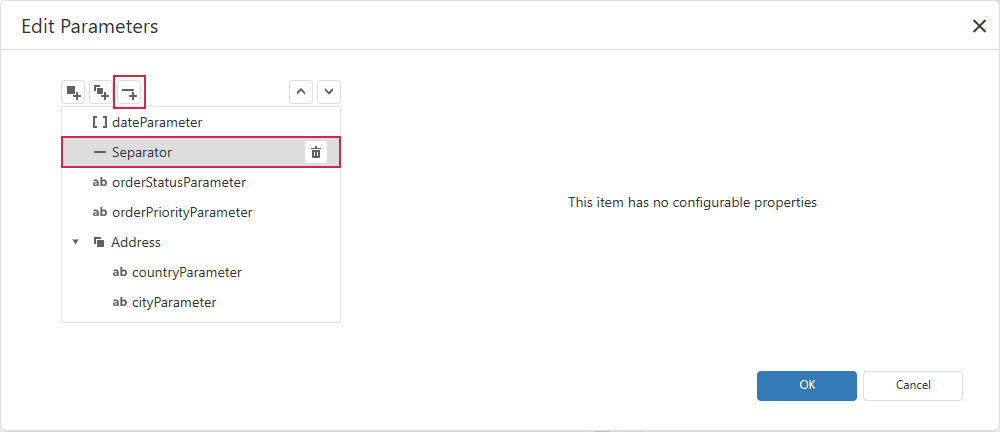
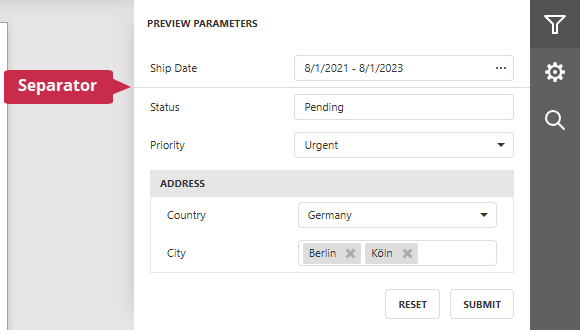
To visually divide a long parameter list, select a parameter and click Add Separator. The Report Designer adds a separator below the selected parameter. Drag the separator to change its position.
Separators affect only the parameter panel layout.
Request Parameter Values Before Document Generation
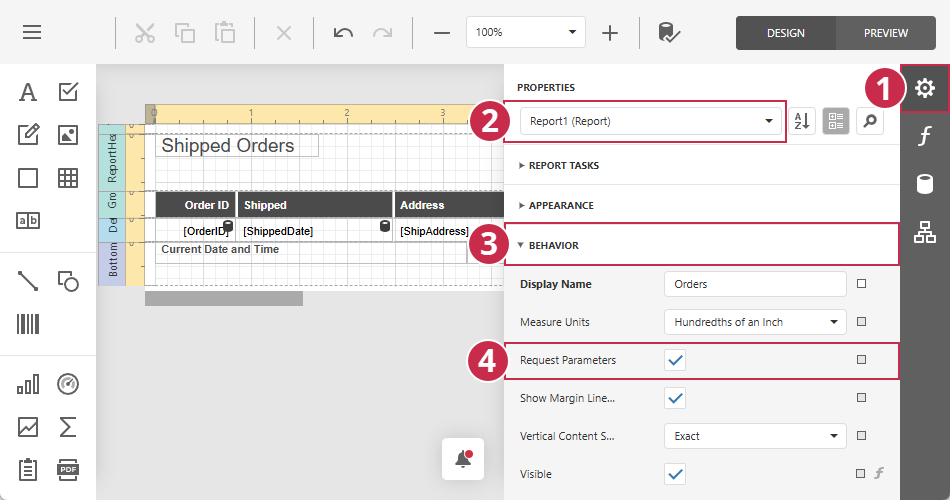
Use the report’s Request Parameters option to specify whether the Preview Parameters panel appears before the report component generates a document:
- In the Report Designer, open the Properties section.
- Select the root report element (marked
(Report)) from the drop-down list. - Expand the Behavior section.
Enable or disable Request Parameters:
Related GitHub-Hosted Sample Project
Related Compiled Demo
To see TdxReport/TdxReportControl parameter-based data filtering functionality in action, run the Report Designer/Viewer demo in the VCL Demo Center installed with compiled DevExpress VCL demos. Click Filter (the top button in the sidebar on the right) to display the PREVIEW PARAMETERS pane. Use editors to modify available parameter values and click SUBMIT to apply pending changes.
Compiled DevExpress demos ship with source code installed in the Public Documents folder (%PUBLIC%) for all users (default). You can find all project and source code files for the Report Designer/Viewer demo in the following folder:
%PUBLIC%\Documents\DevExpress VCL Demos\MegaDemos\Product Demos\ExpressReports\
Tip
Project and source code files for all compiled DevExpress VCL Demos are maintained in a public repository hosted on GitHub: