Filter Report Data
- 7 minutes to read
Report parameters allow users to generate different reports using the same underlying template without changes. For example, users can apply a country parameter to populate the report only with records from that specified region.
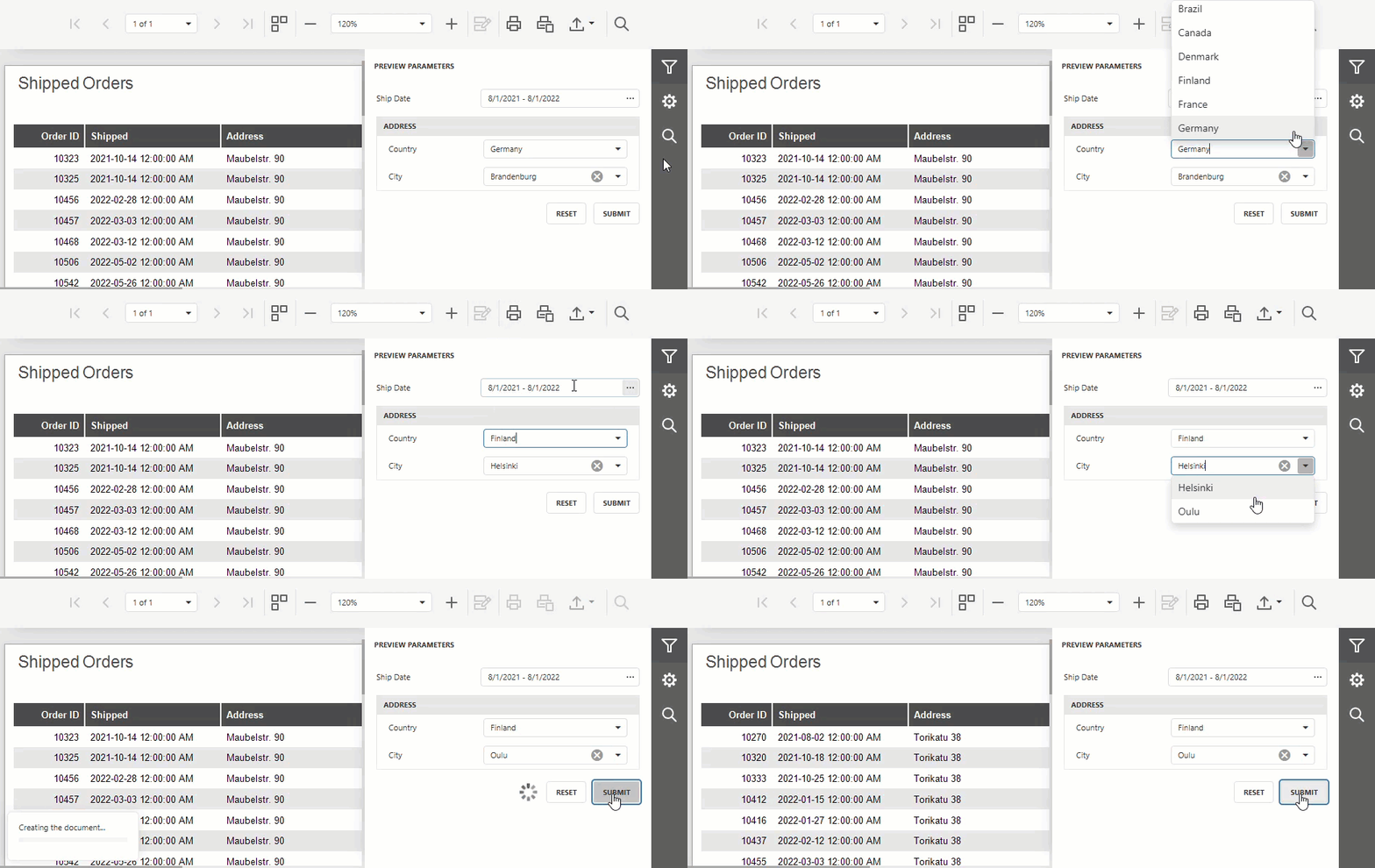
Parameter-Based Data Filter Levels
Report parameters allow you to filter out data at different app hierarchy levels. Each technique demonstrated in this topic is best used in corresponding scenarios and software configurations.
- Report-level filter
- The report engine filters data once all records are loaded from a data source. Report-level filtering is data source agnostic and supports complex expressions and calculated fields.
- Data source-level filter
- The data source filters records before they reach the report. Data source-level data filtering improves performance and reduces app memory footprints for large datasets but requires support for SQL queries and stored procedures (available only for relational databases).
- URL-level filter
- The report passes parameter values to a web service through the request URL or headers. The web service filters report data on the server to reduce network traffic. URL-level data filtering is available only for web-hosted JSON data sources.
Report-Level Filter
Report-level filtering is data source agnostic and supports complex expressions and calculated fields. Follow the steps below to filter report data by the Country parameter value at the report level:
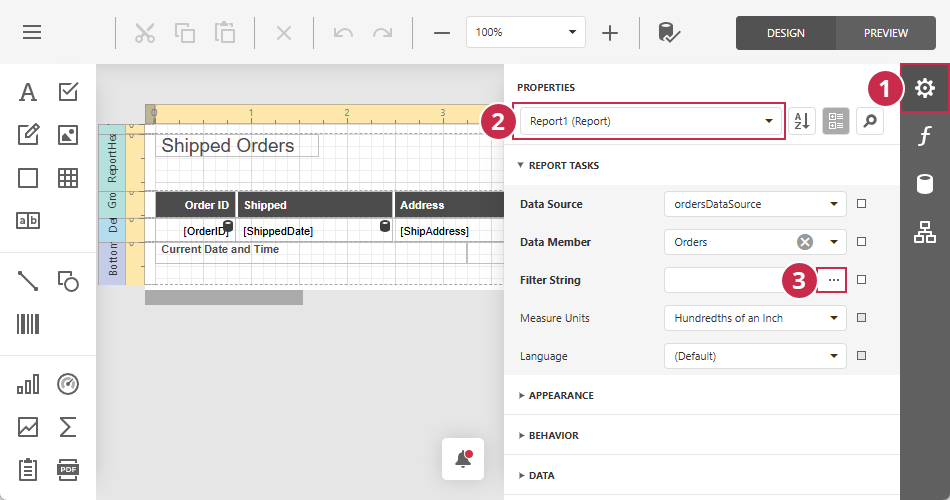
Step 1 — Open the Filter Editor
- In the Report Designer, open the PROPERTIES section.
- Select the root report element (marked
(Report)) from the drop-down list. - Click the ellipsis button in the Filter String field to open the Filter Editor dialog.
Tip
You can type a filter expression directly in the Filter String field.
Step 2 — Build a Filter
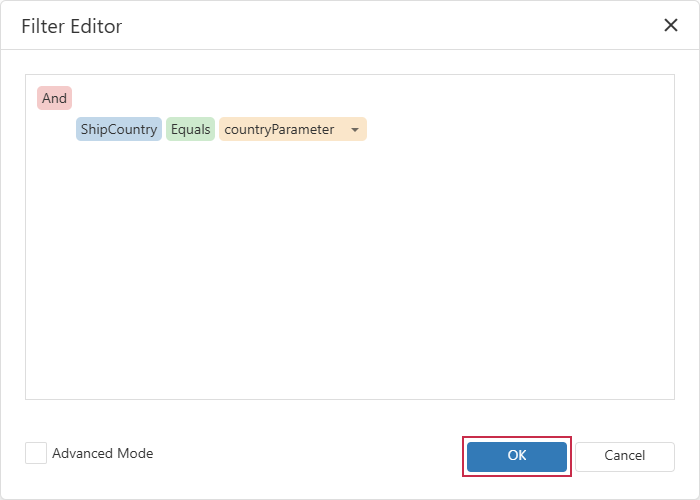
In the Filter Editor dialog, add a condition that compares the ShipCountry report field to the countryParameter parameter value:
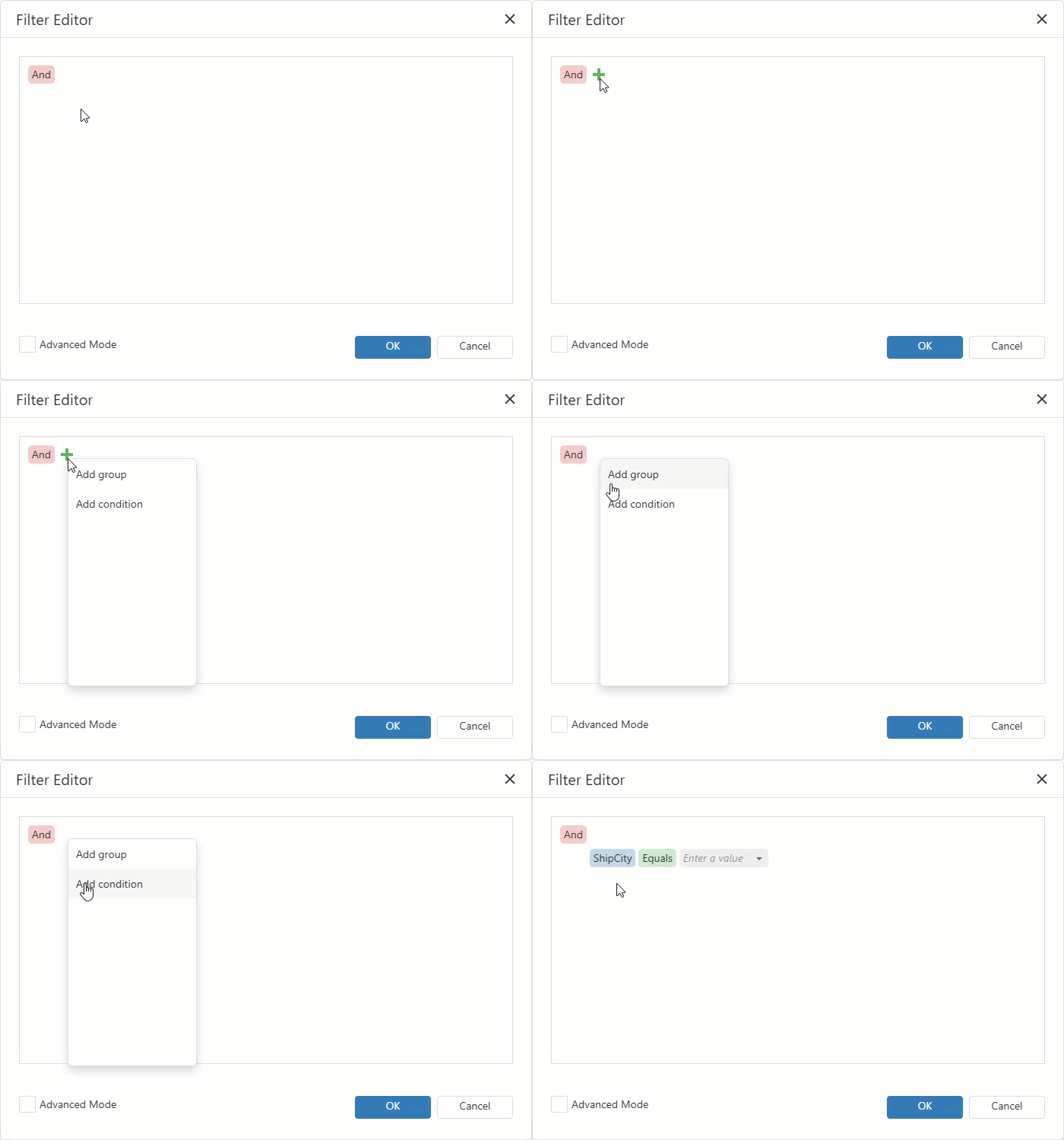
Hover the And group, click the Plus button, and select Add condition from the drop-down menu:
Tip
Enable Advanced Mode to enter a raw text query rather than navigate through menus. To reference a report parameter, prefix the parameter name with
?(for example,?countryParameter).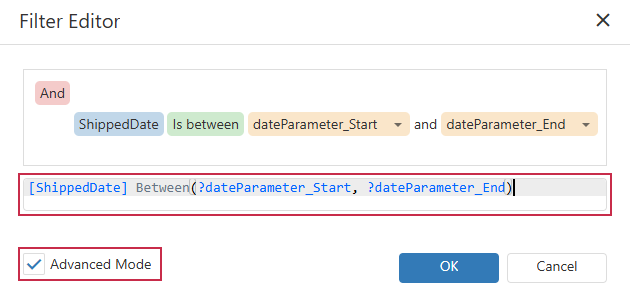
Click the left operand and select the report field from the drop-down menu:
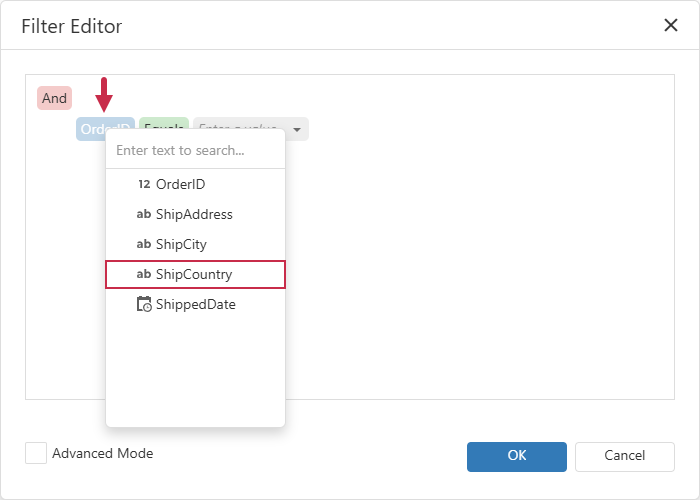
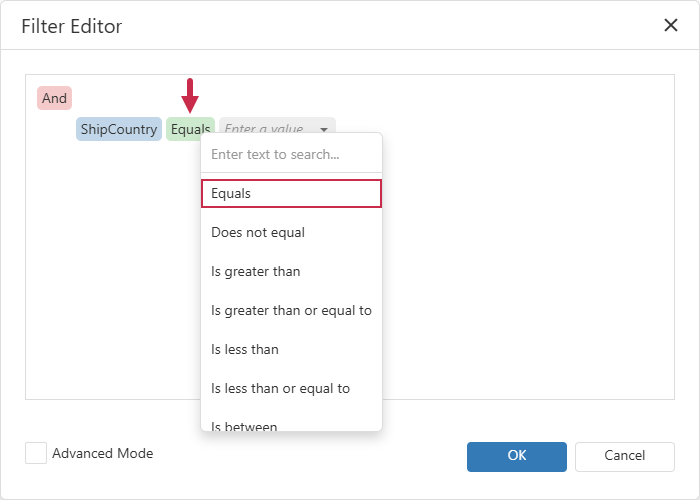
If you need a different comparison operator (for example, to compare against a multi-value parameter), click the central part of the filter condition and select an operator from the drop-down menu:
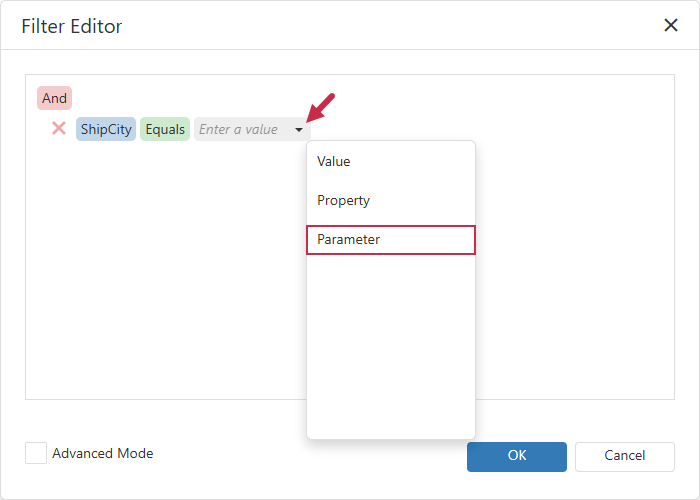
Click the arrow icon next to the right operand and select Parameter from the drop-down menu:
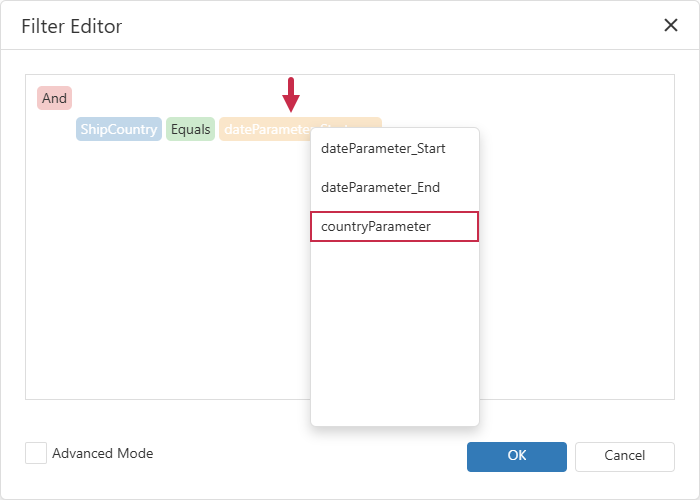
Click the parameter name in the right operand and select countryParameter from the drop-down menu:
Click the OK button to save the filter:
Data Source-Level Filter
Reference a parameter in the report’s query or a stored procedure to filter records before the data source loads report records.
Note
Data source-level filters only support SQL data sources but offer higher performance for large datasets. For other data source types, apply filter criteria to records at the report level.
Follow the steps below to configure a data source to return only records for the selected country (countryParameter):
Step 1 — Create a Query Parameter
A query parameter is a placeholder that receives a dynamic value (such as a calculated expression or user input) when the query is executed. In this tutorial, the query parameter receives its value from the countryParameter report parameter and uses it to filter records by country.
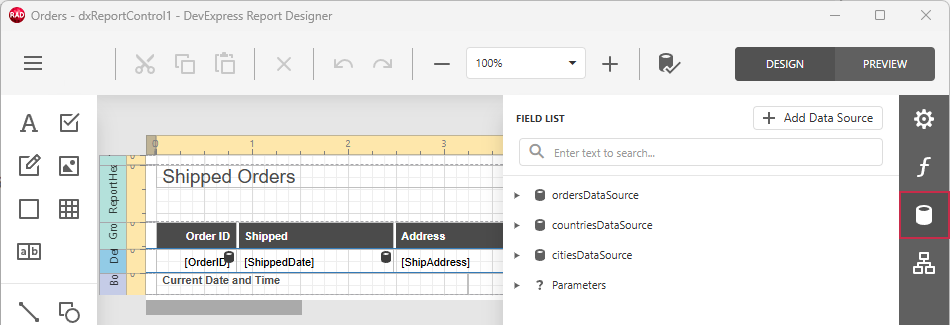
Open report fields in the Report Designer:
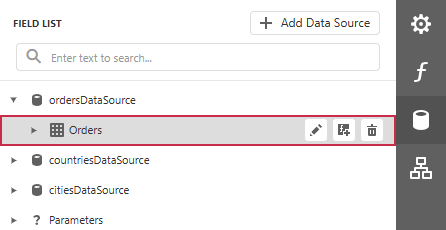
Locate the report data source and click the Pencil button to open the Data Source Wizard:
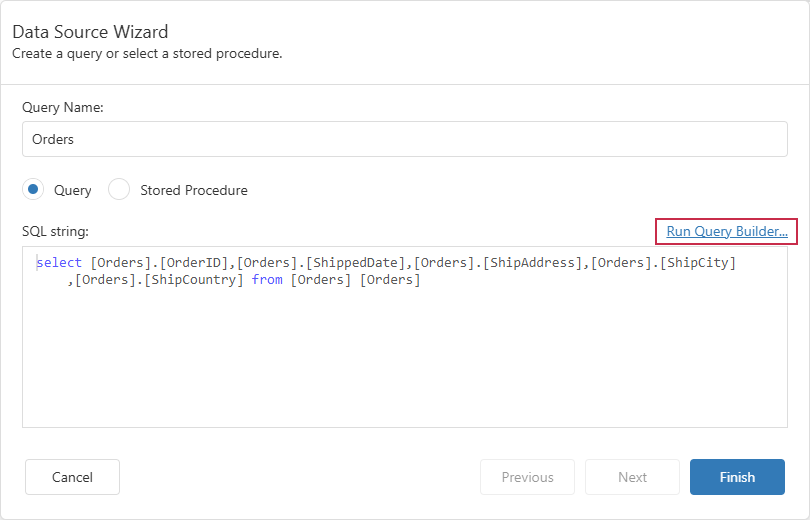
Run the Query Builder:
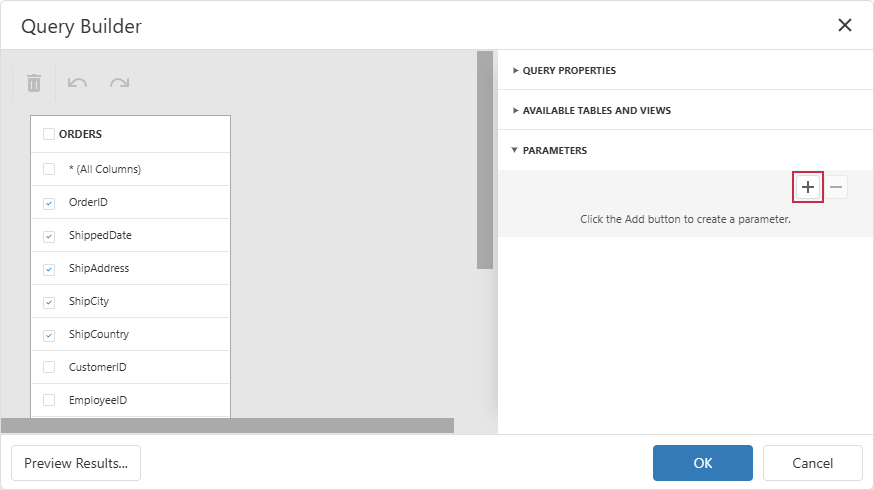
Create a query parameter. Expand the PARAMETERS section and click the Plus button:
Expand the query parameter and bind it to the
countryParameterreport parameter: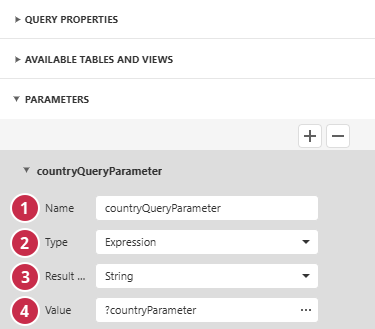
- Name (1)
- Specify a unique name to reference the parameter in the query.
- Type (2)
- Select Expression to calculate the parameter value each time the query runs.
- Result Type (3)
- Specify the value type returned from the query parameter expression.
- Value (4)
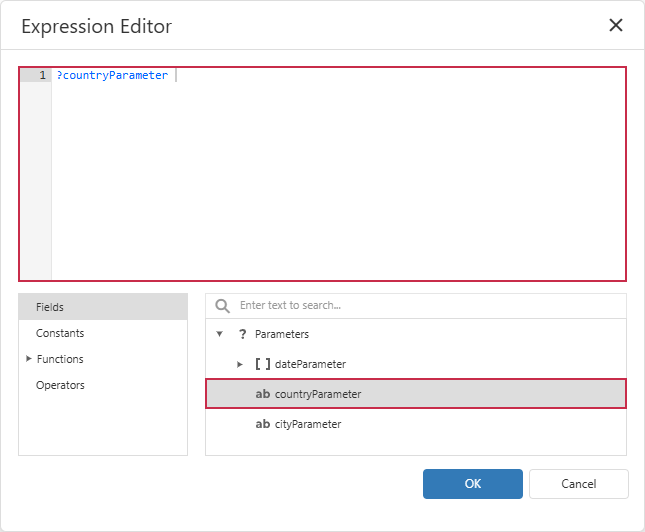
Click the ellipsis button and create an expression that calculates the query parameter value from report parameter values.
Step 2 — Add a Query Filter
In the Filter Editor dialog, add a condition that compares the ShipCountry data source field to the countryParameter parameter value:
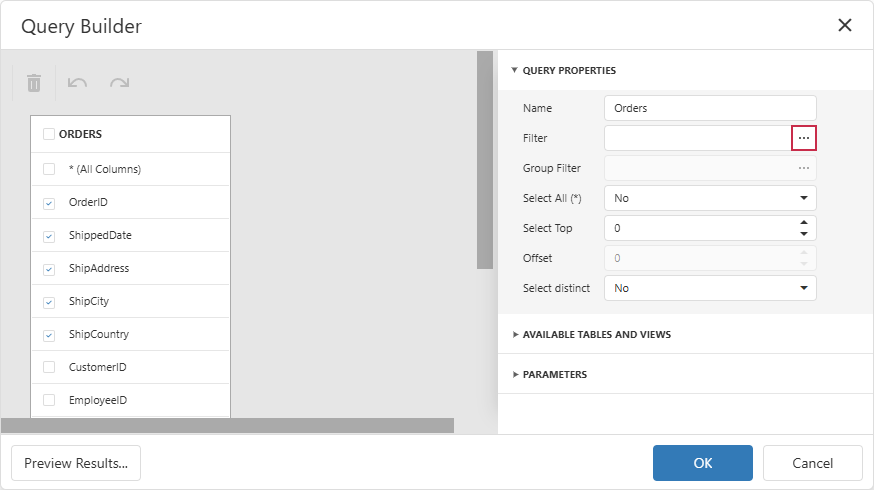
Expand Query Properties and click the ellipsis button in the Filter field to open the Filter Editor dialog:
Tip
Enable Advanced Mode to enter a raw text query rather than navigate through menus. To reference a query parameter, prefix the parameter name with
?(for example,?countryQueryParameter).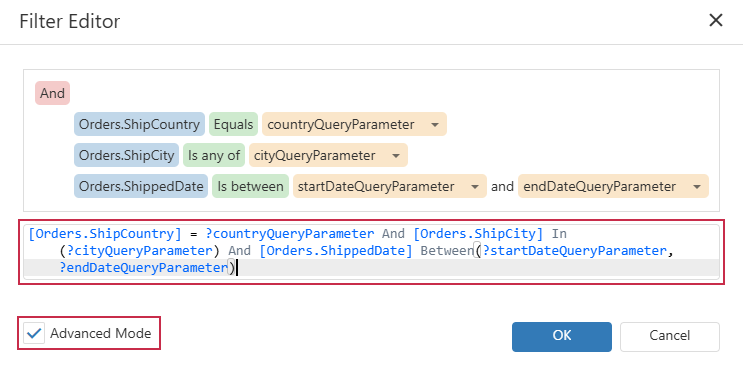
Hover the And group, click the Plus button, and select Add condition from the drop-down menu:
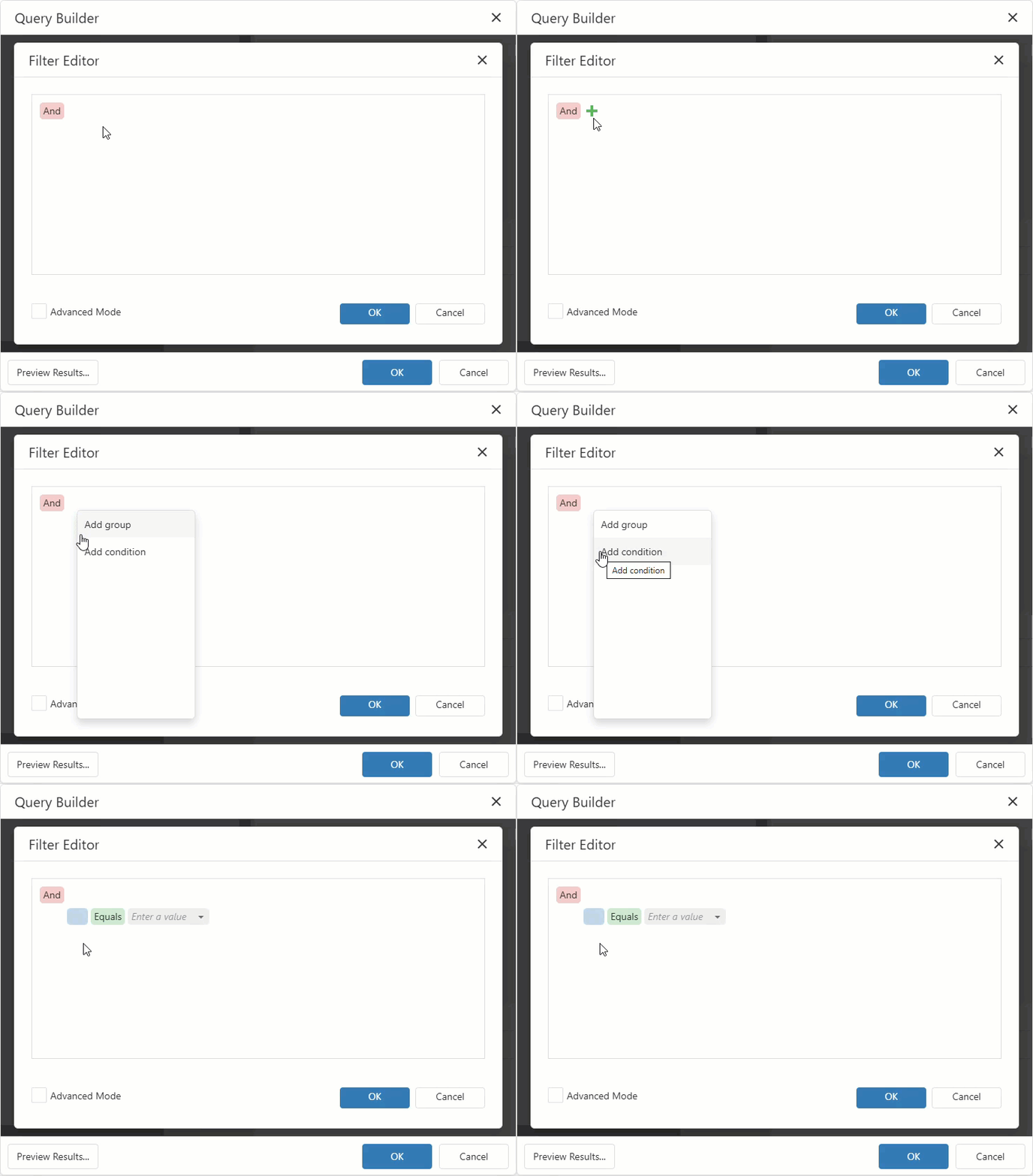
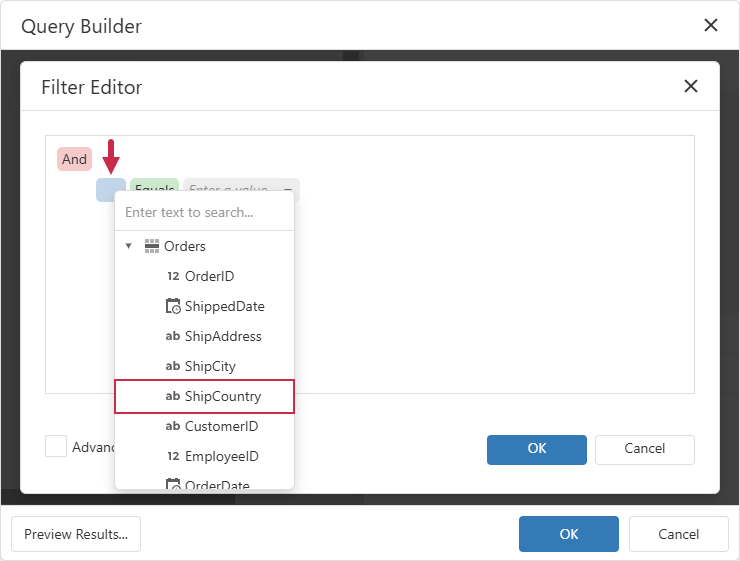
Click the left operand and select the data source field from the drop-down menu:
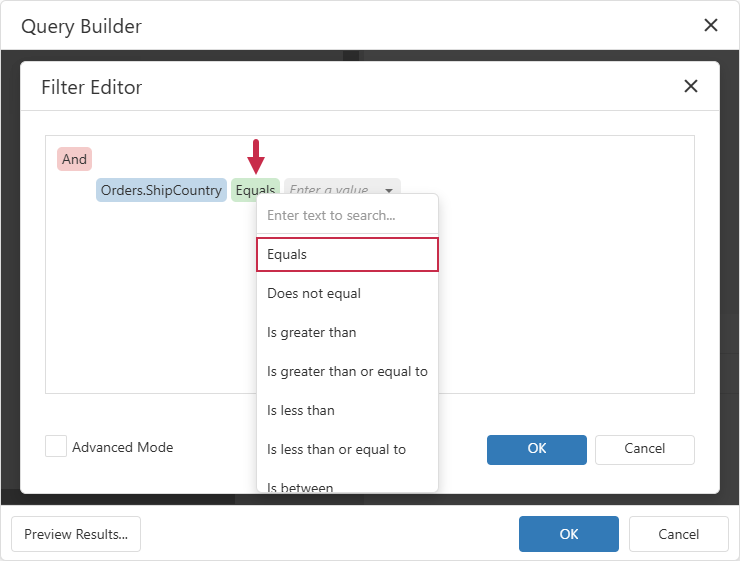
If you need a different comparison operator (for example, to compare against a multi-value parameter), click the central part of the filter condition and select an operator from the drop-down menu:
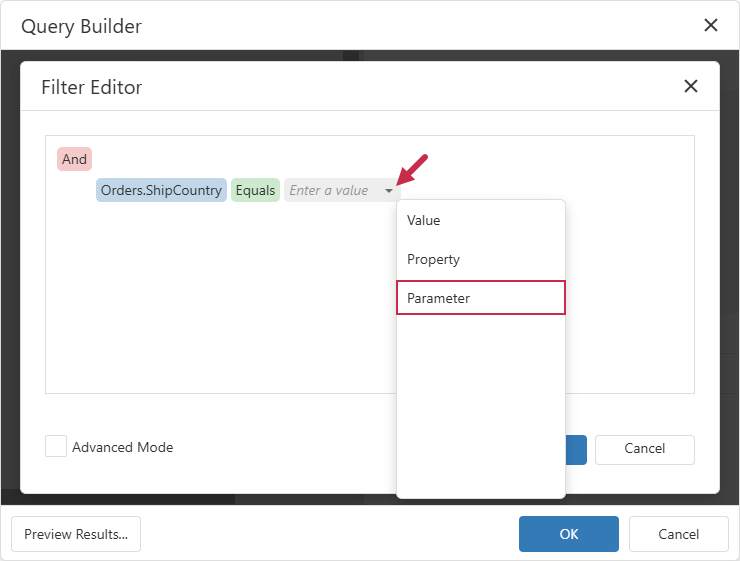
Click the arrow next to the right operand and select Parameter from the drop-down menu:
Tip
The first query parameter is selected automatically. To use another parameter, click the parameter name in the right operand and select the parameter from the drop-down menu.
Click the OK button in the Filter Editor dialog to save the filter condition.
- Click the OK button in the Query Builder to apply changes to the query.
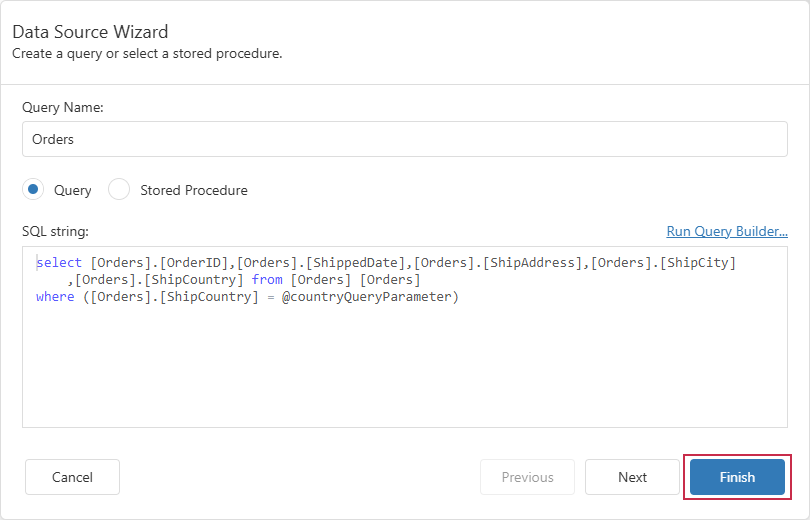
Click the Finish button to close the Data Source Wizard:
Filter Web Service Data at the Source
If your report connects to a web service endpoint, you can filter data server-side. The report component passes report parameter values to the API through a URL path, query string, or HTTP header. Server-side data filtering reduces network traffic and speeds up report generation because the web service returns only explicitly requested records.
Note
The report only sends parameter values and does not affect remote web service behavior. The web service must accept request parameters/headers and process/apply filter criteria on the server.
Follow the steps below to build an endpoint URL based on report parameter values:
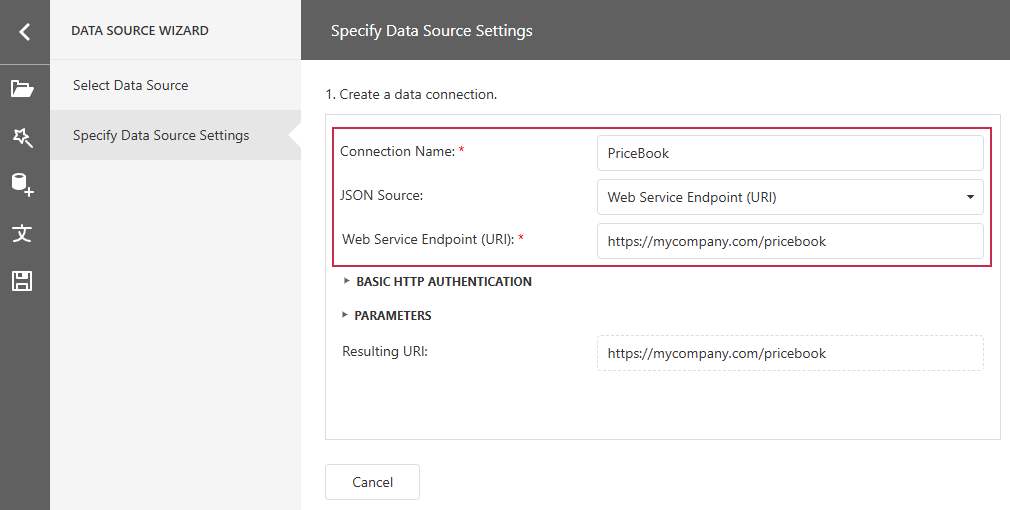
Add a JSON data source and configure the web service endpoint:
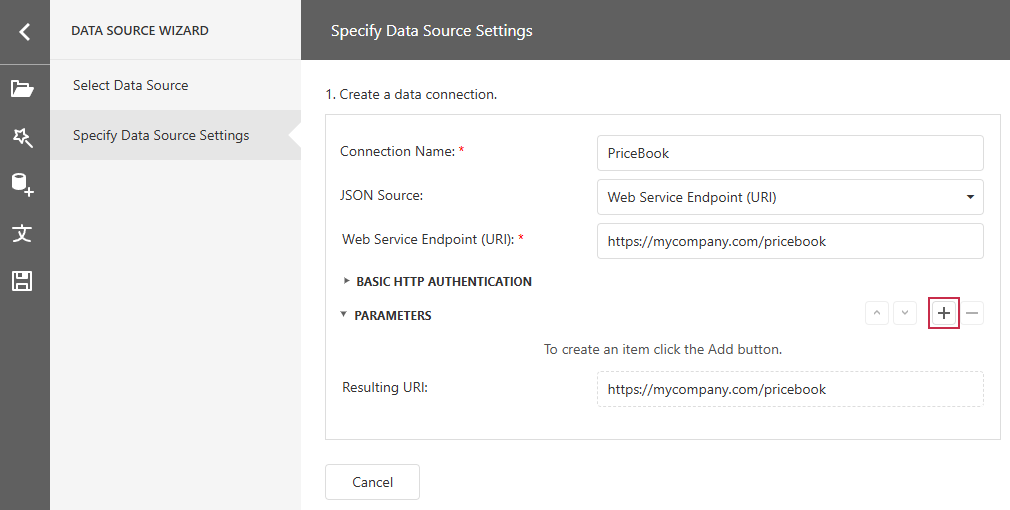
Expand the PARAMETERS section and click the Plus button to create a parameter binding:
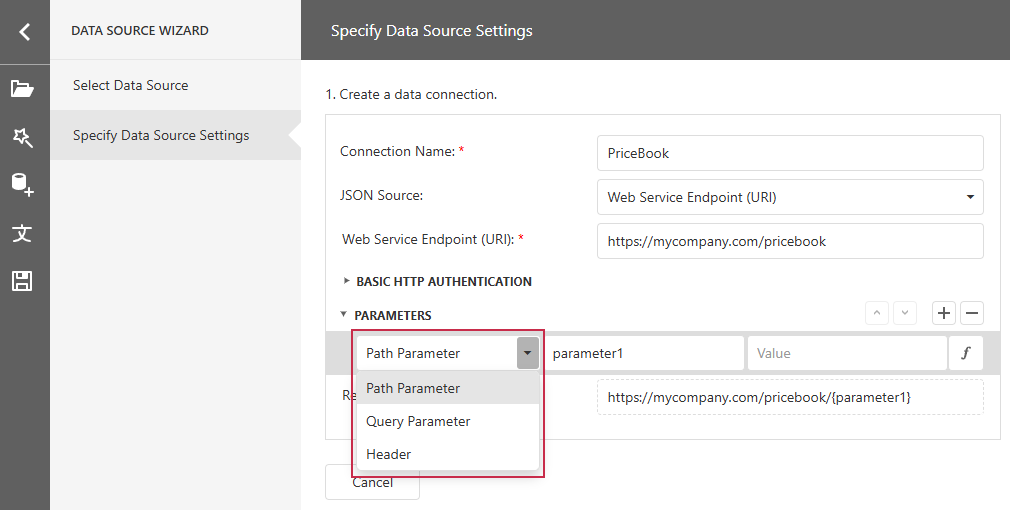
Select how to pass the parameter to the web service:
- Path Parameter
- Inserts the parameter value into the endpoint URL path.
- Query Parameter
- Appends the parameter value to the URL query string.
- Header
- Sends the parameter value in an HTTP request header.
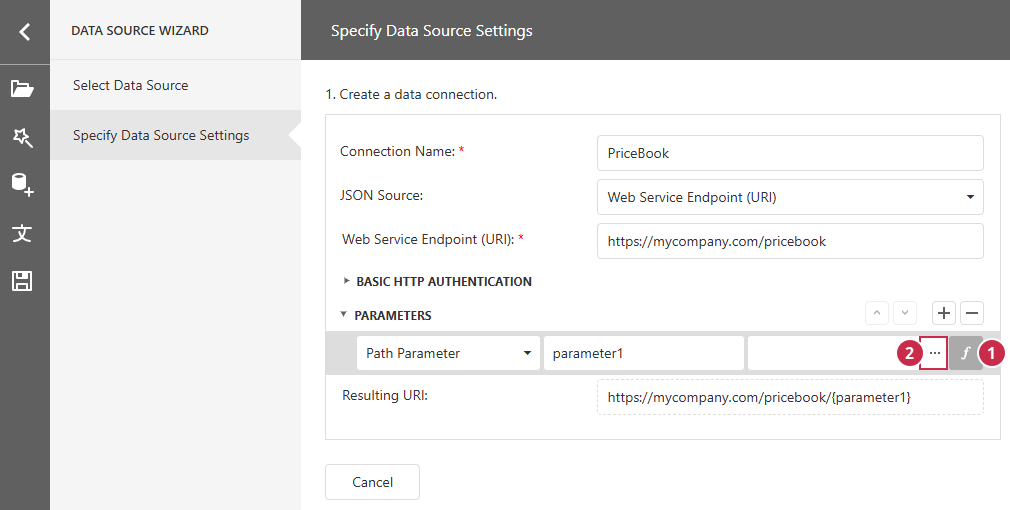
Click the Function button (1) next to the parameter value and then click the ellipsis button (2) to create an expression that fetches the report parameter value:
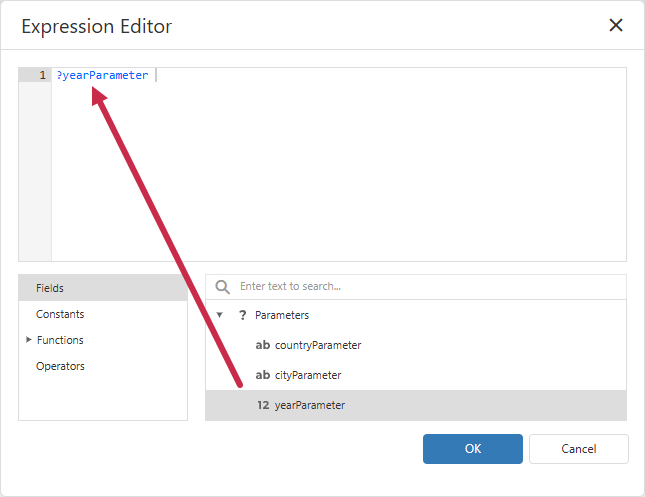
Expand the Parameters node and double-click the parameter name to add it to the expression. Use operators and functions to combine or compare parameter references with other data:
Click Finish to save the connection.
Related GitHub-Hosted Sample Project
Related Compiled Demo
To see TdxReport/TdxReportControl parameter-based data filtering functionality in action, run the Report Designer/Viewer demo in the VCL Demo Center installed with compiled DevExpress VCL demos. Click Filter (the top button in the sidebar on the right) to display the PREVIEW PARAMETERS pane. Use editors to modify available parameter values and click SUBMIT to apply pending changes.
Compiled DevExpress demos ship with source code installed in the Public Documents folder (%PUBLIC%) for all users (default). You can find all project and source code files for the Report Designer/Viewer demo in the following folder:
%PUBLIC%\Documents\DevExpress VCL Demos\MegaDemos\Product Demos\ExpressReports\
Tip
Project and source code files for all compiled DevExpress VCL Demos are maintained in a public repository hosted on GitHub: