Bind a Report to a Parameterized Stored Database Procedure
- 7 minutes to read
This tutorial creates a Delphi or C++Builder application that obtains data for an ExpressReport from a stored database procedure and uses a report parameter as a procedure parameter. The tutorial uses the DevExpress Report Designer and Report Wizard at design time.
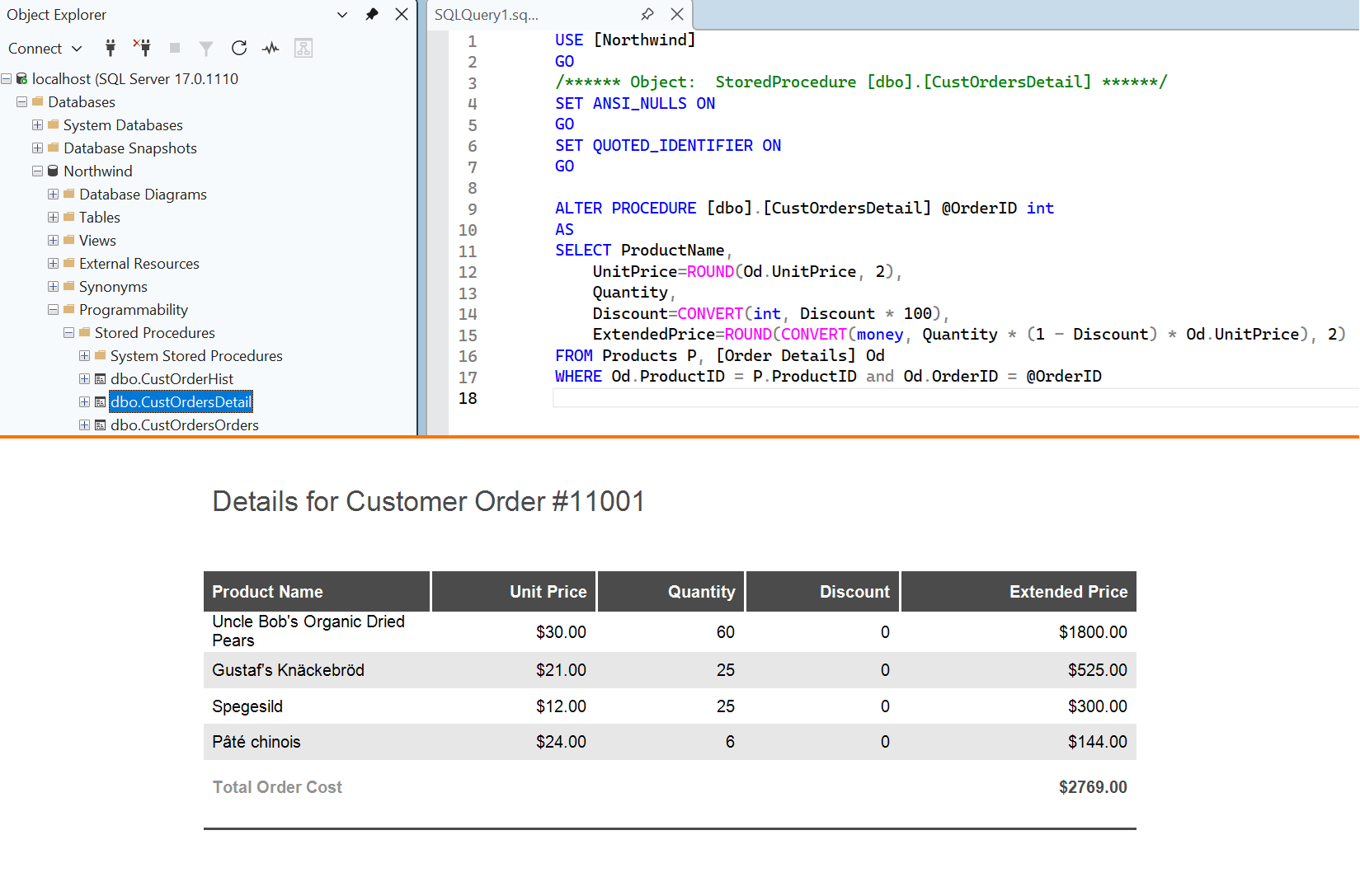
- Sample SQL Server Database
- Step 1 – Create and Configure a RAD Studio Project
- Step 2 — Bind the Stored Procedure as a Report Data Source
- Step 3 — Create a Report Layout Using the Report Wizard
- Step 4 — Create and Pass a Report Parameter to the Stored Procedure
- Step 5 — Preview a Report and Save the Report Layout
- Next Steps
- Other Tutorials
Sample SQL Server Database
The tutorial requires a configured relational database with a parameterized stored procedure. The described scenario is based on the Microsoft SQL Server with the Northwind sample database. To follow this tutorial, download the Northwind database or use an existing database in your development environment.
Step 1 – Create and Configure a RAD Studio Project
Place DevExpress Components on a Form
Create a new Delphi or C++Builder project. Use the Tool Palette to place the following DevExpress components on a form:
- TdxReport
- Manages report document layouts, end-user dialogs, and related settings.
- TdxBackendDataConnectionManager
- Manages data sources for all reports in your application.
Configure a Database (SQL) Connection
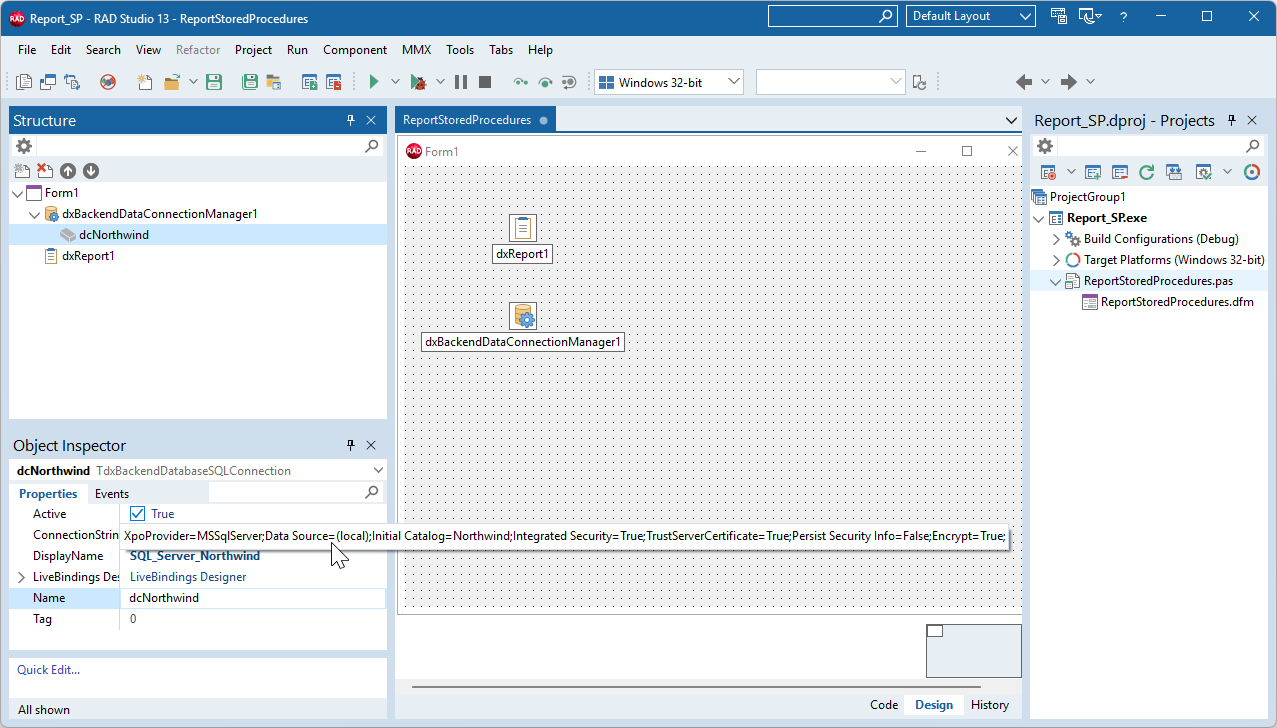
- Right-click the TdxBackendDataConnectionManager on the form and select Edit to open the Collection Editor dialog.
- Click the Add (plus) button and select Database (SQL) in the drop-down list. A new connection (TdxBackendDatabaseSQLConnection) is added to the connection manager. Close the Edit dialog.
- Select the newly created connection in the Object Inspector. Set the connection’s DisplayName. Report Designer uses this name to display the connection in the UI.
- Paste the following string into the ConnectionString property:
XpoProvider=MSSqlServer;Data Source=(local);Initial Catalog=Northwind;Integrated Security=True;TrustServerCertificate=True;Persist Security Info=False;Encrypt=True;
Tip
For additional information on using the SQL Server with ExpressReports, refer to the following guide:
Step 2 — Bind the Stored Procedure as a Report Data Source
Create and Configure a Report Data Source
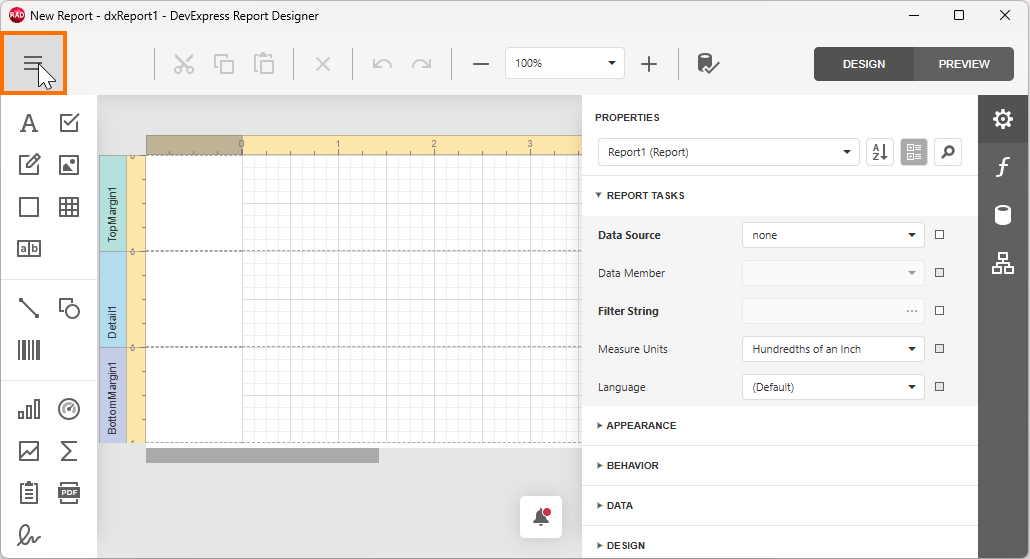
Right-click the TdxReport component and select the Designer… option[1] to display the Report Designer dialog. Click the hamburger button to display the Report Designer menu.
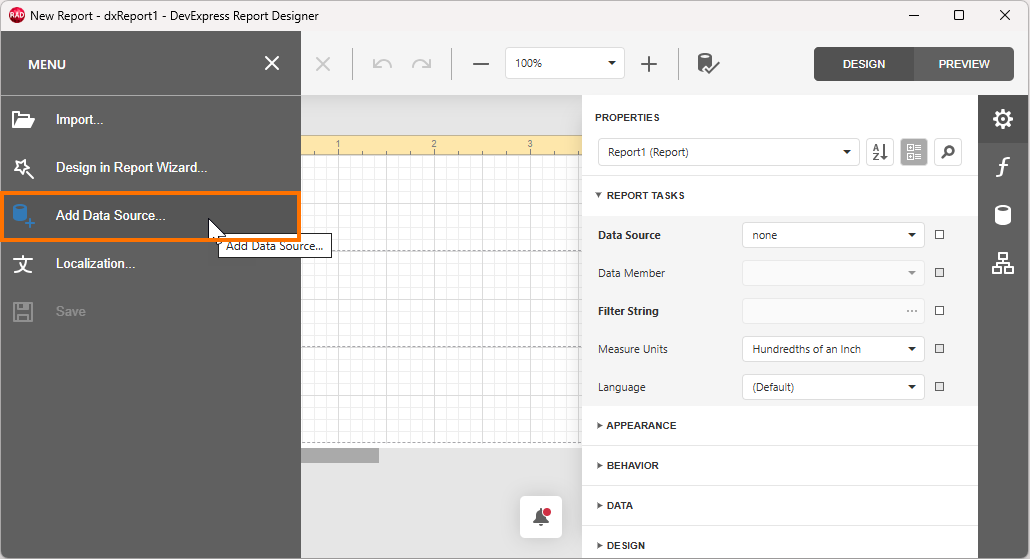
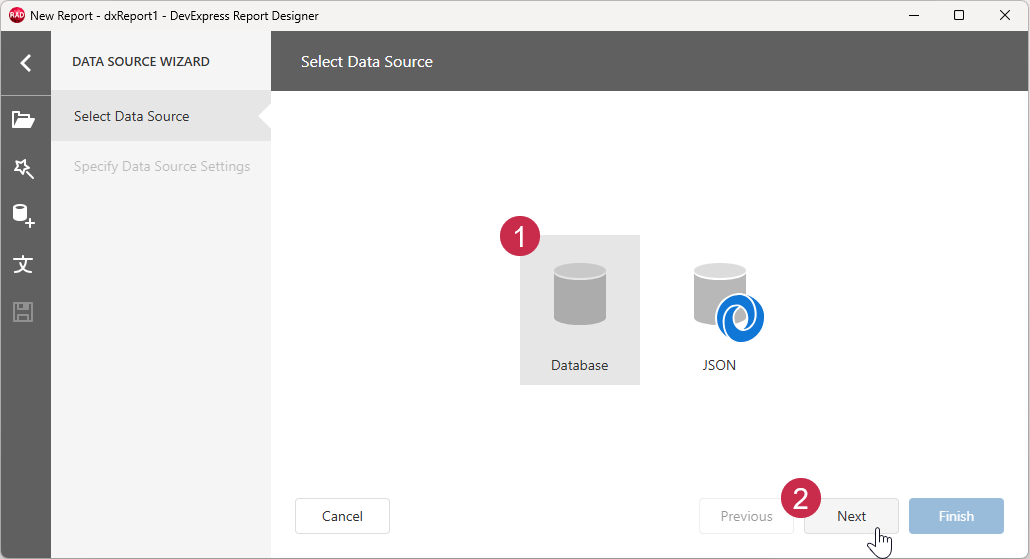
Select Add Data Source… to display available data source types:
Select Database and click Next:
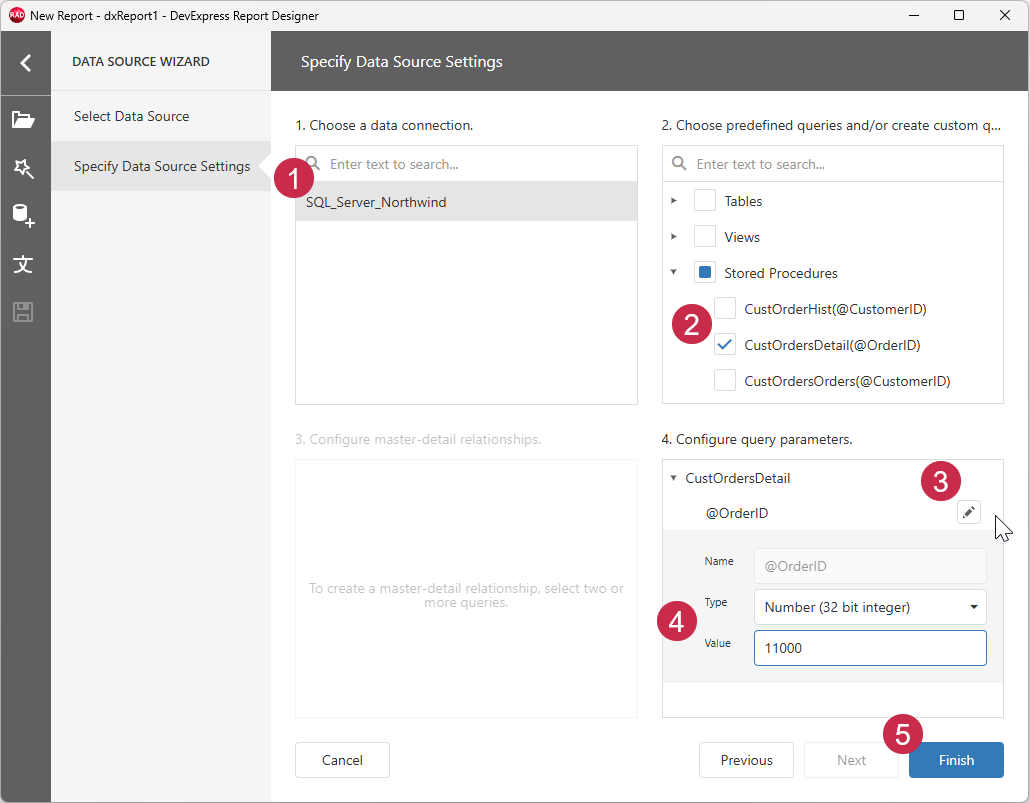
Specify data source settings:
- Select the data connection created earlier.
- Expand the Stored Procedures list and select
CustOrdersDetail(@CustomerID). - Expand the query parameters list and click the Edit button next to the
@CustomerIDparameter. - In the Value field, fill in
11000(this value will be updated later in this tutorial). - Click Finish to save the configured report data source.
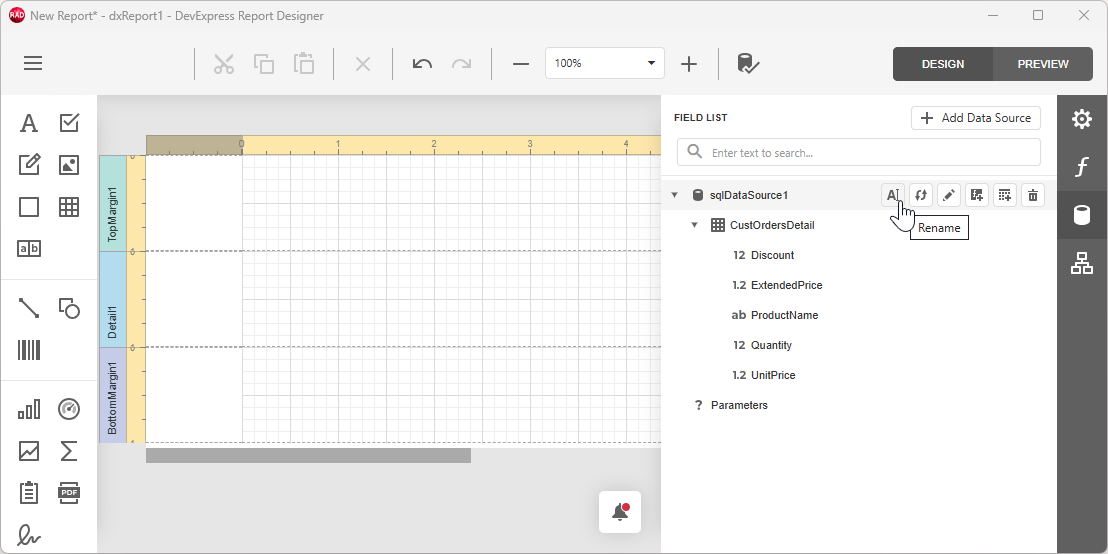
Optional: Review the Created Data Source
Click the Fields button in the right panel of the Report Designer.
Expand the created data source to review available data fields.
Step 3 — Create a Report Layout Using the Report Wizard
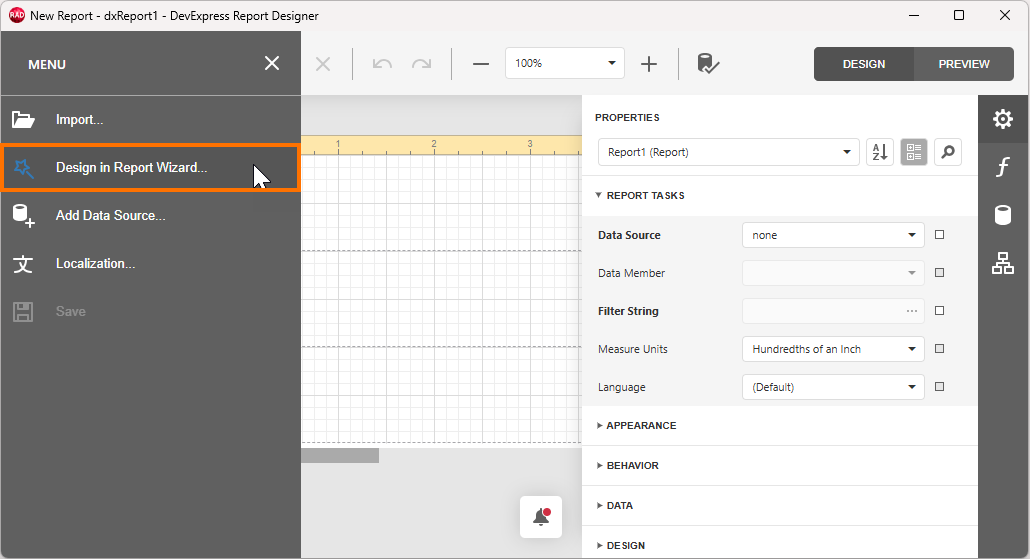
Click the hamburger button in the upper-left corner to display the Report Designer menu and select Design in Report Wizard:
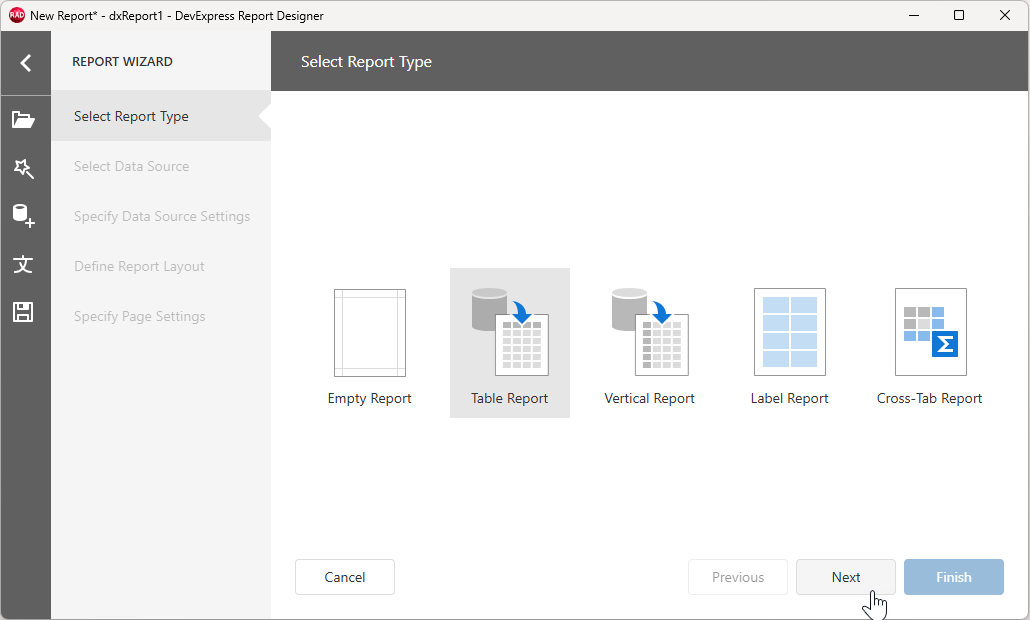
Select Table Report on the Select Report Type page to create a tabular layout and click Next:
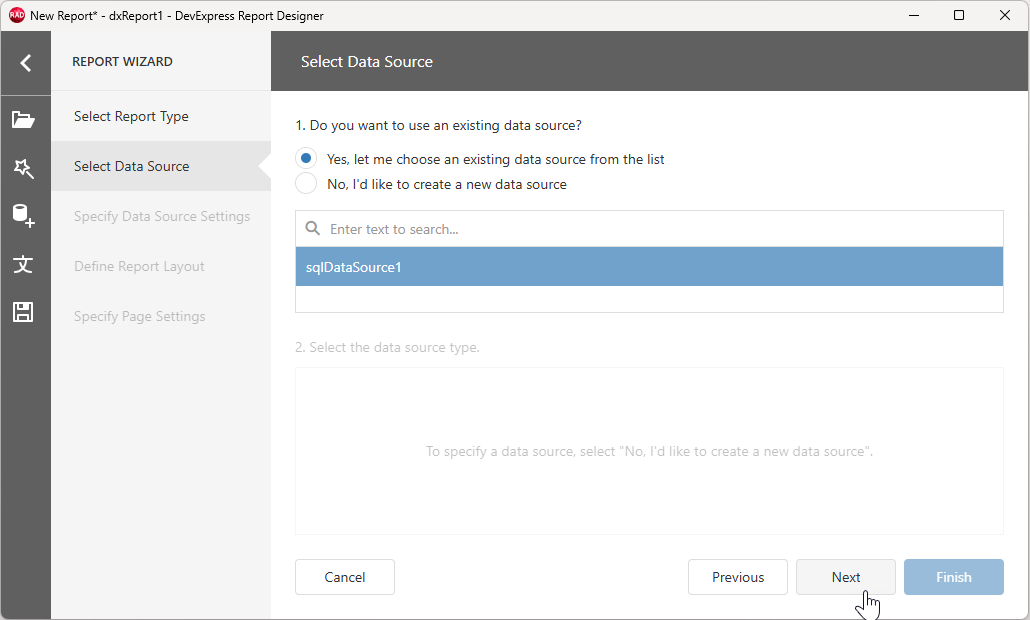
Select the previously created data source and click Next:
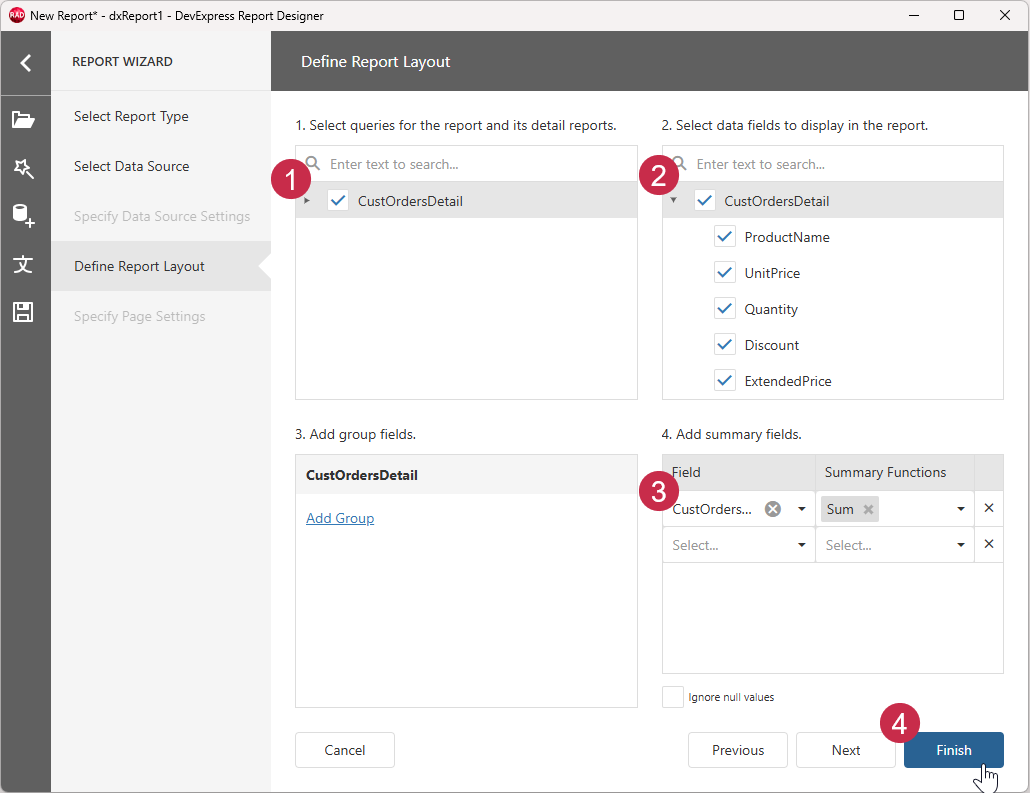
Define the report layout:
- Select the
CustOrdersDetailquery. - Select all available data fields to display in the report.
- Add a summary field based on the
ExtendedPricefield using theSumfunction. - Click Finish to return to the Report Designer.
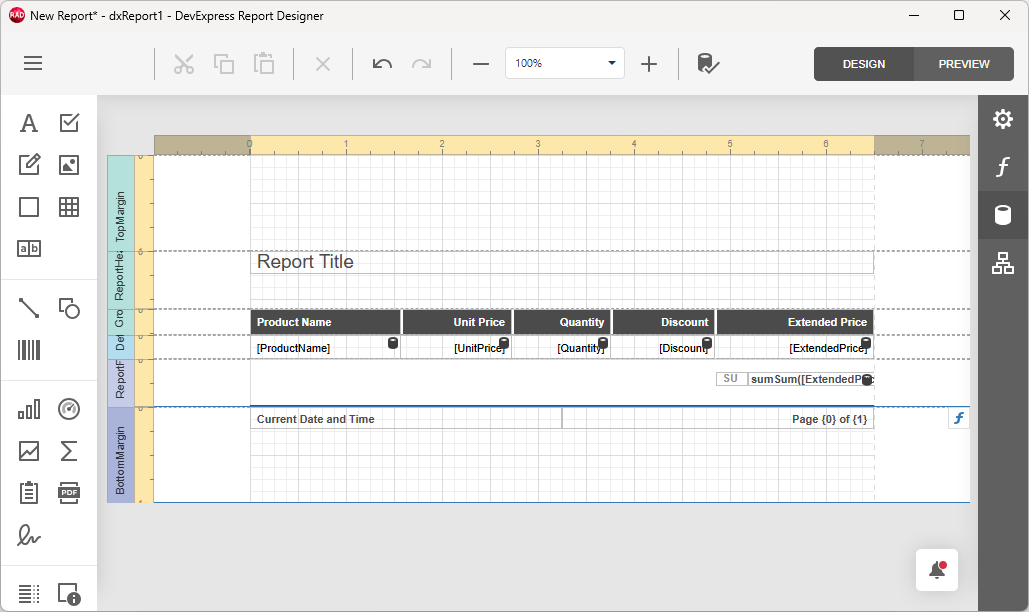
The Report Designer dialog displays the generated report layout. To switch between Design and Preview modes[2], click corresponding buttons.
Step 4 — Create and Pass a Report Parameter to the Stored Procedure
Create a Report Parameter
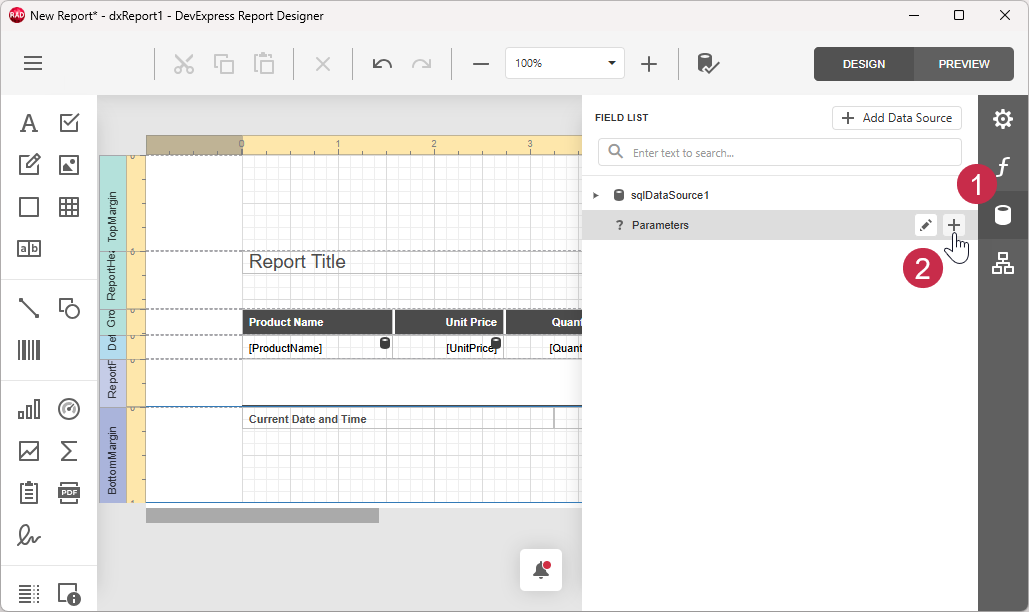
- Click the Fields button in the right panel of the Report Designer.
- Click the Add parameter (plus) button next to Parameters.
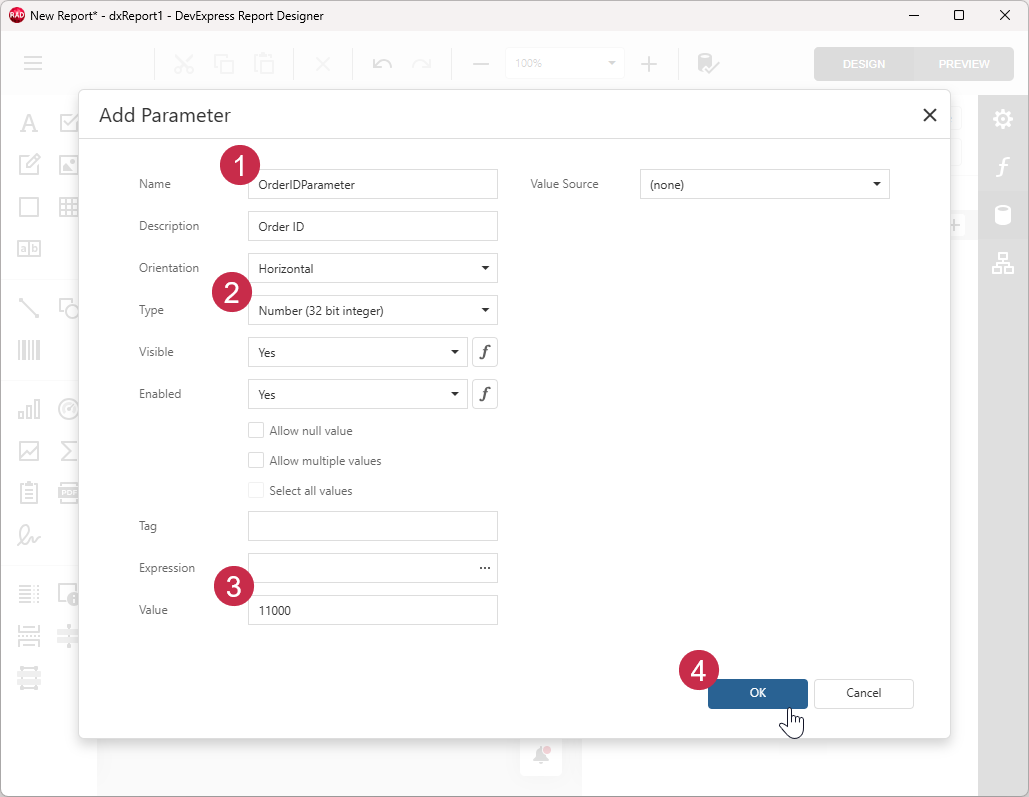
Specify all required values in the Add Parameter form:
- Define the parameter’s Name and Description (display name).
- Select the Number (32 bit integer) data type.
- Scroll the form down and specify a predefined parameter value (Value) – for example,
11000. - Click OK to save the parameter.
Pass the Report Parameter to the Stored Procedure
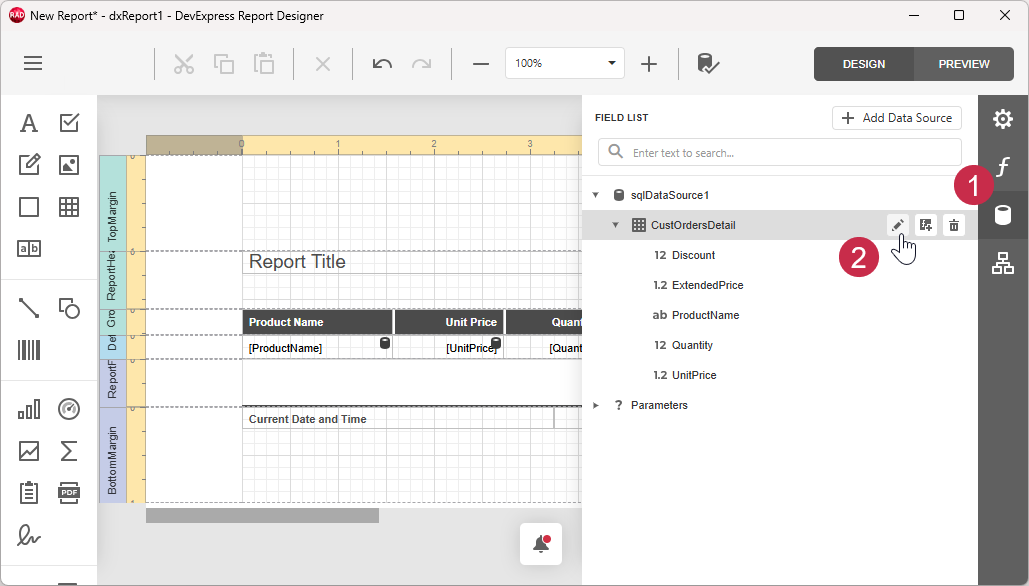
- Click the Fields button on the right panel of the Report Designer.
- Expand the previously created data source.
- Click the Edit query button next to CustOrdersDetail to open the Data Source Wizard. Click Next to open the Configure query parameters screen.
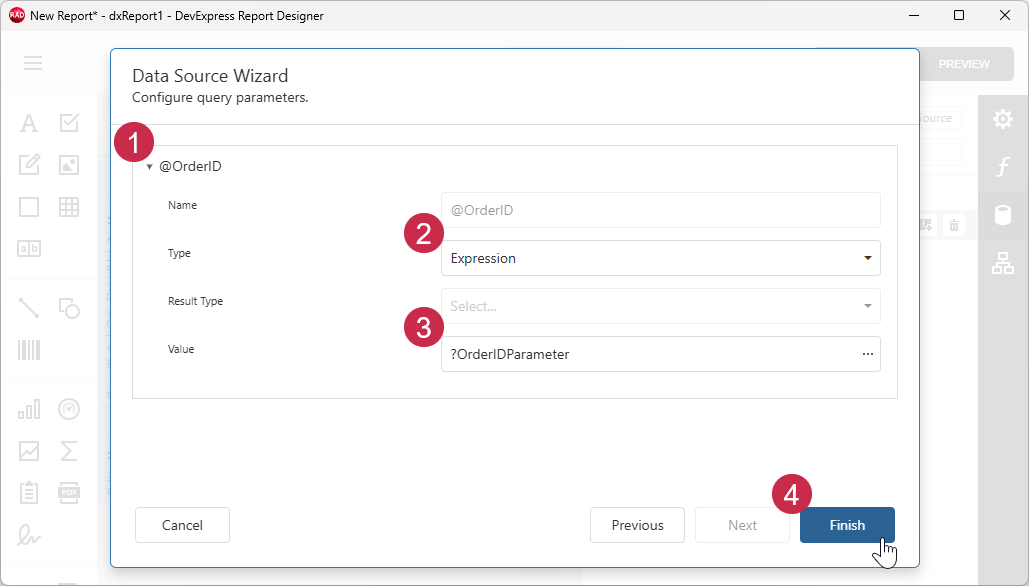
- Expand the OrderID parameter.
- Select Expression in the Type drop-down list.
- Paste
?OrderIDParameterin the Value field. - Click Finish.
Step 5 — Preview a Report and Save the Report Layout
Preview a Parameterized Report
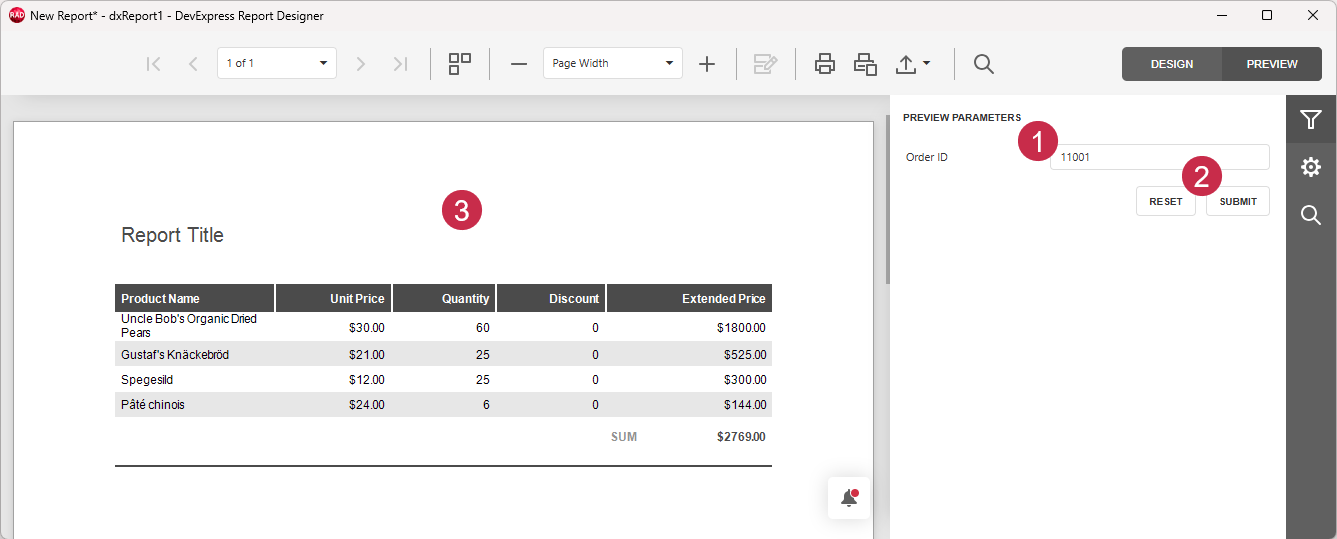
- Click PREVIEW in the upper-right corner of the Report Designer to switch to Preview mode.
- Define a different Order ID – for example,
11001. - Click Submit to view the report for the specified Order ID.
Save the Report Layout
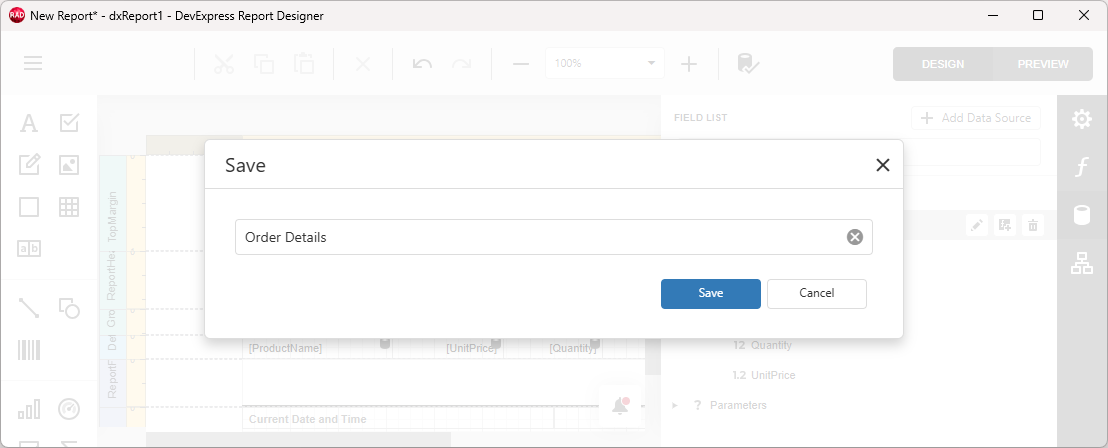
- Switch to Design mode.
- Click the hamburger button and select the Save[3] option.
- Specify a report layout name (OrderDetails for example).
Next Steps
To display Report Designer/Report Viewer dialogs at runtime and deploy the resulting application, follow the steps of the basic Report Tutorial:
Display Report Viewer and Designer Dialogs at Runtime
TdxReport used in this tutorial is a non-visual component. To display end-user dialogs at runtime using ShowDesigner and ShowViewer methods, refer to the following tutorial step: Display Report Viewer & Designer Dialogs at Runtime
Build and Test Your Report Application
All applications that include the TdxReport component require the WebView2 Runtime as a dependency. To automatically deploy this dependency using post-build events in the RAD Studio IDE, refer to the following tutorial step: Build & Test Your First App.
Other Tutorials
Basic Tutorials introduce the report creation tools and functionality available for the TdxReport and TdxReportControl components.
Both tutorials create VCL applications that display a table report. The applications have the same UI/UX but use different data sources and data connection components.
Master-Detail Tutorials demonstrate how to define a master-detail relationship between two tables in a relational SQL database and display hierarchical data in a table report.
Both tutorials create sample applications with the same UI/UX and similar performance but use different tools and techniques.
Parametrized Report Tutorials demonstrate how to create a Tabbed MDI (multi-document interface) Report Viewer application. Each tab displays the same parametrized report layout/template populated with different data loaded from a relational SQL database.
Both tutorials create sample applications that implement the same UI/UX with similar performance but rely on different data shaping/connection techniques/components.
Tip
Refer to the following topic for a complete list of TdxReport/TdxReportControl tutorials: VCL Reports: Getting Started.
-
Alternatively, you can double-click the TdxReport component.
-
You can switch to Preview mode at any moment to ensure that the resulting report document looks as intended.
-
If you attempt to close the Report Designer dialog, you will be prompted to save pending report layout and data binding changes.