TdxCustomZoomTrackBarProperties Class
The base class for zoom track bar settings.
Declaration
TdxCustomZoomTrackBarProperties = class(
    TcxCustomTrackBarProperties
)
Remarks
A zoom track bar editor (TdxZoomTrackBar/TdxDBZoomTrackBar) is inspired by a zoom slider found in Microsoft Office® applications. Compared to a simple track bar, a zoom track bar displays two different adjacent track scales for more granular thumb positioning.
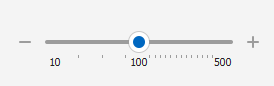
You can arrange a zoom track bar editor horizontally or vertically, flip the scale direction, and customize the appearance of scales, thumb, tick marks, and other track bar elements.
End-User Options
Similar to simple track bars, zoom track bar editors (TdxCustomZoomTrackBar descendants) support multiple mouse/touch and keyboard-based user interaction options.
Zoom Track Click & Thumb Drag Operations
Users can drag the thumb to modify the edit value.
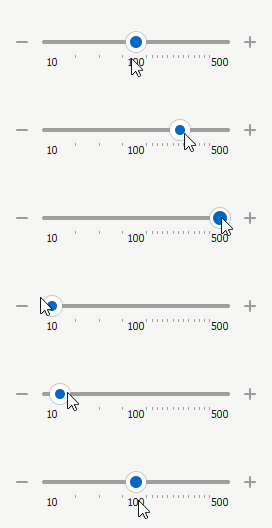
In addition, a click on the zoom track bar before or after the thumb changes its position in increments specified by the PageSize property value. If the ThumbStep property is set to cxtsJump, a click on the track bar moves the thumb directly to the target position.
Supported Keystrokes
If the track bar editor has focus, the following keys increment or decrement the edit value (depending on the ReverseDirection property value):
- Page Up | Page Down
- Increment/decrement the edit value by PageSize.
- → | ↑ | ↓ | ← | + | -
- Increment/decrement the edit value by LineSize. These keys correspond to change buttons.
Mouse Wheel Support
Users can rotate the mouse wheel to increment/decrement[1] the editor value when the following conditions are met:
- The zoom track bar editor has focus
- The mouse pointer is within the editor client area
- The UseMouseWheel property is set to
True(default)
Main API Members
The list below outlines key members of the TcxCustomZoomTrackBarProperties class. These members allow you to configure zoom track bar editors.
Appearance Options
- AutoSize
Specifies if track bar UI element dimensions are calculated automatically.
Tip
You need to disable AutoSize to use ThumbHeight, ThumbWidth, and TrackSize properties.
- Orientation
- Allows you to switch between horizontal and vertical track bar layouts.
- ShowChangeButtons | ShowTicks | ShowTrack
- Specify if change buttons, tick marks, and the underlying track bar are visible.
- TextOrientation
- Allows you to switch between horizontal and vertical tick label orientation options.
- ThumbColor | ThumbHeight | ThumbHighlightColor | ThumbType | ThumbWidth
- Allow you to customize thumb appearance.
- TickColor | TickMarks | TickType
- Allow you to configure scale/tick mark appearance.
- TrackColor | TrackSize
- Specify track bar color and width.
User Interaction Options
- Automation
Provides access to UI Automation and accessibility-related settings.
Tip
Use Automation.Name, Automation.Description, and other API members to specify information visible to third-party assistive tools as UIA node properties.
- ReadOnly
- Enables or disables read-only mode. You can use the editor’s Style.ReadOnly and StyleReadOnly properties to customize editor appearance options for the read-only state.
- ReverseMouseWheel
Specifies if the direction of the mouse wheel rotation is flipped for the track bar editor.
This property is in effect only if the UseMouseWheel property is set to
True(default).- ShowPositionHint
- Specifies if the track bar editor displays a hint that indicates the current thumb position.
- ThumbStep
- Allows you to switch between normal and jump thumb positioning modes (applicable when a user clicks the track bar).
- UseMouseWheel
- Specifies if the mouse wheel moves the thumb when the track bar editor has focus and the mouse pointer is within the editor client area.
Zoom Track Bar Scale Settings
- FirstRange | SecondRange
- Allow you to configure two adjacent zoom track bar scales.
- Frequency
- Specifies the number of track bar scale units between every two tick marks.
- LineSize | PageSize
- Specify standard ( →, ↑, ↓, ←, +, and - ) and large ( Page Up and Page Down ) thumb position steps.
- Min | Max
- Specifies minimum and maximum values on the track bar scale.
- ReverseDirection
- Allows you to flip the scale direction. If the scale direction is reversed, corresponding keystrokes ( →, ←, ↓, ↑, etc.) move the thumb in the opposite direction.
Selection Bar Settings
Users can hold the Shift key while moving the thumb to select a range within the track bar.
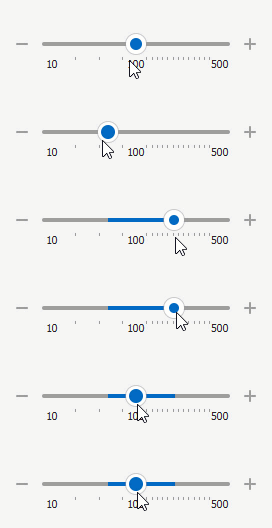
You can read selected range positions to use corresponding values in your application or select a track bar range in code.
- SelectionColor
- Allows you to modify the selection bar color.
- SelectionStart | SelectionEnd
- Specify start and end positions of the selection bar on the track bar scale.
Custom Draw Events
- OnDrawThumb | OnGetThumbRect
- Allow you to override built-in thumb draw routines if the ThumbType property is set to cxttCustom.
- OnGetTickLabel
- Allows you to customize the appearance of individual track bar tick marks.
General-Purpose API Members
- AssignedValues | RestoreDefaults
- Allow you to track the state of individual editor-specific settings and reset them.
- BeginUpdate | EndUpdate | LockUpdate | DoUpdate | Update | Changed | ChangedLocked | DataChanged
- Allow you to manage editor updates and avoid excessive redraw operations during batch editor setting changes.
Terminal TdxZoomTrackBarProperties Class Descendant
Do not use the TdxCustomZoomTrackBarProperties class directly. Use the TdxZoomTrackBarProperties class instead.
Related Compiled Demo
To see the TdxZoomTrackBar editor in action, run the Data Editors and Controls demo in the VCL Demo Center installed with compiled DevExpress VCL demos. Click Zoom Track Bar in the sidebar on the left to activate the corresponding demo.
Compiled DevExpress demos ship with source code installed in the Public Documents folder (%PUBLIC%) for all users (default). You can find all project and source code files for the Data Editors and Controls demo in the following folder:
%PUBLIC%\Documents\DevExpress VCL Demos\MegaDemos\Product Demos\ExpressEditors\
Tip
Project and source code files for all compiled DevExpress VCL Demos are maintained in a public repository hosted on GitHub:
Inheritance
-
To flip the direction of mouse wheel rotation, you can set the ReverseMouseWheel property to
True.