TdxCustomSpreadSheet Class
The base class for Spreadsheet and Report Designer controls.
Declaration
TdxCustomSpreadSheet = class(
    TcxControl,
    IcxLockedStateFontChanged,
    IcxLockedStatePaint,
    IdxDialogOwner,
    IdxSpreadSheet,
    IdxSpreadSheetCellStyleOwner,
    IdxSpreadSheetConditionalFormatting,
    IdxSkinSupport
)
Remarks
A Spreadsheet control allows you to create applications with a user experience inspired by Microsoft Excel®. In addition, you can associate a Spreadsheet control with a Formula Bar control to add extra cell view and edit options found in many popular spreadsheet applications.
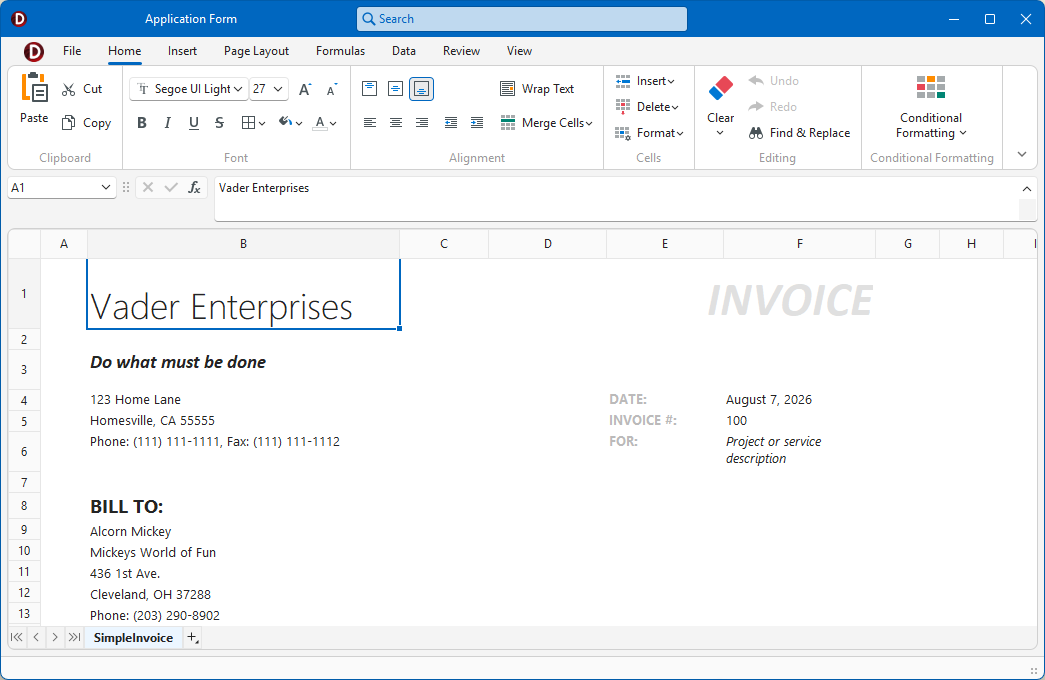
Getting Started
Spreadsheet Project and Form Templates
The VCL Template Kit ships with automatically installed Project and Form templates for the TdxSpreadSheet component. These templates are designed to reduce time spent on repetitive project and form setups, as well as improve onboarding for new VCL developers and boost productivity in experienced teams.
Tip
Refer to the following help topic for detailed information: Use Spreadsheet Project and Form Templates.
Related Compiled Demo
To see the TdxSpreadSheet component in action, run the Spreadsheet Control demo in the VCL Demo Center installed with compiled DevExpress VCL demos. Click different items in the sidebar on the left to switch between demo features.
Compiled DevExpress demos ship with source code installed in the Public Documents folder (%PUBLIC%) for all users (default). You can find all project and source code files for the Spreadsheet Control demo in the following folder:
%PUBLIC%\Documents\DevExpress VCL Demos\MegaDemos\Product Demos\ExpressSpreadSheet\
Tip
Project and source code files for all compiled DevExpress VCL Demos are maintained in a public repository hosted on GitHub:
UI Automation/Accessibility Support
The TdxSpreadSheet control is mapped to a node in the UI Automation tree when the global UI Automation flag (dxUIAutomationEnabled) is enabled.
UI Automation Settings
Use Automation.Name and Automation.Description properties to specify the Spreadsheet control name and to add optional information that are then used to clarify UI element purpose for users who rely on third-party assistive tools (such as Microsoft Narrator).
Refer to the TdxAutomationElementSettings class description for detailed information on all available options.
Main API Members
The list below outlines key members of the TdxCustomSpreadSheet class.
Appearance Settings
- DialogsLookAndFeel
- Allows you to override global skin/palette settings for built-in Spreadsheet dialogs.
- LookAndFeel
- Allows you to override global skin/palette settings at the control level.
- OptionsView
- Provides access to general appearance and UI element visibility settings at the control level.
- Styles
- Allows you to define individual appearance for different UI elements.
User Interaction Options
- Automation
- Provides access to UI Automation and accessibility-related settings.
- History
- Provides access to Undo/Redo action history if the OptionsBehavior.History option is enabled.
- OnCommentHide | OnCommentShow
- Allow you to track comment visibility changes.
- OnHistoryChanged
- Allows you to respond to undo/redo operations.
- OnHyperlinkExecute
- Allows you to override built-in hyperlink activation routines.
- OnScroll
- Allows you to limit the scrollable area.
- OptionsBehavior
- Provides access to common user interaction options at the control level.
- PageControl
- Provides access to page control settings.
- Undo | Redo
- Undo/redo recorded user actions if the OptionsBehavior.History option is enabled.
Document Structure-Related APIs
- ActiveSheet | ActiveSheetAsTable
- Provide access to the active worksheet.
- ActiveSheetIndex
- Specifies the active worksheet.
- AddSheet
- Adds a new worksheet to the document.
- ClearAll
- Deletes all worksheets.
- GetSheetByName
- Provides access to a worksheet by name.
- SheetCount
- Returns the total worksheet count.
- Sheets
- Provides indexed access to all worksheets in the current document.
- VisibleSheetCount
- Returns the visible sheet count.
- VisibleSheets
- Provides indexed access to all visible worksheets in the current document.
General Document-Related APIs
- DefaultCellStyle
- Provides access to default worksheet cell style settings (stored as part of a document in any dedicated spreadsheet format (XLSX, XLS, ODS)).
- DefinedNames
- Provides access to defined names and formula expression references in the current document.
- Modified | OnModifiedChanged
- Allow you to track spreadsheet document changes.
- OptionsMetadata
- Provides access to document metadata.
Document Protection Management
- OnGetPassword
- Allows you to specify a document protection password without user interaction.
- OptionsProtection
- Provides access to spreadsheet document protection settings.
- Password
- Specifies a password used for document protection.
- Protect | Unprotect
- Enable/disable document protection.
Document Import & Export
- LoadFromFile
- Imports a spreadsheet document from a file in any supported[1] format.
- LoadFromStream
- Imports a spreadsheet document from a stream in any supported[1] format.
- SaveToFile
- Exports the current document to a file in any supported[1] format.
- SaveToStream
- Exports the current document to a stream in any supported[1] format.
General-Purpose API Members
- BeginUpdate | EndUpdate | CancelUpdate
- Allow you to avoid excessive redraw operations during batch content and setting changes.
- BiDiMode
- Allows you to switch between bi-directional display modes.
- OnProgress
- Allows you to track progress for time-consuming operations, such as document import/export.
Code Examples
Populate Cells and Customize Cell Appearance
The following code example performs two batch operations at control and worksheet levels to change the default (document-wide) cell style, populate cells in the active worksheet, and apply a different style to the populated cells:
var
  ATableView: TdxSpreadSheetTableView;
  ACell: TdxSpreadSheetCell;
  I, J: Integer;
begin
  ATableView := dxSpreadSheet1.ActiveSheetAsTable;  // Accesses the active worksheet

  // Change the spreadsheet document-wide cell style (the first batch operation)
  dxSpreadSheet1.BeginUpdate;  // Initiates the following batch change at the control level
  try
    dxSpreadSheet1.DefaultCellStyle.Brush.BackgroundColor := clWebLightBlue;
    dxSpreadSheet1.DefaultCellStyle.Brush.ForegroundColor := clWebLightGreen;
    dxSpreadSheet1.DefaultCellStyle.Brush.Style := sscfsDiagonalStrip;
    dxSpreadSheet1.DefaultCellStyle.Borders[bRight].Color := clLtGray;
    dxSpreadSheet1.DefaultCellStyle.Borders[bRight].Style := sscbsThin;
    dxSpreadSheet1.DefaultCellStyle.Borders[bBottom].Color := clLtGray;
    dxSpreadSheet1.DefaultCellStyle.Borders[bBottom].Style := sscbsThin;
  finally
    dxSpreadSheet1.EndUpdate;  // Calls EndUpdate regardless of the batch operation's success
  end;

  // Create and populate 75 cells with random integer values (the second batch operation)
  Randomize;  // Initializes the random number generator
  ATableView.BeginUpdate;  // Initiates the following batch change at the worksheet level
  try
    for I := 0 to 14 do  // Iterates through 15 rows
      for J := 0 to 4 do  // Iterates through 5 columns
      begin
        ACell := ATableView.CreateCell(I, J);  // Creates a cell object
        ACell.AsInteger := Random(1000);  // Populates the created cell object with a random integer value
        // Customize cell style settings
        ACell.Style.Borders[bLeft].Color := clWhite;
        ACell.Style.Borders[bLeft].Style := sscbsDotted;
        ACell.Style.Borders[bBottom].Color := clWhite;
        ACell.Style.Borders[bBottom].Style := sscbsDotted;
        ACell.Style.Font.Style := [fsBold, fsItalic];
        ACell.Style.Font.Color := clWhite;
        ACell.Style.Brush.Style := sscfsRevDiagonalStrip;
        ACell.Style.Brush.BackgroundColor := clLime;
        ACell.Style.Brush.ForegroundColor := clGreen;
      end;
  finally
    ATableView.EndUpdate;  // Calls EndUpdate regardless of the batch operation's success
  end;
end;

Export Spreadsheet Content to XLSX File
The following code example exports the current spreadsheet document to a file in the Office OpenXML Spreadsheet (XLSX) format:
uses
  dxSpreadSheet,              // Declares the TdxSpreadSheet control
  dxShellDialogs,             // Declares the TdxSaveFileDialog component
  dxSplashForms;              // Declares the TdxSplashFormManager class and related types
// ...

procedure TMyForm.cxButtonExportToXLSXClick(Sender: TObject);
var
  AStream: TMemoryStream;
begin
  if not dxSaveFileDialog1.Execute(Handle) then Exit;   // Displays the "Save File" dialog
  AStream := TMemoryStream.Create;      // Creates a stream as an intermediary container
  // Displays a Wait Form before export operation
  TdxSplashFormManager.WaitForm.Show(dxSpreadSheet1.Parent);
  try
    dxSpreadSheet1.SaveToStream(AStream, TdxSpreadSheetXLSXFormat); // Exports content to a stream
    AStream.SaveToFile(dxSaveFileDialog1.FileName);   // Saves XLSX stream content to a file
  finally
    AStream.Free;                       // Releases the intermediary memory stream
    TdxSplashFormManager.WaitForm.Hide; // Hides the Wait Form once the operation is complete
  end;
end;
Copy XLSX Documents Between Spreadsheet Controls
The following code example copies a document between two TdxSpreadSheet control instances (from dxSpreadSheet1 to dxSpreadSheet2) using an intermediary memory stream in the Office OpenXML Spreadsheet (XLSX) format:
uses
  dxSpreadSheet,              // Declares the TdxSpreadSheet control
  dxSplashForms;              // Declares the TdxSplashFormManager class and related types
// ...

procedure TMyForm.cxButtonExportToXLSXClick(Sender: TObject);
var
  AStream: TMemoryStream;
begin
  AStream := TMemoryStream.Create;      // Creates a stream as an intermediary container
  // Displays a Wait Form before export and import operations
  TdxSplashFormManager.WaitForm.Show(dxSpreadSheet1.Parent);
  try
    dxSpreadSheet1.SaveToStream(AStream, TdxSpreadSheetXLSXFormat); // Exports content
    AStream.Position := 0;              // Resets stream position
    dxSpreadSheet2.LoadFromStream(AStream, TdxSpreadSheetXLSXFormat); // Imports content
  finally
    AStream.Free;                       // Releases the intermediary memory stream
    TdxSplashFormManager.WaitForm.Hide; // Hides the Wait Form once operations are complete
  end;
end;
Terminal TdxCustomSpreadSheet Class Descendants
Do not use the TdxCustomSpreadSheet class directly. Use the following descendants instead:
- TdxSpreadSheet
- A Spreadsheet control.
- TdxSpreadSheetReportDesigner
- A data-aware Spreadsheet control for document generation (Mail Merge).