Expression Syntax
- 8 minutes to read
An expression formula is a text string that specifies a series of operations on source data. Expressions can combine fields, use input, constants, and operators with a wide range of built-in functions for calculations, text processing, conditional logic, and summaries.
This topic describes syntax rules and elements you can use to construct report expressions.
General Syntax Rules
Follow rules and conventions described in this help topic when you write expressions:
Case Sensitivity
Keywords, operators, and function names are case-insensitive.
The case sensitivity of field names and parameter values depends entirely on the underlying data source. For example, Microsoft SQL Server Express treats uppercase and lowercase characters identically unless explicitly configured otherwise.
Formatting
An expression can be a single line or span multiple lines. Whitespace and line breaks between expression elements are ignored.
You can align operators, indent nested terms, or group sub-expressions for maximum readability.
Escaping Reserved Characters
Use the following patterns to escape characters with reserved meaning inside a string literal:
- Apostrophe: Double the apostrophe (
''). For example:'McDonald''s'. - Object reference: Escape surrounding brackets with backslashes (
\[and\]) to prevent text from being interpreted as a field, report item, or variable. For example,'\[UnitPrice\]'.
Comments
Use comments to annotate an expression or temporarily exclude part of its code from evaluation. A comment starts with /* and ends with */ and can span multiple lines:
/* Applies a discount if the customer qualifies
    for the loyalty program */
Iif([Customer.IsLoyaltyMember], [Amount] * 0.9, [Amount])
Expression Elements
Expression elements are the building blocks you can combine to construct a formula. The following sections describe available elements and their syntax:
Report Items
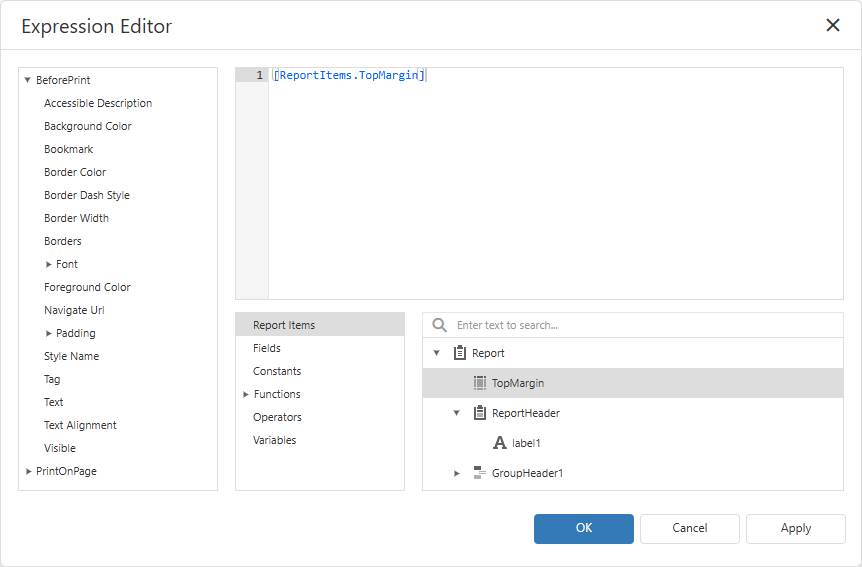
To reference the value of a report band or a report property, use the [ReportItems.<path>] syntax.
<path> is the unique identifier of a target element/property. For example, the following expression returns the report’s top margin:
[ReportItems.TopMargin]
Select Report Items in the Element Categories panel to see a complete list of available report items:
Fields/Parameters
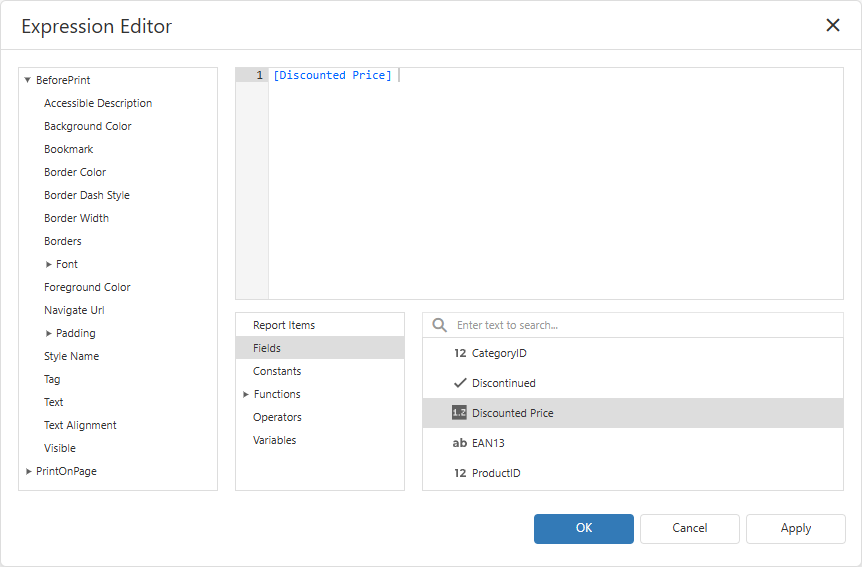
To reference a data field or calculated field, enclose its name in square brackets ([<field name>]). For example, the following expression returns the ProductID field value:
[ProductID]
To reference a field from a specific data member (a table or list within a data source), prefix the field name with the square-bracketed data member name separated by a period. For example:
[Orders].[ShipAddress]
To reference a report parameter, add a question mark (?) before the parameter’s name. For example, the following expression returns the discountParameter value:
?discountParameter
Select Fields in the Element Categories panel to see a complete list of available data fields and report parameters:
Summaries
Use the following syntax to construct an expression that aggregates values:
[<Collection>][<Condition>].<Function>(<Expression>)
- Collection
A master-detail relationship name.
To calculate an aggregated value against all records, use empty square brackets (
[]).- Condition
An expression that filters records used to calculate an aggregate function.
To calculate aggregates within groups, use the
^operator to refer to the processed group.To calculate an aggregated value against all records, use empty square brackets (
[]).- Function
- A built-in function that aggregates values that match the Condition.
- Expression
- A field name, parameter, or complex expression.
Summary Examples
| Expression | Result |
|---|---|
[CategoriesProducts][[CategoryId] > 5].Count() |
The number of products where CategoryId is greater than 5. |
[][[CategoryID] == 5].Sum([UnitPrice] * [UnitsInStock]) |
The total inventory value of all products in category 5. |
[][[^.CategoryID] == [CategoryID]].Sum([UnitPrice]) |
The total unit price of all products that belong to the current category. |
[].Count() |
The total number of records in the report. |
Predefined Values
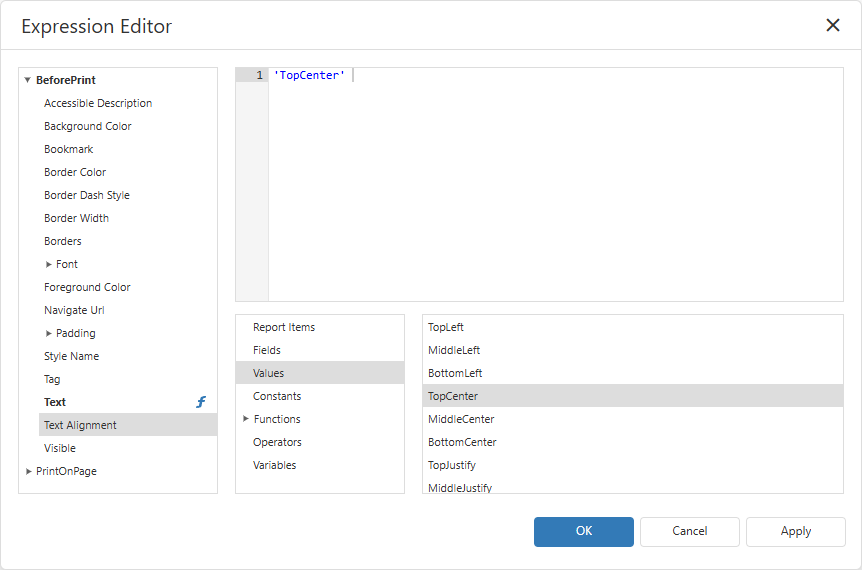
Certain report element properties — such as colors, border style, or text alignment — support only a fixed set of values. Select Values in the Element Categories panel to see a complete list of values available for the selected property:
Note
If the selected element property is not associated with a fixed list of values, the Values group is not displayed.
Predefined values are referenced as string literals enclosed in apostrophes ('...').
Properties can accept more than one value simultaneously. To reference multiple values, list them within the same string literal and separate them with commas. For example, the following expression sets both left and right borders:
'Left, Right'
Constants
A constant is a literal value written directly in an expression. The following table lists supported constant types and their syntax:
| Type | Syntax | Example |
|---|---|---|
| String | Enclose text in apostrophes ('...'). To use characters with reserved meaning within a string literal, escape them. |
'VCL Reports''Don''t' |
| Numeric | A value without a suffix is an Int32 (an integer value) or Double (a double-precision floating-point value). Append a suffix to specify another type: s — Int16, b — Byte, f — Single, m — Decimal. |
11.0f |
| Date and time | Enclose an ISO 8601 date or date-time value (yyyy-MM-dd, yyyy-MM-dd HH:mm:ss, or similar literals) in number signs (#...#). |
#2026-09-22##2026-09-22 14:23:41# |
| Boolean | Use the True or False keyword. |
True |
| GUID | Enclose the value in curly braces ({...}). Use GUID constants only with the equality (==) or inequality (!=) operators. |
{86573e14-88fc-4c51-8950-293118cdca88} |
| Null reference | Use the ? character.Use IsNull/IsNullOrEmpty functions instead of the ? null reference constant where possible. |
[MiddleName] == ? |
Functions
To call a built-in function, type its name followed by a comma-separated list of arguments in parentheses. For example, the following expression returns the trimmed value of the CompanyName field:
Trim([CompanyName])
Select Functions in the Element Categories panel to see a complete list of available functions, or expand the Functions node and select a category for easier navigation:
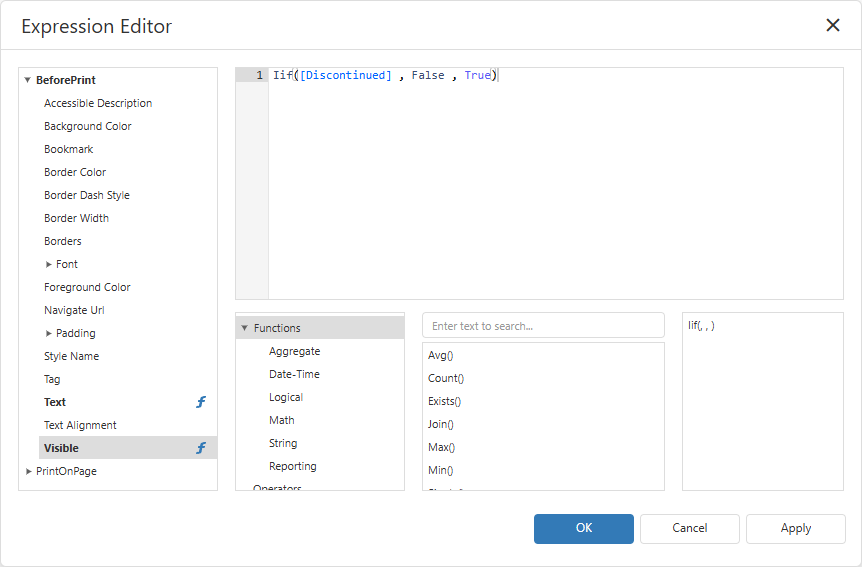
Refer to the following help topic for a full list of functions and usage examples: Built-in Expression Functions.
Operators
Operators combine operands (fields, parameters, constants, or entire functions) into a single expression.
Select Operators in the Element Categories panel to see a complete list of available operators:
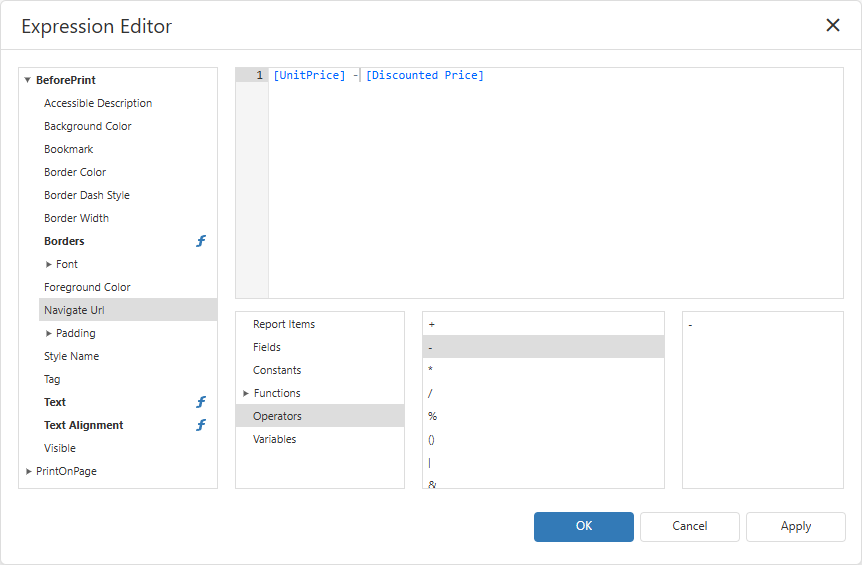
Arithmetic Operators
| Operator | Description | Example |
|---|---|---|
+ |
Adds two numbers, or concatenates two strings. | [UnitPrice] + [Freight] |
- |
Subtracts one number from another. When - is placed before a single operand (as an unary operator), the operator negates the operand’s value. |
[UnitPrice] - [Discount] |
* |
Multiplies two numbers. | [UnitPrice] * [Quantity] |
/ |
Divides one number by another. If both operands are integers, the result is an integer (rounded down). | [Total]/[Count] |
% |
Divides one number by another and returns the remainder. | [Quantity] % 12 |
Comparison Operators
| Operator | Description | Example |
|---|---|---|
== |
Returns True if both operands are equal. |
[Country] == 'USA' |
!= |
Returns True if the operands are not equal. |
[Country] != 'USA' |
<, <= |
Returns True if the left operand is less than (or less than or equal to) the right operand. |
[Quantity] < 10 |
>, >= |
Returns True if the left operand is greater than (or greater than or equal to) the right operand. |
[Quantity] >= 10 |
Between (<low>, <high>) |
Returns True if the tested value is greater than or equal to <low> and less than or equal to <high>. |
[Amount] Between (100, 500) |
In (<value1>, <value2>, ...) |
Returns True if the tested value matches one of the listed values. |
[Country] In ('USA', 'Canada', 'Mexico') |
Like |
Returns True if a string matches the specified pattern. Use % as a wildcard for any sequence of characters. |
[Name] Like 'Jo%' |
Logical Operators
| Operator | Description | Example |
|---|---|---|
And |
Returns True if both Boolean operands are True (logical conjunction). |
[InStock] And [Quantity] > 0 |
Or |
Returns True if either Boolean operand is True (logical disjunction). |
[IsLoyaltyMember] Or [Amount] > 1000 |
Not |
Reverses the value of a Boolean operand (logical negation). | Not [Discontinued] |
Bitwise Operators
Bitwise operators compare individual bits of two integer operands.
| Operator | Description | Example |
|---|---|---|
& |
Bitwise AND. The result bit is 1 only when both operand bits are 1. |
[Flags] & 4 |
\| |
Bitwise inclusive OR. The result bit is 1 when either operand bit is 1. |
[Flags] \| 4 |
^ |
Bitwise exclusive OR (XOR). The result bit is 1 when exactly one operand bit is 1. |
[Flags] ^ 4 |
Operator Precedence
When an expression combines multiple operators, the report evaluates them in the following order (highest precedence first). Use parentheses (...) to override this order:
- Parentheses
(...) - Functions
In- Unary minus (
-) Not*,/,%- Binary
+,- <,>,<=,>===,!=AndOr
Operators of the same precedence level are evaluated left to right.
Variables
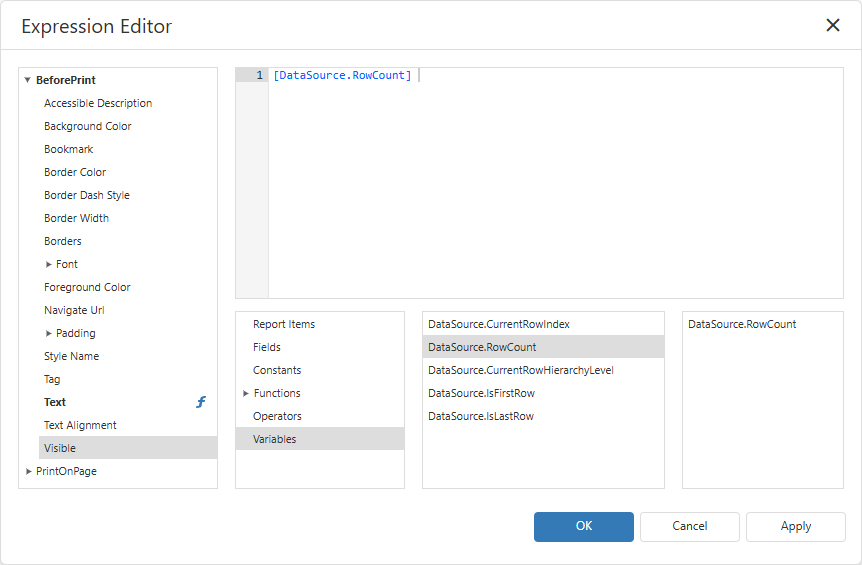
To reference a data source variable, use the [DataSource.<name>] syntax. For example, the following expression returns the number of rows in the underlying data source:
[DataSource.RowCount]
The following variables are available:
| Variable | Description |
|---|---|
DataSource.CurrentRowIndex |
A zero-based index of the current row within the data source. |
DataSource.RowCount |
The total number of rows in the data source. |
DataSource.CurrentRowHierarchyLevel |
The nesting level of the current row in a hierarchical (master-detail) data source. The top-level row is 0. |
DataSource.IsFirstRow |
Returns True if the current row is the first row in the data source. |
DataSource.IsLastRow |
Returns True if the current row is the last row in the data source. |
Select Variables in the Element Categories panel to see a complete list of available data source variables: