Filter Editor
- 2 minutes to read
The Filter Editor dialog allows users to build complex filter criteria combined from multiple expressions. It supports syntax highlighting and autocomplete to facilitate user input.
To invoke this dialog, users can do one of the following:
- Click Edit Filter in the Filter Panel.
- Right-click a column header and select Filter Editor.
The Filter Editor can present filters as visual blocks and as text. You can choose one type or enable two tabs with both types.
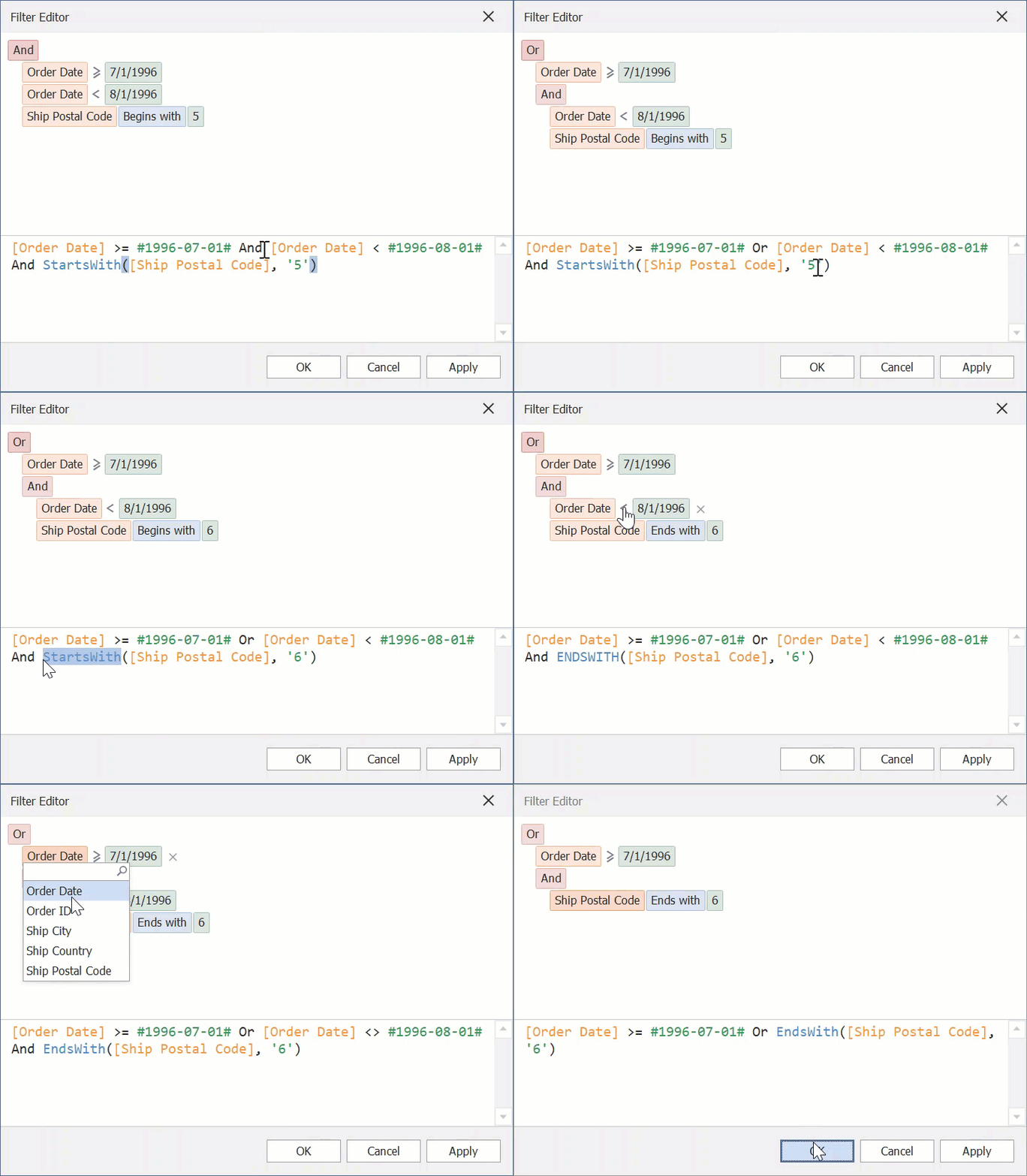
Configure the Filter Editor
The following table lists main properties that affect the Filter Editor’s appearance and behavior:
API | Description |
|---|---|
Gets or sets whether the Filter Editor is available. | |
Gets or sets how an end user can edit expressions in the Filter Editor. | |
Gets or sets whether filters can be created against properties that are List objects. | |
Handle this event to access the Filter Control and configure its additional settings. |
AI-powered Prompt to Expression
The AI-powered “Prompt to Expression” extension converts natural language into valid filter and unbound column expressions for data-aware WinForms controls. Instead of writing complex expressions, users describe the desired logic in plain text:
- Sample Filter Expression
- Display orders expected to arrive within 7 days.
- Sample Unbound Column Expression
- Compute total amount.
The system sends the prompt to the configured AI service, which generates a valid expression for the control. The Expression Editor or Filter Editor displays and validates the result immediately.

See the following help topic for more information: Prompt to Expression.