Expression Editor
- 3 minutes to read
This document describes different versions of the Expression editor available in various DevExpress products and provides an overview of the syntax that is used to create expressions.
This document consists of the following sections.
Syntax Overview
The Expression editor supports a variety of math, date-time, string and logical functions. To learn more about the supported functions, refer to Criteria Language Syntax.
The following syntax conventions should be taken into account when using the Expression editor.
- A data field is referenced by enclosing its name in square brackets (for example, [Products.ProductName]).
Query parameters are referenced by typing a question mark before their names (for example, ?parameter1).
Report parameters are referenced by adding the “Parameters.“ prefix before their names (for example, [Parameters.parameter1]).
String values are denoted with apostrophes. An attempt to use quotes instead will result in an error.
To embed an apostrophe into an expression’s text, type a double apostrophe (for example, ‘It’’s sample text’).
Date-time constants should be enclosed with hashtags (for example, [OrderDate] >= #1/1/2016#).

- DateOnly and TimeOnly constants should be enclosed with ‘#’ and ‘!’ characters (for instance, [Date] = #!2024-02-27!#).
- To represent a null reference (one that does not refer to any object), use a question mark (for example, [Region] != ?).
- If an expression involves the use of different types, you can convert them to the same type using dedicated functions (for example, Max(ToDecimal([Quantity]),[UnitPrice])).
To learn more, see Criteria Language Syntax.
New Expression Editor
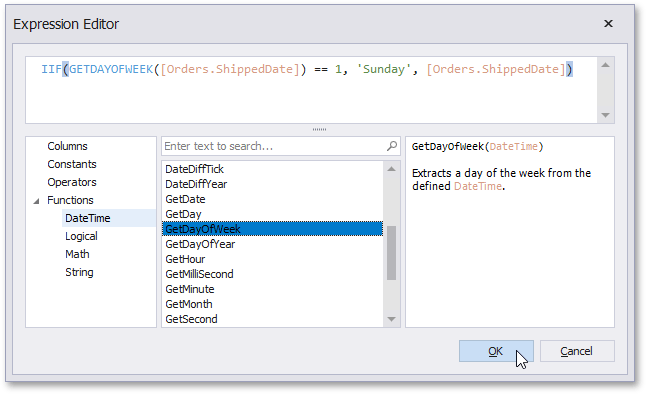
Some of the DevExpress products are shipped with a newer version of the Expression editor that is illustrated in the following image.
These products are listed below:
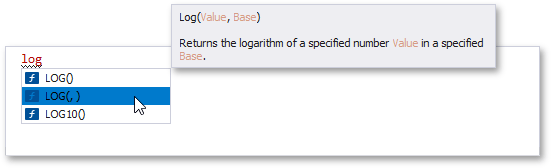
This editor supports syntax highlighting and intelligent code completion (suggesting functions as you type). When selecting a function, a tooltip is invoked, displaying the function’s description.
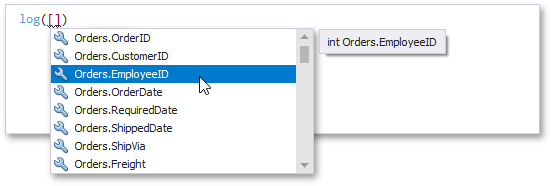
Typing a left square bracket will invoke a popup window listing all available data columns. When selecting a column, a tooltip is invoked, displaying the column’s data type.
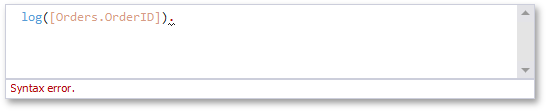
If an expression contains any errors, the editor immediately highlights them in-place, without invoking dialog windows.
Customization API
A public API for customizing the Expression Editor is available in the DevExpress.Data.Controls.ExpressionEditor and DevExpress.DataAccess.ExpressionEditor namespaces.
Tip
You can use the ExpressionEditorUIHelper class’s methods to invoke the Expression Editor in your application at runtime.
AI-powered Prompt to Expression
The AI-powered “Prompt to Expression” extension converts natural language into valid filter and unbound column expressions for data-aware WinForms controls. Instead of writing complex expressions, users describe the desired logic in plain text:
- Sample Filter Expression
- Display orders expected to arrive within 7 days.
- Sample Unbound Column Expression
- Compute total amount.
The system sends the prompt to the configured AI service, which generates a valid expression for the control. The new Expression Editor or Filter Editor displays and validates the result immediately.

See the following help topic for more information: Prompt to Expression.
Legacy Expression Editor
The following image illustrates the older Expression editor version shipped with certain DevExpress products.
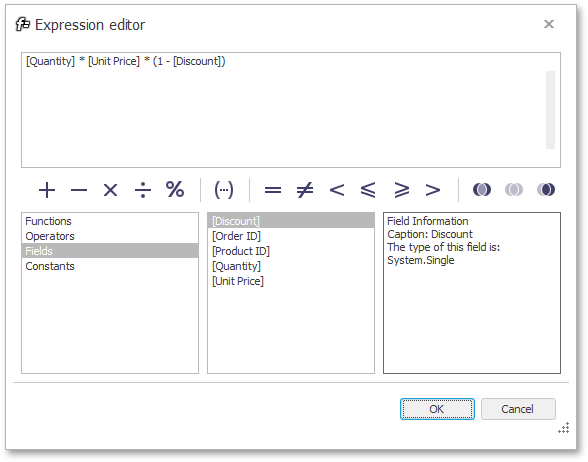
Unlike the newer version this editor does not support intelligent code completion, syntax highlighting and immediate indication of errors.
Selecting the Editor Version
To switch back your Windows Forms application to the use of the legacy Expression Editor, set the WindowsFormsSettings.DefaultSettingsCompatibilityMode property to v16 at the application startup.
To learn more, see Version Compatibility: Default Property Values.