TcxMRUEdit Class
A single-line text box editor designed to maintain and display a list of most recently used (MRU) values in a drop-down window.
Declaration
TcxMRUEdit = class(
    TcxCustomMRUEdit
)
Remarks
A MRU editor is a single-line text box editor that can display a drop-down list of most recently used (MRU) items. The focused editor automatically displays the drop-down list populated with recently used values when users input a value into the text box.
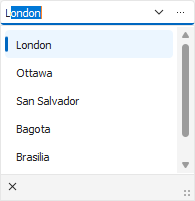
Each new user-specified value is added to the top of the list displayed in a drop-down window. You can use the Properties.MaxItemCount property to limit the MRU list size.
Ellipsis Button
The editor can display an additional ellipsis button without predefined functionality. You can handle the Properties.OnButtonClick event to execute in response to clicks on the ellipsis button.
UI Automation/Accessibility Support
The TcxMRUEdit component is mapped to a node in the UI Automation tree when the global UI Automation flag (dxUIAutomationEnabled) is enabled.
UI Automation Settings
Use Automation.Name and Automation.Description properties to specify the editor name and add optional information that are then used to clarify editor purpose for users who rely on third-party assistive tools (such as Microsoft Narrator).
Refer to the TdxAutomationElementSettings class description for detailed information on all available options.
Keyboard Interaction Options
The MRU Editor supports the following keystrokes:
- ↑ | ↓
- Switch between MRU list items, even when the drop-down list is collapsed.
- Ctrl + Page Up | Ctrl + Page Down
- Select first and last items, respectively.
- Alt + ↑ | Alt + ↓ | F4
- Display or hide the drop-down MRU list.
- Ctrl + Enter
- Activates an additional ellipsis button (if displayed). You can use the ClickKey property to associate a different key combination with the ellipsis button.
Main API Members
The list below outlines key members of the TcxMRUEdit class.
Appearance Settings
- Style | StyleDisabled | StyleFocused | StyleHot | StyleReadOnly
Allow you to define individual appearance settings for different editor states.
Tip
To apply the same style settings to multiple editors, use a TcxEditStyleController component. If you need to apply the same style settings to all editors in your application, you can use a TcxDefaultEditStyleController component.
- Styles
- Provides access to individual styles applied to the editor in different states.
- Transparent
- Specifies if the editor is transparent in GDI render mode.
Content-Related APIs
- Clear
- Clears the editor.
- CopyToClipboard | CutToClipboard | PasteFromClipboard
- Allow you to perform clipboard operations.
- EditValue
- Specifies the edit value.
- OnEditing
- Allows you to prevent users from activating the editor.
- ResetEditValue
- Restores the previous edit value before the pending change is applied.
- SelectAll | SelLength | SelStart | SetSelection
- Manage text selection.
- TextHint
- Allows you to display a hint message while the inactive editor is empty.
- Undo
- Discards pending changes made in the active editor.
- ValidateEdit
- Validates the display value.
Editor Settings and Repository Items
- ActiveProperties
- Provides access to the current editor settings regardless of their source. This property set does not allow you to customize editor settings.
- Properties
- Allows you to customize editor settings directly if the editor does not have an assigned repository item.
- RepositoryItem
- Specifies a repository item as an external source of editor settings. A repository item has priority over other editor settings.
General-Purpose API Members
- AutoSize
- Specifies if the editor automatically adjusts its size to fit content.
- Enabled
- Specifies if the editor is enabled.
- CanModify
- Indicates if the editor is in read-only mode.
- IsEditValidating | IsHiding | IsPosting
- Allow you to identify the current operation in the editor.
- ShowHint
- Specifies if the standalone editor can display hints. To enable hints for an in-place editor in a container control, set its
OptionsBehavior.CellHints[1] property toTrue. - SupportsSpelling
- Indicates if the editor supports the TdxSpellChecker component.
- Width | Height
- Allow you to explicitly define editor dimensions.
Repository Item Class
You can create a TcxEditRepositoryMRUItem component in an TcxEditRepository to define an unbound MRU editor, store editor settings, and share them between multiple MRU editors.
Related Compiled Demo
To see the TcxMRUEdit component in action, run the Data Editors and Controls demo in the VCL Demo Center installed with compiled DevExpress VCL demos. Click the MRU Editor item in the sidebar to run the corresponding demo.
Compiled DevExpress demos ship with source code installed in the Public Documents folder (%PUBLIC%) for all users (default). You can find all project and source code files for the Data Editors and Controls demo in the following folder:
%PUBLIC%\Documents\DevExpress VCL Demos\MegaDemos\Product Demos\ExpressEditors\
Tip
Project and source code files for all compiled DevExpress VCL Demos are maintained in a public repository hosted on GitHub:
Inheritance
-
Set the following behavior properties to
TrueorFalseto enable or disable in-place editor hints in corresponding container controls:- A Data Grid Table View’s OptionsBehavior.CellHints property.
- A Tree List control’s OptionsBehavior.CellHints property.
- A Vertical Grid control’s OptionsBehavior.CellHints property.