Splash Form Designer
- 4 minutes to read
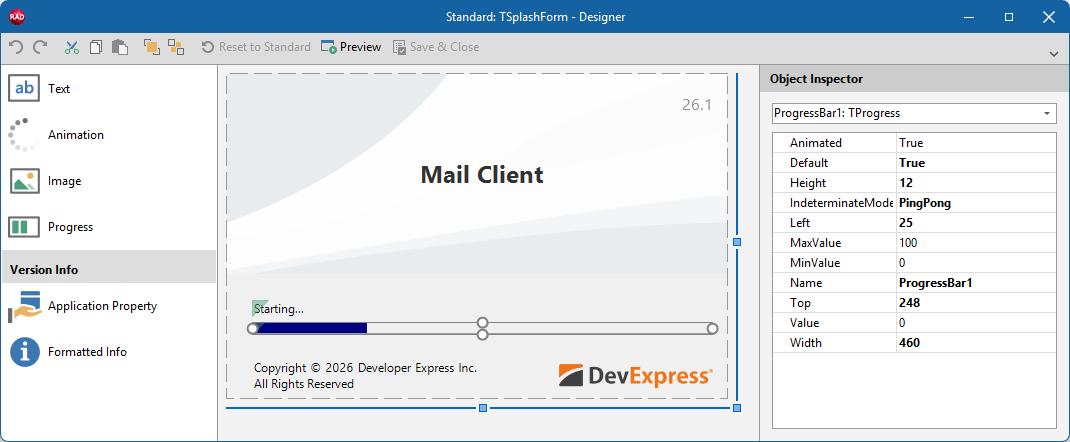
The modal Splash Form Designer dialog allows you to configure the layout of a predefined or custom Splash/Wait Form at design time.
Open Splash Form Designer
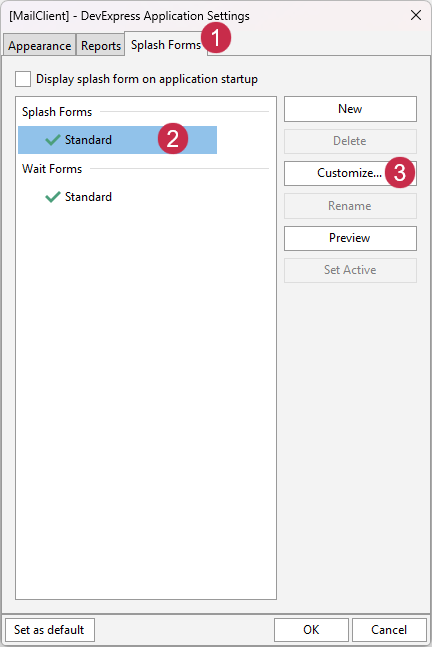
To display the Splash Form Designer dialog for a Splash or Wait Form defined in a project, open the Application Settings dialog in your RAD Studio IDE and do the following:
- Switch to the Splash Forms tab.
- Select a Splash or Wait Form in the corresponding category.
- Click the Customize… button.
Splash Form Designer UI
The Splash Form Designer dialog includes the following tools/panes:
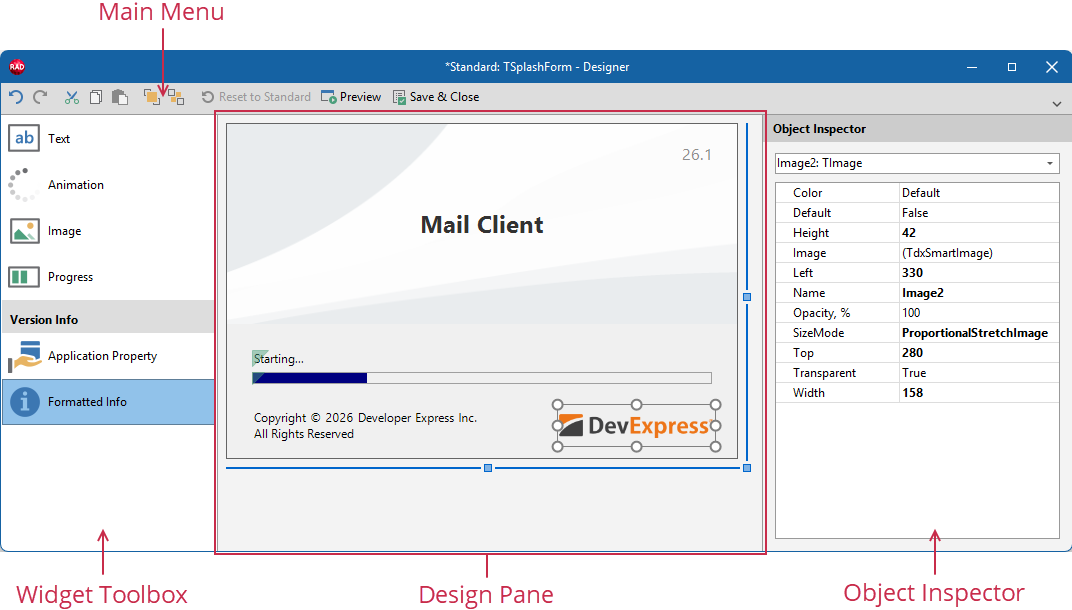
Main Menu
The main menu toolbar lists the following options from left to right:

Form Design
Undo|RedoAction History Commands. Click Undo ( Ctrl + Z ) and Redo ( Ctrl + Y ) buttons to undo/redo individual changes to the displayed Splash or Wait form layout within the Design Pane (move, resize, add/remove Splash Form widgets, etc.).
Undo and Redo buttons are disabled when corresponding action lists are empty.
Cut|Copy|PasteClipboard Operation Commands for Splash Form widget management:
- Cut & Copy Buttons
Click the Cut ( Ctrl + X ) or Copy ( Ctrl + C ) button to cut or copy the selected widget in the Design Pane to the clipboard.
Cut and Copy buttons are disabled when no Splash Form widget is selected in the Design Pane.
- Paste Button
A subsequent Paste ( Ctrl + V ) command inserts the copied widget to the displayed form. The target position is shifted by
10pixels down and right from the copied/cut Splash Form widget’s position.The Paste button is disabled if the clipboard contains no previously copied or cut Splash Form widget.
Bring to Front|Send to BackZ-Order Management Commands. Click the Bring to Front button to display the selected Splash Form widget on top of all others. The Send to Back button moves the selected widget to the nethermost (background) layer. These commands are useful if you need to display overlapping widgets on a Splash or Wait Form.
Bring to Front and Send to Back buttons are disabled when no Splash Form widget is selected in the Design Pane.
State Management
Reset to Standard- Click this button to revert all changes made to the initial[1] state of a Splash or Wait Form.
Preview- Click this button to display the opened Splash or Wait Form in Preview mode, similar to the Preview button in the Application Settings dialog. A subsequent mouse click closes the form preview.
Save & Close- Click this button to save all pending changes and close the Splash Form Designer dialog.
Design Pane
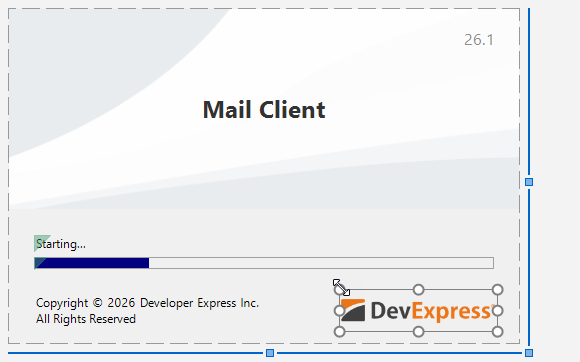
The Design Pane displays the opened form’s layout in Design mode. The Design Pane allows you to add, delete, resize, and move individual Splash Form widgets as well as resize the form (similar to the Form Designer in the RAD Studio IDE).
Widget Toolbox
Splash and Wait Forms use dedicated non-interactive UI elements (Splash Form widgets) instead of controls (TControl descendants) to avoid excessive dependencies. The Widget Toolbox displays all available Splash Form widgets:
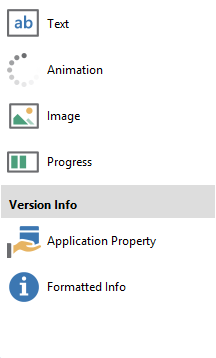
Drag-and-drop individual widgets to the Design Pane to add them to the form.
Available Splash Form Widgets
- Text
A static multi-line label designed to display a custom message.
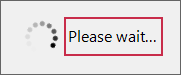
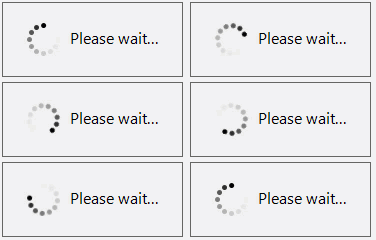
- Animation
An activity indicator that displays looped animation while the Splash or Wait Form is displayed. This widget supports custom looped GIF animations.
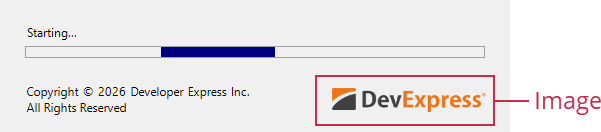
- Image
Displays a static image, similar to the TcxImage editor.
- Progress
An animated progress bar, similar to the TcxProgressBar editor.

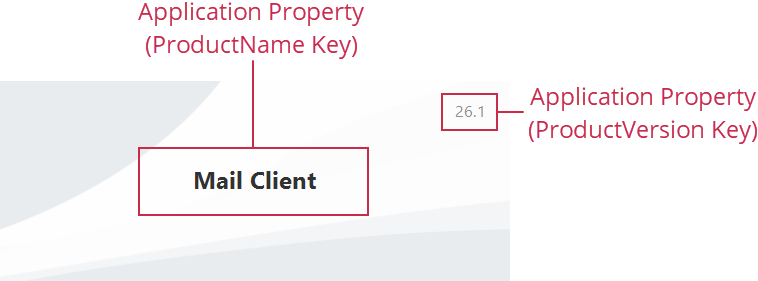
- Application Property
A static multi-line label designed to display an individual application property (product name, version number, copyrights, etc.) defined as part of version-related information stored in application resources.
- Formatted Info
A static multi-line label designed to display multiple application properties using placeholder fields defined within a custom message string.

Object Inspector
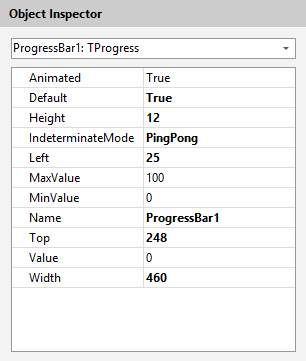
The Object Inspector allows you to view and customize individual properties of the Splash Form widget currently selected in the Design Pane, similar to the Object Inspector tool in the RAD Studio IDE.
-
The form layout at the exact moment a predefined or custom Splash or Wait Form was created (automatically or using the Application Settings dialog).