Application Settings
- 6 minutes to read
DevExpress-powered VCL application projects maintain a set of global component-related settings in a dedicated dxSettings unit. In addition, this auxiliary unit contains DevExpress component-related dependencies, such as a list of units that correspond to all skins included in the project.
Application Settings Unit
All new projects created with v26.1 DevExpress controls initially use the auxiliary dxSettings unit to maintain global settings and component dependencies. The settings unit name has the following pattern: ProjectName.dxSettings.
Note
- Do not edit the automatically generated ProjectName.dxSettings unit directly. Use the DevExpress Application Settings dialog instead.
- If you upgrade your project from v24.1 or an earlier version to v26.1, refer to Project Upgrade Notes.
DevExpress Application Settings Dialog
DevExpress Application Settings is a design-time dialog where you can configure all VCL application project settings related to DevExpress components. To open the dialog, navigate to the Project menu category of your RAD Studio IDE and click DevExpress Application Settings for ProjectName.
Appearance Settings
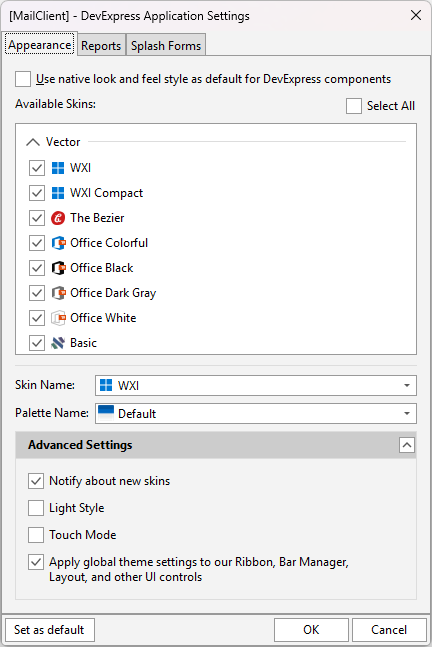
The DevExpress Application Settings dialog always includes the Appearance tab where you can apply consistent appearance settings to all forms and controls[1] in the application.
Appearance Tab UI Elements
- Available Skins
This list view allows you to add/remove individual skins to/from your project. DevExpress skins and palettes define form and control appearance only if operating system-dependent draw routines are disabled (the Use native look and feel style option is disabled).
You can use the Select All check box to select or deselect all skins simultaneously.
- Skin Name
- Allows you to select any skin checked in the Available Skins list view as the active skin for the project.
- Palette Name
- Switches between available palettes for the active vector skin. Raster skins do not support palettes.
- Notify about new skins
- This option automatically opens the DevExpress Application Settings dialog every time you upgrade to a new version of DevExpress components that includes new skins.
- Light Style | Touch Mode
- Specify if Light Style and Touch Mode are enabled.
- Apply global theme settings to our Ribbon, Bar Manager, Layout, and other UI controls
- Specifies if global appearance settings also affect controls with separate look & feel settings. You can enable this option to ensure the visual consistency of your application.
Report-Related Settings
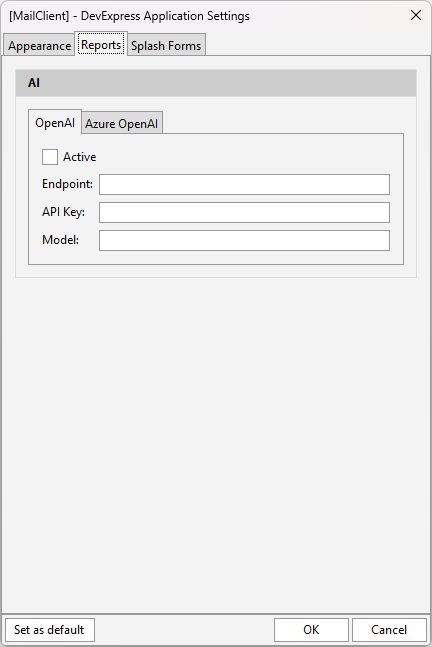
The Reports tab allows you to configure DevExpress AI-powered Extensions for TdxReport and auxiliary components.
Note
The Reports tab is available only if the ExpressReports Suite is installed.
DevExpress AI-powered Extensions follow the bring your own key principle. DevExpress does not offer a REST API and does not ship any built-in LLMs/SLMs. You need an active Azure/OpenAI subscription to obtain the REST API endpoint, key, and model deployment name.
These variables must be specified at application startup to register AI clients and enable DevExpress AI-powered Extensions in your application.
Reports Tab UI Elements
The Reports tab contains the AI group with two nested tabs: OpenAI and Azure OpenAI. Both tabs share Active, Endpoint, and API Key UI elements.
- Active
- Common. Specifies if the current AI service provider (OpenAI or Azure OpenAI) is active. Only one provider can be active at a time.
- Endpoint
- Common. Specifies the REST API endpoint URI for the selected AI service provider.
- API Key
- Common. Specifies a valid API key for the selected AI service provider.
- Model
- OpenAI-specific. Specifies the required model name for the OpenAI service.
- Deployment
- Azure OpenAI-specific. Specifies the deployment name for the Azure OpenAI service. Refer to the following topic for detailed information on Azure OpenAI deployment: Create and Deploy an Azure OpenAI in Azure AI Foundry Models Resource.
Splash Form Settings
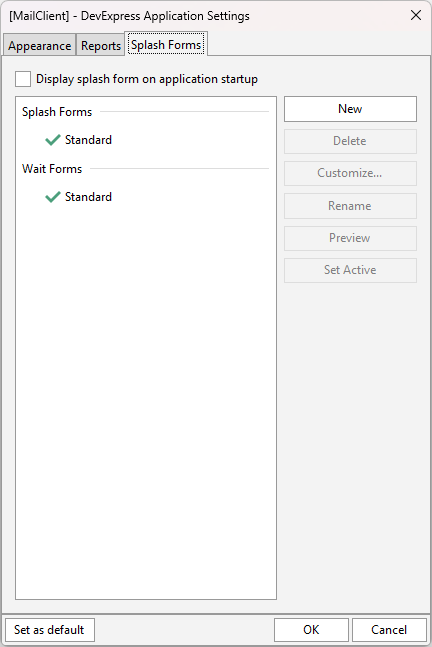
The Splash Forms tab allows you to design and manage dedicated forms displayed at startup during app initialization and during time-consuming operations.
Note
Our Splash Form Manager (TdxSplashFormManager) is available as a Community Technology Preview (CTP). Please review our pre-release software notes if you plan on using Splash and Wait Forms in your application.
Splash Forms Tab UI Elements
The Splash Forms tab contains a list view with two groups:
- Splash Forms
- A Splash Form is displayed at application startup during initialization. A DevExpress-powered application project always contains a predefined (Standard) Splash Form (initially disabled).
- Wait Forms
- A Wait Form is designed to indicate time-consuming operations in an application. A DevExpress-powered application project always contains a predefined (Standard) wait form you can display/hide manually in code.
- Display splash form on application startup
This check box specifies if the active/selected or predefined Splash Form is automatically displayed during initialization at application startup.
Tip
The displayed Splash Form is closed automatically if the main application form is derived from the TdxForm class and DevExpress skins are enabled at the application level.
Otherwise, you need to call the TdxSplashFormManager.SplashForm.Hide procedure manually to hide the active Splash Form when required.
- New
- Creates a new Splash or Wait form.
- Delete
- Deletes a selected custom form previously added using the New button. You cannot delete predefined Splash and Wait forms.
- Customize…
- Displays the Splash Form Designer dialog for the selected form. You can use this dialog to configure predefined and custom Splash/Wait Forms layouts.
- Rename
- Allows you to rename a custom Splash or Wait form.
- Preview
- Displays a preview of the selected Splash or Wait form. A subsequent mouse click closes the preview.
- Set Active
Allows you to select an active Splash or Wait form when the corresponding form list contains more than one form. A check mark indicates active Splash and Wait forms.
Note
Only one Splash Form and one Wait form can be active at a time.
Common UI Elements
- Set as default
- Defines current options as default for new projects.
- OK | Cancel
- Close the dialog. A click on the OK button applies pending changes and creates a
dxSettingsunit in the project if it does not exist yet.
Project Upgrade Notes (v24.1 and Earlier)
If you upgrade an existing project from v24.1 or earlier to v26.1, you can switch to the new global settings format that allows you to avoid duplicate skin registrations in your units under uses.
To upgrade your project, you can open the Application Settings dialog directly in your IDE or select Upgrade to application-wide settings in the TdxSkinController.SkinName property’s combo box in the Object Inspector. A click on the OK button applies pending changes and creates a dxSettings unit in your project.
Limitations and Considerations
You can open the Application Settings dialog for only Delphi and C++Builder VCL application projects to upgrade them.
Important
The DevExpress Application Settings dialog is not available for DLL, BPL, console, and other application project types.
-
The DevExpress Skin Engine supports all our forms and controls as well as a number of standard VCL controls from the supported list.