Add Summaries to an Existing Report
- 3 minutes to read
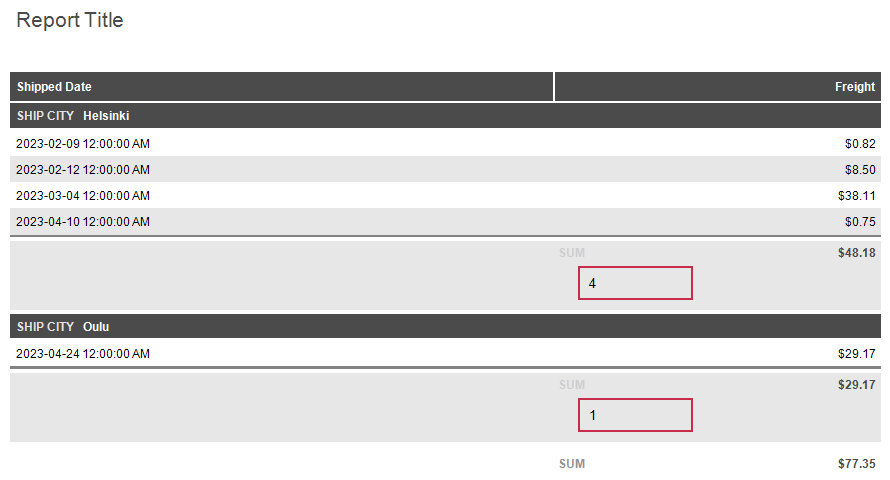
You can add summaries to an existing report and preserve its current layout. In the Report Designer, convert an existing element into a summary or add a new text element to summarize values for a group, a page, or an entire report.
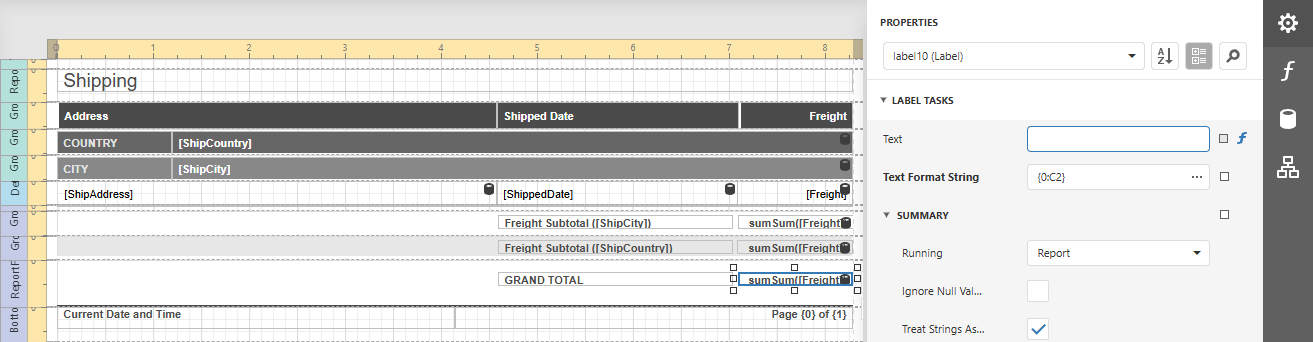
The following steps explain how to add a summary using a new text element:
Add a new text element to a report band:
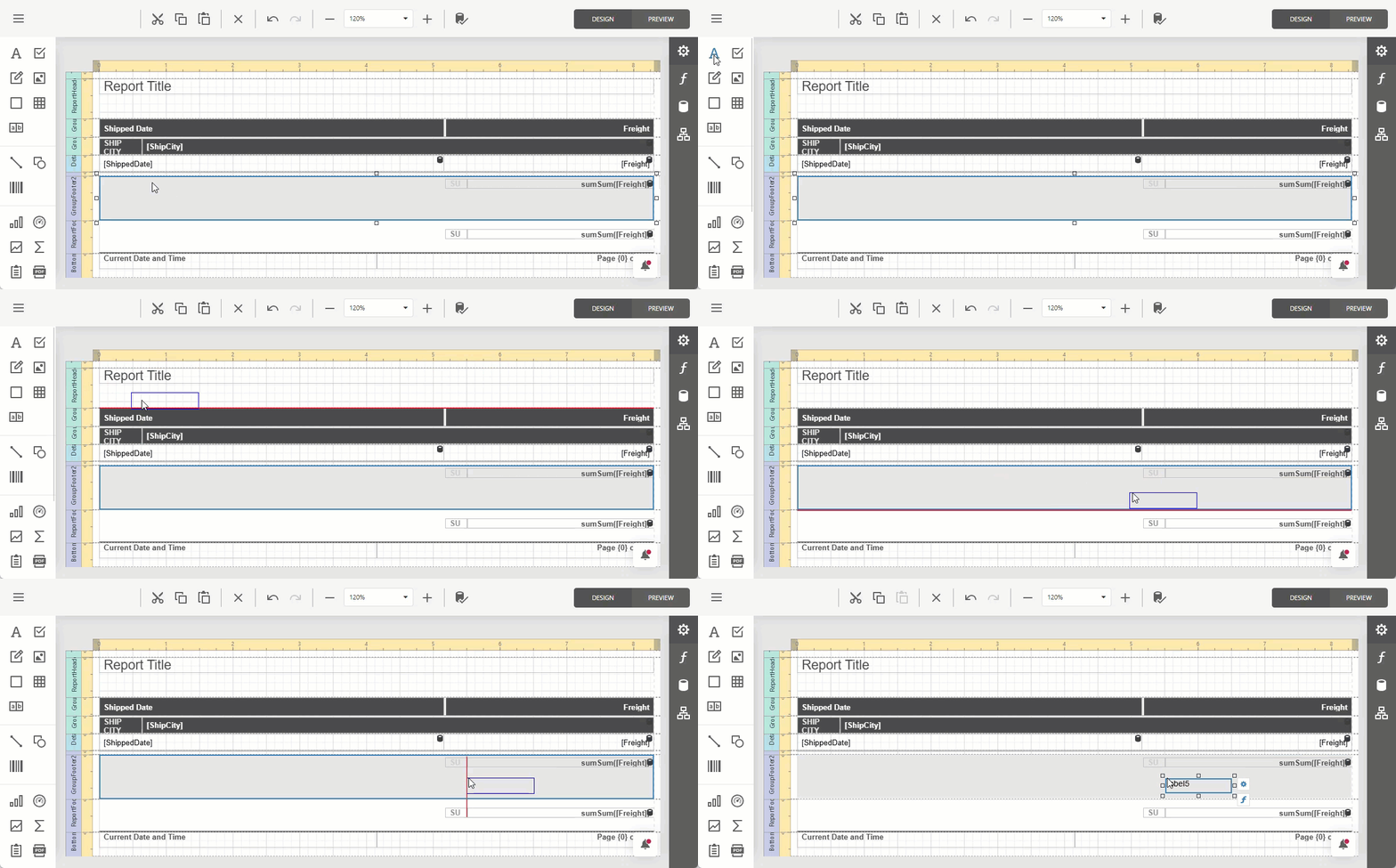 How to add a summary band…
Open the REPORT EXPLORER.
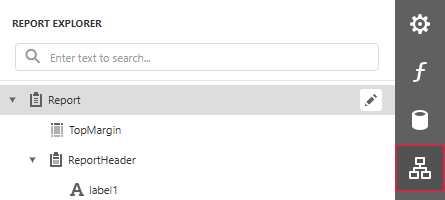
Right-click the report node, point to Insert Band, and select the footer band that matches the summary’s scope:
- Group Header/Footer for a separate summary for each group.
- Page Header/Footer for a summary of records on the current page.
- Report Header/Footer for a summary of all records in the report.
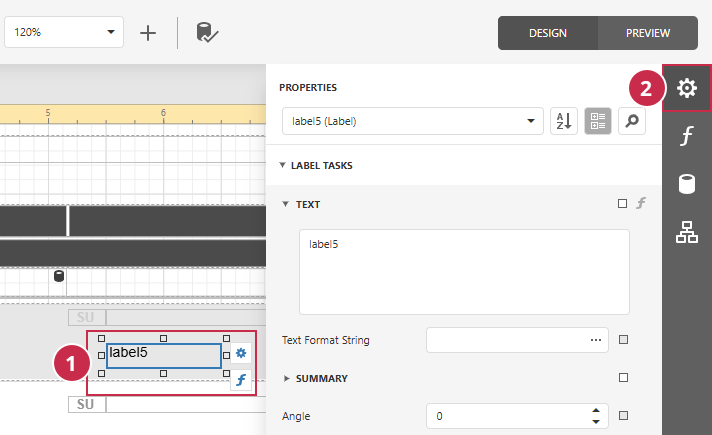
Select the newly added element (1) and open its properties (2):
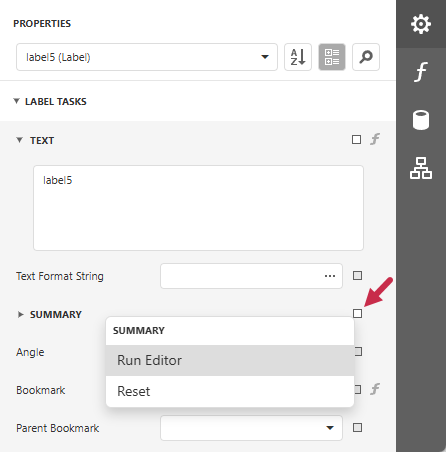
Click the small box next to the Summary section and select Run Editor from the drop-down menu.
Edit element properties in the Summary Editor:
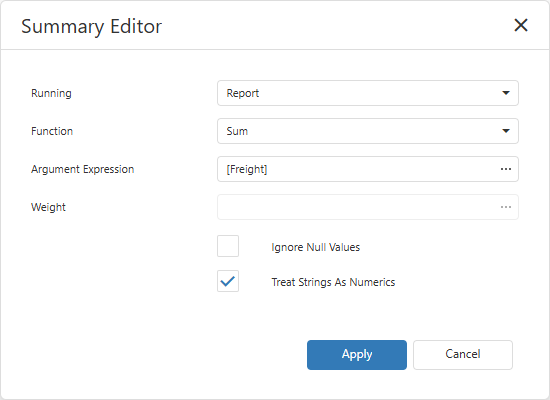
- Running
Sets the calculation scope:
- Group: Calculates a separate summary for each group
- Report: Summarizes the entire report
- Page: Summarizes the current page.
Note
Running defines the calculation scope but does not convert the result to a cumulative total. To calculate a cumulative total, select the corresponding calculation method in the Function field.
- Function
- Specifies the summarization option.
- Argument Expression
Specifies the expression applied to records before the summary function aggregates the resulting values. For example,
[UnitPrice] * [Quantity]calculates an amount for each record before the summary aggregates those amounts.Click the ellipsis button to open the Expression Editor.
- Weight
Specifies a data field or expression that supplies a weight for a weighted average. For example, use
[UnitPrice]as the Argument Expression, and[Quantity]as the Weight to increase influence of larger quantities on the average price.Note
This property is only available for the Weighted Average function.
- Ignore Null Values
- Excludes null values from the calculation when selected. Otherwise, null values are treated as zeros. For example, the average of
1,null, and5is3when this option is enabled, and2when Ignore Null Values is cleared. - Treat Strings As Numerics
- Treats string values as numbers when checked. Clear this option to preserve string values (for Min and Max comparisons, for example).
Click the Apply button to save summary settings, or Cancel to discard changes.
Click PREVIEW in the upper-right corner of the Report Designer to review calculated summary values: