Create a Report with Summaries
- 2 minutes to read
The Report Wizard allows you to add summaries during report creation. You can specify source data fields for summaries, apply summary functions, and generate group subtotals.
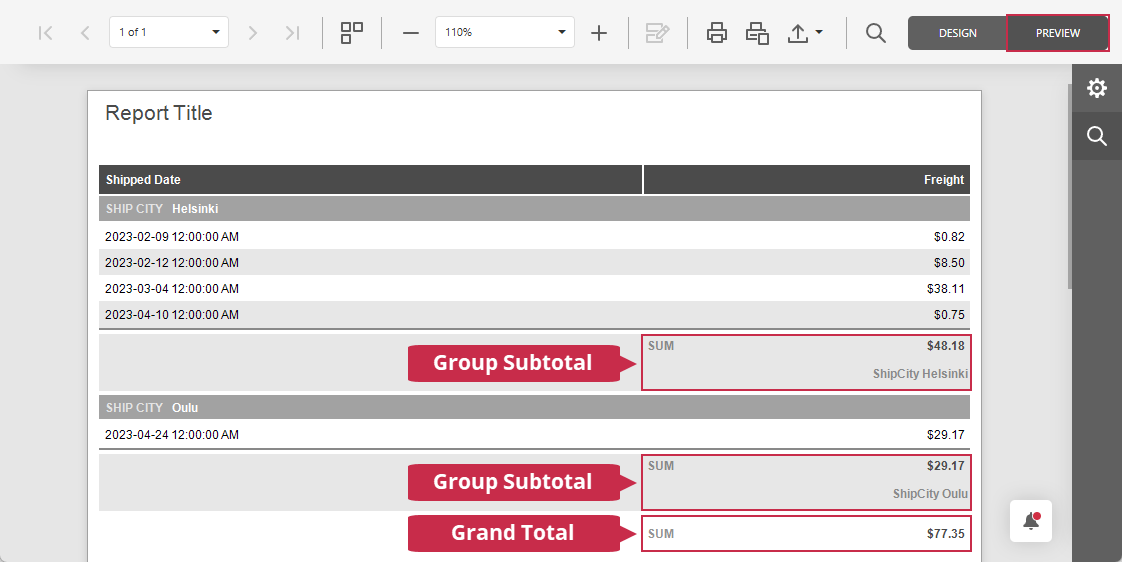
The Report Wizard automatically creates all required summary elements and report bands. You do not need to configure these elements manually using the Report Designer.
To add summaries during report creation, follow these steps:
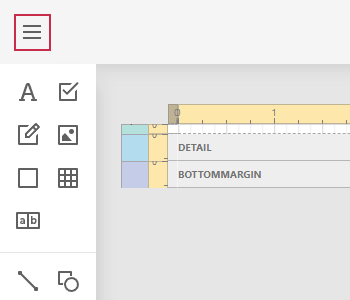
Click the hamburger button in the Report Designer to open the main menu:
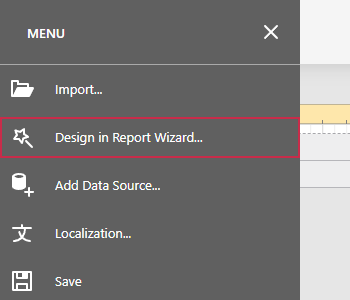
Select Design in Report Wizard… from the menu:
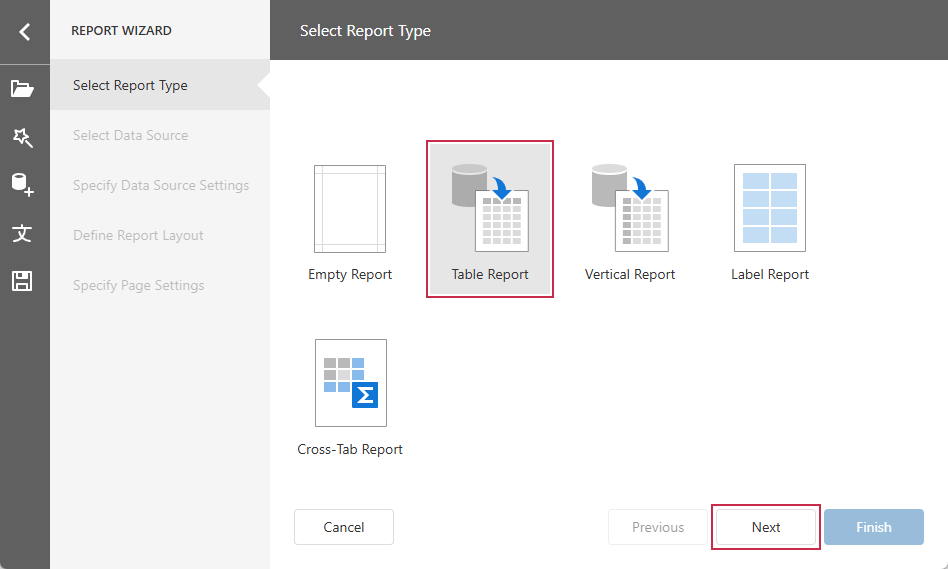
Select a report type. This example creates a Table Report (summary creation steps are similar for other report types):
Select or create a report data source.
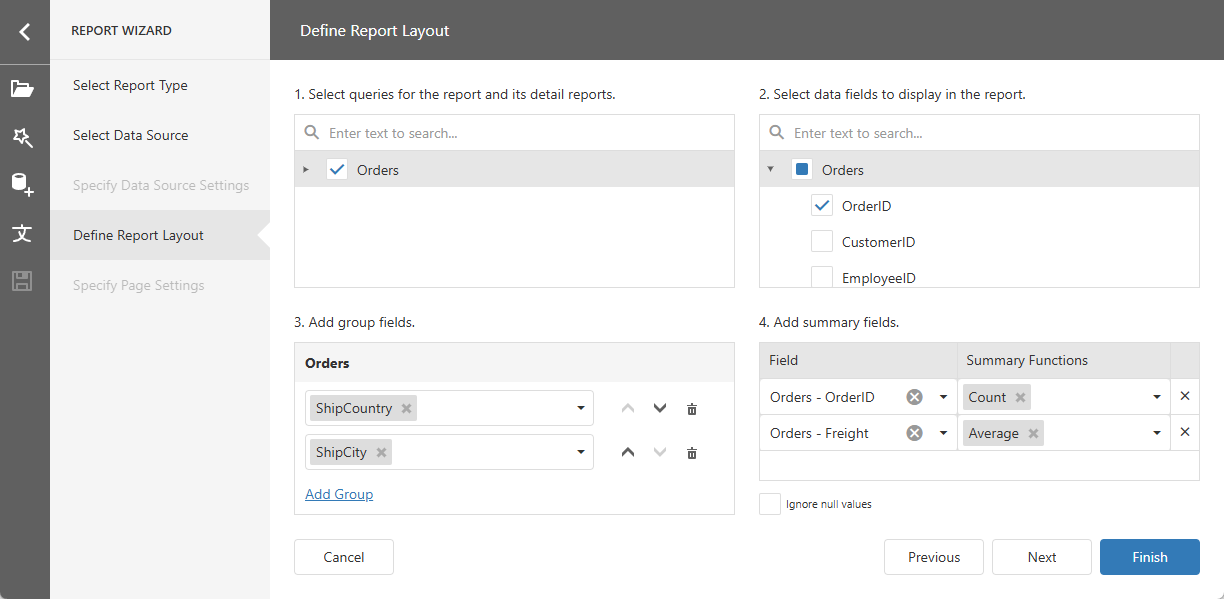
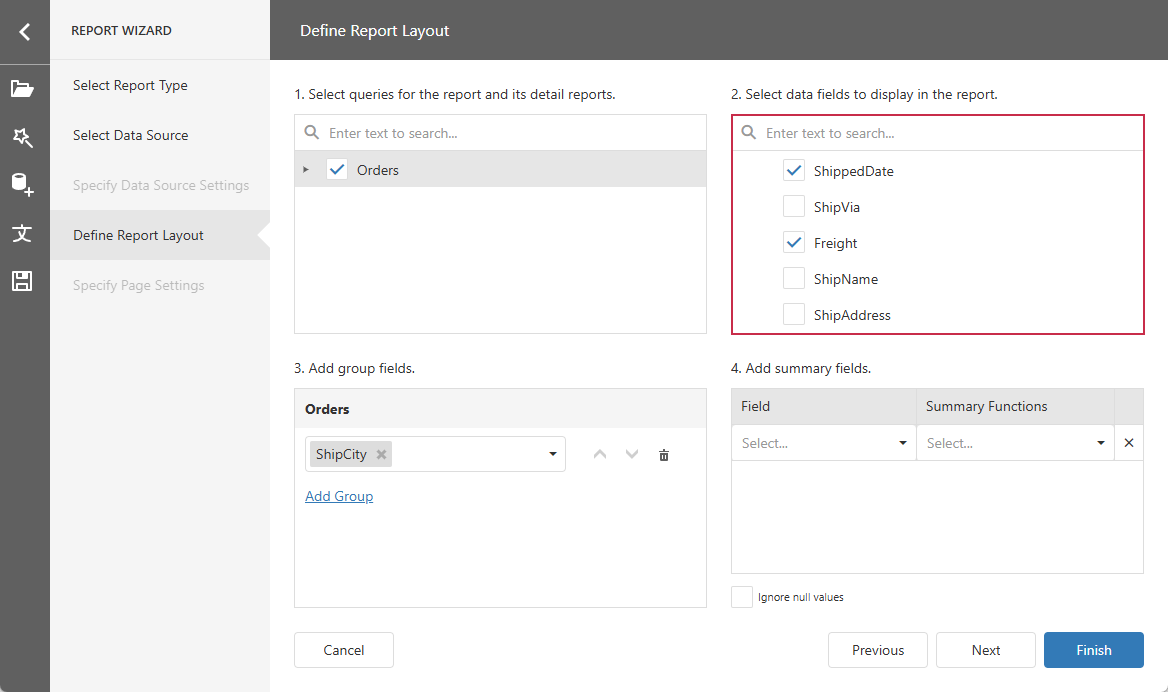
Select data fields to display in the report (2). To add a summary, include at least one field of any of the following types:
- Numeric (such as an integer or floating-point number)
- Date/time
- Boolean
Tip
To include group subtotals, select one or more fields in the Add group fields section (3).
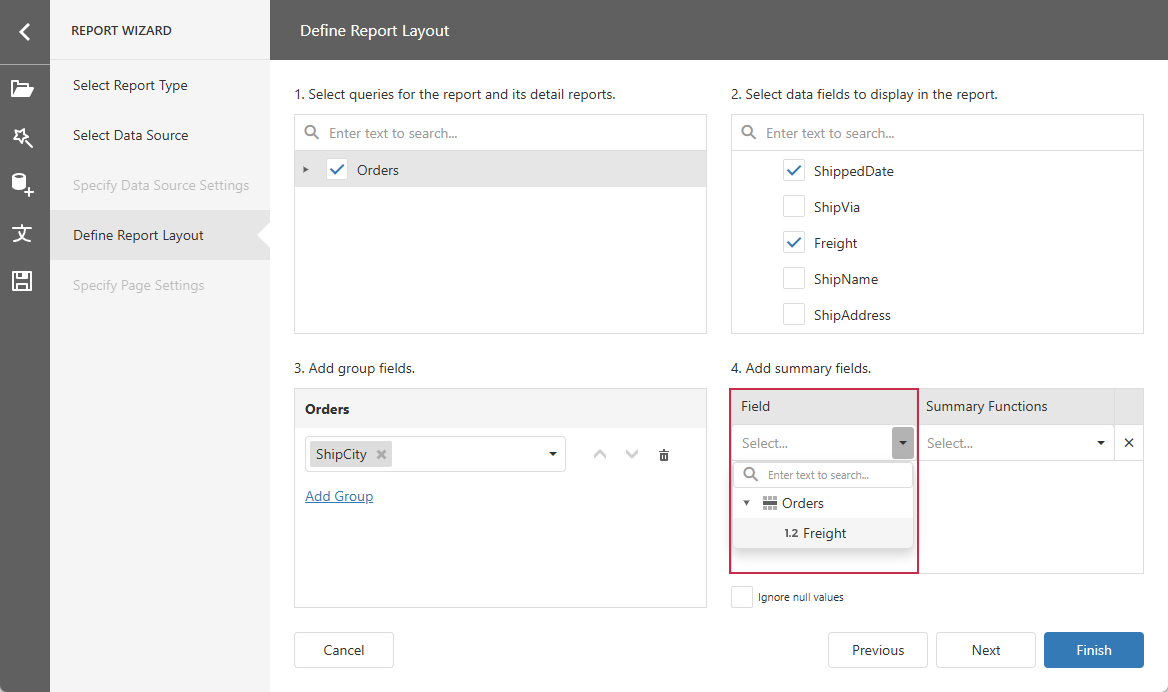
Select the data field to summarize:
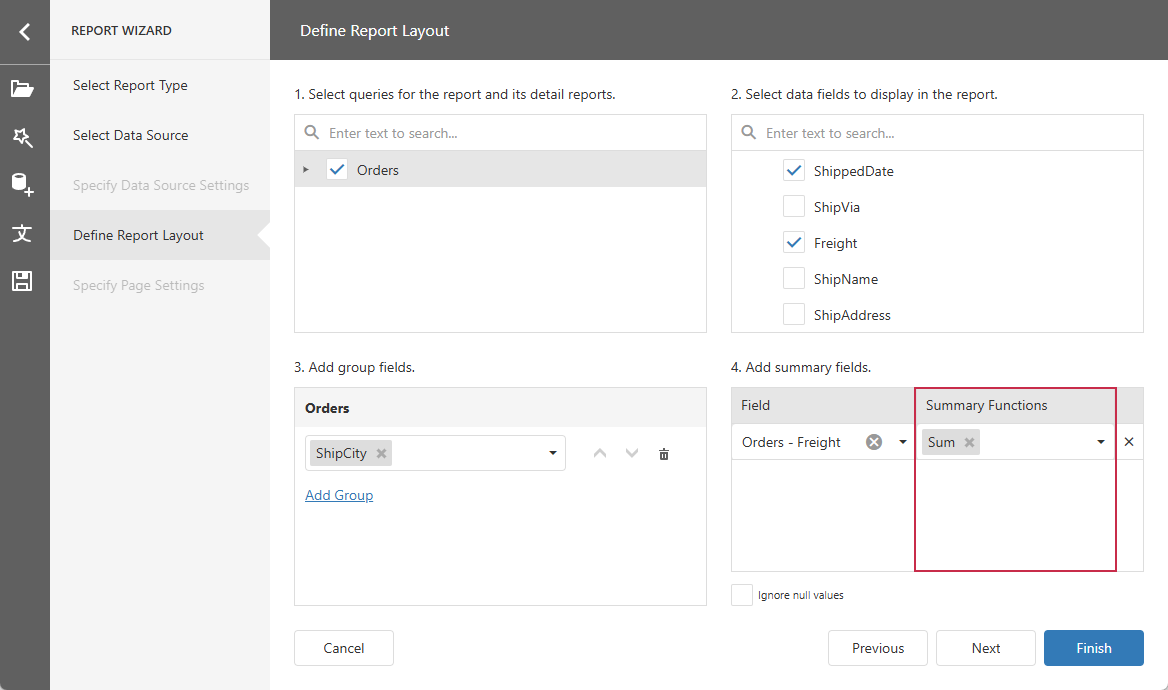
Specify how to summarize the field:
Tip
You can select multiple summarization options for the same field. For example, select Sum and Count to display both the total amount and the number of records that contribute to the result.
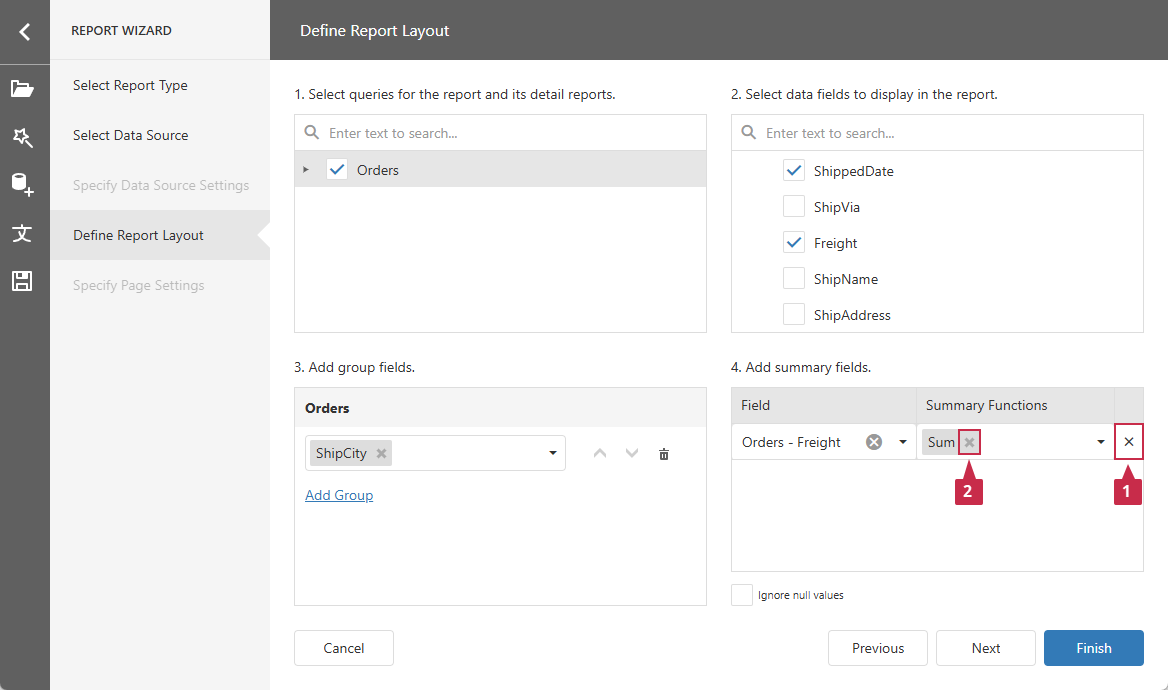
To remove an entire summary, click the cross button next to it (1). To remove an individual summary function, click the cross button in the function chip (2).
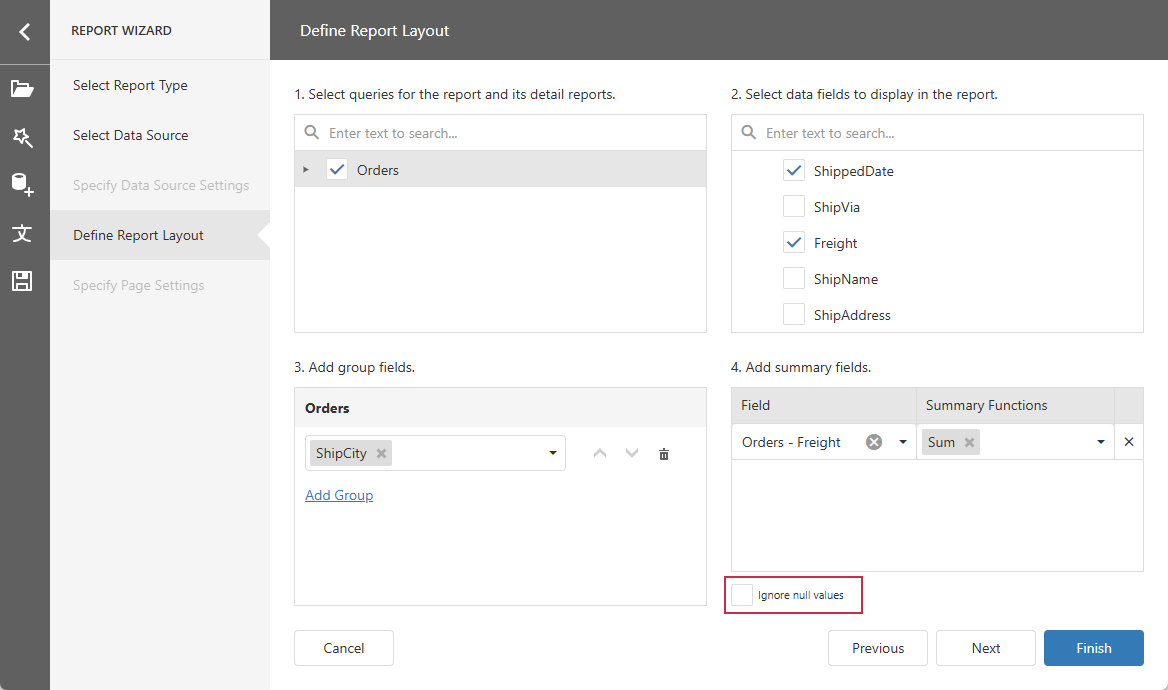
Select Ignore null values to exclude missing field values from summary calculations. Otherwise, null values are treated as zeros:
Click the Finish button to generate the report layout.
Click PREVIEW in the upper-right corner of the Report Designer to review calculated summary values: