VCL Reports/Dashboards: How to Use Data Source and Data Set Components
- 5 minutes to read
The VCL Backend implementation allows you to bind TdxDashboard/TdxDashboardControl and TdxReport/TdxReportControl components to one or more datasets (TdxMemData, TFDTable, TFDQuery, and other TDataSet descendants) like any other data-aware VCL control (TcxGrid, for instance). The dedicated TdxBackendDataSetJSONConnection component maintains a collection of associated datasets, serializes retrieved data, and stores it in memory in JSON format[1].
Follow the steps described in this topic to bind a TdxMemData component to TdxReport using TdxBackendDataSetJSONConnection and TDataSource components.
Sample Data File
This guide uses the following DAT file[2] shipped with compiled DevExpress VCL Demos:
%PUBLIC%\Documents\DevExpress VCL Demos\MegaDemos\Product Demos\ExpressQuantumGrid\Data\Employees.dat
Create & Configure a RAD Studio App Project
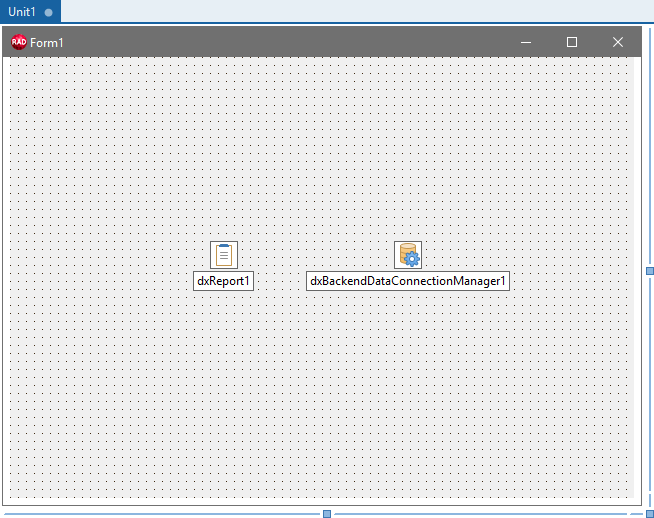
Create a new project and place TdxReport and TdxBackendDataConnectionManager components on a form.
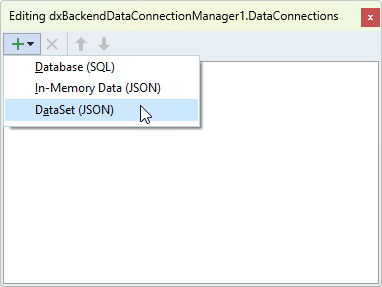
Double-click the TdxBackendDataConnectionManager component on the form to open the Collection Editor dialog, click the Add button, and select the DataSet (JSON) option to create a TdxBackendDataSetJSONConnection component:
Add & Populate a Memory-Based Dataset
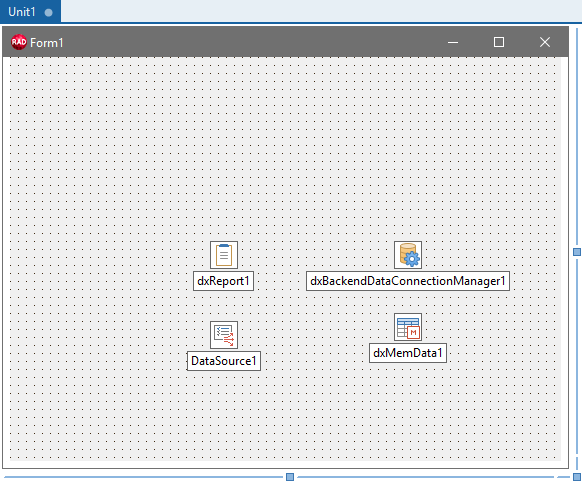
Add TdxMemData and TDataSource components on a form.
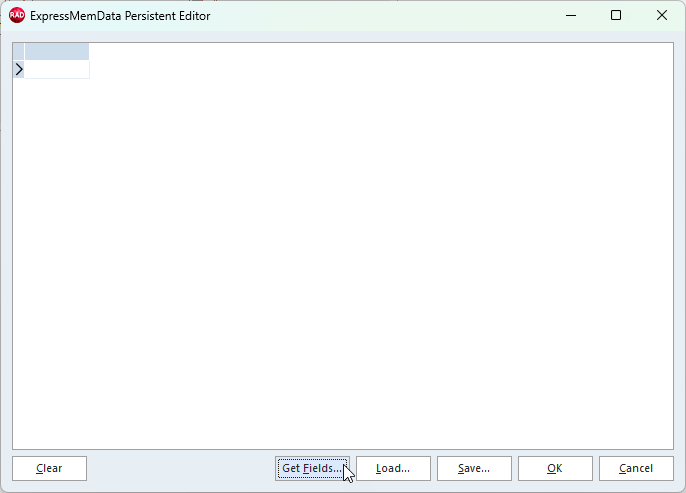
Right-click the TdxMemData component and select the Persistent Editor… option. Click the Get Fields… button to display the Open File dialog.
Open the following file:
%PUBLIC%\Documents\DevExpress VCL Demos\MegaDemos\Product Demos\ExpressQuantumGrid\Data\Employees.dat
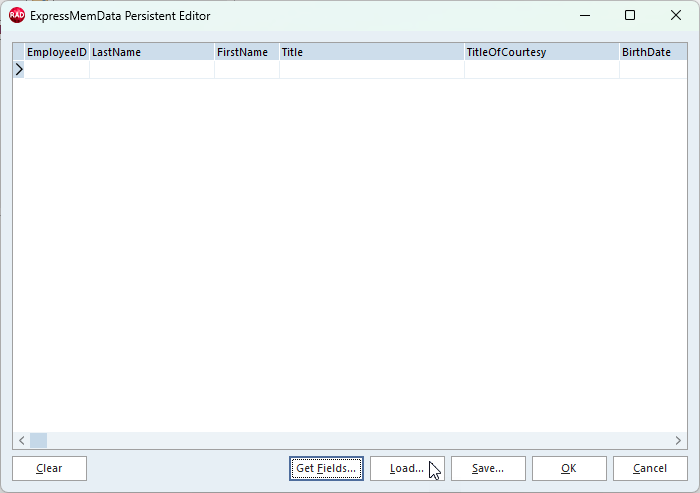
The Persistent Editor displays empty dataset fields loaded from the specified file. Click the Load… button to display the Open File dialog.
Select the same Employees.dat file to populate created fields with data.
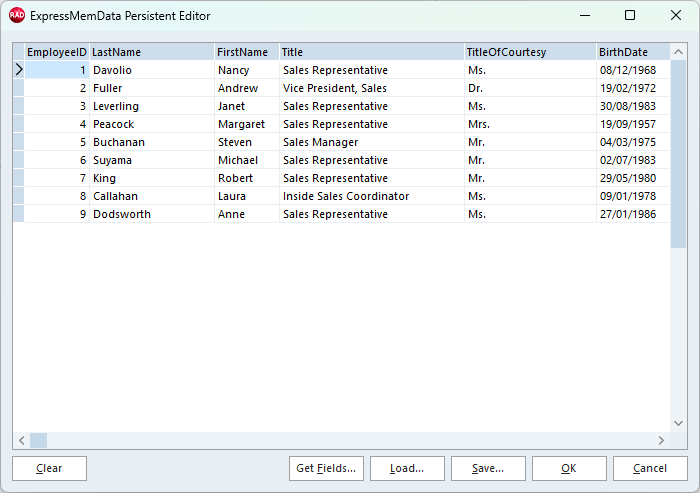
Click Ok to close the Persistent Editor dialog.
Bind Dataset JSON Connection and Memory-Based Dataset Components
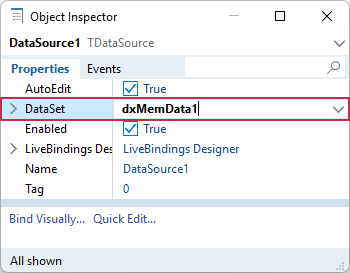
Select the TDataSource component and associate it with the populated TdxMemData component using the Object Inspector:
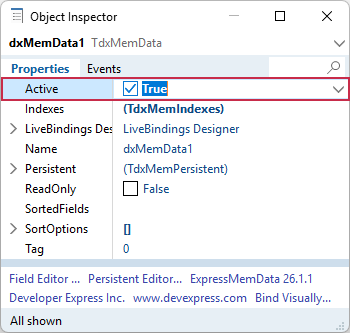
Select the TdxMemData component and set the Active property to True:
Select the previously created TdxBackendDataSetJSONConnection component and click the ellipsis button for the TdxBackendDataSetJSONConnection.DataSets property to display the Collection Editor dialog.
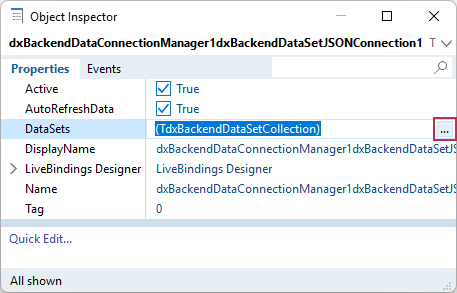
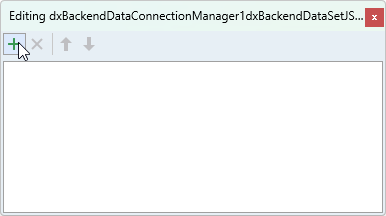
Click the Add New button to create a dataset link (TdxBackendDataSetCollectionItem) for the TdxBackendDataSetJSONConnection component:
Select the created TdxBackendDataSetCollectionItem component and use the Object Inspector to assign the previously configured TDataSource component to the TdxBackendDataSetCollectionItem.DataSource property:
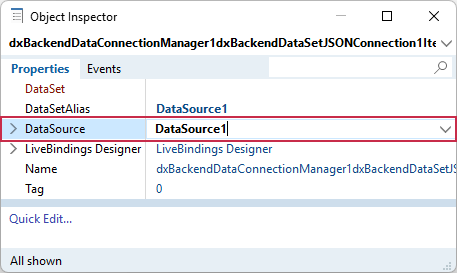
The TdxMemData component is now accessible to TdxDashboard/TdxDashboardControl and TdxReport components in the project.
Access Data Using the Report Designer
Double-click the TdxReport component to display the Report Designer dialog.
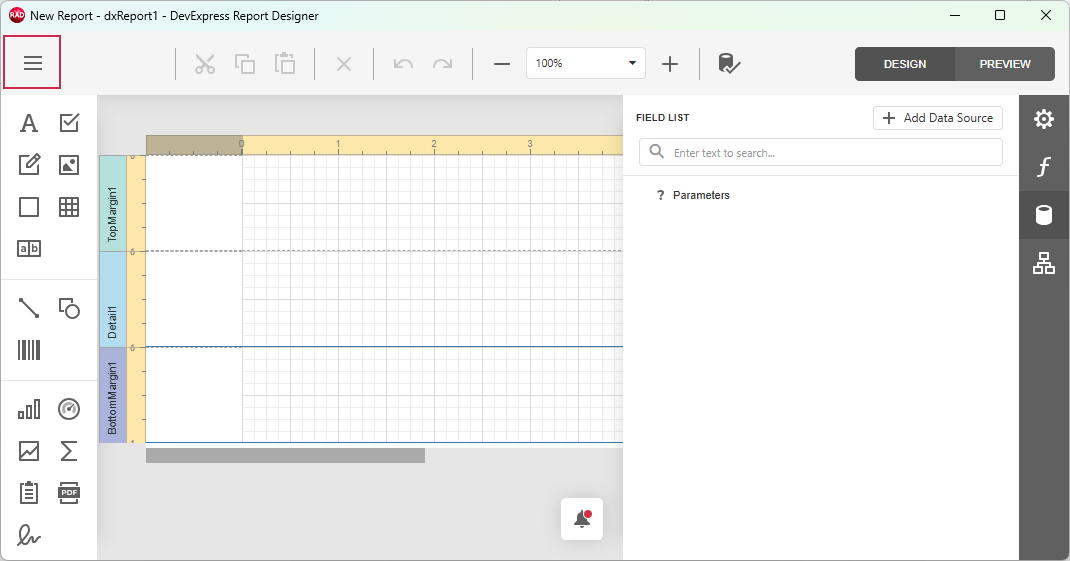
Click the hamburger button to display the Report Designer menu:
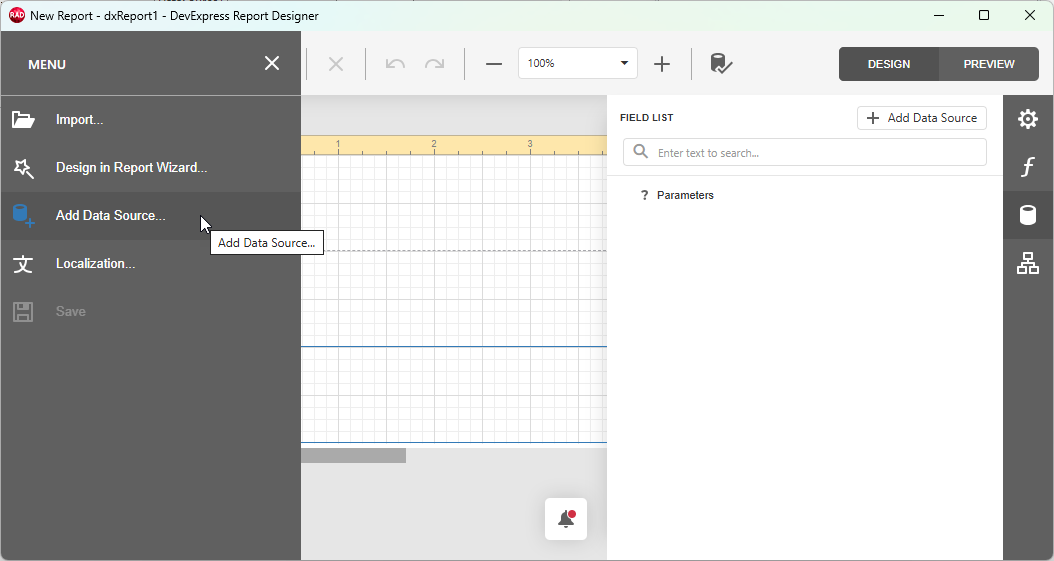
Click Add Data Source… to review fields loaded from the configured and populated TdxMemData component:
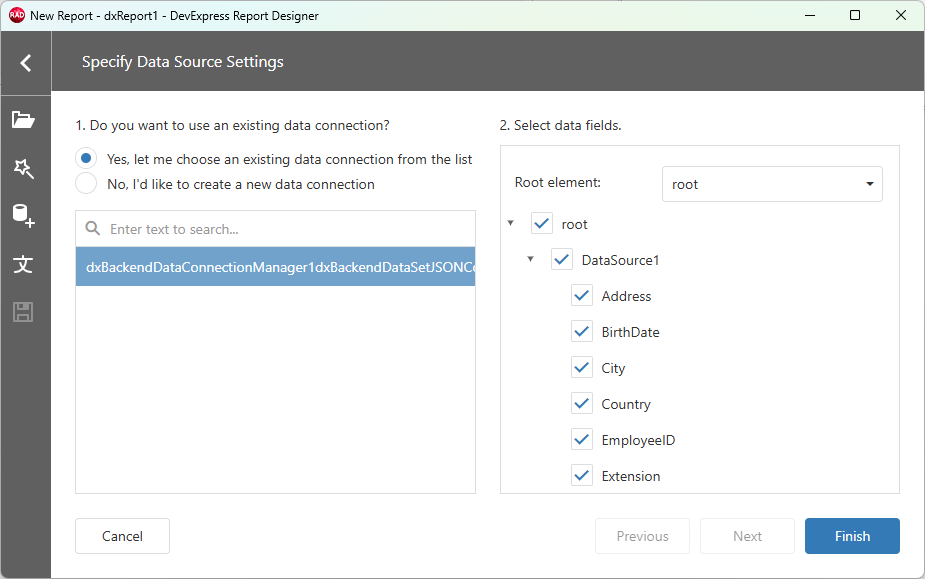
Click Finish to add selected fields to the FIELDS pane of the Report Designer dialog:
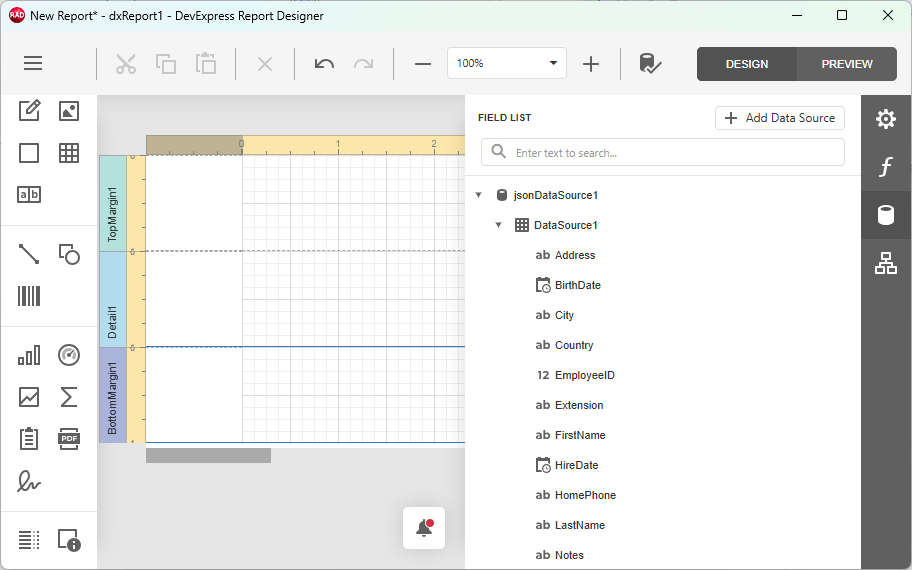
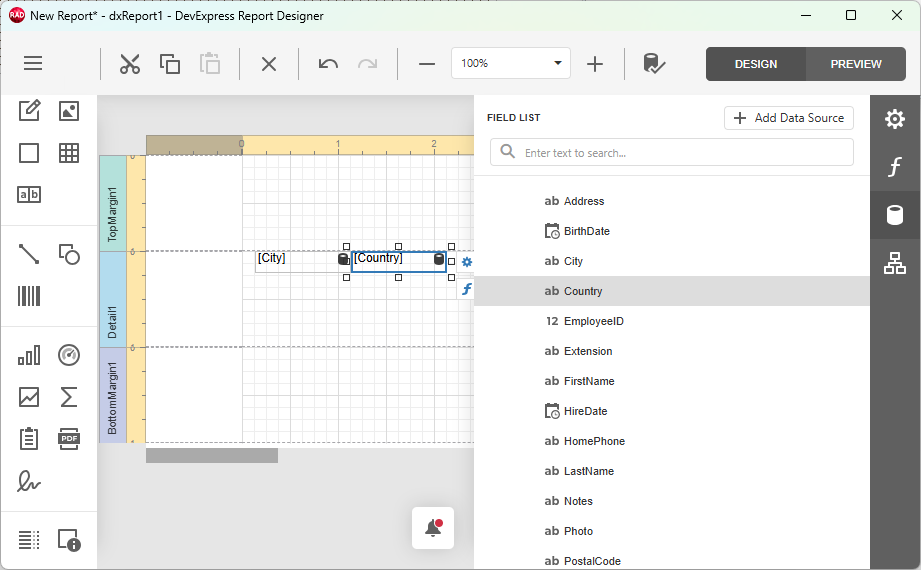
Drag & drop listed fields to the report template and use other layout configuration tools available in the Report Designer dialog.
Next Steps
Review the following tutorials to get started with TdxDashboard/TdxDashboardControl and TdxReport/TdxReportControl components:
ExpressDashboards Tutorials
Basic Tutorial. Follow this tutorial to create a simple dashboard application: set up a memory-based data source, load JSON data, create Bubble Map and Chart dashboard items, and bind them to data.
Featured Components: TdxDashboardControl | TdxBackendDataConnectionManager | TdxBackendInMemoryJSONConnection
Follow this tutorial to create a dashboard and bind it to data using standard FireDAC components (TFDQuery and TFDConnection) shipped with the RAD Studio IDE.
Featured Components: TdxDashboardControl | TdxBackendDataConnectionManager | TdxBackendDataSetJSONConnection
Follow this tutorial to create a dashboard, bind it to a parametrized stored procedure, and pass dashboard parameters to that procedure using the Dashboard Designer dialog at design time.
Featured Components: TdxDashboardControl | TdxBackendDataConnectionManager | TdxBackendDatabaseSQLConnection
ExpressReports Tutorials
Basic Tutorials introduce the report creation tools and functionality available for the TdxReport and TdxReportControl components.
Both tutorials create VCL applications that display a table report. The applications have the same UI/UX but use different data sources and data connection components.
Master-Detail Tutorials demonstrate how to define a master-detail relationship between two tables in a relational SQL database and display hierarchical data in a table report.
Both tutorials create sample applications with the same UI/UX and similar performance but use different tools and techniques.
Parametrized Report Tutorials demonstrate how to create a Tabbed MDI (multi-document interface) Report Viewer application. Each tab displays the same parametrized report layout/template populated with different data loaded from a relational SQL database.
Both tutorials create sample applications that implement the same UI/UX with similar performance but rely on different data shaping/connection techniques/components.
Tip
Refer to the following topic for a complete list of TdxReport/TdxReportControl tutorials: VCL Reports: Getting Started.
Other Supported Database Systems
Refer to the following topics for step-by-step instructions on using corresponding database systems for ExpressReports and ExpressDashboards:
Built-In Support
- In-Memory/Remote Web Service
- The TdxBackendInMemoryJSONConnection component allows you to bind TdxDashboard/TdxDashboardControl and TdxReport/TdxReportControl components to JSON data defined in code or loaded from a remote Web API service endpoint.
- SQLite
- SQLite is a file-based relational database engine.
- Microsoft SQL/Azure Databases
- Microsoft SQL Server and Azure SQL Database are proprietary relational database management systems developed by Microsoft.
Database Providers That Require Assembly Deployment
- PostgreSQL
- PostgreSQL is an open-source database management system.
- Oracle Database
- Oracle Database is a proprietary multi-model database management system developed by the Oracle Corporation.
- MySQL
- MySQL is an open-source relational database management system developed by the Oracle Corporation.
- Firebird
- Firebird is an open-source SQL relational database management system.
-
You can use the TdxBackendDataSetJSONConnection.ConnectionString property to access serialized dataset content (as a string in the JSON format).
-
You can use any other DAT file within the same folder.