TdxReport.ExportToDOCX(string) Method
Exports report content to a file in the Office OpenXML Document (DOCX) format.
Declaration
procedure ExportToDOCX(const AFileName: string); overload;Parameters
| Name | Type | Description |
|---|---|---|
| AFileName | string | An absolute or relative path to the target file. |
Remarks
Call the ExportToDOCX procedure to export report content to a file in the DOCX format.
DOCX Export Settings
The Report Designer dialog allows you to configure DOCX export settings. Open the Properties tab and expand the following nodes to modify DOCX export settings: Behavior | Export Options | DOCX Export Options.
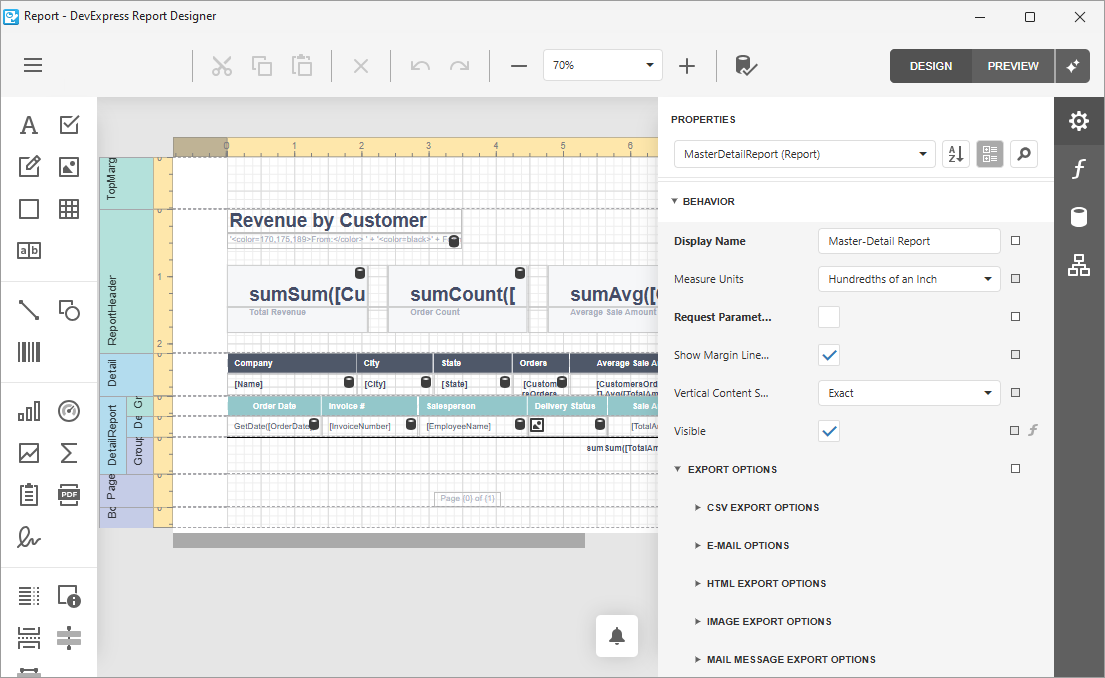
Code Example: Export Report Content to DOCX File
The following code example configures a memory-based data source (TdxBackendInMemoryJSONConnection), loads an XML layout, and exports generated content to a file in the Office OpenXML Document (DOCX) format without user interaction:
uses
  dxBackend.ConnectionString.JSON,  // Declares the TdxBackendInMemoryJSONConnection component
  dxSplashForms,                    // Declares the TdxSplashFormManager class and related types
  dxReport;                      // Declares the TdxReport class
// ...

procedure TMyForm.cxButtonExportToDOCXClick(Sender: TObject);
var
  AReport: TdxReport;
  AJSONDataConnection: TdxBackendInMemoryJSONConnection;
  AJSONData: string;
begin
  // Define a table that consists of three columns ("id", "Region", and "Sales") and five data rows:
  AJSONData :=

  '[{"id": 1, "Region": "Asia",          "Sales": 4.7685},' +  // Row #1
   '{"id": 2, "Region": "Australia",     "Sales": 1.9576},' +  // Row #2
   '{"id": 3, "Region": "Europe",        "Sales": 3.3579},' +  // Row #3
   '{"id": 4, "Region": "North America", "Sales": 3.7477},' +  // Row #4
   '{"id": 5, "Region": "South America", "Sales": 1.8237}]';   // Row #5

  AJSONDataConnection := TdxBackendInMemoryJSONConnection.Create(Self);  // Creates a data connection
  try
    AJSONDataConnection.Name := 'JSONData';        // Assigns a name to the created data connection
    AJSONDataConnection.SetJSONValue(AJSONData);   // Assigns the defined JSON data string
    AReport := TdxReport.Create(Self);       // Creates a TdxReport container
    TdxSplashFormManager.WaitForm.Show(Self);  // Displays a Wait Form before the export operation
    try
      AReport.Layout.LoadFromFile('MyReportLayout.xml');  // Loads an XML Report layout
      AReport.ReportName := 'MyReport';                         // Defines a Report name
      AReport.ExportToDOCX(AReport.ReportName + '.docx');     // Saves the resulting DOCX file
    finally
      AReport.Free;              // Releases the TdxReport container
      TdxSplashFormManager.WaitForm.Hide;      // Hides the Wait Form once the operation is complete
    end;
  finally
    AJSONDataConnection.Free;       // Releases the data connection
  end;
end;
Related Compiled Demo
To see the report export functionality in action, run the Report Designer/Viewer demo in the VCL Demo Center installed with compiled DevExpress VCL demos. Select any demo in the sidebar on the left, click the Export button, and use any export option listed in the menu.
Compiled DevExpress demos ship with source code installed in the Public Documents folder (%PUBLIC%) for all users (default). You can find all project and source code files for the Report Designer/Viewer demo in the following folder:
%PUBLIC%\Documents\DevExpress VCL Demos\MegaDemos\Product Demos\ExpressReports\
Tip
Project and source code files for all compiled DevExpress VCL Demos are maintained in a public repository hosted on GitHub:
Other Export Methods
Export to File
- ExportTo
- Exports report content to a file in any supported format.
- ExportToCSV
- Exports report content to a file in the comma-separated values (CSV) format.
- ExportToHTML
- Exports report content to a file in the HyperText Markup Language (HTML) document format.
- ExportToImage
Exports report content to a stream in the current image export format (selected using the Report Designer dialog).
The default image export format is PNG (Portable Network Graphics).
- ExportToMHT
- Exports report content to a file in the MIME HTML (MHT) document format.
- ExportToPDF
- Exports report content to a file in the Portable Document (PDF) format.
- ExportToRTF
- Exports report content to a file in the Rich Text (RTF) document format.
- ExportToText
- Exports report content to a file in the plain text (TXT) document format.
- ExportToXLS
- Exports report content to a file in the Microsoft Excel® binary (XLS) spreadsheet format.
- ExportToXLSX
- Exports report content to a file in the Office OpenXML Spreadsheet (XLSX) format.
- SaveDocument
- Exports report content to a file in the XML-Based Report Archive (PRNX) format.
Export to Stream
- ExportTo
- Exports report content to a stream in any supported format.
- ExportToCSV
- Exports report content to a stream in the comma-separated values (CSV) format.
- ExportToDOCX
- Exports report content to a stream in the Office OpenXML (DOCX) document format.
- ExportToHTML
- Exports report content to a stream in the HyperText Markup Language (HTML) document format.
- ExportToImage
Exports report content to a stream in the current image export format (selected using the Report Designer dialog).
The default image export format is PNG (Portable Network Graphics).
- ExportToMHT
- Exports report content to a stream in the MIME HTML (MHT) document format.
- ExportToPDF
- Exports report content to a stream in the Portable Document (PDF) format.
- ExportToRTF
- Exports report content to a stream in the Rich Text (RTF) document format.
- ExportToText
- Exports report content to a stream in the plain text (TXT) document format.
- ExportToXLS
- Exports report content to a stream in the Microsoft Excel® binary (XLS) spreadsheet format.
- ExportToXLSX
- Exports report content to a stream in the Office OpenXML Spreadsheet (XLSX) format.
- SaveDocument
- Exports report content to a stream in the XML-Based Report Archive (PRNX) format.