Ribbon
- 2 minutes to read
The Ribbon contains UI elements that allow end-users to load and save diagrams, add diagram items to the canvas, format text within items, rearrange and recolor shapes, change the canvas size and orientation and perform copy/paste operations.

The table below lists actions end-users can perform using the Ribbon.
| Ribbon page | Ribbon group | Actions |
|---|---|---|
| Home | Clipboard | Copy/paste operations. |
| Font | Change the font settings for the selected shape. | |
| Text | Realign the text within the selected shape. | |
| Tools | Select a tool. | |
| Shape Styles | Change the background and border colors for the currently selected shape using a palette of predefined patterns or by selecting the colors individually using color pickers. | |
| Arrange | Move the selected shape in or out in the Z-order. | |
| Insert | Container | Add a container of the specified style to the canvas. |
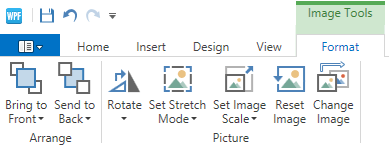
| Picture | Invoke the Insert Picture dialog window that allows you to add an image item to the canvas. | |
| View | Show | Toggle the visibility of the Shapes Panel, Properties Panel, rulers and gridlines. |
| Zoom | Zoom the diagram so that the entire page either fits the window or is as wide as the window. | |
| Design | Page Setup | Toggle between portrait and landscape page orientation, set the page size, enable the automatic canvas size readjustment on moving elements outside of its borders. |
| Themes | Apply a theme to the entire diagram. | |
| Options | Toggle the snapping behavior and specify how strongly shapes are snapped into alignment. | |
| Layout | Rearrange all shapes in a single click, change the type of the selected connectors and re-layout parts of the diagram. |
The Application Menu  button invokes a menu that allows end-users to create a new diagram, save, export or print the current diagram or load a previously saved one from a file.
Undo/Redo operations can be performed using the Undo/Redo  buttons.
The Page Setup dialog window can be invoked by clicking a  button at the bottom right corner of the Page Setup and Layout ribbon groups. It provides access to the line jumps options and allows end-users to change the page size, orientation and margins.

When a container or image item is selected, the Ribbon displays the corresponding categories that allow end-users to customize the selected items.