Use Scheduler Project and Form Templates
- 4 minutes to read
The VCL Template Kit ships with automatically installed Project and Form templates for the ExpressScheduler Suite. These templates are designed to reduce time spent on repetitive project and form setups, as well as improve onboarding for new VCL developers and boost productivity in experienced teams.
Project Template
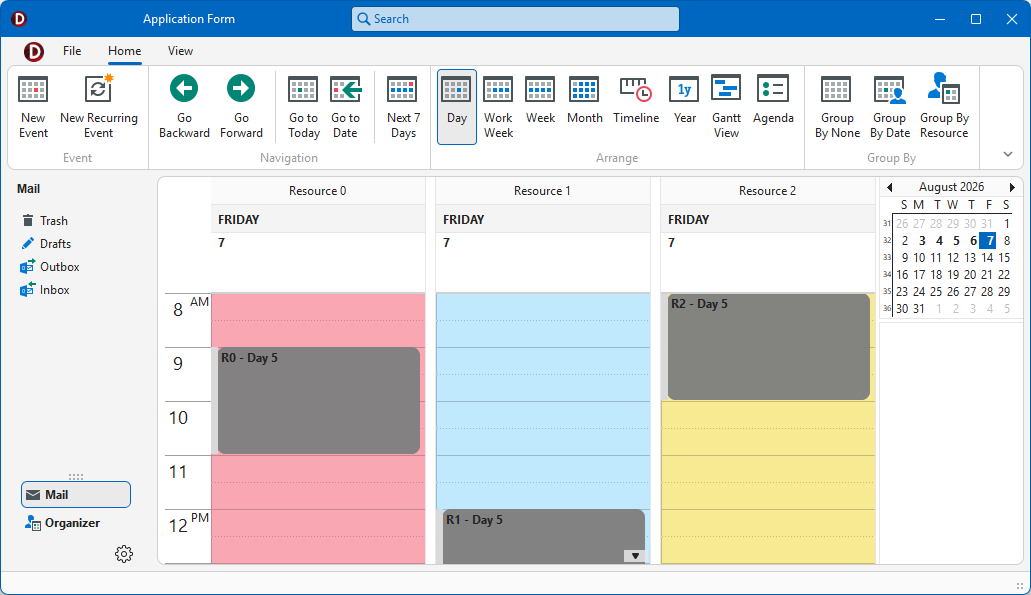
The Scheduling Application template creates a single-form application that contains the TcxScheduler component with a Ribbon UI and built-in print functionality (using the TdxComponentPrinter component).
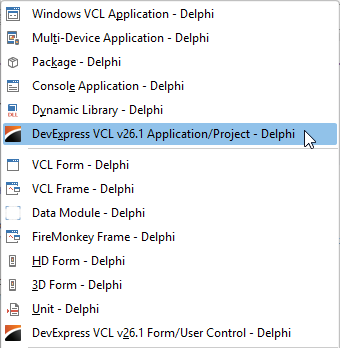
To run the Application/Project Wizard, select the following item in the RAD Studio IDE menu:
File → New → DevExpress VCL v26.1 Application/Project - Delphi
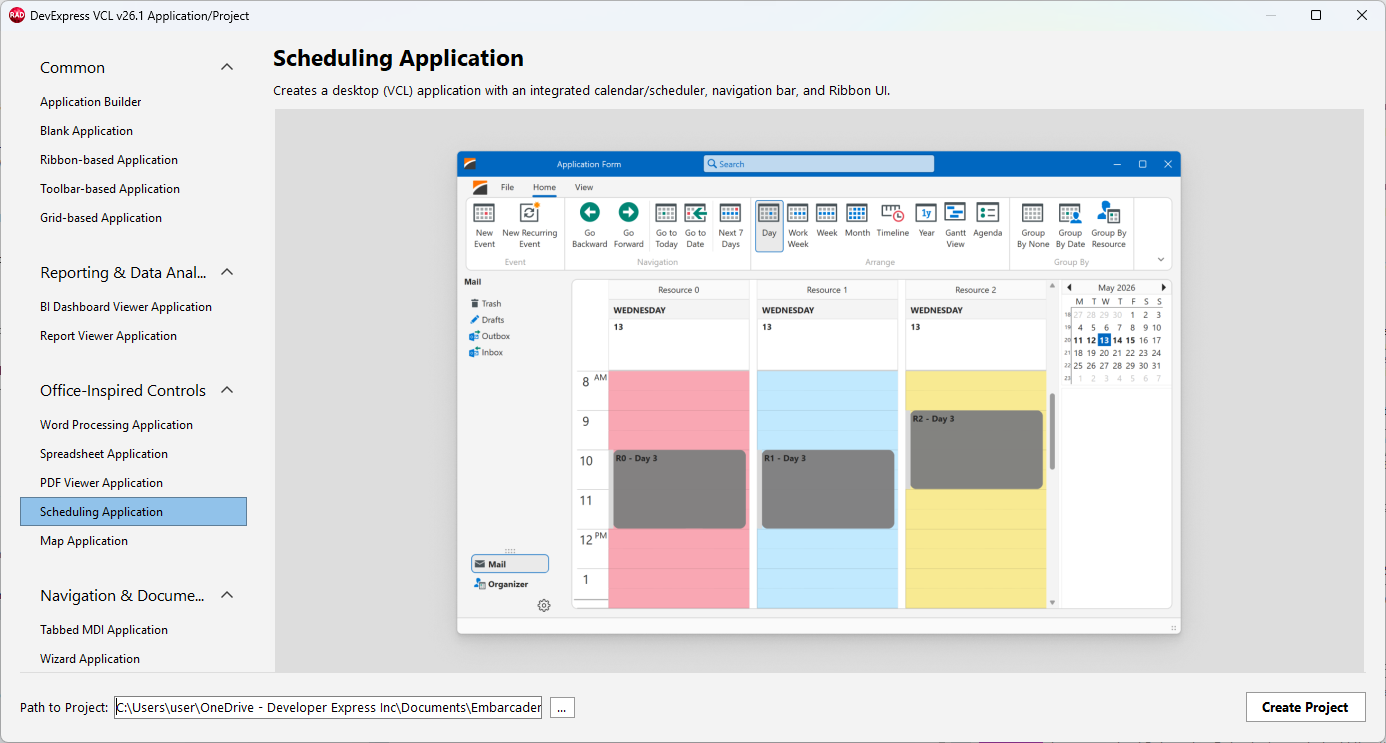
Select Scheduling Application in the Office-Inspired Controls category and click Create Project.
Result: Generated Project
The TdxScheduler component shares the main form area with the TdxNavBar control used as a sidebar on the left. The sidebar has no predefined functionality.
The generated form is derived from the TdxRibbonForm class and encapsulates all best app building practices for high-DPI multi-monitor environments.
Scheduler Storage & Sample Data
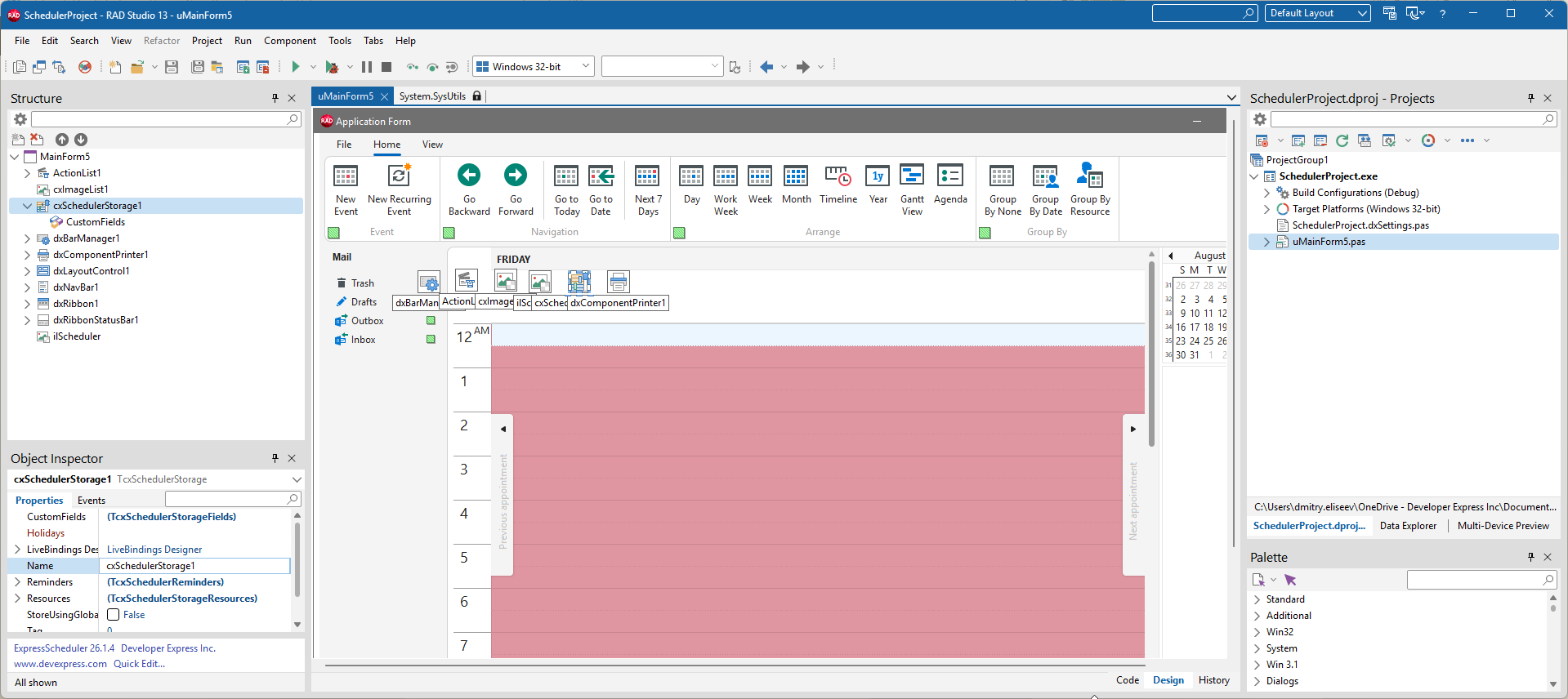
The TcxScheduler component is empty at design time. The generated project includes the main form’s OnCreate event handler that generates sample data to populate an unbound scheduler storage component (TcxSchedulerStorage) with user events.
UI Elements & End-User Functionality
In addition to the TcxScheduler control positioned using the TdxLayoutControl component, the main application form includes a Ribbon UI with an embedded TdxOfficeSearchBox editor and three Ribbon tabs:

- File
- Lists Print, Print Preview, and Page Setup commands that display corresponding dialogs.
- Home
- Main. Lists all event management, view, and navigation-related commands.
- View
- Contains view configuration and layout-related commands.
Tip
Refer to the following topic for a complete list of end-user commands shipped with the TcxScheduler component:
Run & Test the App
Build and run the generated project. Use Ribbon buttons to execute corresponding end-user commands.
Form Template
The Scheduling Form template allows you to add a configured DevExpress form with a TcxScheduler component to an existing application.
To run the Form/User Control Wizard, select the following item in the RAD Studio IDE menu:
File → New → DevExpress VCL v26.1 Form/User Control - Delphi
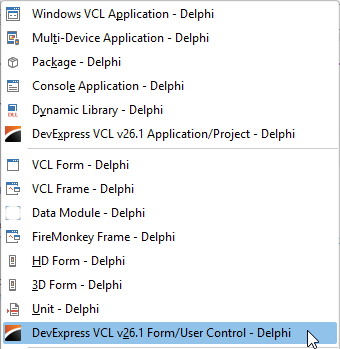
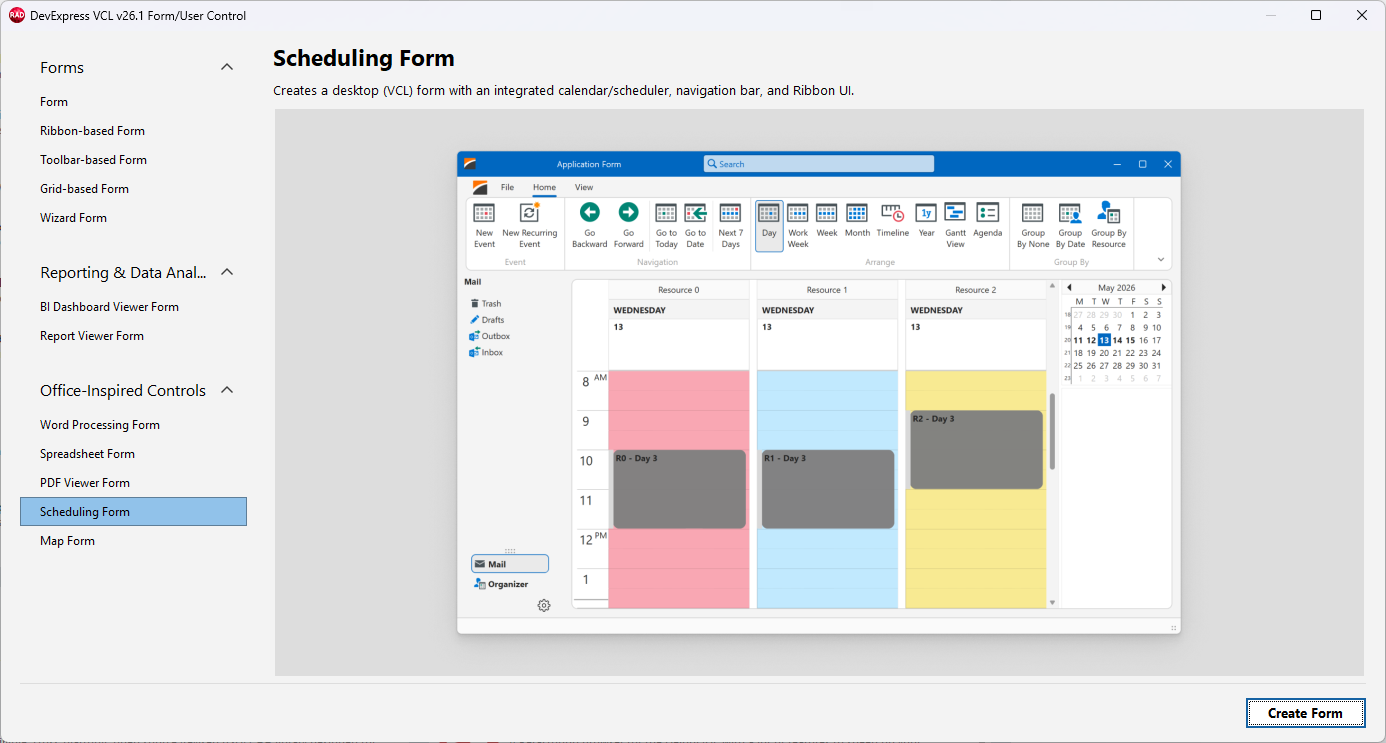
Select Scheduling Form in the Office-Inspired Controls category and click Create Form.
Result: Generated Form
The template creates a child form derived from the TdxRibbonForm class. The created form includes the same UI elements and has the same layout/functionality as the main form created by the Scheduling Application template.
Use the Generated Form
The form template does not automatically associate the generated form with existing app functionality. You need to manually display the form in code. For example:
uses
  uChildForm;  // Adds the generated form's unit explicitly

procedure TMainForm1.cxSchedulerDisplayButton1Click(Sender: TObject);
begin
  ChildForm.Show;  // Displays the generated form
end;
Application Builder Options
Application Builder is a universal application template designed to combine multiple business scenarios, UI layouts, and navigation options. You can add one or multiple views with pre-configured DevExpress UI controls based on project requirements.
The Application Builder template wizard contains two steps:
Step 1 — Select Navigation Type
This step allows you to select a navigation UI type (sidebar and/or tabbed MDI layout) designed to switch between multiple Views on the same application form:
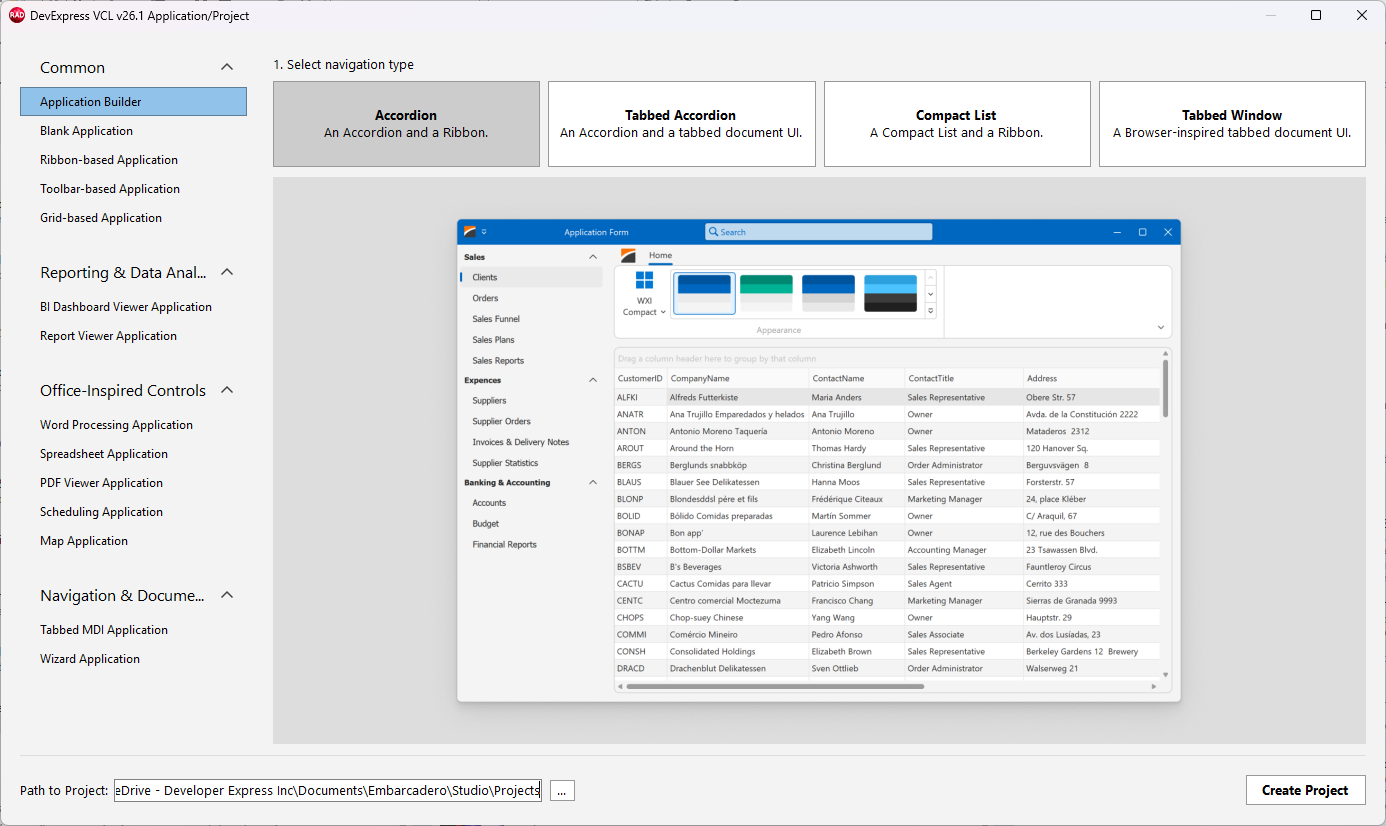
Scroll the Application Builder pane down to select required Views (Step 2).
Step 2 — Add Views to the Application
Step 2 lists multiple options that allow you to add one or multiple Views dedicated to corresponding UI controls.
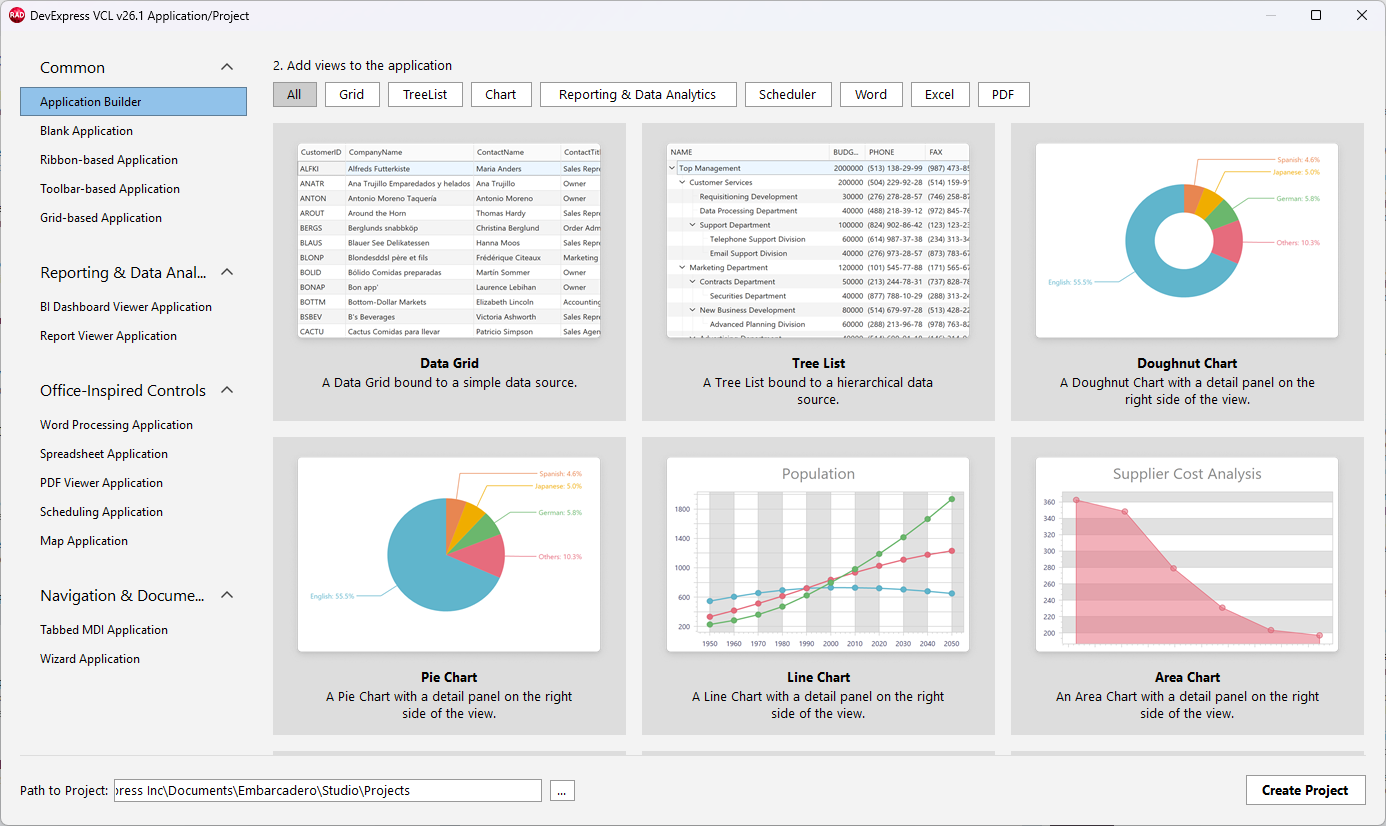
All available options are grouped into the following categories: All, Grid, TreeList, Chart, Reporting & Data Analysis, Scheduler, Word, Excel, and PDF. Select Scheduler to display the corresponding View.
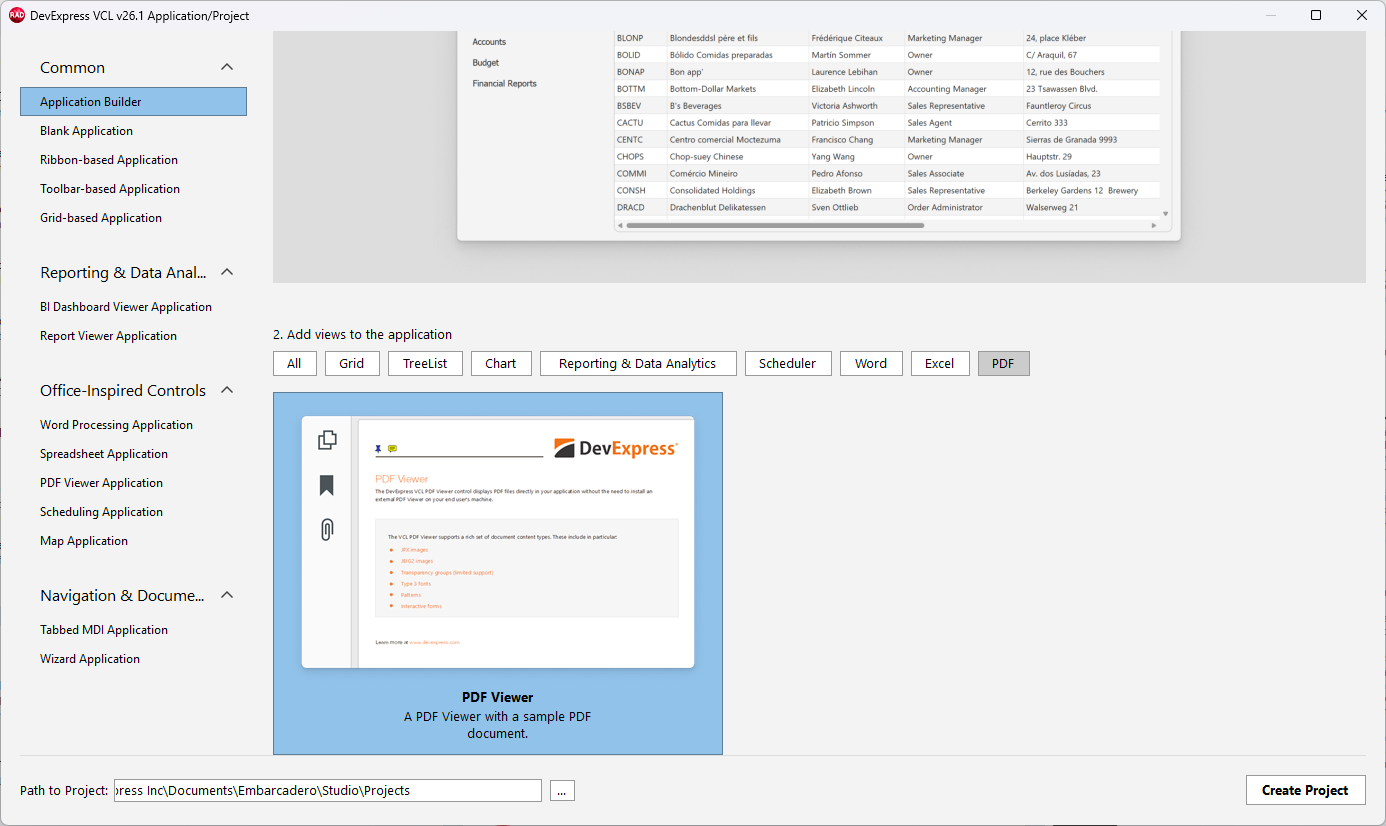
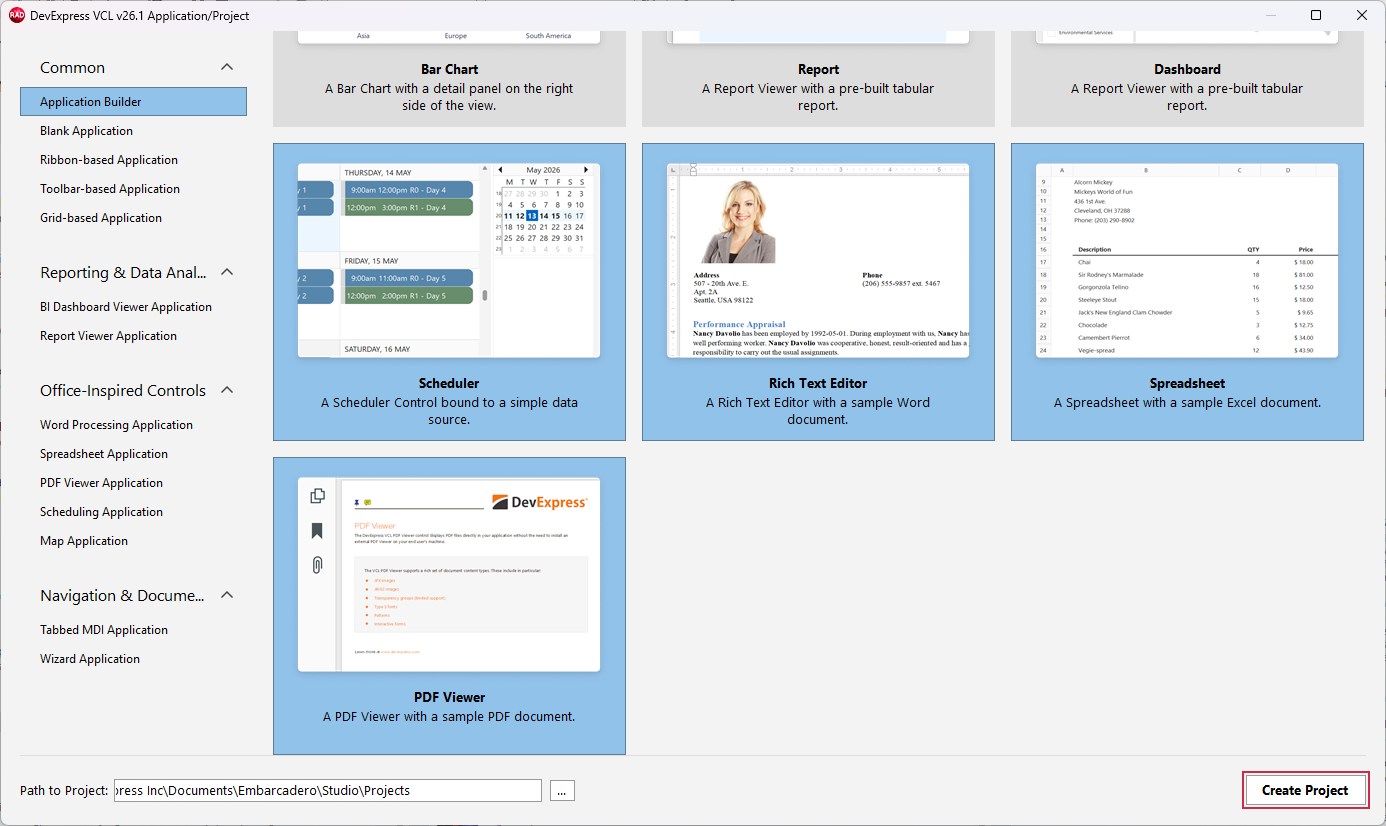
You can click individual Views to select or deselect them. Select all required Views and click Create Project to add them to the generated project.
Result: Generated Project
The generated project includes a TdxNavBar control as a sidebar and displays selected Views as frames on the same application form. Each View includes a Ribbon UI.
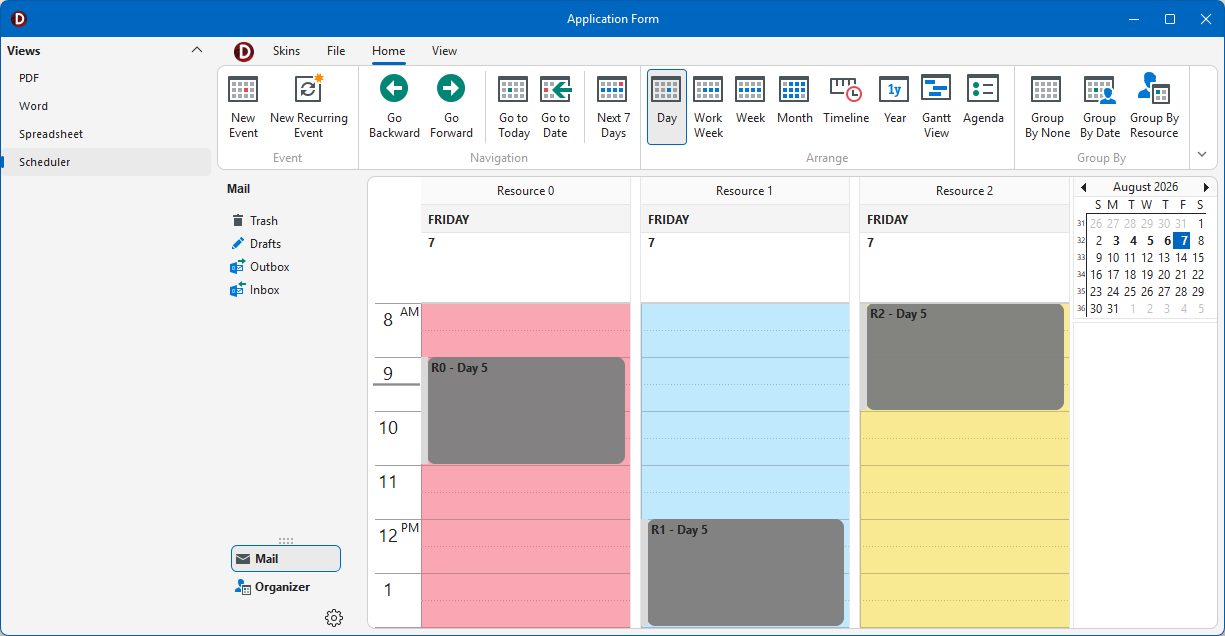
Individual application Views use the same sample data and layouts as corresponding standalone project templates.