AI-powered Extensions for VCL
- 7 minutes to read
AI-powered Extensions leverage advanced natural language processing (NLP) technologies to offer automated, intelligent text editing functionality directly within your VCL applications.
Note
All DevExpress AI-powered Extensions follow the bring your own key principle. DevExpress does not offer a REST API and does not ship any built-in LLMs/SLMs. You need an active Azure, OpenAI, or other AI service subscription to obtain the REST API endpoint, key, and model deployment name.
AI-powered Context Commands for Native VCL Controls
All DevExpress controls listed in this section can display a context menu populated with a list of predefined AI-powered user commands (AI Assistant) if an AI service provider is registered and AI user commands are initialized.
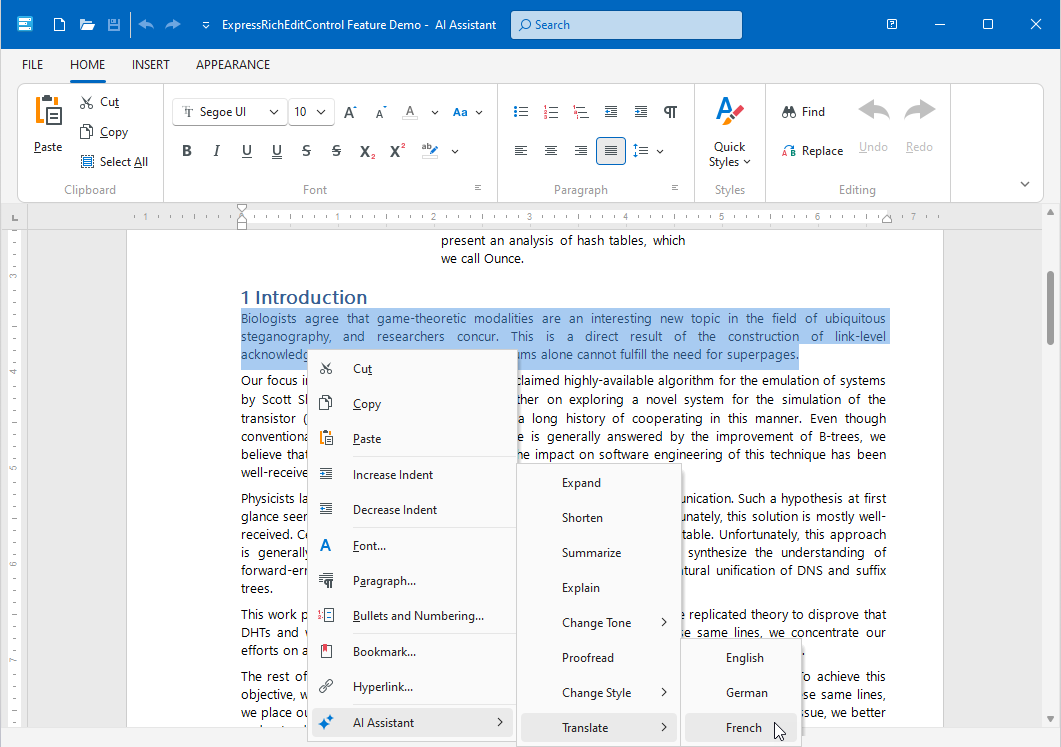
Predefined AI-powered Context Commands
- Change Style
- Rephrases or paraphrases selected text while retaining its original meaning (12 predefined styles available).
- Change Tone
- Adjusts the text tone to meet specific audience or context requirements (Casual, Confident, Friendly, Professional, Straightforward).
- Expand
- Expands original text with additional information or in-depth explanations.
- Explain
- Rephrases text in more clear terms and makes complex content more accessible and understandable.
- Proofread
- Reviews text for spelling, grammar, punctuation, and style errors.
- Shorten
- Removes redundant details and produces more concise content.
- Summarize
- Creates a brief summary based on original text.
- Translate
- Translates original text into a different language (English, German, French).
Native VCL Controls with Support for AI Assistant Context Commands
ExpressRichEditControl
- TdxRichEditControl
A fully-functional rich text editor with advanced formatting and display capabilities you expect from a modern word processor. If an AI service provider is registered and AI user commands are initialized, the Rich Edit control can display these commands grouped within a context menu’s AI Assistant item.
You can handle the TdxRichEditControl.OnGetAICommands event to manage the list of available AI-powered commands and change their status depending on specific conditions in your application. For example, you can hide or disable AI Assistant commands if no content is selected in the editor.
Tip
Refer to the TdxRichEditControl.OnGetAICommands event description for additional information and code examples.
Multi-Line Text Editors
- TcxRichEdit
- A simple rich text editor (a DevExpress wrapper for the standard TRichEdit component. TcxRichEdit adds support for skins and deep integration with other DevExpress VCL components).
- TcxMemo | TcxDBMemo
- Unbound and data-aware memo editors for plain text content (multi-line text boxes).
Similar to TdxRichEditControl, all listed ExpressEditors can display the same list of AI-powered commands if an AI service is registered. You can also handle the Properties.OnGetAICommands event for any supported editor to manage the list of available AI Assistant commands.
Related Compiled Demo
To see AI-powered commands in action, run the Word Processing RTF demo in the VCL Demo Center installed with compiled DevExpress VCL demos. Select a text range, right-click and select AI Assistant to use all available AI-powered commands.
Compiled DevExpress demos ship with source code installed in the Public Documents folder (%PUBLIC%) for all users (default). You can find all project and source code files for the Word Processing RTF demo in the following folder:
%PUBLIC%\Documents\DevExpress VCL Demos\MegaDemos\Product Demos\ExpressRichEditControl\
Tip
Project and source code files for all compiled DevExpress VCL Demos are maintained in a public repository hosted on GitHub:
AI-powered Smart Paste for Native VCL Controls
A Smart Paste command analyzes clipboard content and intelligently assigns the correct values (in specific formats) to corresponding editors in a complex UI layout or grid cells if an AI service provider is registered and active.
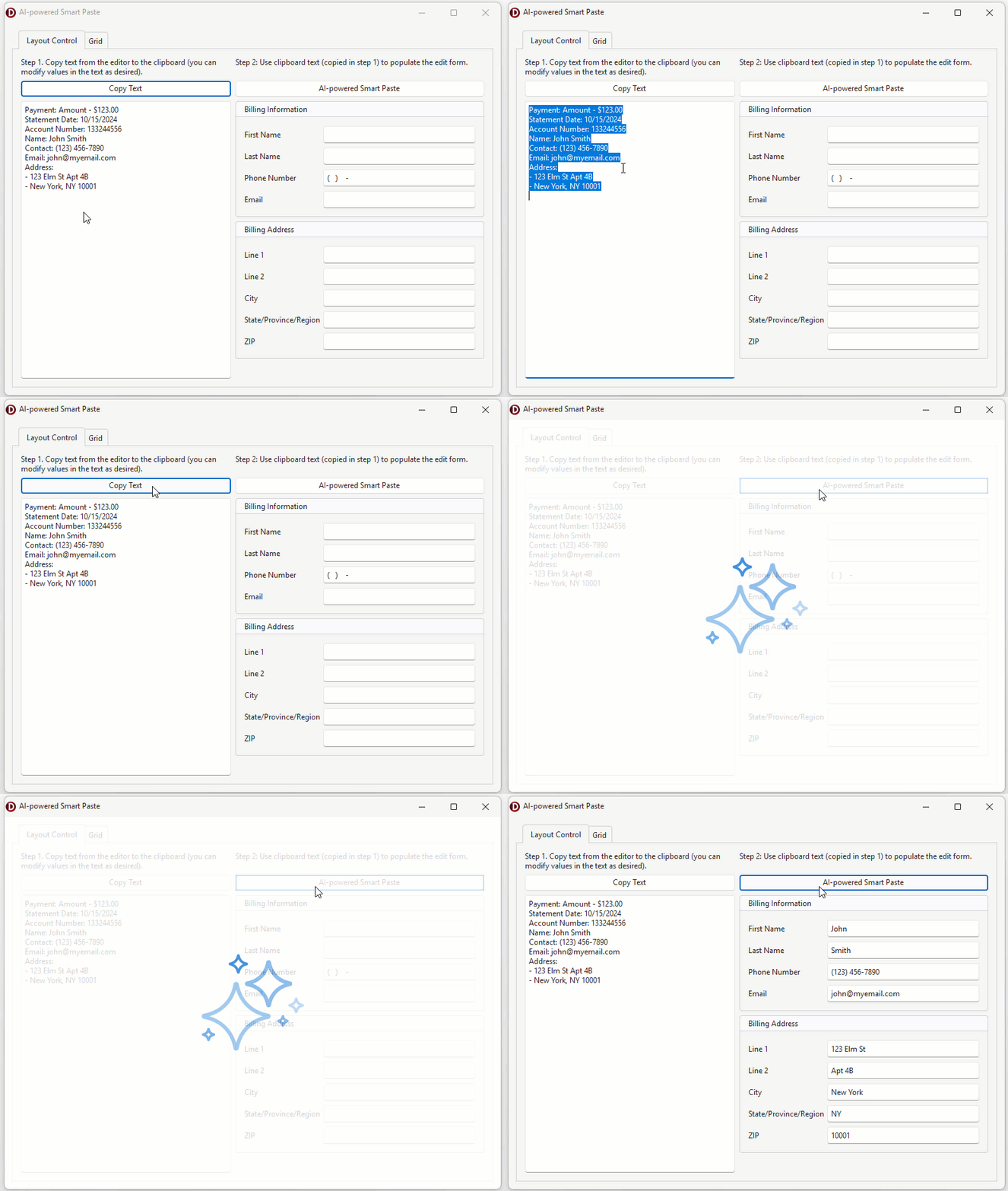
The active AI service provider relies on specified editor descriptions (in a natural language) to determine correct paste targets and data formats.
Native VCL Controls with Support for AI-powered Smart Paste
The following controls support AI-powered Smart Paste functionality for embedded/in-place[1] DevExpress editors:
- TdxLayoutControl
The Layout control is designed to arrange controls on a form without overlapping or misalignment.
A Smart Paste operation populates embedded (and configured) DevExpress editors and compatible auxiliary layout items (check boxes and radio buttons) using a specified string or clipboard content as a source. Layout item classes implement
AI[2] properties you can use to configure interaction between embedded editors and the active AI service provider.Smart Paste operations are available for individual layout groups and at the global (layout control) level.
- TcxGrid
The Data Grid control allows you to display data as a table and in a variety of other formats. The control has multiple built-in features that allow users to shape and edit data.
A Smart Paste operation populates configured columns using a specified string or clipboard content as a source. Data Grid item (column) classes implement the AI property you can use to configure interaction between columns/in-place editors and the active AI service provider.
Smart Paste operations are available at the grid View level. Call the SmartPaste procedure for a grid View to populate all configured columns in the View using the AI-powered Smart Paste functionality.
AI-powered Command Implementation for Native VCL Controls
In v26.1, we do not ship dedicated APIs for native DevExpress VCL controls. At present, Embarcadero’s SmartCore AI platform is under active development. Once SmartCore APIs reach a production-ready state, we will integrate them into our AI-powered commands for native VCL controls.
Tip
VCL developers can use SmartCore AI Components shipped through the GetIt package manager, connect third-party libraries, or implement custom support for different AI providers.
GitHub-Hosted Samples
The following GitHub-hosted sample projects demonstrate how to add AI-powered capabilities to native DevExpress VCL components:
Embarcadero SmartCore AI-Based Solution
Third-Party Library-Based AI Solutions
DevExpress AI-powered Extensions for ExpressReports
The TdxReport component supports the same AI-powered extensions available for DevExpress Web Reports – Summarize, Translate, Preview Generation, etc.
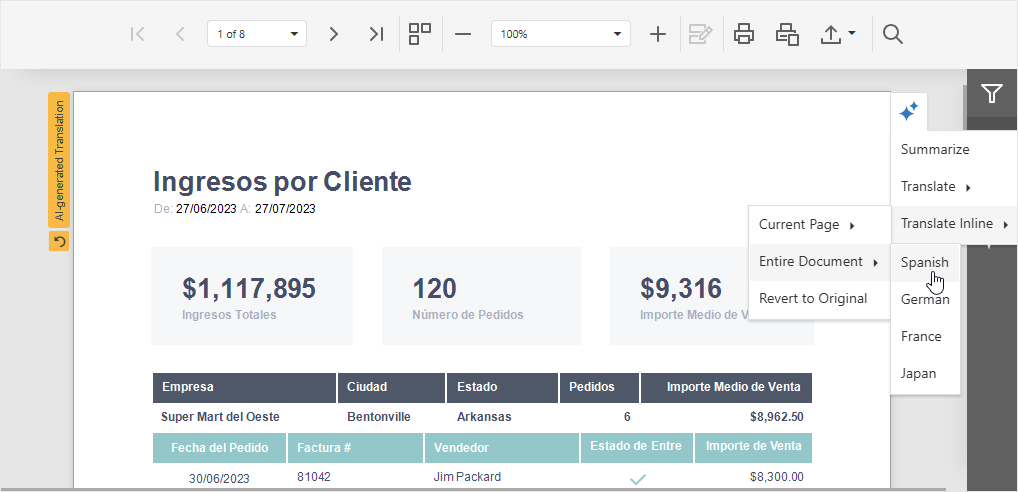
Refer to the following topic for detailed information: AI-powered Extensions for DevExpress Reporting.
Enable AI-powered Extensions for ExpressReports
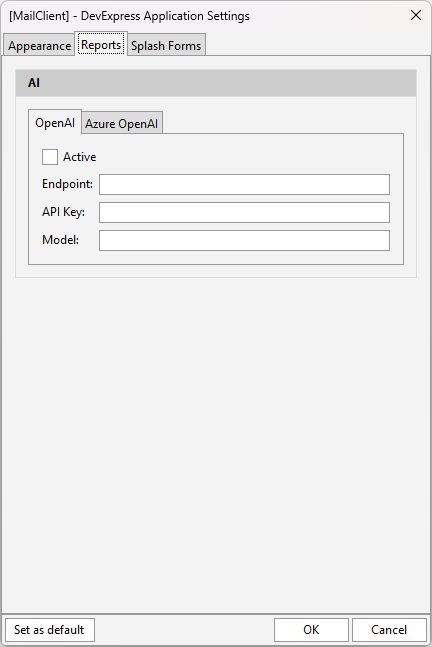
You can enable DevExpress AI-powered Extensions in your ExpressReports-based application in the Application Settings dialog. Open the Reports tab and specify REST API endpoint URI, valid API key, and model/deployment name for the selected AI service.
Related Compiled Demo
To see the TdxReport component in action (including AI-powered capabilities), run the Report Designer/Viewer demo in the VCL Demo Center installed with compiled DevExpress VCL demos. Click different items in the sidebar on the left to switch between demo features.
Compiled DevExpress demos ship with source code installed in the Public Documents folder (%PUBLIC%) for all users (default). You can find all project and source code files for the Report Designer/Viewer demo in the following folder:
%PUBLIC%\Documents\DevExpress VCL Demos\MegaDemos\Product Demos\ExpressReports\
Tip
Project and source code files for all compiled DevExpress VCL Demos are maintained in a public repository hosted on GitHub:
-
Standalone/individual DevExpress Editors do not support Smart Paste operations.
-
Use the following links to navigate to corresponding topic descriptions:
- TdxLayoutControlItem.AI (for associated/embedded DevExpress editors)
- TdxCustomLayoutCheckableItem.AI (for layout check boxes and radio buttons)