Group Series
- 5 minutes to read
When you set up certain series views, you need to organize series into groups:
- Nested Doughnut Series View - place series in the same group to display nested doughnuts.
- Side-by-Side Stacked Bar Series Views - the number of groups you specify determines the number of side-by-side bars.
Doughnut Groups
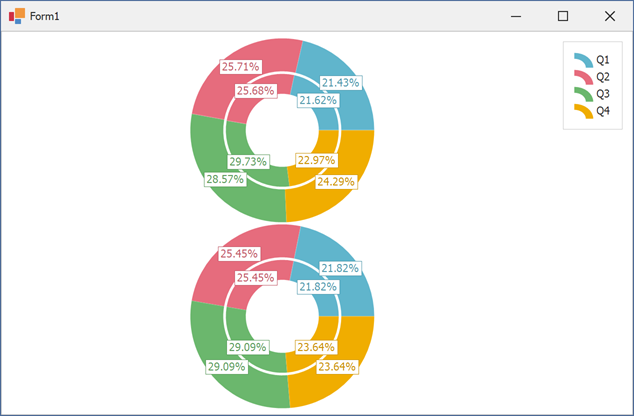
Use the NestedDoughnutSeriesView.Group property to organize series into groups and create multiple nested doughnut rings. Series with the same group identifier are nested together.
Ready-to-use example
This example creates two nested series groups. The Weight property controls the relative size of each ring, and InnerIndent adds spacing between the nested rings.
using DevExpress.XtraEditors;
using DevExpress.XtraCharts;

public partial class Form1 : XtraForm {
    public Form1() {
        InitializeComponent();

        // Create the first group
        Series outerSeries1 = new Series("Sales Outer", ViewType.NestedDoughnut);
        outerSeries1.Points.Add(new SeriesPoint("Q1", 150));
        outerSeries1.Points.Add(new SeriesPoint("Q2", 180));
        outerSeries1.Points.Add(new SeriesPoint("Q3", 200));
        outerSeries1.Points.Add(new SeriesPoint("Q4", 170));
        outerSeries1.LegendTextPattern = "{A}";

        Series innerSeries1 = new Series("Sales Inner", ViewType.NestedDoughnut);
        innerSeries1.Points.Add(new SeriesPoint("Q1", 80));
        innerSeries1.Points.Add(new SeriesPoint("Q2", 95));
        innerSeries1.Points.Add(new SeriesPoint("Q3", 110));
        innerSeries1.Points.Add(new SeriesPoint("Q4", 85));
        innerSeries1.ShowInLegend = false;

        // Group the first set of series
        NestedDoughnutSeriesView outerView1 = outerSeries1.View as NestedDoughnutSeriesView;
        outerView1.Group = "SalesGroup";
        outerView1.Weight = 1.0;

        NestedDoughnutSeriesView innerView1 = innerSeries1.View as NestedDoughnutSeriesView;
        innerView1.Group = "SalesGroup";
        innerView1.Weight = 0.6;
        innerView1.InnerIndent = 5;

        // Create the second group
        Series outerSeries2 = new Series("Marketing Outer", ViewType.NestedDoughnut);
        outerSeries2.Points.Add(new SeriesPoint("Q1", 120));
        outerSeries2.Points.Add(new SeriesPoint("Q2", 140));
        outerSeries2.Points.Add(new SeriesPoint("Q3", 160));
        outerSeries2.Points.Add(new SeriesPoint("Q4", 130));
        outerSeries2.ShowInLegend = false;

        Series innerSeries2 = new Series("Marketing Inner", ViewType.NestedDoughnut);
        innerSeries2.Points.Add(new SeriesPoint("Q1", 60));
        innerSeries2.Points.Add(new SeriesPoint("Q2", 70));
        innerSeries2.Points.Add(new SeriesPoint("Q3", 80));
        innerSeries2.Points.Add(new SeriesPoint("Q4", 65));
        innerSeries2.ShowInLegend = false;

        // Group the second set of series
        NestedDoughnutSeriesView outerView2 = outerSeries2.View as NestedDoughnutSeriesView;
        outerView2.Group = "MarketingGroup";
        outerView2.Weight = 1.0;

        NestedDoughnutSeriesView innerView2 = innerSeries2.View as NestedDoughnutSeriesView;
        innerView2.Group = "MarketingGroup";
        innerView2.Weight = 0.6;
        innerView2.InnerIndent = 5;

        // Add the series to the chart
        chartControl1.Series.AddRange(new Series[] { outerSeries1, innerSeries1, outerSeries2, innerSeries2 });
    }
}
Side-by-Side Stacked Groups
The following view types support stacked grouping:
- SideBySideFullStackedBarSeriesView
- SideBySideStackedBar3DSeriesView
- SideBySideStackedBarSeriesView
- SideBySideFullStackedBar3DSeriesView
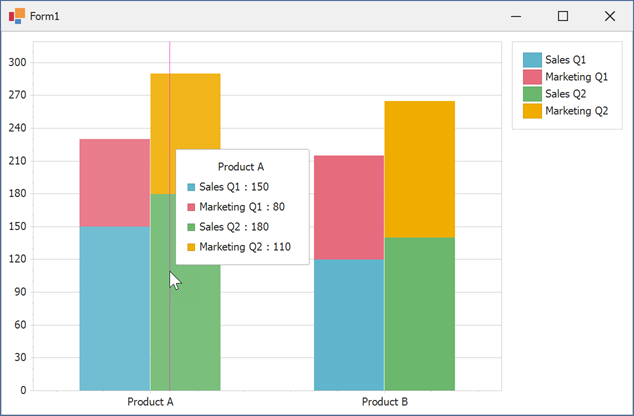
Use the series view’s StackedGroup property to create stacked groups. Series with the same StackedGroup value are stacked, and groups are displayed side-by-side.
Ready-to-use example
This example creates two stacked series groups.
using DevExpress.XtraEditors;
using DevExpress.XtraCharts;

public partial class Form1 : XtraForm {
    public Form1() {
        InitializeComponent();

        // Create the first group
        Series series1 = new Series("Sales Q1", ViewType.SideBySideStackedBar);
        series1.Points.Add(new SeriesPoint("Product A", 150));
        series1.Points.Add(new SeriesPoint("Product B", 120));

        Series series2 = new Series("Marketing Q1", ViewType.SideBySideStackedBar);
        series2.Points.Add(new SeriesPoint("Product A", 80));
        series2.Points.Add(new SeriesPoint("Product B", 95));

        // Group the first set of series
        SideBySideStackedBarSeriesView view1 = series1.View as SideBySideStackedBarSeriesView;
        view1.StackedGroup = "Group1";
        SideBySideStackedBarSeriesView view2 = series2.View as SideBySideStackedBarSeriesView;
        view2.StackedGroup = "Group1";

        // Create the second group
        Series series3 = new Series("Sales Q2", ViewType.SideBySideStackedBar);
        series3.Points.Add(new SeriesPoint("Product A", 180));
        series3.Points.Add(new SeriesPoint("Product B", 140));

        Series series4 = new Series("Marketing Q2", ViewType.SideBySideStackedBar);
        series4.Points.Add(new SeriesPoint("Product A", 110));
        series4.Points.Add(new SeriesPoint("Product B", 125));

        // Group the second set of series
        SideBySideStackedBarSeriesView view3 = series3.View as SideBySideStackedBarSeriesView;
        view3.StackedGroup = "Group2";
        SideBySideStackedBarSeriesView view4 = series4.View as SideBySideStackedBarSeriesView;
        view4.StackedGroup = "Group2";

        // Add the series to the chart
        chartControl1.Series.AddRange(new Series[] { series1, series2, series3, series4 });
    }
}
See Also