Report Template/Content Localization
- 3 minutes to read
You can create localizable reports using the built-in Localization Editor available within the Report Designer dialog or using AI-powered extensions for ExpressReports. Report templates (in an XML-like REPX format) can store multiple localization sets for all used layout elements.
Report Localization Editor
Localization Editor is a built-in tool available within the Report Designer dialog. To display the Localization Editor, click the hamburger button in the Report Designer dialog and select the Localization… option:
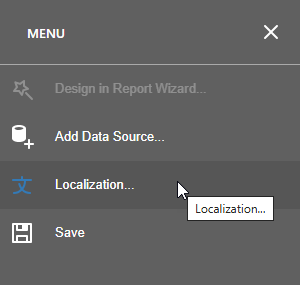
Localize Report Layout
To add a new localization, select the required language using the Language combo box. Use text boxes in the right column to input localized versions of the default (English) names displayed in the left column. The report layout preview automatically applies a new localized value once you move focus between editors.
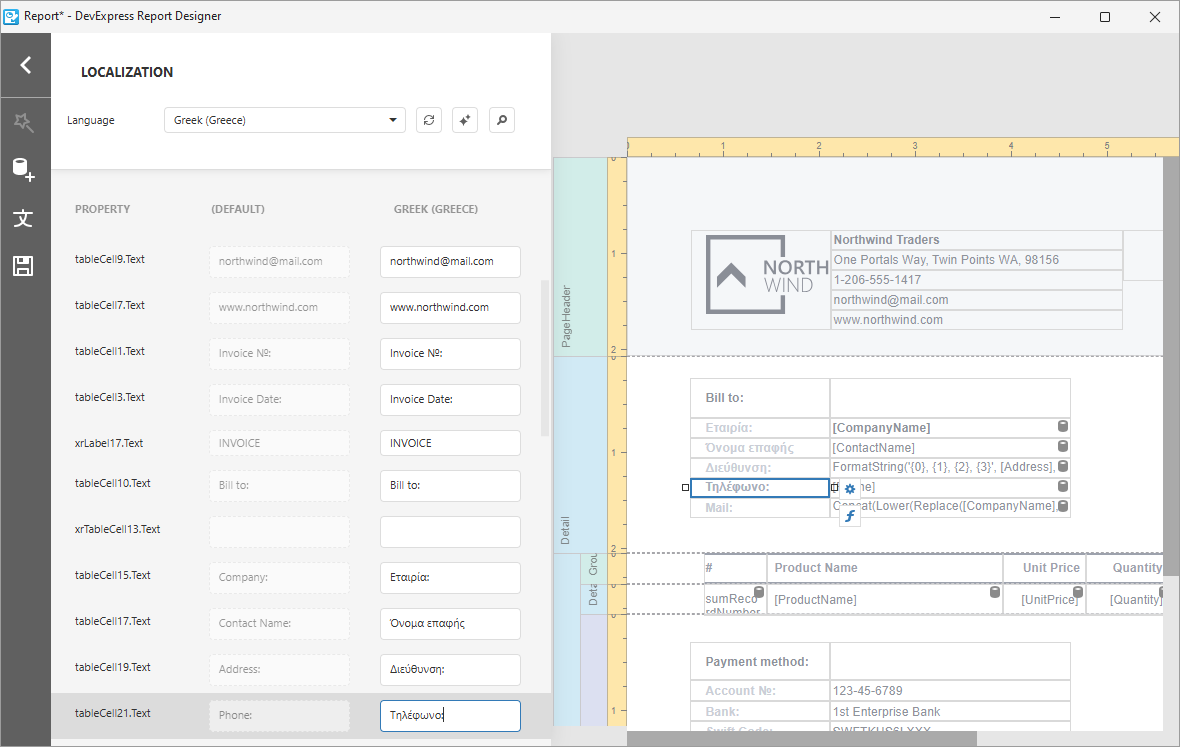
Save the report layout to store all pending changes.
Switch Between Report Localizations
If the current report template stores localizations, the Language combo box in the Report Designer displays corresponding localization names in bold, and you can switch between the base language (Default) and available localizations:
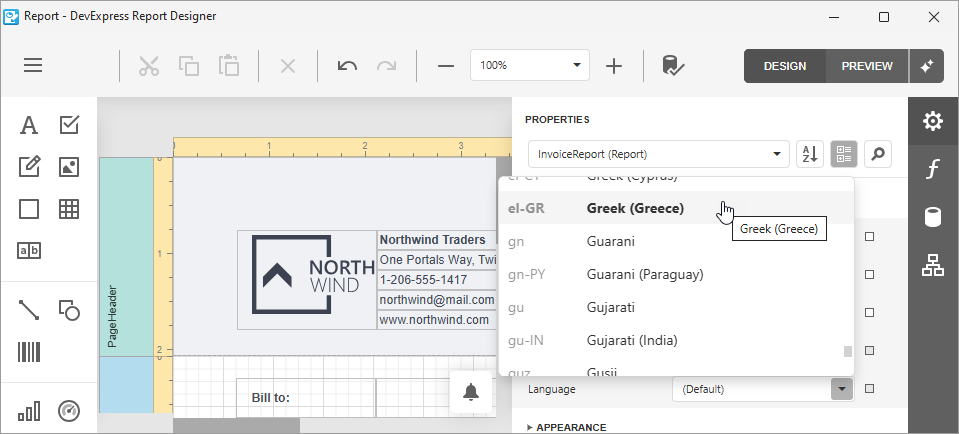
The TdxReport.Language property allows you to switch between available UI and report template localizations in code. Refer to the following topic for more information: Report Viewer and Designer UI Localization.
DevExpress AI-powered Extensions for ExpressReports
The TdxReport component supports the same AI-powered extensions available for DevExpress Web Reports – Summarize, Translate, Preview Generation, etc.
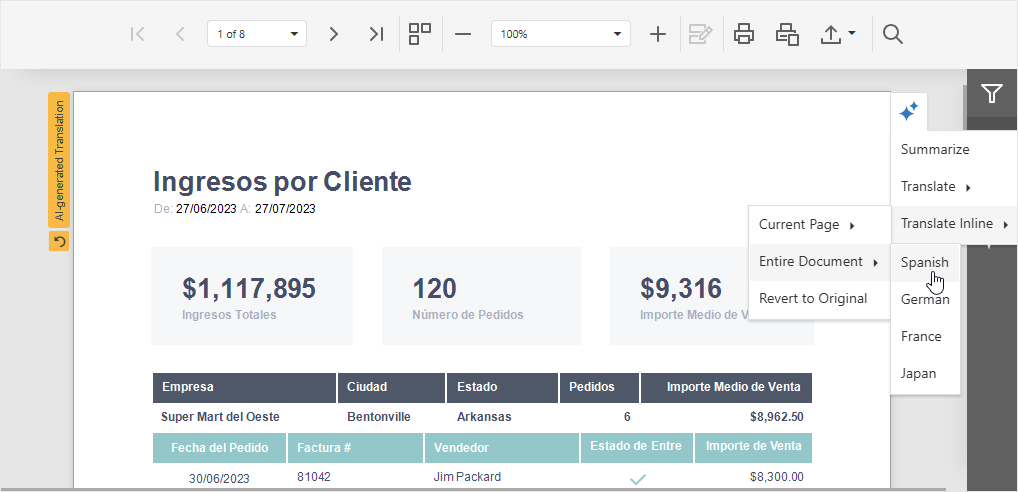
Refer to the following topic for more information: AI-powered Extensions for DevExpress Reporting.
Enable AI-powered Extensions for ExpressReports
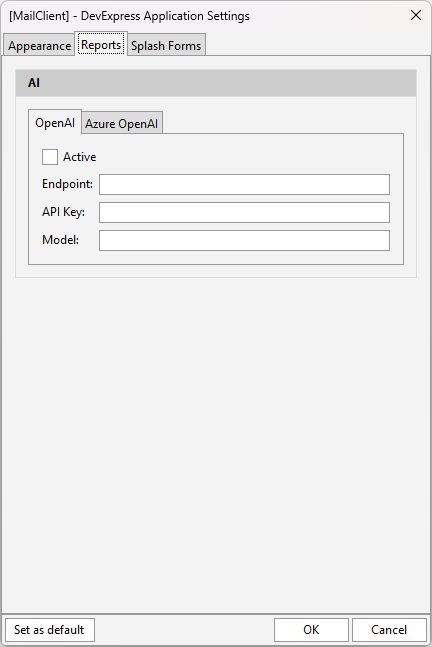
You can enable DevExpress AI-powered Extensions in your ExpressReports-based application in the Application Settings dialog. Open the Reports tab and specify REST API endpoint URI, valid API key, and model/deployment name for the selected AI service.
Related Compiled Demo
To see the TdxReport component in action (including AI-powered capabilities), run the Report Designer/Viewer demo in the VCL Demo Center installed with compiled DevExpress VCL demos. Click different items in the sidebar on the left to switch between demo features.
Compiled DevExpress demos ship with source code installed in the Public Documents folder (%PUBLIC%) for all users (default). You can find all project and source code files for the Report Designer/Viewer demo in the following folder:
%PUBLIC%\Documents\DevExpress VCL Demos\MegaDemos\Product Demos\ExpressReports\
Tip
Project and source code files for all compiled DevExpress VCL Demos are maintained in a public repository hosted on GitHub: