Save and Restore Layout in Blazor Grid
- 11 minutes to read
Users can change the Grid layout while using your application. They can resize or reorder columns, change the page size, and group or filter data. You can save these layout settings and restore them later, for example, when a user reopens the page.
Layout Settings
A GridPersistentLayout object stores the following Grid layout settings:
| Saved Information | Grid Property | GridPersistentLayout Property |
|---|---|---|
| Current page index | DxGrid.PageIndex | Layout.PageIndex |
| Page size | DxGrid.PageSize | Layout.PageSize |
| Single-page or multi-page data display | DxGrid.ShowAllRows | Layout.ShowAllRows |
| Search text | DxGrid.SearchText | Layout.SearchText |
| Filter values | Grid column filter criteria[1] joined by AND operators |
Layout.FilterCriteria |
| Individual column settings (refer to the table below) | - | Layout.Columns.Item(i) |
Important
DevExpress components can incorrectly serialize custom enumeration values in criteria operators. Refer to the following troubleshooting topic for additional information: The XXX enumeration type is not registered for the parse operation…
The GridPersistentLayout.Columns collection stores information about column layout settings. Each collection item (GridPersistentLayoutColumn) includes the following data:
| Saved Information | Column Property | GridPersistentLayoutColumn Property |
|---|---|---|
| Column type | A column type defined in the markup: data, band, command, or selection | LayoutColumn.ColumnType |
| Data field name | DxGridColumn.FieldName | LayoutColumn.FieldName |
| Group index (does not include group expand states) | DxGridColumn.GroupIndex | LayoutColumn.GroupIndex |
| Sort index | DxGridColumn.SortIndex | LayoutColumn.SortIndex |
| Sort direction | DxGridColumn.SortOrder | LayoutColumn.SortOrder |
| Position | DxGridColumn.VisibleIndex | LayoutColumn.VisibleIndex |
| Visibility | DxGridColumn.Visible | LayoutColumn.Visible |
| Width | DxGridColumn.Width | LayoutColumn.Width |
Save and Restore Layout Automatically
To save and restore the Grid layout automatically, handle the following events:
- LayoutAutoSaving
- Fires each time the Grid layout changes and allows you to save the layout.
- LayoutAutoLoading
- Fires once the Grid component is initialized and allows you to restore the saved layout.
Note: When <DxGrid> loads a saved layout, it validates the layout against the current Grid configuration. If the column collection has changed, the Grid does not restore column settings. Instead, it loads only Grid-level settings, such as search text, page size, and the current page. Handle the LayoutAutoLoading event to restore column settings.
The following code snippet implements basic layout persistence. When the component layout changes, the LayoutAutoSaving event handler saves the updated layout to the browser’s local storage. Once the page is reloaded or restored, the LayoutAutoLoading event handler loads the most recently saved layout from the local storage and applies it to the Grid.
@using System.Text.Json
@inject NwindDataService NwindDataService
@inject IJSRuntime JSRuntime

@if(PreRendered) {
    <DxGrid @ref="Grid" Data="@GridData" AutoExpandAllGroupRows="true"
        ColumnResizeMode="GridColumnResizeMode.NextColumn"
        ShowGroupPanel="true" ShowFilterRow="true"
        PageSizeSelectorVisible="true" PageSizeSelectorAllRowsItemVisible="true"
        LayoutAutoLoading="Grid_LayoutAutoLoading"
        LayoutAutoSaving="Grid_LayoutAutoSaving">
        <Columns>
            <DxGridDataColumn FieldName="Country" GroupIndex="0" />
            <DxGridDataColumn FieldName="City" GroupIndex="1" />
            <DxGridDataColumn FieldName="CompanyName" />
            <DxGridDataColumn FieldName="Address" />
            <DxGridDataColumn FieldName="Phone" />
            <DxGridDataColumn FieldName="ContactName" />
        </Columns>
    </DxGrid>
} else {
    <em>Loading...</em>
}

@code {
    const string LocalStorageKey = "Grid-LayoutPersistence-Data";

    bool PreRendered { get; set; }
    IGrid Grid { get; set; }
    object GridData { get; set; }

    protected override async Task OnInitializedAsync() {
        GridData = await NwindDataService.GetCustomersAsync();
    }

    protected override void OnAfterRender(bool firstRender) {
        if(firstRender) {
            PreRendered = true;
            StateHasChanged();
        }
    }

    async Task Grid_LayoutAutoLoading(GridPersistentLayoutEventArgs e) {
        e.Layout = await LoadLayoutFromLocalStorageAsync();
    }

    async Task Grid_LayoutAutoSaving(GridPersistentLayoutEventArgs e) {
        await SaveLayoutToLocalStorageAsync(e.Layout);
    }

    async Task<GridPersistentLayout> LoadLayoutFromLocalStorageAsync() {
        try {
            var json = await JSRuntime.InvokeAsync<string>("localStorage.getItem", LocalStorageKey);
            return JsonSerializer.Deserialize<GridPersistentLayout>(json);
        } catch {
            // Mute exceptions for the server prerender stage
            return null;
        }
    }

    async Task SaveLayoutToLocalStorageAsync(GridPersistentLayout layout) {
        try {
            var json = JsonSerializer.Serialize(layout);
            await JSRuntime.InvokeVoidAsync("localStorage.setItem", LocalStorageKey, json);
        } catch {
            // Mute exceptions for the server prerender stage
        }
    }
}
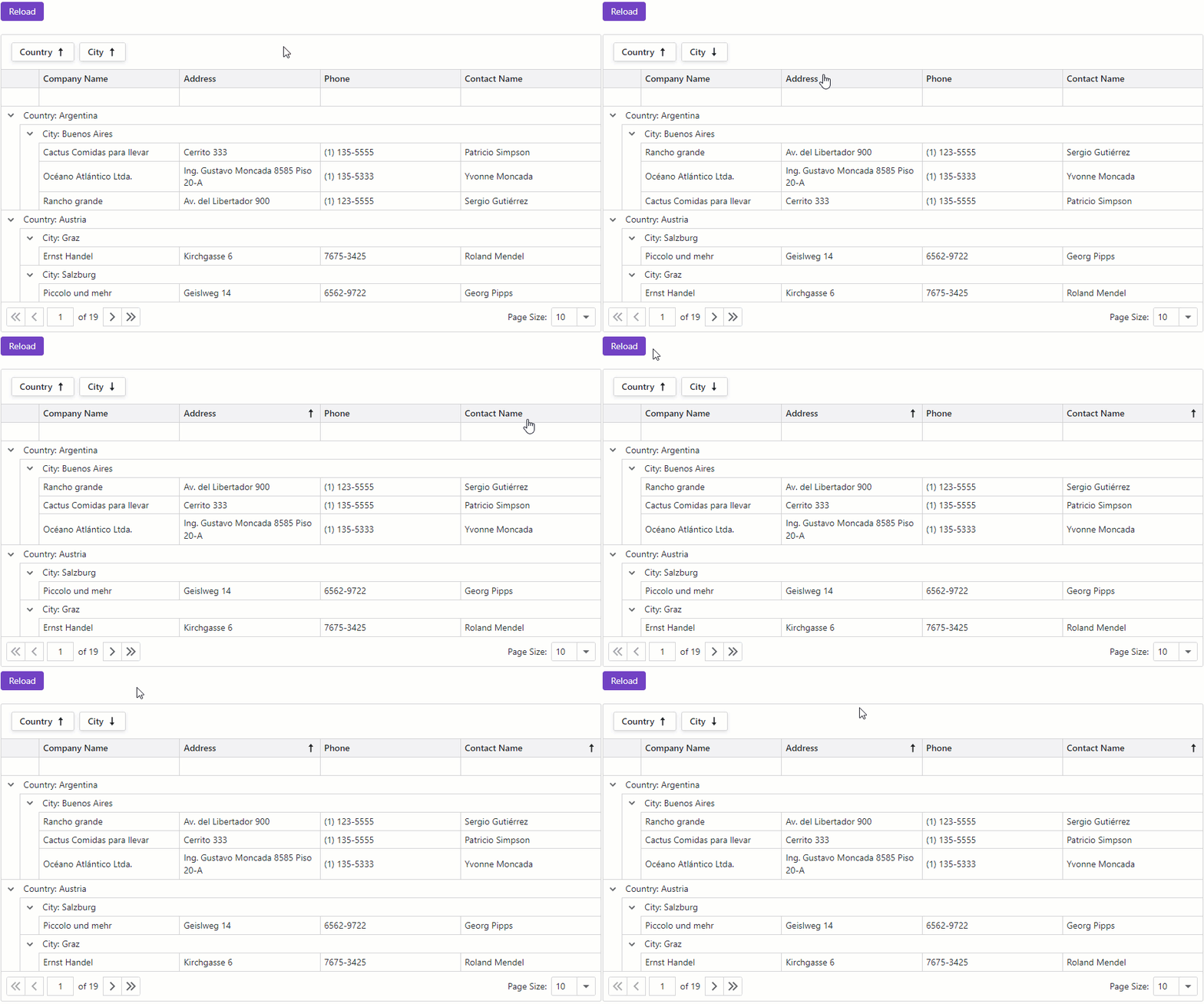
You can use the following approach to implement different default layouts for mobile and desktop devices:
- Handle the LayoutAutoSaving event. Save layouts to a database instead of browser storage.
- Handle the LayoutAutoLoading event. Use the DxLayoutBreakpoint component to determine the screen size and load the corresponding layout.
Save and Restore Layout on Demand
To save and restore the Grid layout on demand, for example, in response to a button click, call the following methods:
- SaveLayout()
- Saves information about a Grid layout.
- LoadLayout(GridPersistentLayout)
- Loads a layout and applies it to the Grid.
The following code snippet displays two buttons: Save Layout and Load Layout. When a user clicks Save Layout, the component saves the current Grid layout to the Layout parameter. When the user clicks Load Layout, the component loads the most recently saved layout from the Layout parameter and applies it to the Grid.
@using System.Text.Json
@inject NwindDataService NwindDataService
@inject IJSRuntime JSRuntime

<DxButton Text="Save Layout" Click="OnSaveClick" />
<DxButton Text="Load Layout" Click="OnLoadClick" />

<DxGrid @ref="Grid"
        Data="@GridData"
        AutoExpandAllGroupRows="true"
        ColumnResizeMode="GridColumnResizeMode.NextColumn"
        ShowGroupPanel="true"
        ShowFilterRow="true"
        PageSizeSelectorVisible="true"
        PageSizeSelectorAllRowsItemVisible="true">
    <Columns>
        <DxGridDataColumn FieldName="Country" GroupIndex="0" />
        <DxGridDataColumn FieldName="City" GroupIndex="1" />
        <DxGridDataColumn FieldName="CompanyName" />
        <DxGridDataColumn FieldName="Address" />
        <DxGridDataColumn FieldName="Phone" />
        <DxGridDataColumn FieldName="ContactName" />
    </Columns>
</DxGrid>

@code {
    IGrid Grid { get; set; }
    object GridData { get; set; }
    GridPersistentLayout Layout { get; set; }

    protected override async Task OnInitializedAsync() {
        GridData = await NwindDataService.GetCustomersAsync();
    }

    void OnSaveClick() {
        Layout = Grid.SaveLayout();
    }

    void OnLoadClick() {
        Grid.LoadLayout(Layout);
    }
}
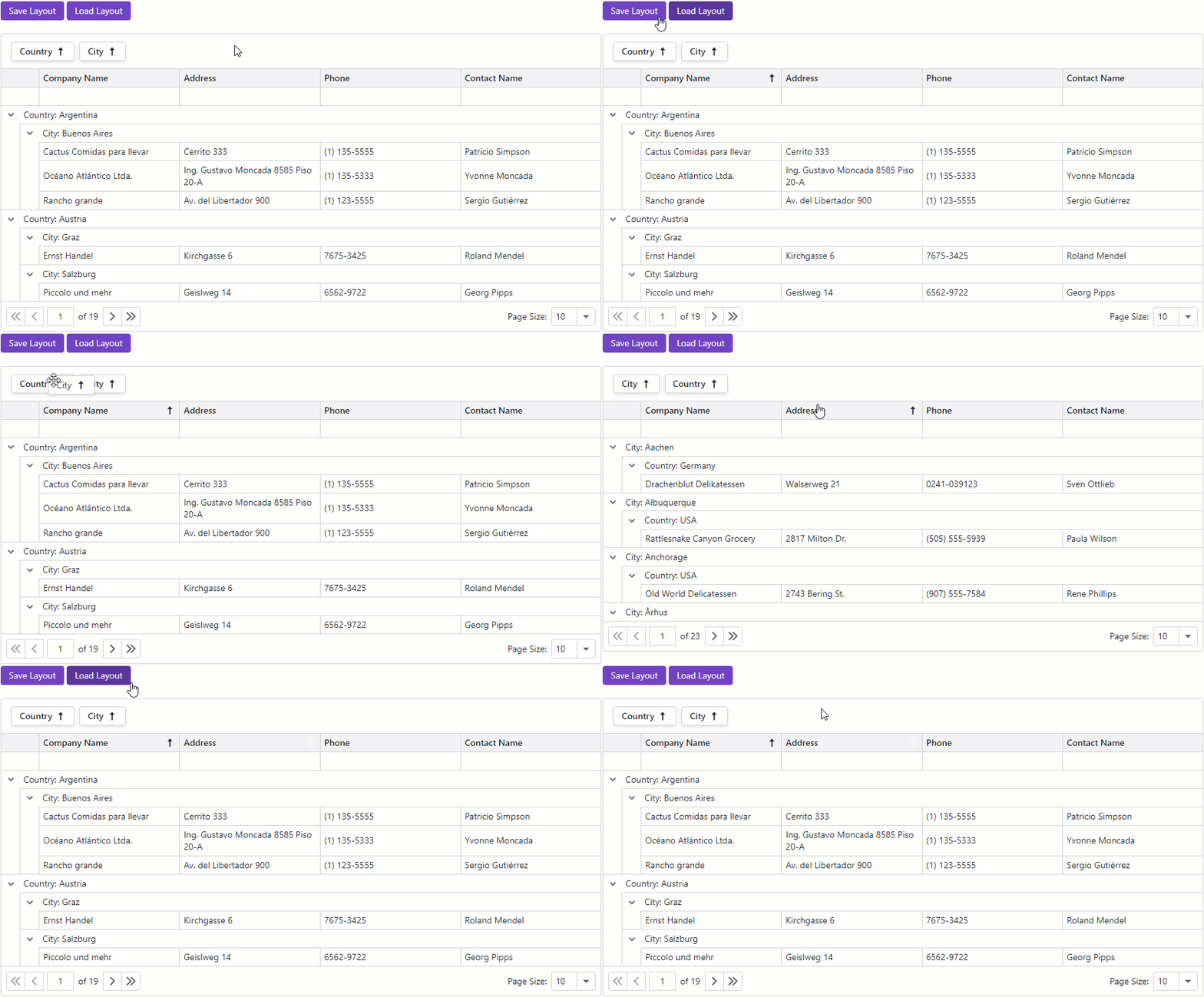
Task-Based Examples
Add Custom Settings to a Layout Object
You can save and restore properties that the GridPersistentLayout class does not include. Create a structure that stores a GridPersistentLayout instance and additional property values, and use Grid APIs to retrieve and save those values:
namespace ExtendedGridLayout.Data {
    public class GridExtendedLayout {
        public GridPersistentLayout Layout { get; }
        public bool FilterRowVisible { get; }
        public bool GroupPanelVisible { get; }
        public bool SearchBoxVisible { get; }

        public GridExtendedLayout(GridPersistentLayout layout, bool filterRowVisible, bool groupPanelVisible, bool searchBoxVisible) {
            Layout = layout;
            FilterRowVisible = filterRowVisible;
            GroupPanelVisible = groupPanelVisible;
            SearchBoxVisible = searchBoxVisible;
        }
    }
}
Exclude a Setting from Saved Layout
You can exclude specific Grid settings from the saved layout. Clear the corresponding option in the GridPersistentLayout object. The following code excludes search text, filtering, and grouping settings from the saved layout:
async Task Grid_LayoutAutoSaving(GridPersistentLayoutEventArgs e) {
    var layout = e.Layout with {
        // Prevent saving a search string text to the client layout
        SearchText = null,
        // Prevent saving a filter to the client layout
        FilterCriteria = null,
        // Prevent saving group settings to the client layout
        Columns = new GridPersistentLayoutCollection<GridPersistentLayoutColumn>(
            e.Layout.Columns.Select(i => i with { GroupIndex = -1 })
        )
    };
    await SaveLayoutToLocalStorageAsync(layout);
}
-
Filter criteria can be applied to grid data in the following ways:
- Filter row and filter menu UI elements.
- SetFilterCriteria and SetFieldFilterCriteria methods.
Use the GetFilterCriteria() method to obtain all filter criteria, whether applied in code or using the component’s filter UI.