UserLookAndFeel Class
Contains look and feel settings for DevExpress UI controls.
Namespace: DevExpress.LookAndFeel
Assembly: DevExpress.Utils.v26.1.dll
NuGet Packages: DevExpress.Utils, DevExpress.Wpf.Core
Declaration
public class UserLookAndFeel :
    IDisposable,
    ISkinProvider,
    ISkinProviderEx,
    ISkinProviderEx2,
IAppearanceDefaultFontProviderRemarks
DevExpress controls are rendered using global look-and-feel settings, which are exposed by the Default LookAndFeel object. Global look-and-feel settings allow you to apply the same paint scheme to all forms in your WinForms application.
Use a control’s LookAndFeel property to override default look-and-feel settings:
- Set the control’s
LookAndFeel.UseDefaultLookAndFeelproperty tofalseto ignore default (global) settings. - Customize the control’s
LookAndFeelsettings as needed.
The following code snippet applies the “Office 2019 Black” skin to the ‘Cancel’ button:
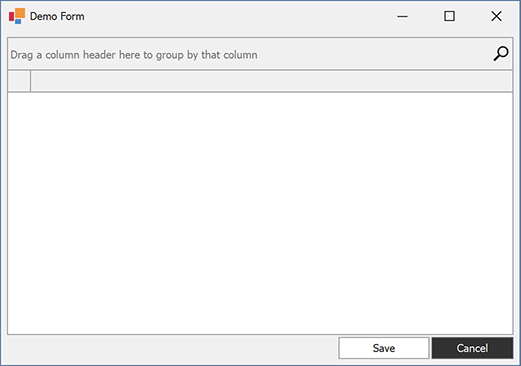
using DevExpress.LookAndFeel;

namespace DXApplication {
    public partial class Form1 : DevExpress.XtraEditors.XtraForm {
        public Form1() {
            InitializeComponent();
            /* Specify the default skin (the 'Basic' skin).
               The default skin is applied to all UI controls displayed on the Form.*/
            UserLookAndFeel.Default.SetSkinStyle(SkinStyle.Basic);

            // Disable the default look-and-feel settings for the 'Cancel' button.
            buttonCancel.LookAndFeel.UseDefaultLookAndFeel = false;
            // Specify the 'Office 2019 Black' skin for the 'Cancel' button.
            buttonCancel.LookAndFeel.SkinName = SkinStyle.Office2019Black;
        }
    }
}
See the following help topic for additional information: How to: Customize Look And Feel of Specific Control(s).