DxPivotGridListEditor Class
A List Editor that you can use in XAF ASP.NET Core Blazor applications to display data as a Pivot Grid.
Namespace: DevExpress.ExpressApp.Blazor.Editors
Assembly: DevExpress.ExpressApp.Blazor.v26.1.dll
NuGet Package: DevExpress.ExpressApp.Blazor
Declaration
public class DxPivotGridListEditor :
    ListEditor,
    IComplexListEditor,
    IComponentContentHolder,
    IDxGridLayoutChangedHolder,
ISupportUpdateRemarks
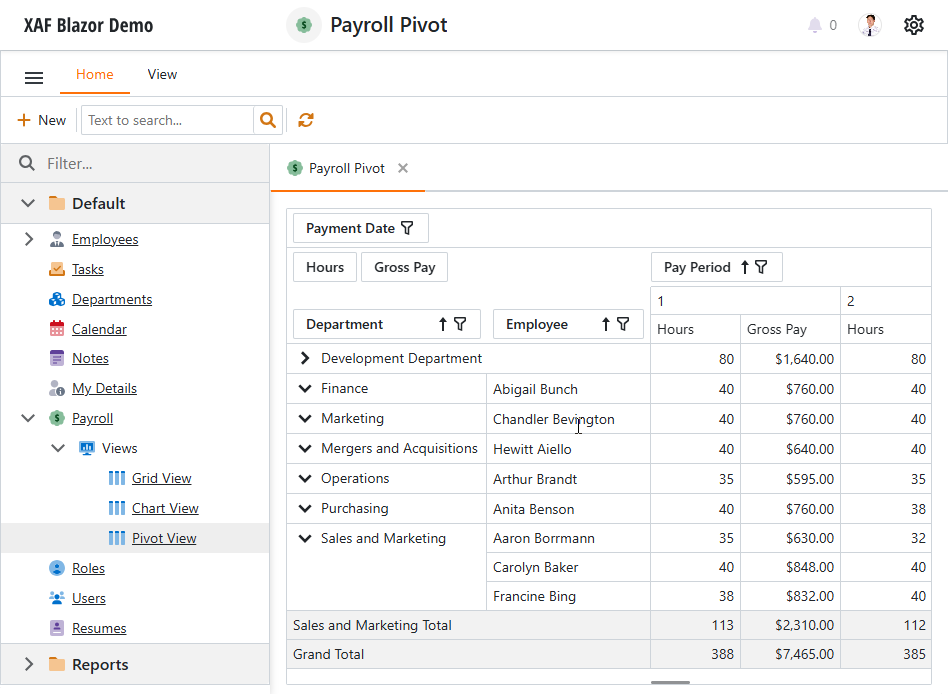
List Views use List Editors to display object collections in the UI. The DxPivotGridListEditor uses instances of the DevExpress Blazor DxPivotTable component to display object collections. This component allows you to display and analyze multidimensional data from an underlying data source.
Important
The Pivot Grid List Editor for Blazor is currently available as a Community Technology Preview (CTP).
Supported Data Access Modes
- Client
- DataView
- Queryable
For general information on data access modes, refer to the following topic: List View Data Access Modes.
Display DxPivotGridListEditor in a List View
To display a List View as a Pivot Grid, follow these steps:
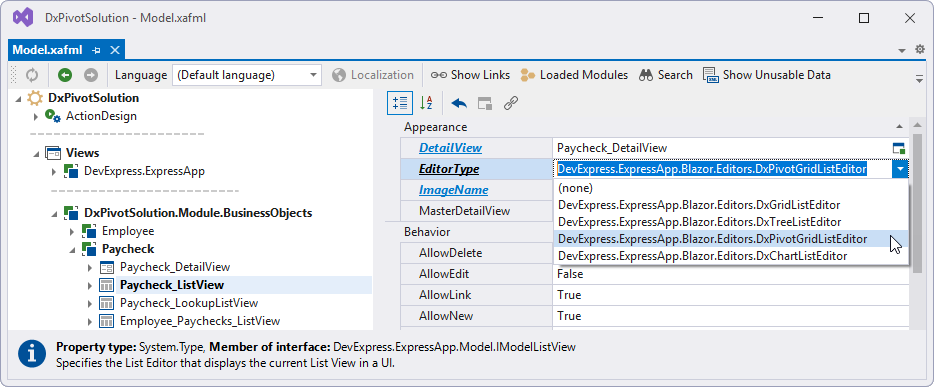
- Open the Model Editor for the SolutionName.Blazor.Server\Model.xafml file.
- Navigate to the required List View node: SolutionName | Views | SolutionName.Module.BusinessObjects | ClassName | ClassName_ListView.
- Set the EditorType property to
DxPivotGridListEditor.
Customize Pivot Grid Settings
You can customize the Pivot Grid settings in the following ways:
Specify Column Model Settings
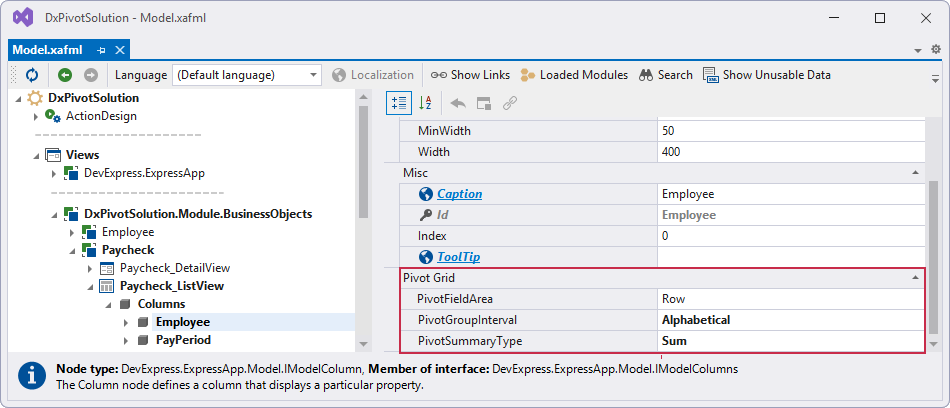
Use the Model Editor to configure Pivot Grid column settings (navigate to the following node: SolutionName | Views | SolutionName.Module.BusinessObjects | ClassName | ClassName_ListView | Columns | ColumnName). The most useful properties include:
- Caption
- Specifies the caption of the current column.
- Index
- Specifies the order index by which nodes are arranged.
- SortOrder
- Specifies the sorting type for the current column.
- DisplayFormat
- Specifies a display format pattern for a Property Editor‘s value.
- PivotFieldArea
- Specifies the area where the field is displayed.
- PivotGroupInterval
- Specifies how the Pivot Grid groups values of the current column or row field.
- PivotSummaryType
- Specifies the type of summary function applied to the current data field values.
Customize DxPivotGridListEditor Settings
Use the Model Editor to configure Pivot Grid List Editor settings (navigate to the following node: SolutionName | Views | SolutionName.Module.BusinessObjects | ClassName | ClassName_ListView). The most useful properties include:
- CustomizationFormEnabled
- Controls the visibility of the Show Field List context menu item.
- Filter
- Specifies the current filter criteria for list editor data.
- VirtualScrollingEnabled
- Specifies whether virtual scrolling is enabled in the List Editor. When enabled, the editor loads records as the user scrolls the page (instead of traditional pagination).
Customize the Pivot Grid Model
The PivotGridModel replicates parameters of the underlying DxPivotTable component. Use these parameters to configure the Pivot Grid before it is created.
Handle the ComponentCaptured Event
The PivotGridModel does not allow direct access to the current component state or its methods. Handle the ComponentCaptured event to access the underlying component instance and its full API.
Data Summaries
The Pivot Grid displays summaries calculated against data fields (fields located in the Data area). The Pivot Grid calculates the total sum for numeric fields and the number of values for fields of other data types.
You can change the applied summary aggregate function in the following way:
- Double click the SolutionName.Blazor.Server\Model.xafml file to open the Model Editor.
- Navigate to SolutionName | Views | SolutionName.Module.BusinessObjects | ClassName | ClassName_ListView | Columns | FieldName.
- Specify the column’s PivotSummaryType property in the Pivot Grid section.
Examples
You can find examples of the DxPivotGridListEditor implementation in the following demos:
- In the Employee Management Demo (EF Core), navigate to Payroll > Views > Pivot View (see the online demo).
- In the Feature Center Demo (XPO), navigate to List Editors > Pivot Grid (see the online demo).