Use the Template Kit to Create an Office File API-Based Application
- 4 minutes to read
You can use the DevExpress Project Template Kit or call CLI commands to create a .NET WPF application with DevExpress Office File API libraries. A project template configures the project settings and references required NuGet packages (Word Processing, Spreadsheet, and PDF Document API libraries).
Prerequisites
DevExpress Product License
To use Office File API in your application, you need an Office File API Subscription or Universal Subscription.
Install the Project Template Kit
The DevExpress Project Template Kit is included in the DevExpress installer. If you have already installed DevExpress components via the installer, you can skip this step.
If you do not use the installer or use another IDE (VS Code), install Template Kit as described in the following help topics:
Obtain DevExpress NuGet Packages
Refer to the following help topics for more information:
- How to Install DevExpress Products
- Install Packages from NuGet.org: Visual Studio, VS Code, and JetBrains Rider
Create an Office File API-Powered Project in Visual Studio
- Run Visual Studio and select Create a new project.
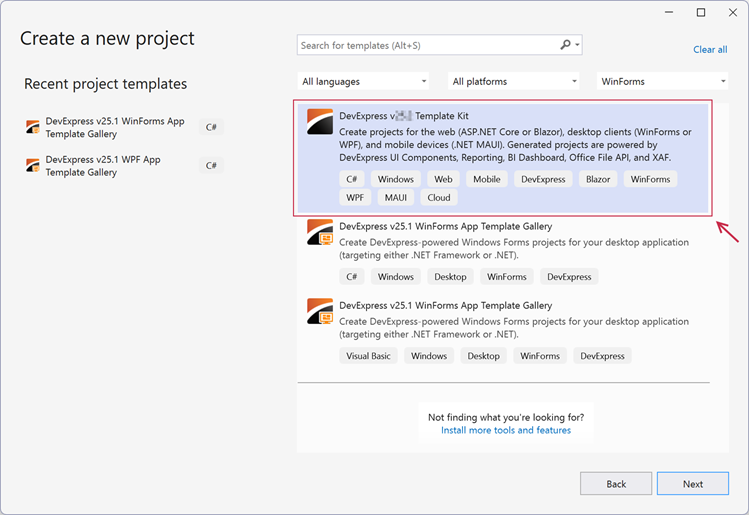
Select DevExpress v26.1 Template Kit and click Next.
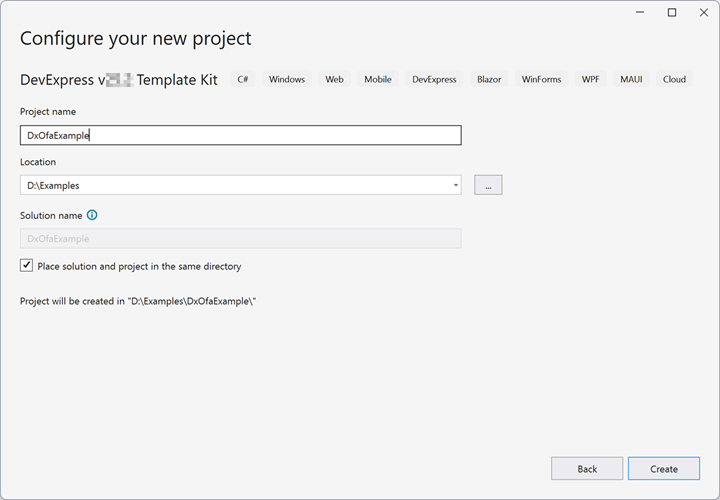
Specify the project name and location. Click Create.
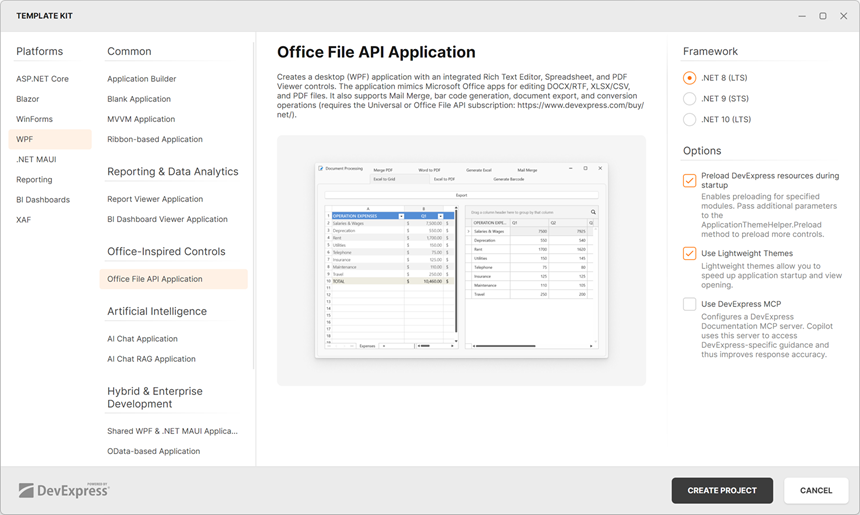
The DevExpress Template Kit window appears. Select WPF | Office-Inspired Controls | Office File API Application. Click Create Project.
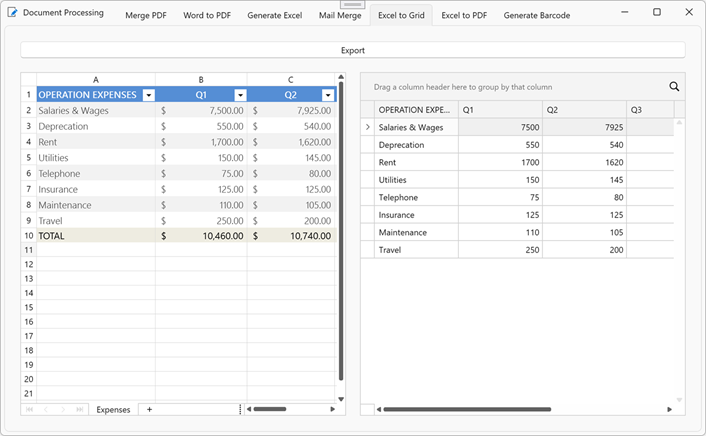
Build and run the project. The resulting project includes multiple modules. You can also add each module separately (see Add Separate Office File API-Based Modules):
Create an Office File API-Based App via CLI
You can also use the following CLI command to create a WPF Office File API-based application:
dotnet new dx.wpf.officefileapi -n TestOfficeFileApiApp
For more information, refer to the following section: CLI Project Templates.
Add Separate Office File API-Based Modules
Add Views in the Template Kit’s App Builder
In the DevExpress Template Kit, select WPF | Application Builder. Select the application navigation type:
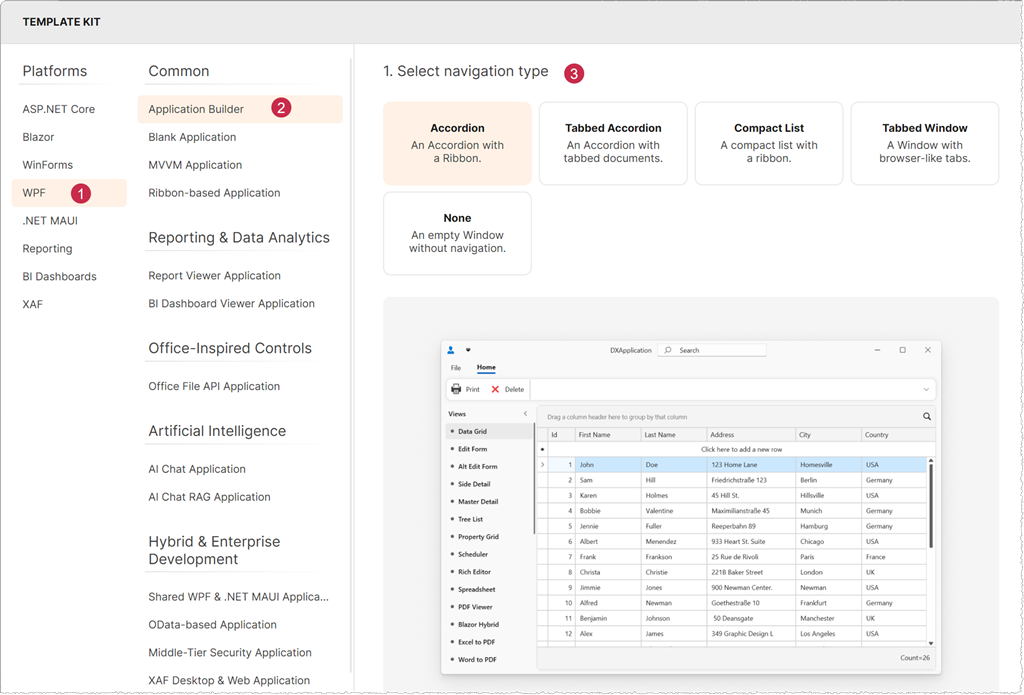
Then select the desired views to add them to your project:
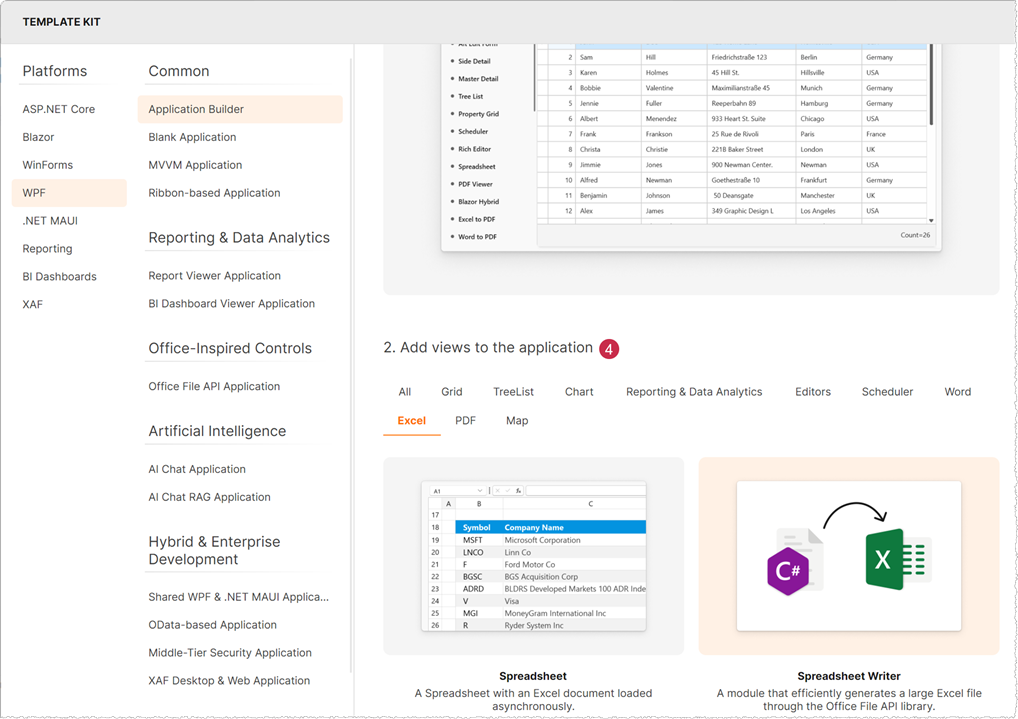
Click the Create Project button.
Build and run the project.
Add an Item in Visual Studio
You can add views as separate items to an existing project.
In Visual Studio, right-click the project in the Solution Explorer and select Add | New Item…:
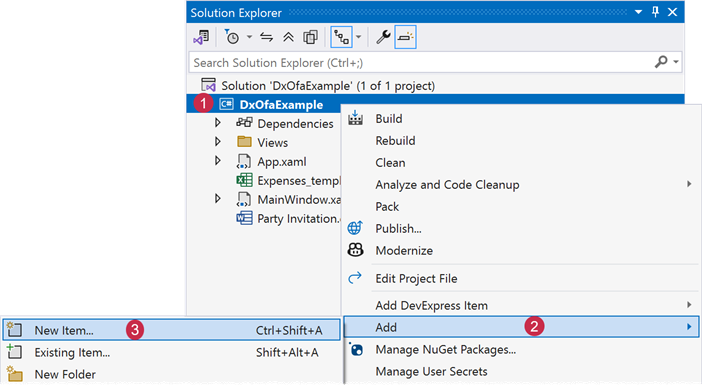
In the Add New Item dialog, select DevExpress v26.1 Template Kit . Specify the item name and click Add:
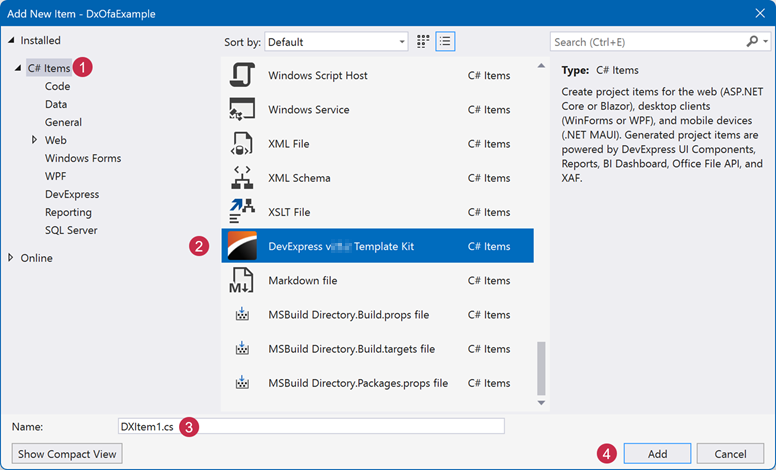
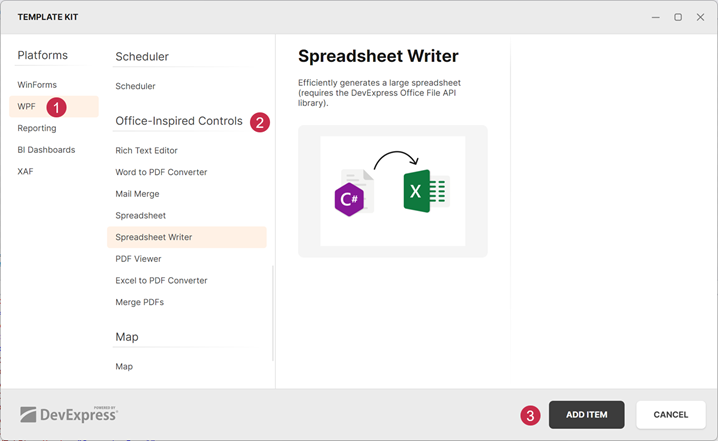
In the Template Kit, select the desired item template. Click Add Item:
Add an Office File API-Based Modules via CLI
You can also use the following CLI command to create a WPF Office File API-based application with separate views (available views/item templates are listed in the next section):
dotnet new dx.wpf.appbuilder -n officeFileApiProject -shell accordion -views excelToPdf wordToPdf excelToGrid mergePdf
Available Item/View Templates
- Rich Text Editor
dx.wpf.item.richeditorCreates a Rich Text Editor with a Word document loaded asynchronously.
- Word to PDF Converter
dx.wpf.item.wordtopdfA module that converts a Word file to PDF.
- Mail Merge
dx.wpf.item.mailmergeA module that implements mail merge. Office File API binds data to a template Word document to generate an output document.
- Spreadsheet
dx.wpf.item.spreadsheetA Spreadsheet with an Excel document loaded asynchronously.
- Spreadsheet Writer
dx.wpf.item.populatespreadsheetA module that efficiently generates a large Excel file.
- PDF Viewer
dx.wpf.item.pdfviewerA PDF Viewer with a sample PDF document specified in a view model.
- Excel to PDF Converter
dx.wpf.item.spreadsheettopdfA module that converts an XLSX file to PDF.
- Merge PDFs
dx.wpf.item.mergepdfA module that merges two PDF files.
Use MCP Server
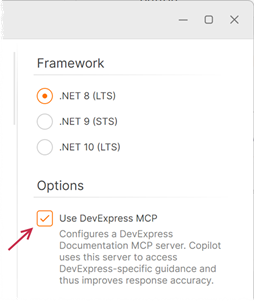
In the DevExpress Template Kit, you can activate the Use DevExpress MCP Server option to use an AI-powered coding assistant in your project.
For more information, refer to the following help topic: DevExpress MCP Server: Configure Your AI-powered Coding Assistant.