Run the Installation Wizard - DevExpress Unified Component Installer
- 3 minutes to read
This document describes how to use the Unified Component Installer to install DevExpress products. Note that this installer contains products that target the following platforms: .NET Framework, .NET 6+, ASP.NET Core, Blazor, and JavaScript.
Prerequisites
Refer to the following help topics for platform-specific prerequisites:
Run the Installer as an Administrator
Run the installer executable as an administrator.
Note that you can run the installer with the same switches, as described in the Silent Install Mode help topic. For example, you can use the /debug switch to obtain the log file of the installation process.
DevExpressNETProducts-26.1.6.exe /debug
Install Your Products
After you run the installer, it displays the following welcome page.
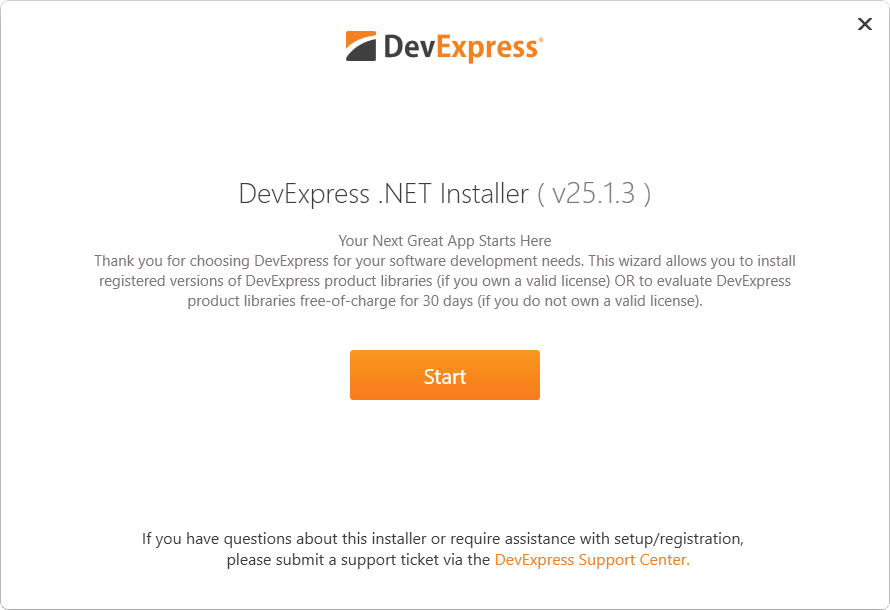
If you have an existing DevExpress.com account:
- Click Log In.
- The installer opens a browser window and checks if you are already logged in to DevExpress.com. If you are logged out, you can enter your credentials.
Once DevExpress.com verifies your login information, the browser redirects you back to the installer wizard.
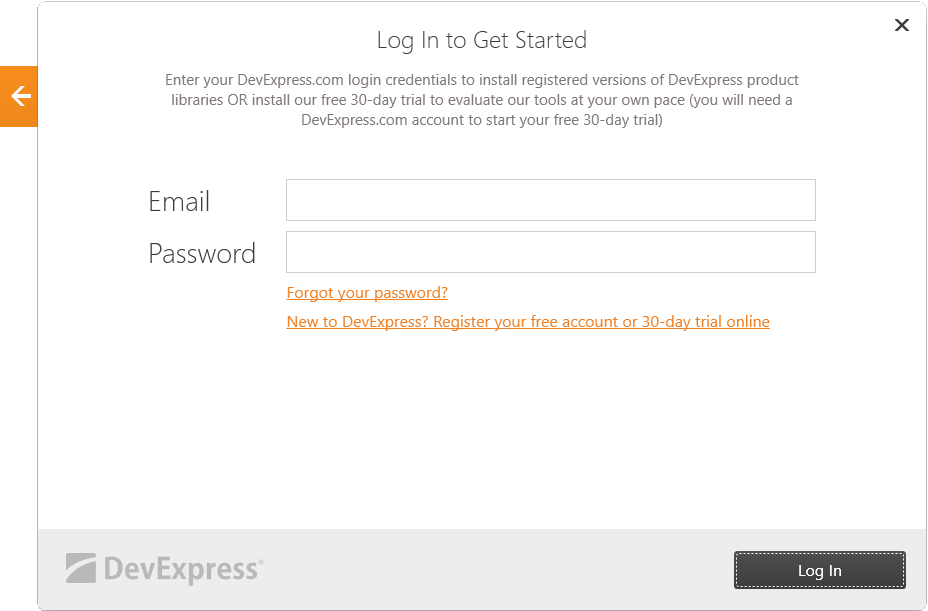
If you are new to DevExpress:
- Click the link to register your free account.
- Enter your information to sign up for a DevExpress.com account.
- Once your registration is complete, return back to the installer wizard and click Log In to proceed.
Note
Refer to the following help topic for information on how to convert a trial version of the DevExpress installation to a licensed version after you obtain a license: Convert a Trial Version to a Licensed Version.
Offline Registration
The development machine where you run the installer may not have an active Internet connection. In this case, you can still register your DevExpress products. For instructions, refer to the following help topic:
Offline Installation (No Internet) - DevExpress Unified Component Installer
Select Products
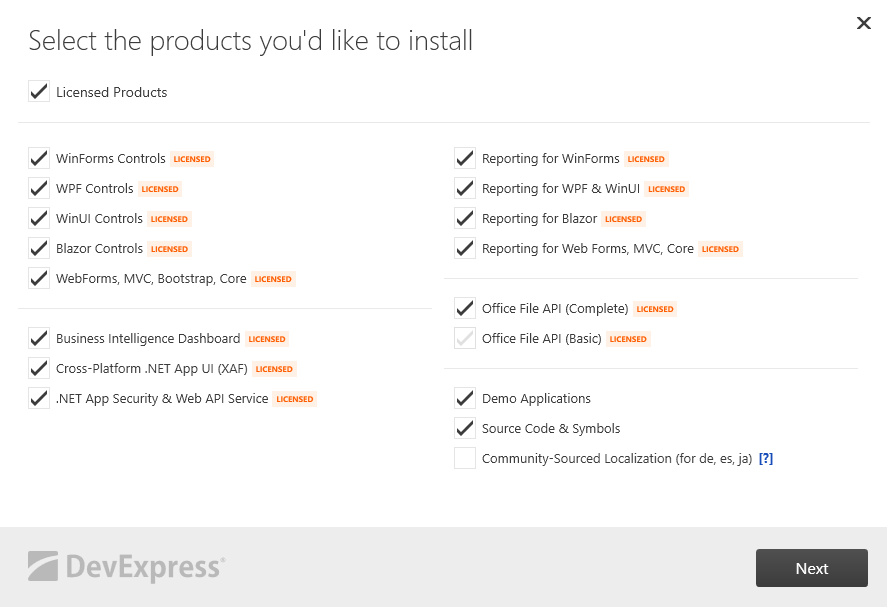
On the next page you can choose the products you wish to install. Click Next to proceed to the next page. Note that you can install the other products and use them in Trial mode if you do not have a license for them.
Register the DevExpress MCP Server
If you are running DevExpress Unified Installer v26.1.5+, activate the DevExpress Documentation MCP Server option on the product selection page. This option allows AI assistants to answer questions and generate code using DevExpress documentation content.
The installer configures the server in all supported AI assistants that are available to the current Windows user: GitHub Copilot (Visual Studio, VS Code, and Copilot CLI), JetBrains Rider AI Assistant, Cursor, OpenAI Codex, Claude Desktop, and Claude Code. The installation skips AI tools that already have the server registered.
For additional information, refer to the following help topic: DevExpress Documentation MCP Server.
Choose the Destination Path
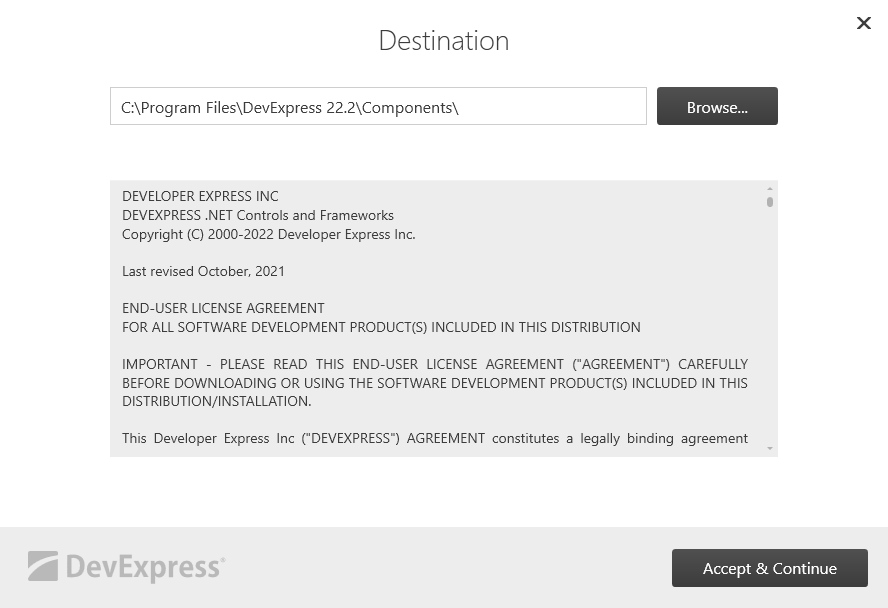
On this page, you can choose the path to install DevExpress .NET products. Click Accept & Install if you accept the end-user license agreement to start the installation process.
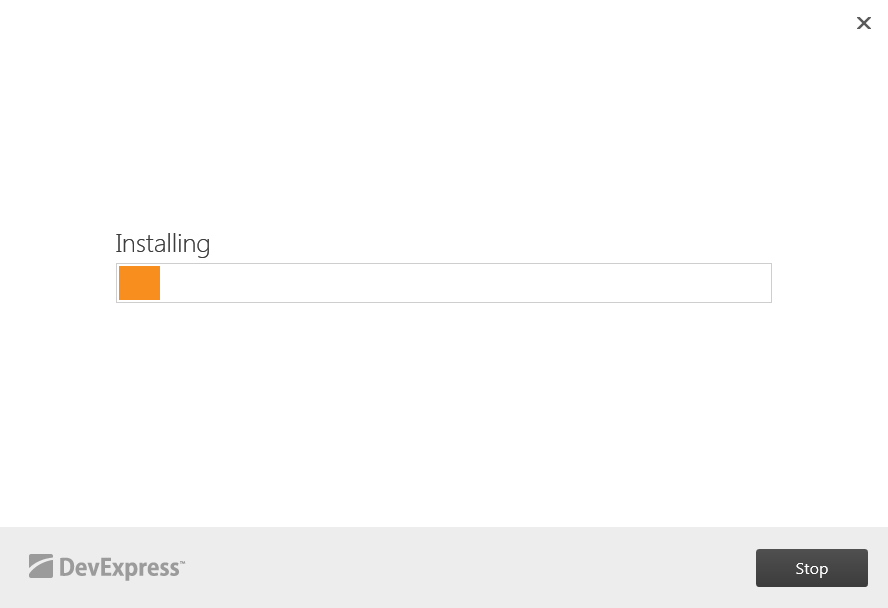
A progress bar displays during the installation to show the installation’s progress. Click the Stop button if you wish to interrupt or cancel the installation process. Otherwise, wait until the installer performs all necessary actions and notifies you that the installation process has completed.
Save the installation log and send it to our Support Team for immediate investigation if you have any issues during the installation.
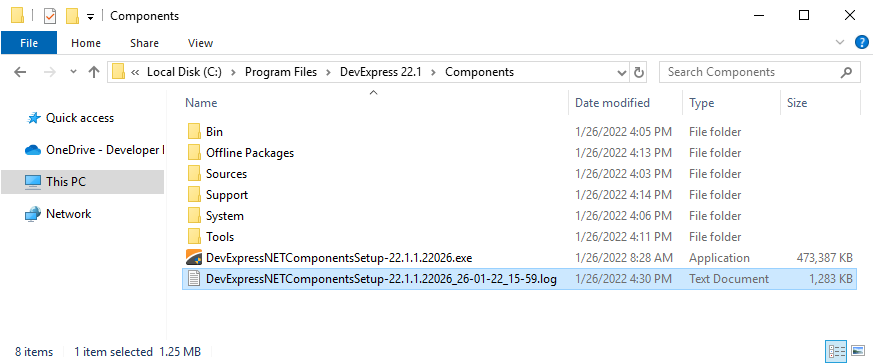
You can find the installation log in the C:\Program Files\DevExpress 26.1\Components\ folder: