TdxCustomDashboardControl.ExportToXLS(TStream) Method
Exports dashboard content to a stream in the Microsoft Excel® binary (XLS) format.
Declaration
procedure ExportToXLS(AStream: TStream); overload;Parameters
| Name | Type | Description |
|---|---|---|
| AStream | TStream | The target stream. |
Remarks
Call the ExportToXLS procedure to export dashboard content to a stream in the XLS format.
End-User Functionality
A user can click an Export To button within the TdxDashboardControl or the Dashboard Viewer dialog:

Export To Excel
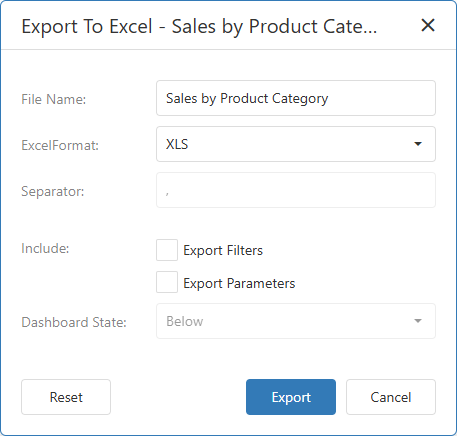
A click on the Excel menu item displays the Export To Excel dialog designed to select the required format and associated export settings:
Code Example: Export Dashboard Content to XLS File
The following code example exports content of a configured TdxDashboardControl component to a file in the Microsoft Excel® binary (XLS) format using an intermediary TMemoryStream object:
uses
  dxDashboard.Control,  // Declares the TdxDashboardControl component
  dxSplashForms,     // Declares the TdxSplashFormManager class and related types
  dxShellDialogs;    // Declares the TdxSaveFileDialog component
// ...

procedure TMyForm.cxButtonExportToXLSClick(Sender: TObject);
var
  AStream: TMemoryStream;
begin
  if not dxSaveFileDialog1.Execute(Handle) then Exit;  // Displays the "Save File" dialog
  AStream := TMemoryStream.Create;       // Creates a stream as an intermediary container
  // Displays a Wait Form before the export operation
  TdxSplashFormManager.WaitForm.Show(dxDashboardControl1.Parent);
  try
    dxDashboardControl1.ExportToXLS(AStream);   // Exports content to a stream in the XLS format
    AStream.SaveToFile(dxSaveFileDialog1.FileName);    // Saves XLS stream content to a file
  finally
    AStream.Free;                        // Releases the intermediary memory stream
    TdxSplashFormManager.WaitForm.Hide;  // Hides the Wait Form once the operation is complete
  end;
end;
Related Compiled Demo
To see the dashboard export functionality in action, run the BI Dashboards Designer/Viewer demo in the VCL Demo Center installed with compiled DevExpress VCL demos. Select any demo in the sidebar on the left, click the Export button, and use any export option listed in the menu.
Compiled DevExpress demos ship with source code installed in the Public Documents folder (%PUBLIC%) for all users (default). You can find all project and source code files for the BI Dashboards Designer/Viewer demo in the following folder:
%PUBLIC%\Documents\DevExpress VCL Demos\MegaDemos\Product Demos\ExpressDashboards\
Other Export Methods
Export to File
- ExportTo
- Exports dashboard content to a stream in any supported format.
- ExportToCSV
- Exports dashboard content to a file in the comma-separated values (CSV) format.
- ExportToGIF
- Exports dashboard content to a file in the Graphics Interchange (GIF) format.
- ExportToJPG
- Exports dashboard content to a file in the Joint Photographic Experts Group (JPG/JPEG) format.
- ExportToPDF
- Exports dashboard content to a file in the Portable Document (PDF) format.
- ExportToPNG
- Exports dashboard content to a file in the Portable Network Graphics (PNG) format.
- ExportToSVG
- Exports dashboard content to a file in the Scalable Vector Graphics (SVG) format.
- ExportToXLS
- Exports dashboard content to a file in the Microsoft Excel® binary (XLS) format.
- ExportToXLSX
- Exports dashboard content to a file in the Office OpenXML Spreadsheet (XLSX) format.
Export to Stream
- ExportTo
- Exports dashboard content to a stream in any supported format.
- ExportToCSV
- Exports dashboard content to a stream in the comma-separated values (CSV) format.
- ExportToGIF
- Exports dashboard content to a stream in the Graphics Interchange (GIF) format.
- ExportToJPG
- Exports dashboard content to a stream in the Joint Photographic Experts Group (JPG/JPEG) format.
- ExportToPDF
- Exports dashboard content to a stream in the Portable Document (PDF) format.
- ExportToPNG
- Exports dashboard content to a stream in the Portable Network Graphics (PNG) format.
- ExportToSVG
- Exports dashboard content to a stream in the Scalable Vector Graphics (SVG) format.
- ExportToXLSX
- Exports dashboard content to a file in the Office OpenXML Spreadsheet (XLSX) format.