Page Control Tutorial
- 2 minutes to read
This tutorial creates a simple tabbed user interface using the TcxPageControl component. Each page contains different UI elements.
Step 1 — Create Pages
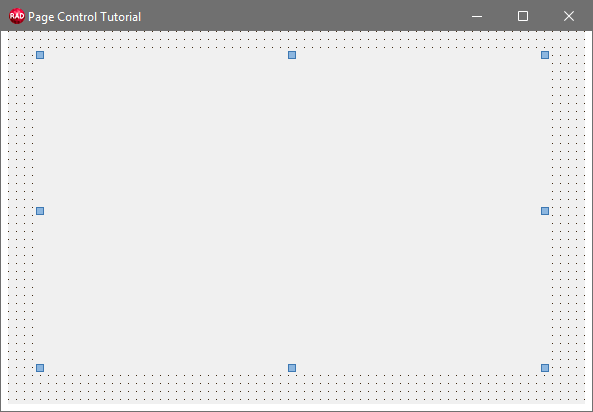
Place a TcxPageControl component on a form.
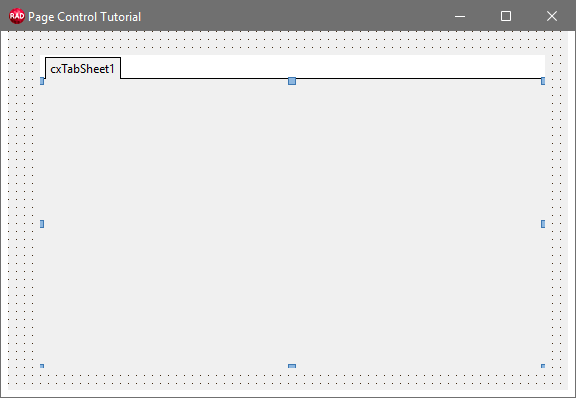
Right-click the TcxPageControl component and select the New Page item to create a new page.
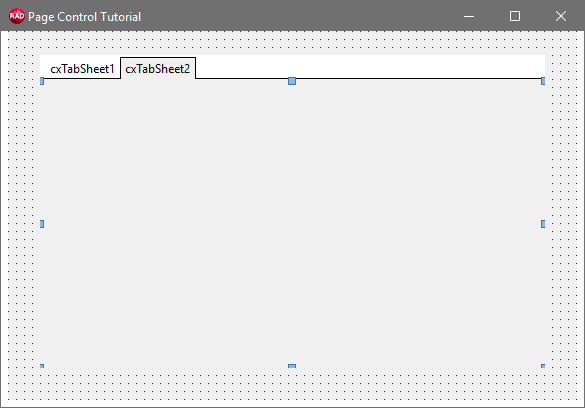
Add a second page. The created page automatically becomes active.
Step 2 — Add and Display Tab Glyphs
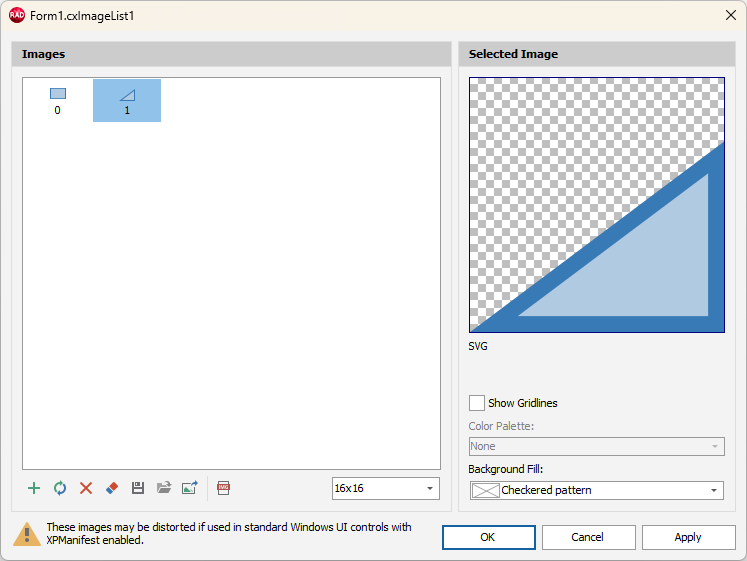
Place a TcxImageList component. Double-click the image list and use the editor to load four glyphs from the DevExpress Icon Library.
Tip
Refer to the following help topic for detailed information on image list management: Image List Editor.
Assign the populated TcxImageList component to the Properties.Images property of the TcxPageControl to display loaded glyphs in corresponding tabs.
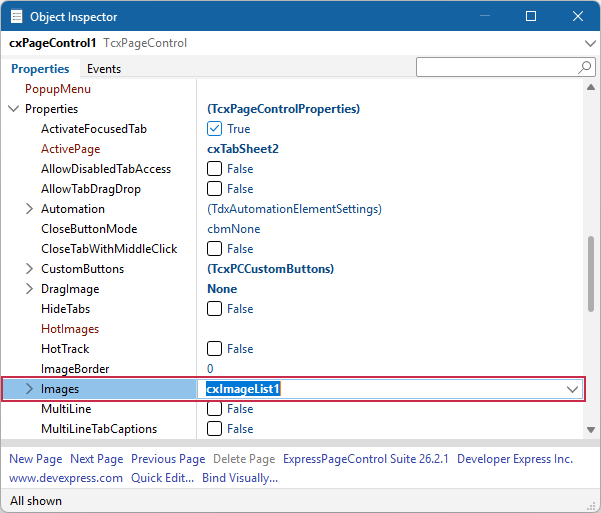
All images from the assigned list are automatically assigned to created tabs:
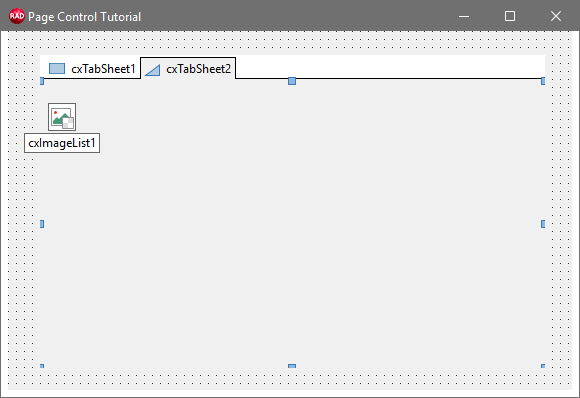
Step 3 — Place Controls on Created Pages
- Click the first tab and place a TcxLabel component on the displayed page.
Set the TcxLabel component’s caption to
'First Page'.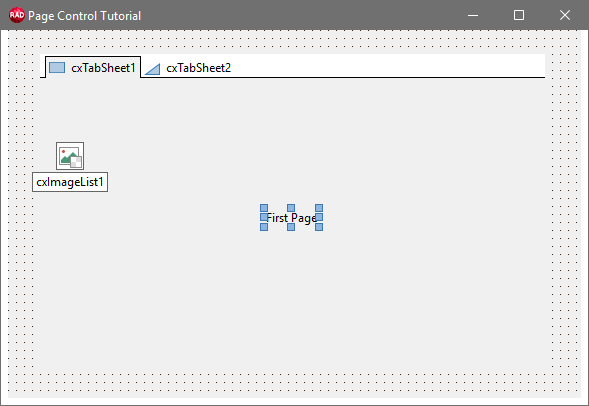
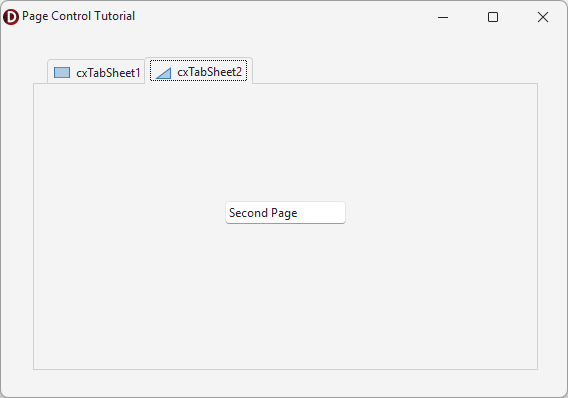
Click the second tab and place a TcxTextEdit component on the displayed page.
Set the TcxTextEdit component’s Text property to
'Second Page'.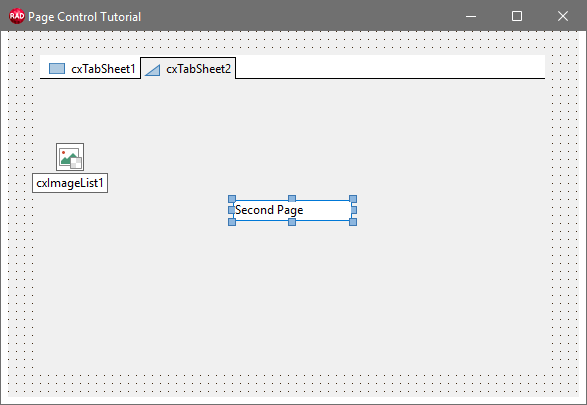
Step 4 — Run & Test the App
Build and run the Application. Click tabs to switch between them.