Tab Control Tutorial
- 2 minutes to read
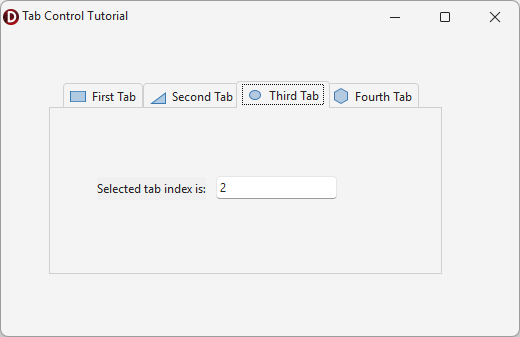
This tutorial creates a simple tabbed user interface using the TcxTabControl component.
Step 1 — Create Tabs
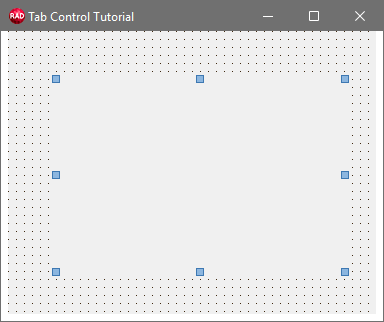
Place a TcxTabControl component on a form.
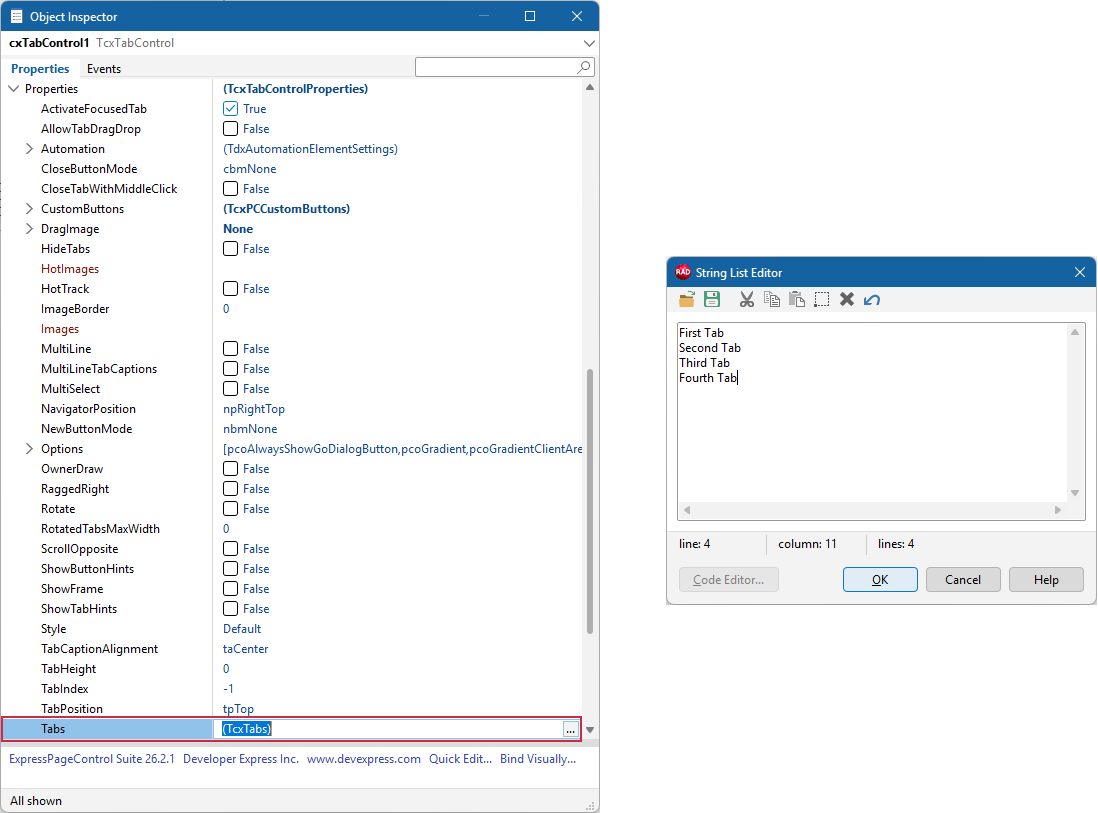
Expand the Properties node and click the ellipsis button at the Properties.Tabs property to display the String List Editor dialog. Specify four tab captions as follows:
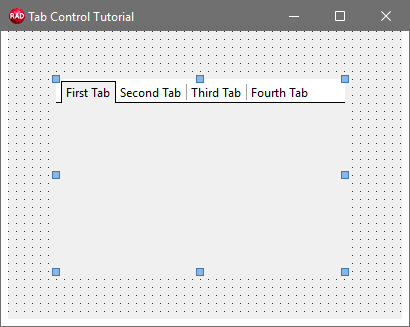
Click the OK button to save pending changes and close the dialog.
Step 2 — Add and Display Tab Glyphs
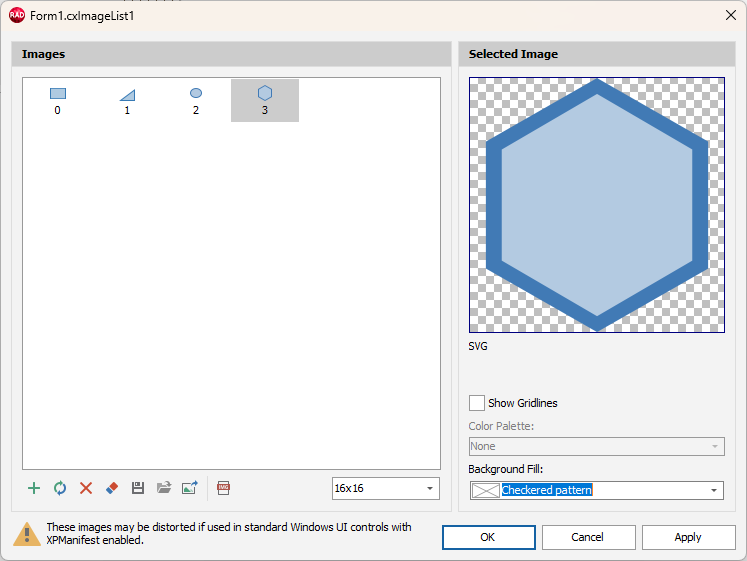
Place a TcxImageList component. Double-click the image list and use the editor to load four glyphs from the DevExpress Icon Library.
Tip
Refer to the following help topic for detailed information on image list management: Image List Editor.
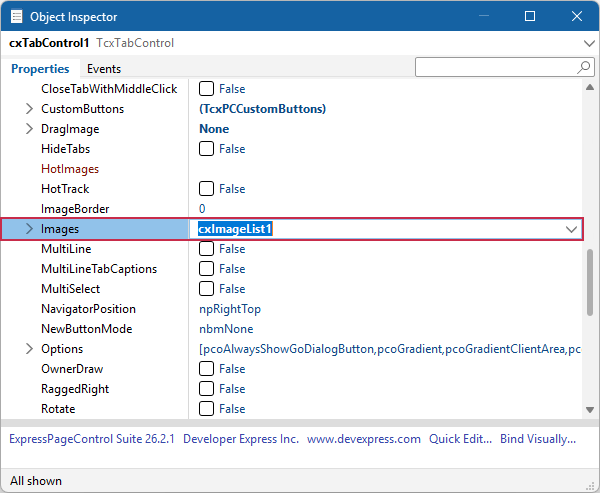
Assign the populated TcxImageList component to the Properties.Images property of the TcxTabControl to display loaded glyphs in corresponding tabs.
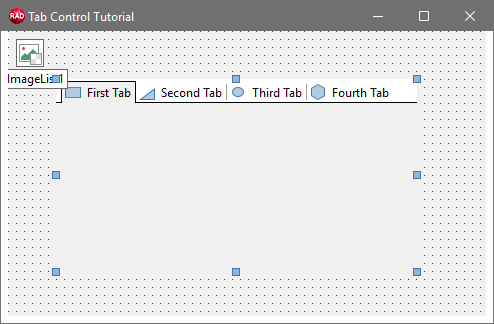
All images from the assigned list are automatically assigned to created tabs:
Step 3 — Display Tab-Dependent Content
- Place TcxLabel and TcxTextEdit components on the visible TcxTabControl page.
- Set the TcxLabel component’s caption to
'Selected tab index is: '. - Clear the TcxTextEdit component’s edit value.
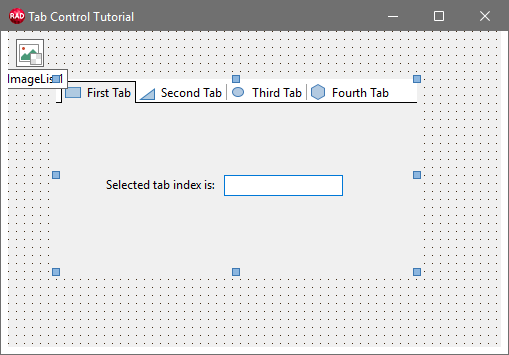
Handle the TcxTabControl component’s OnChange event as follows to display tab indexes when corresponding tabs are active:
procedure TMyForm.cxTabControl1Change(Sender: TObject);
begin
  cxTextEdit1.EditingText := IntToStr(cxTabControl1.TabIndex);
end;
Step 4 — Run & Test the App
Build and run the application. Click tabs to switch between them.