Spreadsheet Formula Bar
- 2 minutes to read
The TdxSpreadSheetFormulaBar control is designed to complement Spreadsheet controls with additional cell view and edit options found in many popular spreadsheet applications.

The main UI element is the Formula Editor designed to display and edit cell values. The Formula AutoComplete functionality suggests users registered functions and available defined names that match the entered portion of a recognized name.
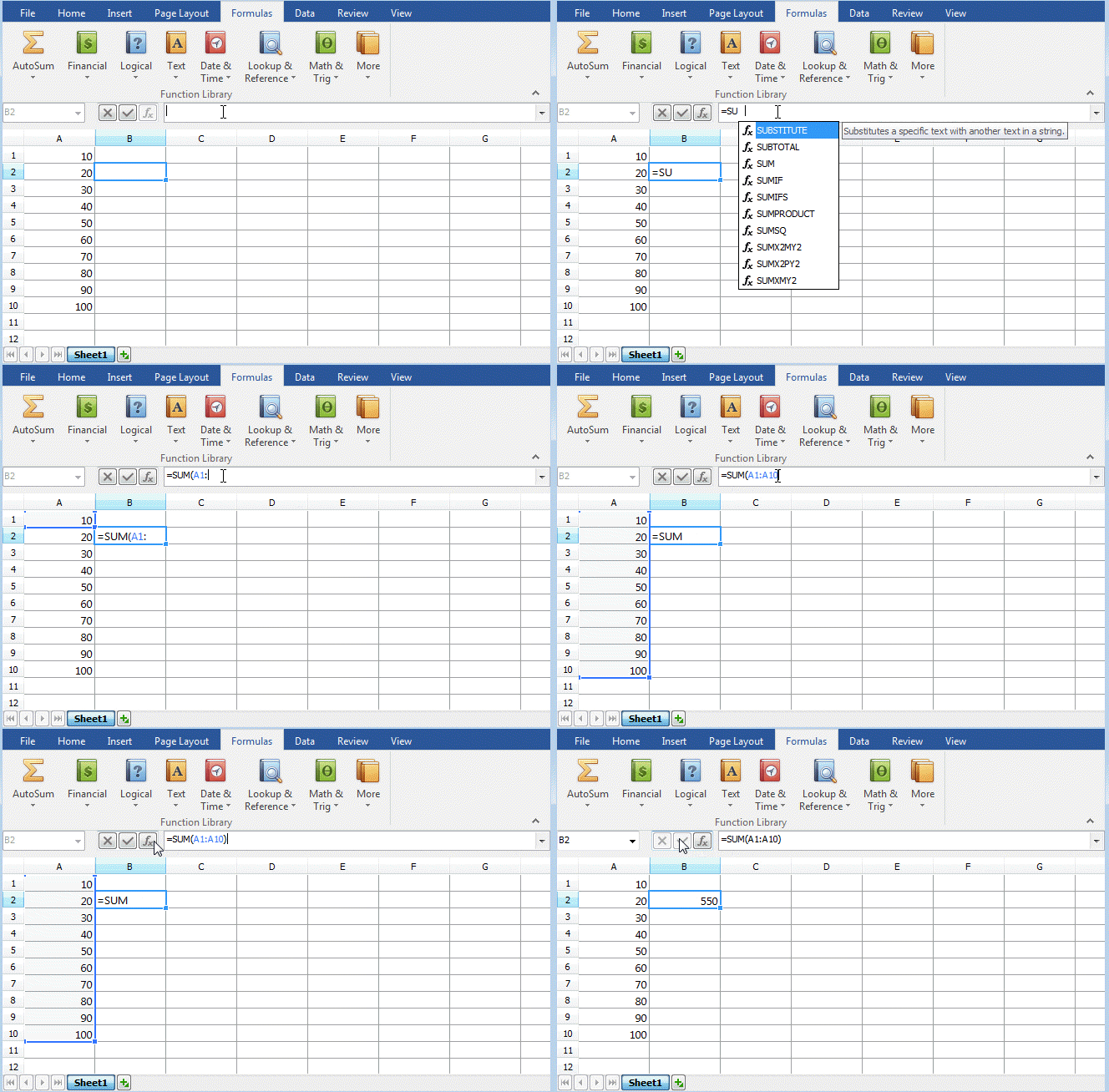
Name and Button boxes are optional and offer additional cell selection and edit options:
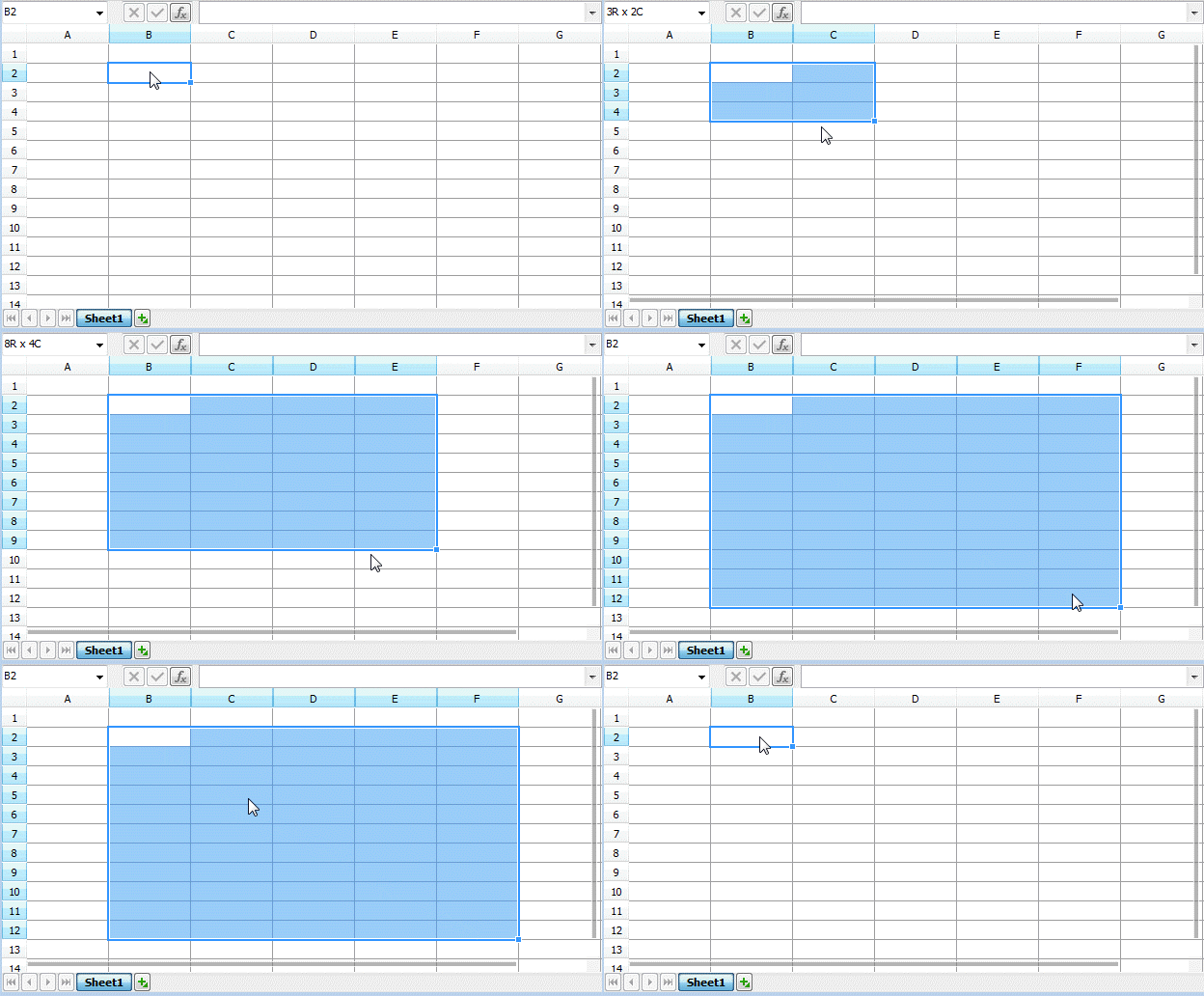
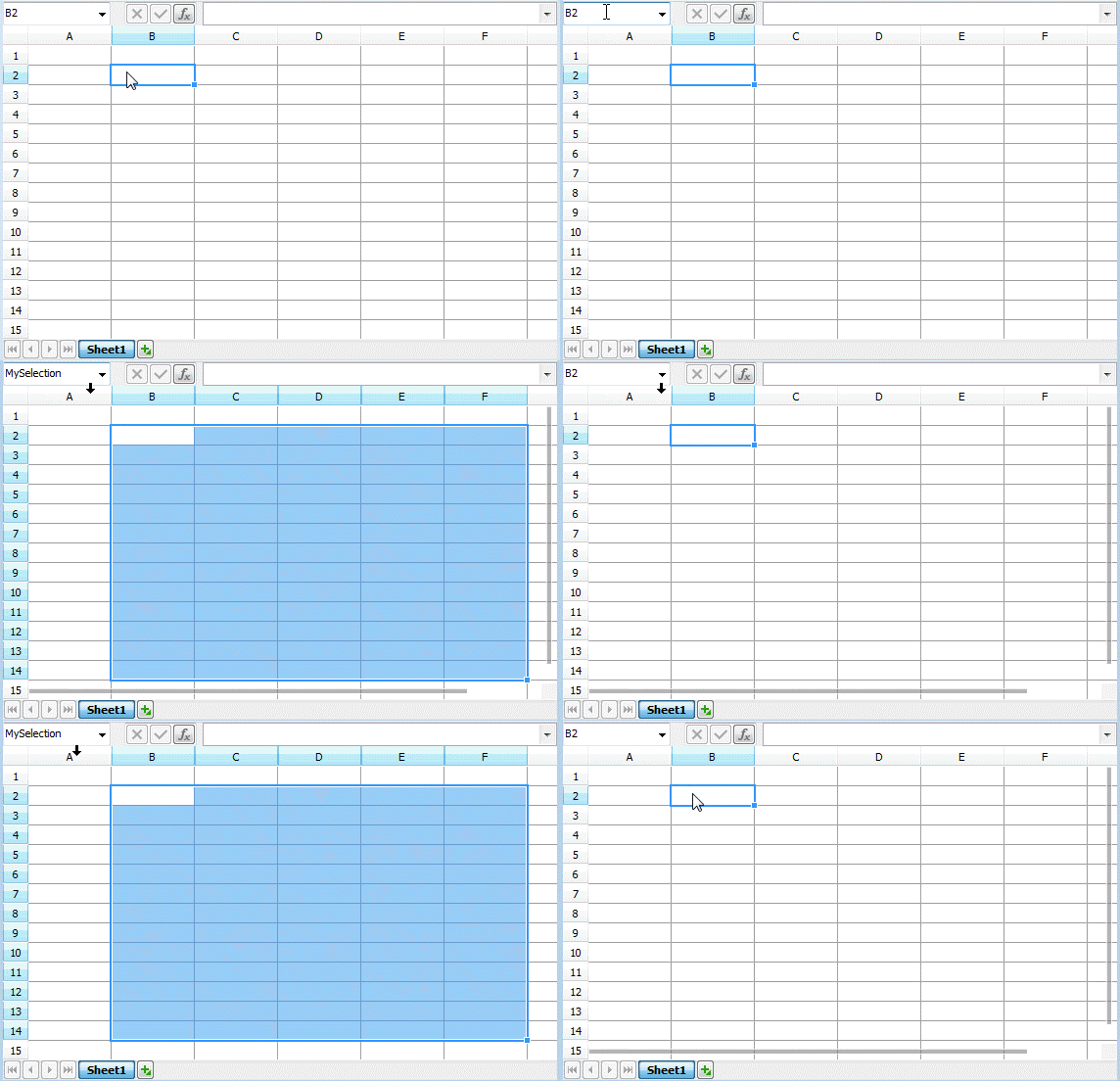
The Name box allows you to input a reference to a cell or cell range to select it in the active worksheet, or create a defined name based on the current selection. If a defined name is already assigned to a cell or cell range, a user can select it using the Name box drop-down list.
The Button box lists Cancel, Enter, and Insert Function buttons. The Enter and Cancel are enabled only when the Edit box is focused:
- Cancel
- Discards the current user input and returns focus to the spreadsheet control associated with the Formula Bar (the Esc keystroke equivalent).
- Enter
- Returns focus to the active cell in the associated spreadsheet control and posts the current user input to the cell (the Enter keystroke equivalent).
- Insert Function
- This button enabled when an in-place cell editor or the Edit box is inactive, or when the active editor’s value starts with the equals sign. A click on this button displays the Insert Function dialog that allows users to pick a built-in function from a complete list (that is, the All category) or a specific function category (Compatibility, for example):

Note
The Shift + F3 key combination displays the Insert Function dialog under the same conditions.
Refer to the TdxSpreadSheetFormulaBar class description for detailed information on all available options.