Cell Editing in Blazor Grid
- 41 minutes to read
In EditCell mode, users can click a data cell to display its in-place editor. When focus moves to another row, the control validates pending user input and saves changes.
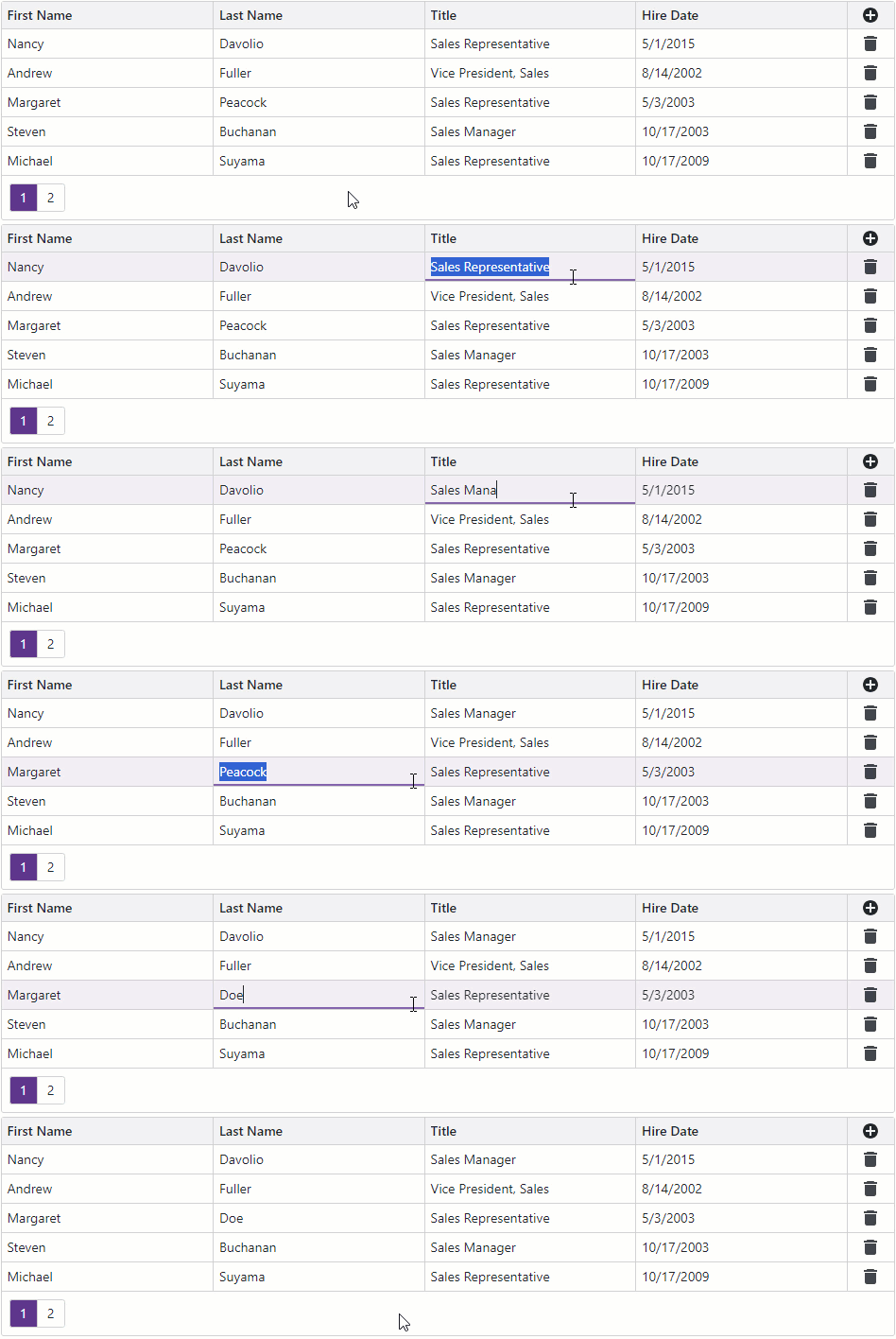
The following shortcuts are available in EditCell mode:
- Enter or Shift+Enter
Default behavior: Opens an in-place editor for the focused cell if an editor is not already open. If an in-place editor is open, the shortcut applies changes and closes the editor.
Advanced behavior: Use the EnterKeyDirection property to move focus within the current row or column after the shortcut closes the editor. Set the EditNextCellOnEnter property to
trueto automatically display an in-place editor for the newly focused cell.- Esc
- When a cell editor is visible, press Esc to hide the editor and discard changes made to this cell. If you press Esc when the editor is hidden, the Grid discards all changes made to the row and cancels row editing.
- Tab or Shift+Tab
- Hides the editor in the current cell, focuses the next or previous data cell, and shows an editor in the newly focused cell.
Video Tutorial
Enable Editing
Follow the steps below to enable cell editing:
Set the EditMode property to
EditCell.If your data object has a primary key, assign it to the KeyFieldName or KeyFieldNames property.
Handle EditModelSaving and DataItemDeleting events to save changes and reload Grid data. Refer to the following topic for additional information: Edit Model in Blazor Grid.
(Optional) Declare a DxGridCommandColumn object in the Columns template to display the command column.
(Optional) Use the EditNewRowPosition property to display the new item row or change the position of cell editors displayed for new records.
(Optional) Use the following properties to improve keyboard navigation and shortcuts: EditOnKeyPress, EditNextCellOnEnter, and EnterKeyDirection.
When users start editing a row, the Grid creates a clone of the edited data item, called an edit model. During edit operations, the Grid applies user changes only to the edit model and keeps the data item unchanged until the EditModelSaving or DataItemDeleting event fires. Refer to the following topic for additional information: Edit Model in Blazor Grid.
The following code sample allows users to edit Grid cells:
@using Microsoft.EntityFrameworkCore
@inject IDbContextFactory<NorthwindContext> NorthwindContextFactory
@implements IDisposable

<DxGrid Data="Data"
        KeyFieldName="EmployeeId"
        EditModelSaving="OnEditModelSaving"
        DataItemDeleting="OnDataItemDeleting"
        CustomizeEditModel="OnCustomizeEditModel"
        EditMode="GridEditMode.EditCell">
    <Columns>
        <DxGridCommandColumn EditButtonVisible="false"
                             CancelButtonVisible="false"
                             SaveButtonVisible="false" />
        <DxGridDataColumn FieldName="FirstName" />
        <DxGridDataColumn FieldName="LastName" />
        <DxGridDataColumn FieldName="Title" />
        <DxGridDataColumn FieldName="HireDate" />
    </Columns>
</DxGrid>

@code {
    IEnumerable<Employee> Data { get; set; }
    NorthwindContext Northwind { get; set; }

    protected override async Task OnInitializedAsync() {
        Northwind = NorthwindContextFactory.CreateDbContext();
        Data = await Northwind.Employees.ToListAsync();
    }

    void OnCustomizeEditModel(GridCustomizeEditModelEventArgs e) {
        if(e.IsNew) {
            var editModel = (Employee)e.EditModel;
            editModel.EmployeeId = Data.Max(x => x.EmployeeId) + 1;
        }
    }

    async Task OnEditModelSaving(GridEditModelSavingEventArgs e) {
        var editModel = (Employee)e.EditModel;
        if (e.IsNew)
            await Northwind.AddAsync(editModel);
        else
            e.CopyChangesToDataItem();
        // Post changes to the database.
        await Northwind.SaveChangesAsync();
        // Reload the entire Grid.
        Data = await Northwind.Employees.ToListAsync();
    }

    async Task OnDataItemDeleting(GridDataItemDeletingEventArgs e) {
        // Remove the data item from the database.
        Northwind.Remove(e.DataItem);
        await Northwind.SaveChangesAsync();
        // Reload the entire Grid.
        Data = await Northwind.Employees.ToListAsync();
    }

    public void Dispose() {
        Northwind?.Dispose();
    }
}
Limitations
The EditCell mode has the following specifics and limitations:
- The mode is compatible only with DevExpress Blazor editors.
- The Grid component does not support this mode when you use a Server Mode data source or GridDevExtremeDataSource.
- The mode requires active keyboard navigation. The Grid component automatically turns on keyboard navigation unless you disable the
KeyboardNavigationEnabledproperty or the DisableKeyboardNavigationInGrid compatibility setting. - After a user performs a data shaping operation that hides the edited row from the view (for instance, after a user navigates to the next page), the Grid validates row values. If validation succeeds, the Grid saves changes. If validation fails, the Grid discards changes and displays a notification message: “Unsaved changes were discarded”.
During edit operations, the Grid applies user changes only to the edit model. The data item remains unchanged until focus leaves the edited row.
To display the modified cell value in the CellDisplayTemplate or DataColumnCellDisplayTemplate, use the template context’s Value property instead of DisplayText. To access current values of other fields, use the edit model’s field values instead of the template context’s DataItem object. You can obtain the edit model as follows:
<DxGridDataColumn FieldName="FirstName">
    <CellDisplayTemplate Context="displayContext">
        @{
            string value;
            if (displayContext.Grid.IsEditingRow(displayContext.VisibleIndex)) {
                var editModel = (Employee)displayContext.Grid.GetEditContext().Model;
                value = editModel.FirstName;
            }
            else
                value = displayContext.DisplayText;
        }
        <span>@value</span>
    </CellDisplayTemplate>
</DxGridDataColumn>
Related API
This section contains comprehensive editing-related API references.
| DxGrid API member | Type | Description |
|---|---|---|
| CustomValidators | Property | Allows you to declare custom validator components. |
| DataColumnCellEditTemplate | Property | Allows you to replace automatically generated editors with custom content in all edit cells displayed for data columns. |
| EditMode | Property | Specifies how users edit Grid data. |
| EditNextCellOnEnter | Property | In EditCell mode, specifies whether the Grid starts editing the next cell after a user presses Enter. Available in v26.1.4+. |
| EditNewRowPosition | Property | Specifies the position of UI elements used to create new rows. |
| EditOnKeyPress | Property | In EditCell mode, specifies whether cell editing starts once a user begins typing a new value. |
| EditorRenderMode | Property | Specifies how the Grid renders editors in the filter row and in data rows during edit operations. |
| EnterKeyDirection | Property | In EditCell mode, specifies where focus moves after a user presses Enter. |
| ValidationEnabled | Property | Specifies whether the Grid validates user input in DevExpress data editors located in the edit form or edit cells. |
| CancelEditAsync() | Method | Cancels row editing and discards changes. |
| GetColumnEditSettings<T>(String) | Method | Returns editor settings of the column bound to the specified data source field. |
| GetEditContext() | Method | Returns the edit context. |
| IsEditing() | Method | Returns whether the Grid is being edited. |
| IsEditingNewRow() | Method | Returns whether a new Grid row is being edited. |
| IsEditingRow(Int32) | Method | Returns whether the specified Grid row is being edited. |
| SaveChangesAsync() | Method | Triggers validation and raises the EditModelSaving event if validation succeeds. The method immediately raises this event if validation is disabled. |
| ShowDataItemDeleteConfirmation(Object) | Method | Displays the delete confirmation dialog for the specified data item. If a user confirms the operation, the method raises the DataItemDeleting event. |
| ShowRowDeleteConfirmation(Int32) | Method | Displays the delete confirmation dialog for the specified row. If a user confirms the operation, the method raises the DataItemDeleting event. |
| StartEditDataItemAsync(Object, String) | Method | Starts editing the specified data item. |
| StartEditNewRowAsync(String) | Method | Starts editing a new row. |
| StartEditRowAsync(Int32, String) | Method | Starts editing the row with the specified visible index. |
| CustomizeDataRowEditor | Event | Allows you to customize a cell editor in a data row. |
| CustomizeEditModel | Event | Allows you to create a custom edit model or customize an automatically generated edit model. |
| DataItemDeleting | Event | Fires when a user confirms the delete operation in the delete confirmation dialog. |
| EditCanceling | Event | Fires before the Grid cancels the edit operation and discards changes. |
| EditModelSaving | Event | Fires if validation succeeds after a user saves changes or you call the SaveChangesAsync() method. |
| EditStart | Event | Fires before the Grid starts editing a row. |
| DxGridCommandColumn API member | Type | Description |
|---|---|---|
| CancelButtonVisible | Property | Specifies whether the command column displays the Cancel button in EditRow or EditCell edit mode. |
| CellDisplayTemplate | Property | Specifies a template used to display command column cells. |
| CellEditTemplate | Property | Specifies a template used to display the command column’s edit cell. |
| DeleteButtonVisible | Property | Specifies whether the command column displays Delete buttons. |
| DisplayMode | Property | Specifies whether command buttons display icons, captions, or both. |
| EditButtonVisible | Property | Specifies whether the command column displays Edit buttons. |
| HeaderTemplate | Property | Specifies a template used to display the command column header. |
| NewButtonVisible | Property | Specifies whether the command column displays the New button. |
| SaveButtonVisible | Property | Specifies whether the command column displays the Save button in EditRow or EditCell edit mode. |
| DxGridDataColumn API member | Type | Description |
|---|---|---|
| CellEditTemplate | Property | Allows you to replace an automatically generated editor with custom content in the column’s edit cell. |
| DataRowEditorVisible | Property | Specifies whether to render the editor associated with this column in the column edit cell, edit form, or pop-up edit form. |
| EditSettings | Property | Allows you to customize the editor associated with this column. |
| ReadOnly | Property | Specifies whether a user can change the column editor value when the Grid is in edit mode. |
Task-Based Examples
This section includes code samples that demonstrate cell-editing functionality.
Display New Item Row
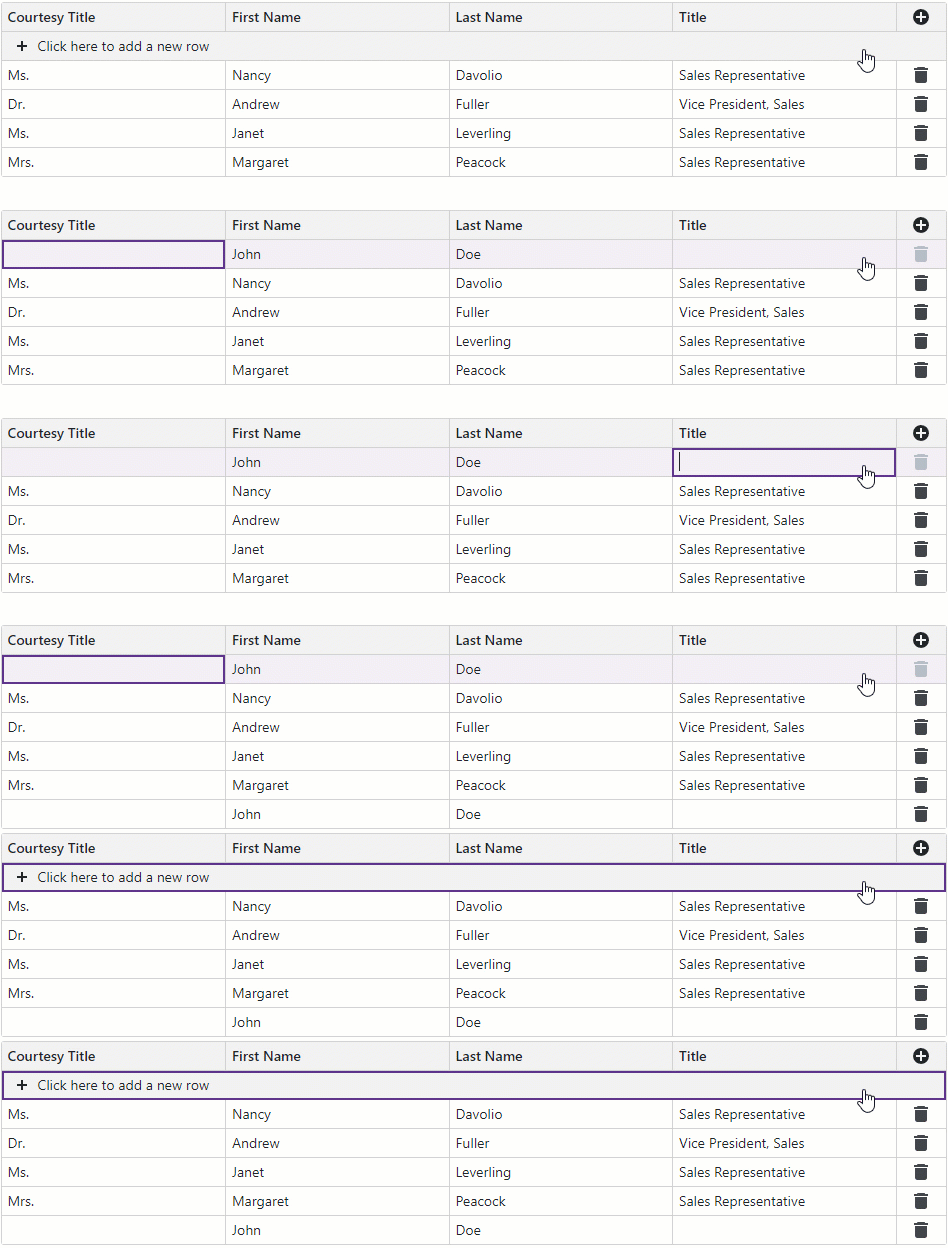
A new item row is an empty row that allows users to add new records. Set the EditNewRowPosition property to FixedOnTop to display the new item row fixed to the top of the current page. Set this property to LastRow to display this row on the last page after the last data row.

<DxGrid Data="Data"
        KeyFieldName="EmployeeId"
        EditModelSaving="OnEditModelSaving"
        DataItemDeleting="OnDataItemDeleting"
        CustomizeEditModel="OnCustomizeEditModel"
        EditMode="GridEditMode.EditCell"
        EditNewRowPosition="GridEditNewRowPosition.FixedOnTop">
    <Columns>
        *@* ... *@
    </Columns>
</DxGrid>
Users can press Tab or Shift + Tab keys to navigate between row cells. If focus goes beyond the last/first cell, the Grid focuses the cell on the opposite end and validates user input. Depending on validation results, the following variants are possible:
- If validation fails, the component displays error icons.
- If validation succeeds, the component saves changes and starts editing a new row.
Start Editing on Typing
The Grid component starts cell editing after a user clicks a cell or focuses it and presses Enter. Enable the EditOnKeyPress property to also enter edit mode once a user starts typing a new value:
<DxGrid Data="Data"
        KeyFieldName="EmployeeId"
        EditModelSaving="OnEditModelSaving"
        DataItemDeleting="OnDataItemDeleting"
        CustomizeEditModel="OnCustomizeEditModel"
        EditMode="GridEditMode.EditCell"
        EditOnKeyPress="true">
    <Columns>
        *@* ... *@
    </Columns>
</DxGrid>
Start Editing Next Cell on Enter
Use the EnterKeyDirection property to focus the next cell in the current row or column after users press Enter. Set the EditNextCellOnEnter to true to automatically switch the newly focused cell to edit mode:
<DxGrid Data="Data"
        KeyFieldName="EmployeeId"
        EditModelSaving="OnEditModelSaving"
        DataItemDeleting="OnDataItemDeleting"
        CustomizeEditModel="OnCustomizeEditModel"
        EditMode="GridEditMode.EditCell"
        EnterKeyDirection="GridEnterKeyDirection.Column"
        EditNextCellOnEnter="true">
    <Columns>
        *@* ... *@
    </Columns>
</DxGrid>
Disable Column Editing
You can use one of the following column properties to prevent users from editing a specific column:
- ReadOnly
- Specifies whether column editors are in read-only mode.
- DataRowEditorVisible
- Specifies whether to display editors for data cells in this column. If set to
false, the Grid does not enter edit mode when users click a cell in the column. In edit mode, keyboard navigation with Tab or Enter skips this column.
The following code snippet prevents users from editing the Employee ID column:
<DxGrid Data="Data"
        KeyFieldName="EmployeeId"
        EditModelSaving="OnEditModelSaving"
        DataItemDeleting="OnDataItemDeleting"
        CustomizeEditModel="OnCustomizeEditModel"
        EditMode="GridEditMode.EditCell">
    <Columns>
        <DxGridCommandColumn EditButtonVisible="false"
                             CancelButtonVisible="false"
                             SaveButtonVisible="false" />
        <DxGridDataColumn FieldName="EmployeeId" DataRowEditorVisible="false" />
        <DxGridDataColumn FieldName="FirstName" />
        <DxGridDataColumn FieldName="LastName" />
        <DxGridDataColumn FieldName="Title" />
        <DxGridDataColumn FieldName="HireDate" />
    </Columns>
</DxGrid>
Conditionally Disable Row Editing
To prevent users from editing a specific record, handle the EditStart event and set the Cancel argument to true for the corresponding row. The following code sample prevents users from editing discontinued products:
@inject DataService DataService

<DxGrid Data="@products"
        EditMode="GridEditMode.EditCell"
        EditStart="OnEditStart"
        DataItemDeleting="OnDataItemDeleting"
        EditModelSaving="OnEditModelSaving">
    <Columns>
        <DxGridCommandColumn EditButtonVisible="false"
                             CancelButtonVisible="false"
                             SaveButtonVisible="false" />
        <DxGridDataColumn FieldName="ProductName" />
        <DxGridDataColumn FieldName="QuantityPerUnit" />
        <DxGridDataColumn FieldName="UnitPrice" DisplayFormat="c2" />
        <DxGridDataColumn FieldName="Discontinued" ReadOnly="true" />
    </Columns>
</DxGrid>

@code {
    private List<Product> products = new();
    private List<Category> categories = new();

    void OnEditStart(GridEditStartEventArgs e) {
        if ((e.DataItem as Product)?.Discontinued == true)
            e.Cancel = true;
    }
    protected override void OnInitialized() {
        products = DataService.GetProducts().ToList();
        categories = DataService.GetCategories().ToList();
    }
    void OnDataItemDeleting(GridDataItemDeletingEventArgs e) {
        if (e.DataItem is Product product)
            products.Remove(product);
    }
    void OnEditModelSaving(GridEditModelSavingEventArgs e) {
        var editModel = (Product)e.EditModel;
        if (e.IsNew)
            products.Add(editModel);
        else
            e.CopyChangesToDataItem();
    }
}
Conditionally Disable Cell Editing
Use CellEditTemplate to dynamically disable editing for cells in a column based on other field values. In the template, display an editor bound to the data field and set the editor’s Enabled or ReadOnly value based on your custom condition.
The following code sample disables Unit Price column editors for discontinued products:
@inject DataService DataService

<DxGrid Data="@products"
        EditMode="GridEditMode.EditCell"
        DataItemDeleting="OnDataItemDeleting"
        EditModelSaving="OnEditModelSaving">
    <Columns>
        <DxGridCommandColumn EditButtonVisible="false"
                             CancelButtonVisible="false"
                             SaveButtonVisible="false" />
        <DxGridDataColumn FieldName="ProductName" />
        <DxGridDataColumn FieldName="QuantityPerUnit" />
        <DxGridDataColumn FieldName="UnitPrice" DisplayFormat="c2">
            <CellEditTemplate Context="editContext">
                @{
                    var product = (Product)editContext.EditModel;
                }
                <DxSpinEdit @bind-Value="product.UnitPrice" DisplayFormat="c2"
                            Enabled="!product.Discontinued" />
            </CellEditTemplate>
        </DxGridDataColumn>
        <DxGridDataColumn FieldName="Discontinued" />
    </Columns>
</DxGrid>

@code {
    private List<Product> products = new();
    private List<Category> categories = new();

    protected override void OnInitialized() {
        products = DataService.GetProducts().ToList();
        categories = DataService.GetCategories().ToList();
    }

    void OnDataItemDeleting(GridDataItemDeletingEventArgs e) {
        if (e.DataItem is Product product)
            products.Remove(product);
    }

    void OnEditModelSaving(GridEditModelSavingEventArgs e) {
        var editModel = (Product)e.EditModel;
        if (e.IsNew)
            products.Add(editModel);
        else
            e.CopyChangesToDataItem();
    }
}
Use Different Edit Modes for Add and Edit Operations
The following code snippet displays a pop-up edit form for new rows. Users can edit individual cells in existing rows directly with in-place editors:
@inject DataService DataService

<DxGrid @ref="Grid"
        Data="@products"
        EditMode="@editMode"
        DataItemDeleting="OnDataItemDeleting"
        EditStart="OnEditStart"
        EditCanceling="OnEditCanceling"
        EditModelSaving="OnEditModelSaving">
    <Columns>
        <DxGridCommandColumn EditButtonVisible="false"
                             CancelButtonVisible="false"
                             SaveButtonVisible="false" />
        <DxGridDataColumn FieldName="ProductName" />
        <DxGridDataColumn FieldName="QuantityPerUnit" />
        <DxGridDataColumn FieldName="UnitPrice" DisplayFormat="c2" />
        <DxGridDataColumn FieldName="Discontinued" />
    </Columns>
    <EditFormTemplate Context="editFormContext">
        <DxFormLayout>
            <DxFormLayoutItem Caption="Product Name:" ColSpanMd="6">
                @editFormContext.GetEditor("ProductName")
            </DxFormLayoutItem>
            <DxFormLayoutItem Caption="Quantity per Unit:" ColSpanMd="6">
                @editFormContext.GetEditor("QuantityPerUnit")
            </DxFormLayoutItem>
            <DxFormLayoutItem Caption="Unit Price:" ColSpanMd="6">
                @editFormContext.GetEditor("UnitPrice")
            </DxFormLayoutItem>
            <DxFormLayoutItem Caption="Discontinued:" ColSpanMd="6">
                @editFormContext.GetEditor("Discontinued")
            </DxFormLayoutItem>
        </DxFormLayout>
    </EditFormTemplate>
</DxGrid>

@code {
    IGrid Grid { get; set; }
    private GridEditMode editMode = GridEditMode.EditCell;
    private List<Product> products = new();
    private List<Category> categories = new();

    protected override void OnInitialized() {
        products = DataService.GetProducts().ToList();
        categories = DataService.GetCategories().ToList();
    }

    void OnDataItemDeleting(GridDataItemDeletingEventArgs e) {
        if (e.DataItem is Product product)
            products.Remove(product);
    }

    void OnEditStart(GridEditStartEventArgs e) {
        SetEditMode(e.IsNew ? GridEditMode.PopupEditForm : GridEditMode.EditCell);
    }

    void OnEditCanceling(GridEditCancelingEventArgs e) {
        SetEditMode(GridEditMode.EditCell);
    }

    void OnEditModelSaving(GridEditModelSavingEventArgs e) {
        var editModel = (Product)e.EditModel;
        if (e.IsNew)
            products.Add(editModel);
        else
            e.CopyChangesToDataItem();

        SetEditMode(GridEditMode.EditCell);
    }

    void SetEditMode(GridEditMode mode) {
        if (editMode == mode) return;
        Grid.BeginUpdate();
        editMode = mode;
        Grid.EndUpdate();
    }
}
Implement Cascading ComboBoxes
To implement cascading cell editors, place DxComboBox components in the CellEditTemplate properties of the related columns. Bind each ComboBox to the corresponding edit model field and use the Data property to populate cascading editors with data.
In the following example, the Country ComboBox lists countries. When a user selects a country, the ValueChanged handler updates the Country field and clears the current City value. The City ComboBox filters its bound data source based on the selected country and displays matching cities.
@inject NwindDataService NwindDataService
@inject WorldcitiesDataService WorldcitiesDataService

<DxGrid Data="DataSource"
        KeyFieldName="SupplierId"
        EditModelSaving="Grid_EditModelSaving"
        DataItemDeleting="Grid_DataItemDeleting"
        EditMode="GridEditMode.EditCell">
    <Columns>
        <DxGridCommandColumn EditButtonVisible="false"
                             CancelButtonVisible="false"
                             SaveButtonVisible="false" />
        <DxGridDataColumn FieldName="CompanyName" />
        <DxGridDataColumn FieldName="ContactName" />
        <DxGridDataColumn FieldName="Country" Width="10%">
            <CellEditTemplate Context="cellEditContext">
                @{
                    var supplier = (Supplier)cellEditContext.EditModel;
                }
                <DxComboBox Data="@Countries"
                            NullText="Select Country..."
                            SearchMode="@ListSearchMode.AutoSearch"
                            SearchFilterCondition="@ListSearchFilterCondition.Contains"
                            TextFieldName="CountryName"
                            ValueFieldName="CountryName"
                            ValueExpression="() => supplier.Country"
                            Value="@supplier.Country"
                            ValueChanged="(string newCellValue) => {
                                supplier.Country = newCellValue;
                                supplier.City = null;
                            }">
                </DxComboBox>
            </CellEditTemplate>
        </DxGridDataColumn>
        <DxGridDataColumn FieldName="City" Width="10%">
            <CellEditTemplate Context="cellEditContext">
                @{
                    var supplier = (Supplier)cellEditContext.EditModel;
                    var countryId = Countries.Where(c => c.CountryName == supplier.Country)
                                             .FirstOrDefault()?.CountryId;
                    var cities = Cities.Where(x => x.CountryId == countryId);
                }
                <DxComboBox Data="@cities"
                            NullText="Select City..."
                            SearchMode="@ListSearchMode.AutoSearch"
                            SearchFilterCondition="@ListSearchFilterCondition.Contains"
                            @bind-Value="@supplier.City"
                            TextFieldName="CityName"
                            ValueFieldName="CityName">
                </DxComboBox>
            </CellEditTemplate>
        </DxGridDataColumn>
    </Columns>

</DxGrid>

@code {
    IEnumerable<Supplier> DataSource { get; set; }
    IEnumerable<Country> Countries { get; set; }
    IEnumerable<City> Cities { get; set; }

    protected override async Task OnInitializedAsync() {
        DataSource = await NwindDataService.GetSuppliersEditableAsync();
        Countries = await WorldcitiesDataService.GetCountriesAsync();
        Cities = await WorldcitiesDataService.GetCitiesAsync();
    }
    async Task Grid_EditModelSaving(GridEditModelSavingEventArgs e) {
        if (e.IsNew)
            await NwindDataService.InsertSupplierAsync((Supplier)e.EditModel);
        else
            await NwindDataService.UpdateSupplierAsync((Supplier)e.DataItem, (Supplier)e.EditModel);
        await UpdateDataAsync();
    }
    async Task Grid_DataItemDeleting(GridDataItemDeletingEventArgs e) {
        await NwindDataService.RemoveSupplierAsync((Supplier)e.DataItem);
        await UpdateDataAsync();
    }
    async Task UpdateDataAsync() {
        DataSource = await NwindDataService.GetSuppliersEditableAsync();
    }
}