XRControl.AccessibleRole Property
Specifies the control’s accessible role in the exported PDF document. This value is used by assistive technologies.
Namespace: DevExpress.XtraReports.UI
Assembly: DevExpress.XtraReports.v26.1.dll
NuGet Package: DevExpress.Reporting.Core
Declaration
[DefaultValue(XRAccessibleRole.Default)]
[SRCategory(ReportStringId.CatData)]
public virtual XRAccessibleRole AccessibleRole { get; set; }Property Value
| Type | Default | Description |
|---|---|---|
| XRAccessibleRole | Default | The value that defines the control’s role. |
Remarks
Use this table to map report controls to accessibility structure roles in exported PDF files.
The table describes the following:
- How each control behaves when the
AccessibleRoleproperty is set toDefault. - Roles you can assign to ensure that screen readers correctly identify the element’s purpose in the exported PDF document.
- Properties that specify these roles.
Tip
Decorative role means an element is treated as an artifact (outside the tag tree). Use this role only for non-informative visual elements. The AccessibleDescription property is not in effect for artifacts.
| Element(s) | Default behavior when AccessibleRole = Default |
Role you can specify | How to set the role (API) |
|---|---|---|---|
XRLabel |
Treated as a paragraph (P). |
Heading | XRControl.AccessibleRole |
XRTable |
No semantic role; treated as a Div. |
Table | XRControl.AccessibleRole |
XRTableRow |
No semantic role; treated as a Div. |
Table Header Row | XRControl.AccessibleRole |
XRTableCell |
Treated as a paragraph (P). |
Header Cell | XRControl.AccessibleRole |
XRWatermark (an image watermark) |
Treated as an artifact; excluded from the PDF logical structure. | Figure | XRWatermark.ImageAccessibleRole |
XRWatermark (a text watermark) |
Treated as an artifact; excluded from the PDF logical structure. | Paragraph | XRWatermark.TextAccessibleRole |
XRPictureBox, XRShape, XRBarCode, XRZipCode |
Treated as a Figure. |
Decorative (Artifact) | XRControl.AccessibleRole |
XRPageInfo |
Treated as an artifact; excluded from the PDF logical structure. | Paragraph | XRControl.AccessibleRole |
XRPanel |
No semantic role; treated as a Div. |
Decorative (Artifact) | XRControl.AccessibleRole |
XRBarCode
Use the AccessibleRole property to specify how screen readers treat the XRBarCode control in exported PDF documents. You can change the value to Decorative or keep the default value of Figure.

Before you export your report, set the PdfExportOptions.PdfUACompatibility property to PdfUA1 or PdfUA2 to ensure the document is PDF/UA compatible.
The image below shows the result. AccessibleRole is set to Decorative, and the screen reader treats XRBarCode as an artifact in the exported document:

XRLabel
Set the control’s AccessibleRole property to Heading1 - Heading6 before you export a report.

Set the PdfExportOptions.PdfUACompatibility property to PdfUA1 or PdfUA2 to conform the exported PDF document to PDF/UA specifications. Then, export the report to a PDF format.
The image below shows the result. AccessibleRole is set to Heading2, and the screen reader treats XRLabel as a “level two” heading in the exported document:

XRTableCell
Before you export a report, set the XRTable‘s AccessibleRole property to Table to define a control as a table. Then, specify the AccessibleRole property:

Note
AccessibleRole is not in effect for cells merged with the XRTableCell.RowSpan property.
Set the PdfExportOptions.PdfUACompatibility property to PdfUA1 or PdfUA2 to conform the exported PDF document to PDF/UA specifications. Then, export the report as a PDF.
The image below shows the result. AccessibleRole is set to TableHeaderCell, and the screen reader treats XRTableCell with “Bill to:” text as a header cell in the exported document:

XRPageInfo
Use the AccessibleRole property to specify how screen readers interpret XRPageInfo in exported PDF documents. You can change the value to Paragraph or keep the default Artifact value.
If XRPageInfo conveys meaning and you want to include it to PDF document logical structure, set AccessibleRole to Paragraph when you create or edit XRPageInfo:
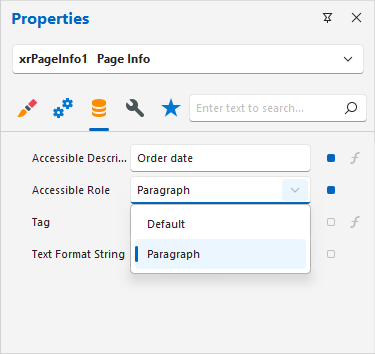
Before you export your report, set the PdfExportOptions.PdfUACompatibility property to PdfUA1 or PdfUA2 to make the document PDF/UA compatible.
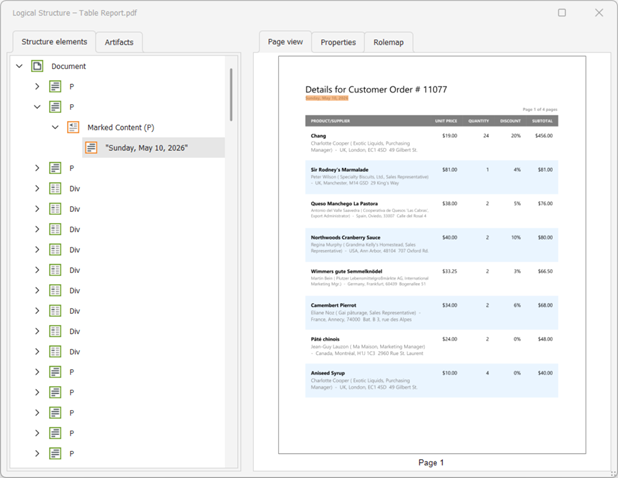
The image below shows the result. AccessibleRole is set to Paragraph, and the screen reader treats XRPageInfo as a paragraph in the exported document:
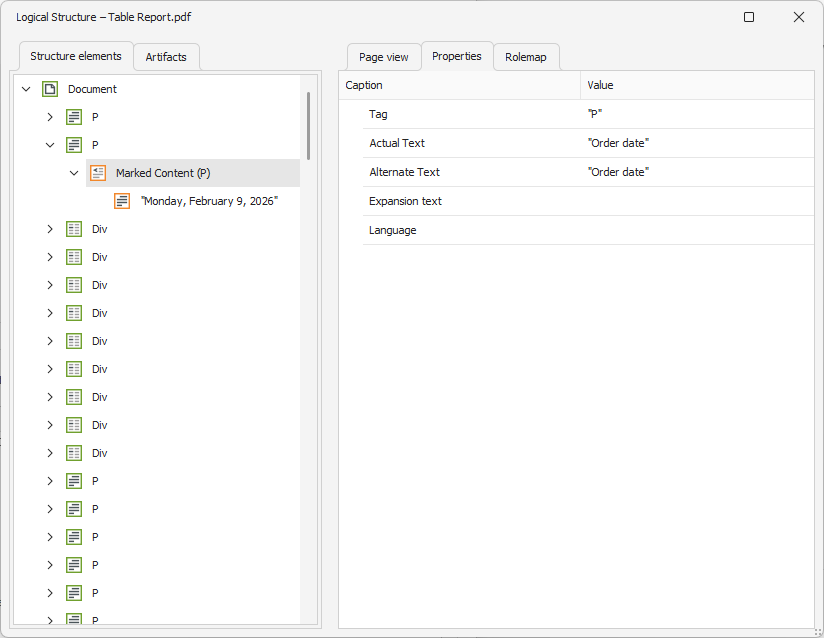
Use the AccessibleDescription property to specify the description of the resulting element:
XRPictureBox
Use the AccessibleRole property to specify how screen readers treat the XRPictureBox control in exported PDF documents. You can change the value to Decorative or keep the default value of Figure.

Before you export your report, set the PdfExportOptions.PdfUACompatibility property to PdfUA1 or PdfUA2 to ensure that the document is PDF/UA compatible.
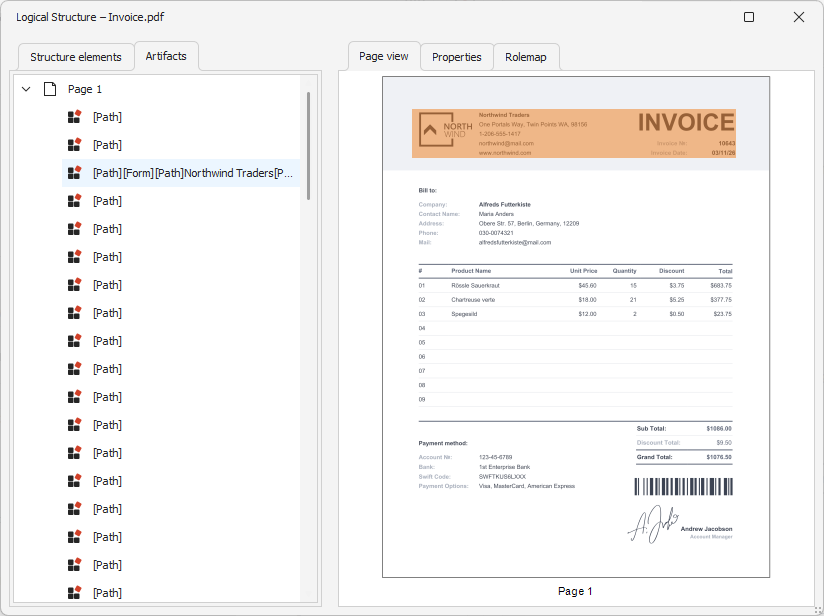
The image below shows the result. AccessibleRole is set to Decorative, and the screen reader treats XRPictureBox as an artifact in the exported document:

XRShape
Use the AccessibleRole property to specify how screen readers treat the XRShape control in exported PDF documents. You can change the value to Decorative or keep the default value of Figure.

Before you export your report, set the PdfExportOptions.PdfUACompatibility property to PdfUA1 or PdfUA2 to ensure the document is PDF/UA compatible.
The image below shows the result. AccessibleRole is set to Decorative, and the screen reader treats XRShape as an artifact in the exported document:

XRTable
You can specify how XRTable should be treated by screen readers in the exported PDF document. For this, set the control’s AccessibleRole property to Table before you export a report.

Set the PdfExportOptions.PdfUACompatibility property to PdfUA1 or PdfUA2 to conform the exported PDF document to PDF/UA specifications. Then, export the report as a PDF.
The image below shows the result. AccessibleRole is set to Table, and the screen reader treats XRTable as a table in the exported document:
You can also use AccessibleRole to specify header cells and rows in the table.
XRTableRow
You can specify how XRTableRow should be treated by screen readers in the exported PDF document.
Before you export a report, set the XRTable‘s AccessibleRole property to Table to define a control as a table. Then, specify AccessibleRole:

Set the PdfExportOptions.PdfUACompatibility property to PdfUA1 or PdfUA2 to conform the exported PDF document to PDF/UA specifications. Then, export the report as a PDF.
The image below shows the result. AccessibleRole is set to TableHeaderRow, and the screen reader treats XRTableRow as a header row of the table in the exported document:

XRZipCode
Use the AccessibleRole property to specify how screen readers treat the XRZipCode control in exported PDF documents. You can change the value to Decorative or keep the default value of Figure.

Before you export your report, set the PdfExportOptions.PdfUACompatibility property to PdfUA1 or PdfUA2 to ensure the document is PDF/UA compatible.
The image below shows the result. AccessibleRole is set to Decorative, and the screen reader treats XRZipCode as an artifact in the exported document:

XRPanel
Use the AccessibleRole property to specify how screen readers treat the XRPanel control in exported PDF documents. By default, XRPanel is exported as a Div. You can keep this default value or change it to Decorative.
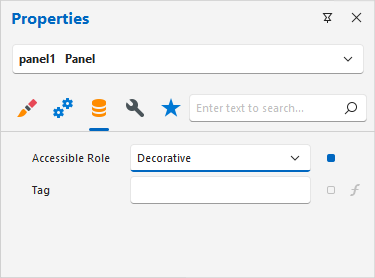
Before you export your report, set the PdfExportOptions.PdfUACompatibility property to PdfUA1 or PdfUA2 to ensure the document is PDF/UA compatible.
The image below shows the result. AccessibleRole is set to Decorative, and the screen reader treats XRPanel as an artifact in the exported document: