Mail Merge in Rich Text Documents
- 19 minutes to read
This topic describes the mail merge functionality available in the Rich Text Editor for WinForms. You can generate or load document templates, insert merge fields, merge plain or master-detail data, and export the result to supported formats. Specially-designed events allow you to control the mail merge process.
Mail merge involves the following steps:
Create or Load a Mail Merge Template
A template document is the starting point. It can be an existing DOCX file with placeholder text or a blank file you create in code. It contains merge fields and region markers. During the merge, RichEditControl replaces fields with actual data from your data source.
Call the RichEditControl.LoadDocument or RichEditControl.LoadDocumentTemplate method to load a document template.
Tip
Subscribe to the DocumentLoaded event to perform safe post-load modifications.
The following code snippet loads the template document:
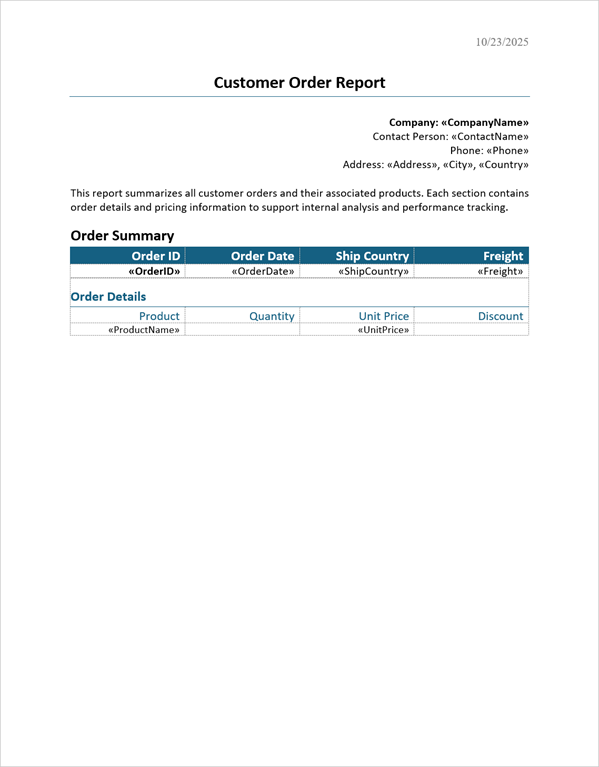
Define Master-Detail Regions in a Template
The DevExpress WinForms Rich Text Editor allows you to build reports. In a report, data from multiple records is displayed sequentially as table rows. You can even build a master-detail report. Use TableStart:RegionName and TableEnd:RegionName merge fields to mark regions that contain data from a single record (master or detail). The region name should match the group or table name in your data source. The following image shows a sample master-detail template:
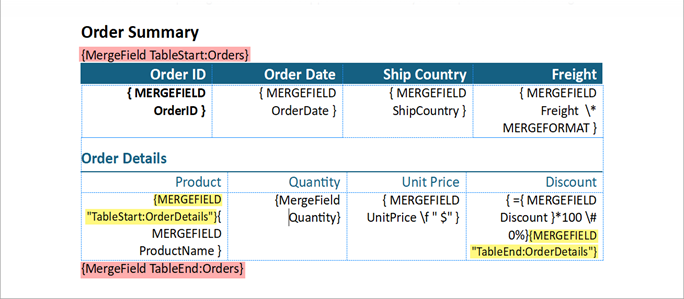
Tip
If your template uses start and end tags other than TableStart and TableEnd, specify them with the MailMergeOptions.RegionStartTag and MailMergeOptions.RegionEndTag properties.
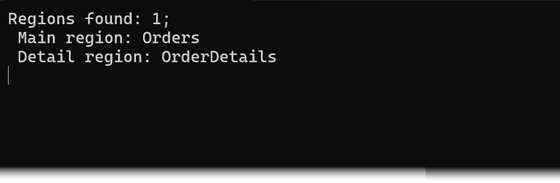
Call the GetRegionHierarchy() method to inspect the nested region structure. This method returns a MailMergeRegionInfo object. The Regions collection contains first level regions. Each object in the collection stores its own Regions.
The following code snippet calls the GetRegionHierarchy() method for the above-metioned template. The console shows the following structure:
using DevExpress.XtraRichEdit;
using DevExpress.XtraRichEdit.API.Native;

// Build a path to the DOCX template file relative to the project's base directory.
var templatePath = Path.Combine(
    AppDomain.CurrentDomain.BaseDirectory,
    "data",
    "template.docx"
    );

// Load the template into the RichEditControl instance.
richEditControl.LoadDocument(templatePath);

var regionInfo = richEditControl.Document.GetRegionHierarchy();

Console.WriteLine(String.Format($"Regions found: {regionInfo.Regions.Count}; " +
    $"\r\n Main region: {regionInfo.Regions[0].Name} " +
    $"\r\n Detail region: {regionInfo.Regions[0].Regions[0].Name}"));
Console.ReadKey();
Consider the following rules when organizing master-detail regions. RichEditControl throws exceptions if any of these rules are not met.
- The parent region should enclose the detail region.
- If a region is located in a table, both start and end fields should be within this table.
- A single paragraph cannot contain both the start and end region fields and/or multiple regions.
Add Fields to the Template
The FieldCollection.Create method allows you to add fields to a template. Use these field types to populate a template with data, dynamic content, or images during mail merge:
| Field | Description | Supports Formatted Content | Supports Image Insertion |
|---|---|---|---|
| MERGEFIELD | Inserts plain text from a data source column. | No | No |
| DOCVARIABLE | Inserts dynamically generated or formatted content supplied in the CalculateDocumentVariable event. | Yes (paragraphs, formatted runs, tables) | Yes |
| INCLUDEPICTURE | Inserts an image from a file path, database, or external source (HTML/MHT with URIs). | N/A | Yes |
The following example inserts MERGEFIELD fields in the detail table. The Discount merge field is nested inside a formula field so the discount is calculated as a percentage.
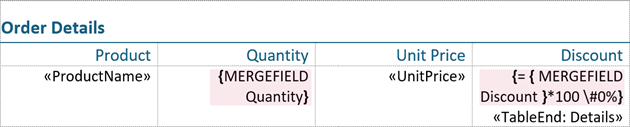
using DevExpress.XtraRichEdit;
using DevExpress.XtraRichEdit.API.Native;
//...

// Build a path to the DOCX template file relative to the project's base directory.
var templatePath = Path.Combine(
    AppDomain.CurrentDomain.BaseDirectory,
    "data",
    "template.docx"
);

richEditControl.LoadDocument(templatePath);
GenerateMergeFields(richEditControl.Document);

void GenerateMergeFields(Document document)
{
    // Obtain the detail table (the second table in the document)
    Table detailTable = document.Tables[1];
    // Create the Quantity field
    document.Fields.Create(
        detailTable.Rows[2].Cells[1].Range.Start,
        "MERGEFIELD Quantity"
    );

    // Create the formula field to calculate Discount as a percentage
    Field discountField = document.Fields.Create(
        detailTable.Rows[2].Cells[3].Range.Start,
        "= { placeholder }*100 \\#0%"
    );

    // Find a placeholder for a nested MERGEFIELD
    DocumentRange nestedFieldRange = document.FindAll(
        "{ placeholder }",
        SearchOptions.WholeWord,
        discountField.CodeRange
    ).First();

    // Clear the placeholder range
    document.Delete(nestedFieldRange);

    // Create a nested DISCOUNT field
    document.Fields.Create(nestedFieldRange.Start, "MERGEFIELD Discount");
}
//...
Insert Dynamic Content
The DOCVARIABLE field allows you to insert any type of content into a document – from a simple variable to another document’s content. Variables can be stored in a document or calculated within the RichEditControl.CalculateDocumentVariable event. Refer to the following examples for more information:
Insert Images from the Database
You can insert images during mail merge with the INCLUDEPICTURE field or the DOCVARIABLE field.
Use INCLUDEPICTURE for simple static paths or when you need a raw image with minimal formatting. Use DOCVARIABLE when you need to compute the image path dynamically, resize or format the image, or insert descriptive text alongside the image.
Example: Use DOCVARIABLE to Insert an Image from a DataSet
Handle the RichEditControl.CalculateDocumentVariable event to insert an image from a DataSet.
using System.Data;
using System.IO;
using DevExpress.XtraRichEdit;
using DevExpress.XtraRichEdit.API.Native;

// Subscribe to the CalculateDocumentVariable event
richEditControl.CalculateDocumentVariable += (sender, e) =>
    RichEditControl_CalculateDocumentVariable(sender, e, dataSet);

static void RichEditControl_CalculateDocumentVariable(
    object sender,
    CalculateDocumentVariableEventArgs e,
    DataSet dataSet
) {
    // Ensure arguments exist.
    if (e.Arguments.Count == 0)
        return;

    switch (e.VariableName) {
        // Process "Photo" DOCVARIABLE (embed inline image from Base64).
        case "Photo": {
            string id = e.Arguments[0].Value.ToString();
            // Exit the loop early if IDs are empty/invalid.
            if (id.Trim() == string.Empty || id.Contains("<")) {
                e.Value = " ";
                e.Handled = true;
                return;
            }

            // Look up the employee record and decode the image.
            DataTable employeesTable = dataSet.Tables[0];
            DataRow? row = employeesTable.Rows.Find(Convert.ToInt32(id));
            string? imageData = row?["Photo"] as string;

            if (imageData != null) {
                var imageProcessor = new RichEditDocumentServer();
                byte[] imageBytes = Convert.FromBase64String(imageData);

                Shape image = imageProcessor.Document.Shapes.InsertPicture(
                    imageProcessor.Document.Range.Start,
                    DocumentImageSource.FromStream(new MemoryStream(imageBytes))
                );
                image.TextWrapping = TextWrappingType.InLineWithText;

                // Set the RichEditDocumentServer with prepared content as the field value.
                e.Value = imageProcessor;
                e.Handled = true;
            } else {
                // No image found.
                e.Value = null;
            }
            break;
        }
    }
}
Example: Use INCLUDEPICTURE Field to Insert an Image from the Database
Use the IUriStreamProvider implementation to ensure that you load images and not just references to these images. This applies to images loaded from:
- A database during the mail merge process
- An external source when an HTML or MHT file contains URIs to these images
Create the IUriStreamProvider interface implementation, and customize its GetStream(String) method. This method returns a stream with image data.
Note
Make sure that the MERGEFIELD field nested in the INCLUDEPICTURE field refers to the data table’s primary key. Otherwise, the IUriStreamProvider service cannot correctly find the required table row.
using DevExpress.Office.Services;
using System;
using System.Data;
using System.IO;

public class ImageStreamProvider : IUriStreamProvider
{
    static readonly string prefix = "dbimg://";
    DataTable table;
    string columnName;

    public ImageStreamProvider(DataTable sourceTable, string imageColumn)
    {
        this.table = sourceTable;
        this.columnName = imageColumn;
    }


    public Stream GetStream(string uri)
    {
        // Parse the retrieved URI string
        uri = uri.Trim();
        if (!uri.StartsWith(prefix))
            return null;

        // Remove the prefix from the retrieved URI string
        string strId = uri.Substring(prefix.Length).Trim();
        int id;

        // Check if the string contains the primary key
        if (!int.TryParse(strId, out id))
            return null;

        // Retrieve the row that corresponds
        // with the key
        DataRow row = table.Rows.Find(id);
        if (row == null)
            return null;

        // Convert the image string from this row
        // to a byte array
        byte[] bytes = Convert.FromBase64String(row[columnName] as string) as byte[];
        if (bytes == null)
            return null;

        // Return the MemoryStream with an image
        MemoryStream memoryStream = new MemoryStream(bytes);
        return memoryStream;
    }
}
Call the IUriStreamService.RegisterProvider method to register the provider class.
using DevExpress.Office.Services;
using DevExpress.XtraRichEdit;
using DevExpress.XtraRichEdit.API.Native;

//...
IUriStreamService uriStreamService = richEditControl.GetService<IUriStreamService>();
uriStreamService.RegisterProvider(new ImageStreamProvider(xmlDataSet.Tables[0], "Photo"));
Add a Data Source
RichEditControl supports the following data source types:
Set the RichEditMailMergeOptions.DataSource property to specify the data source. If the data source contains multiple data tables, use the DataMember property to define a specific data member.
Note
The RichEditMailMergeOptions.DataSource property overrides the document-level Options.MailMerge.DataSource property.
Example: Use JSON as a Mail Merge Data Source
The following code snippet shows the NWindData model. The model defines a master-detail hierarchy (Customers → Orders → OrderDetails) used as the mail merge data source. It supplies nested collections so the merge engine can iterate through related records at each level.
public class NWindData {
    public List<Customer> Customers { get; set; } = new();

    public record Customer(
        string CustomerId,
        string CompanyName,
        string ContactName,
        string Country,
        string Address,
        string City,
        string Phone,
        List<Order> Orders);

    public record Order(
        string OrderID,
        DateTime? OrderDate,
        string ShipCountry,
        double Freight,
        List<OrderDetails> OrderDetails);

    public record OrderDetails(
        int ProductId,
        string ProductName,
        int Quantity,
        decimal UnitPrice,
        double Discount);
}
The following code snippet sets up a data source. The System.Text.Json.JsonSerializer loads JSON data from a file as a list of NWindData objects. The deserialized NWindData object is then assigned to the DataSource property.
using DevExpress.XtraRichEdit;
using DevExpress.XtraRichEdit.API.Native;
using System.Text.Json;
using word_processor_master_detail_merge;

// Build a path to the JSON data file relative to the project's base directory.
string dataPath = Path.Combine(
    AppDomain.CurrentDomain.BaseDirectory,
    "nwind_data.json"
);

// Extract the entire JSON file contents into a string.
string json = File.ReadAllText(dataPath);

// Declare a nullable NWind instance to hold deserialized data.
NWindData? nwind;
try
{
    // Deserialize the JSON payload to an NWindData instance.
    nwind = JsonSerializer.Deserialize<NWindData>(json);
}
catch (Exception ex)
{
    // Log the exception (including type and message) and abort further processing.
    Console.Error.WriteLine($"Deserialization failed: {ex}");
    return;
}

// Build a path to the DOCX template file relative to the project's base directory.
var templatePath = Path.Combine(
    AppDomain.CurrentDomain.BaseDirectory,
    "template.docx"
);

// Load the template into the word processor instance.
richEditControl.LoadDocument(templatePath);

// Create mail merge options.
MailMergeOptions myMergeOptions = richEditControl.Document.CreateMailMergeOptions();

// Assign the data source (Customers collection).
// Null-propagation prevents exceptions if deserialization has failed.
myMergeOptions.DataSource = nwind?.Customers;
Merge Data and Export the Result
Call the RichEditControl.MailMerge method to merge data into a template and save the document to the specified file or stream.
You can use the MailMergeOptions class properties to specify additional mail merge options. Pass the MailMergeOptions object as the MailMerge(MailMergeOptions, Document) method parameter to apply these options.
Example: Merge Records to a Single File
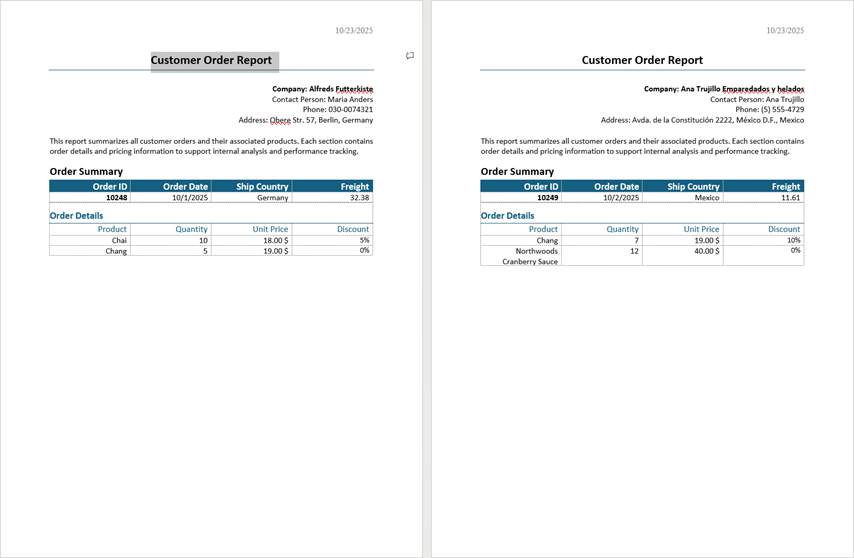
The following code snippet loads a template, specifies a data source, and exports merged records to a single file:
using DevExpress.XtraRichEdit;
using DevExpress.XtraRichEdit.API.Native;
using System.Diagnostics;

// Build a path to the DOCX template file relative to the project's base directory.
var templatePath = Path.Combine(AppDomain.CurrentDomain.BaseDirectory, "data", "template.docx");

// Load the template into the word processor instance.
richEditControl.LoadDocument(templatePath);

// Create mail merge options.
MailMergeOptions myMergeOptions = richEditControl.Document.CreateMailMergeOptions();

// Assign the data source (Customers collection).
myMergeOptions.DataSource = nwind?.Customers;

// Each merged record starts in a new section, preserving page setup and headers/footers per record.
myMergeOptions.MergeMode = MergeMode.NewSection;

var outputPath = Path.Combine(Environment.CurrentDirectory, "result.docx");
richEditControl.MailMerge(myMergeOptions, outputPath, DocumentFormat.OpenXml);
Example: Merge Records to Separate Files
Iterate through all records and use the MailMerge(MailMergeOptions, Document) method overload to merge each record to the temporary RichEditDocumentServer instance.
The following code snippet iterates through all records in the loop and exports each record to a separate DOCX file:
using DevExpress.XtraRichEdit;
using DevExpress.XtraRichEdit.API.Native;

// Build the absolute path to the mail merge template document (DOCX).
var templatePath = Path.Combine(
    AppDomain.CurrentDomain.BaseDirectory,
    "template.docx"
);

// Load the template into the word processor instance.
richEditControl.LoadDocument(templatePath);

// Create mail merge options.
MailMergeOptions myMergeOptions = richEditControl.Document.CreateMailMergeOptions();

// Assign the data source (Customers collection). Null-propagation prevents exceptions
// if deserialization has failed.
myMergeOptions.DataSource = nwind?.Customers;

// Declare a temporary RichEditDocumentServer.
var tempWordProcessor = new RichEditDocumentServer();

// Iterate through each customer record.
for (int i = 0; i <= nwind?.Customers.Count - 1; i++)
{
    // Restrict merge to a single record.
    myMergeOptions.FirstRecordIndex = i;
    myMergeOptions.LastRecordIndex = i;

    // Reset the temporary document before each merge.
    tempWordProcessor.CreateNewDocument();

    // Execute the mail merge for the current record.
    richEditControl.MailMerge(myMergeOptions, tempWordProcessor.Document);

    // Produce a unique output filename per record (result0.docx, result1.docx, etc.).
    var outputPath1 = Path.Combine(
        Environment.CurrentDirectory,
        string.Format("result{0}.docx", i)
    );

    // Save the merged document in Open XML (DOCX) format.
    tempWordProcessor.SaveDocument(outputPath1, DocumentFormat.OpenXml);
}
Tip
If your template document contains fields that are not bound to database fields, you can replace those fields with their values (unlink fields). Use the following methods to do this:
Mail Merge Events
RichEditControl implements the following events so that you can control specific mail merge steps:
- MailMergeStarted
- Fires before mail merge starts.
- MailMergeFinished
- Fires when the mail merge is completed.
- MailMergeRecordStarted
- Fires before each data record is merged with the document in the mail merge process.
- MailMergeRecordFinished
- Fires after each data record is merged with the document in the mail merge process.
The following example handles the MailMergeRecordStarted event. If the record’s CustomerID is ANTON, the record is skipped.
using DevExpress.XtraRichEdit;
using DevExpress.XtraRichEdit.API.Native;

richEditControl.MailMergeRecordStarted += (sender, e) => RichEditControl_OnMailMergeRecordStarted(sender, e, nwind?.Customers);

void RichEditControl_OnMailMergeRecordStarted(
    object sender,
    MailMergeRecordStartedEventArgs e,
    List<Customer> dataSet) {
    // Ensure the record index maps to an existing customer.
    if (e.RecordIndex >= 0 && e.RecordIndex < dataSet.Count)
    {
        // Get the current customer for this merge record.
        var current = dataSet[e.RecordIndex];

        // Skip merging this record if the CustomerId is ANTON (case-insensitive).
        if (string.Equals(current.CustomerId, "ANTON", StringComparison.OrdinalIgnoreCase))
        {
            e.Cancel = true;
        }
    }
}
Mail Merge Functionality in the User Interface
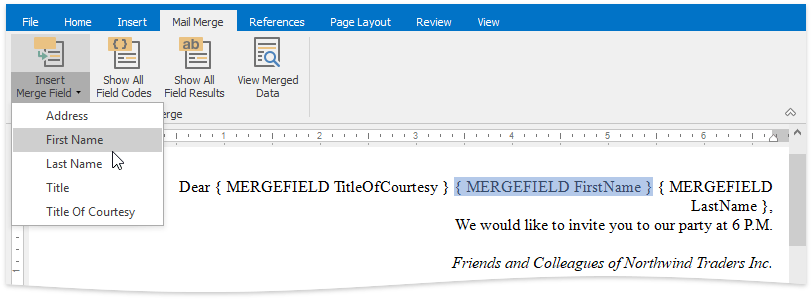
The RichEditControl ships with the Mail Merge ribbon tab, which allows users to insert merge fields, toggle field codes and results and view the merged data. Refer to the following topic for details on how to create the ribbon UI for the RichEditControl: How to: Create the RichEditControl with a Ribbon UI
Tip
Use the DocumentCapabilitiesOptions.Fields property to disable or hide the mail merge UI elements.
Complete Examples
Refer to the GitHub examples below for complete code snippets:
- How to Implement Mail Merge in a RichEditControl
- Rich Text Editor for WinForms - Create a Master-Detail Report
See the following GitHub examples for more mail merge scenarios: