TdxSpreadSheetAbstractFormulaBar Class
The base class for the TdxSpreadSheetFormulaBar component.
Declaration
TdxSpreadSheetAbstractFormulaBar = class(
    TcxControl,
    IdxSpreadSheetInplaceEditController
)
Remarks
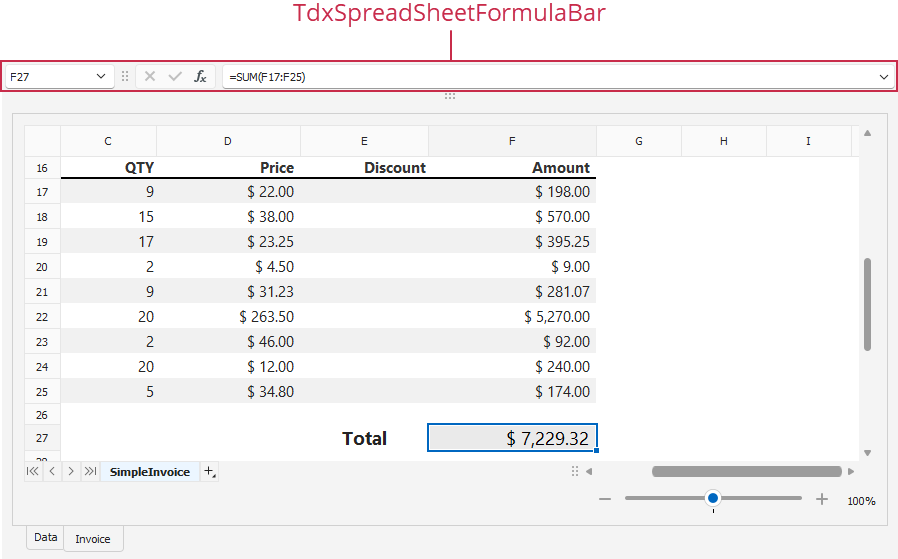
The TdxSpreadSheetFormulaBar component is designed to complement a Spreadsheet control with additional cell view and edit options found in many popular spreadsheet applications.
Getting Started
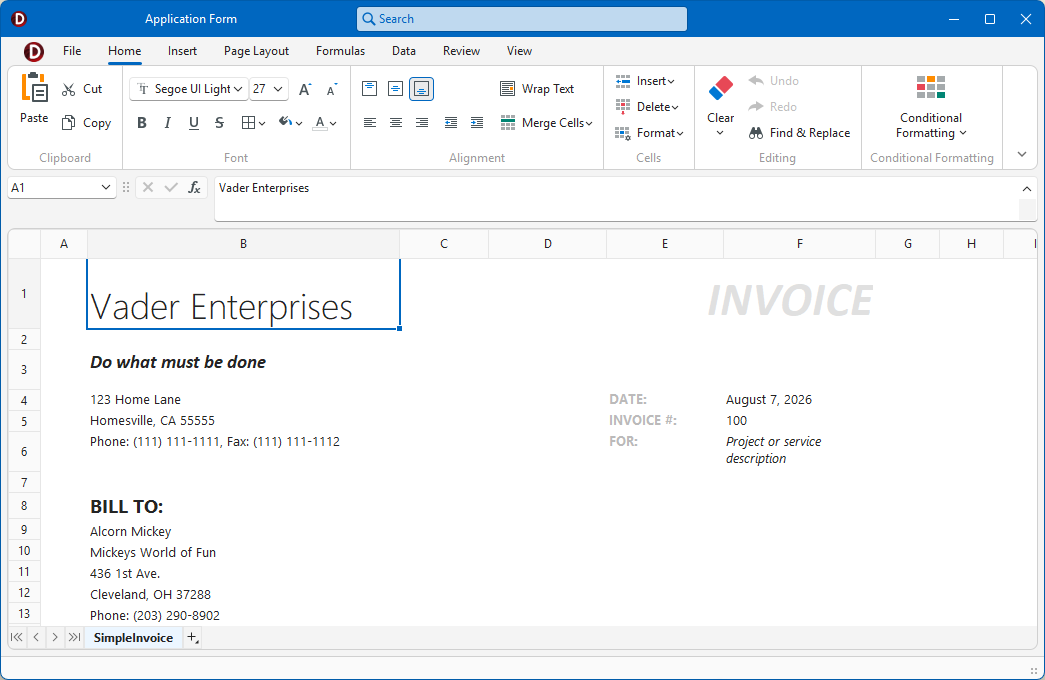
Spreadsheet Project and Form Templates
The VCL Template Kit ships with automatically installed Project and Form templates for the TdxSpreadSheet component (created application projects include an associated TdxSpreadSheetFormulaBar component). These templates are designed to reduce time spent on repetitive project and form setups, as well as improve onboarding for new VCL developers and boost productivity in experienced teams.
Tip
Refer to the following help topic for detailed information: Use Spreadsheet Project and Form Templates.
Related Compiled Demo
To see TdxSpreadSheet and TdxSpreadSheetFormulaBar components in action, run the Spreadsheet Control demo in the VCL Demo Center installed with compiled DevExpress VCL demos. Click different items in the sidebar on the left to switch between demo features.
Compiled DevExpress demos ship with source code installed in the Public Documents folder (%PUBLIC%) for all users (default). You can find all project and source code files for the Spreadsheet Control demo in the following folder:
%PUBLIC%\Documents\DevExpress VCL Demos\MegaDemos\Product Demos\ExpressSpreadSheet\
Tip
Project and source code files for all compiled DevExpress VCL Demos are maintained in a public repository hosted on GitHub:
End-User Functionality
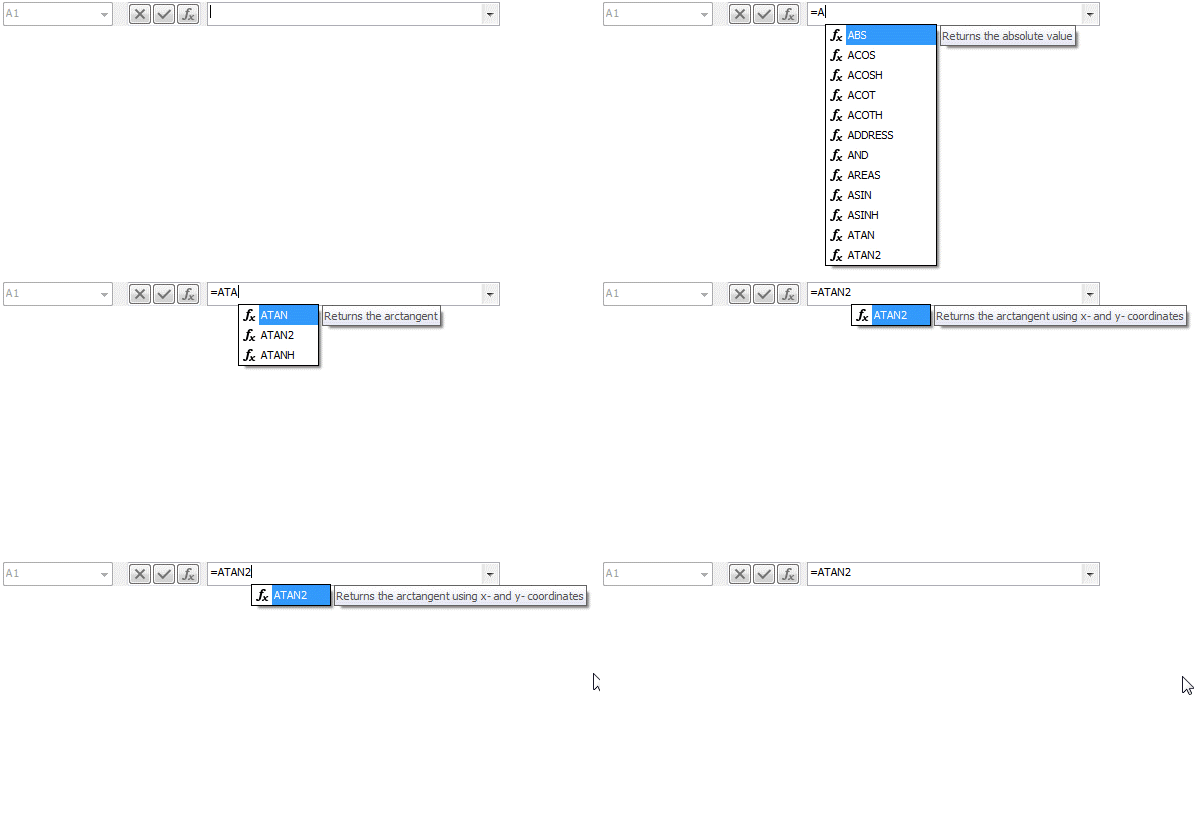
Like in-place cell editors in the active worksheet, the Formula Bar has Formula AutoComplete functionality designed to suggest registered functions and available defined names that match the entered portion of a recognized name:
Formula Bar UI Elements
The Formula Bar component includes the following UI elements from left to right:

- Name Box
Specifies a reference to a cell or cell range. Users can also use the Name Box to create a defined name based on the current selection. If the active worksheet already has defined names, users can select a name in a drop-down list.
To open a defined name list, users can click the drop-down button. Alternatively, Alt + ↑, Alt + ↓, and F4 keystrokes display the defined name list when the Name Box has focus.
In addition, the Name Box functions as a search box for floating containers in the current spreadsheet document.
Tip
Use the OptionsView.ShowNameBox property to hide or display the Name Box.
- Separator
- Allows users to resize Name and Edit boxes within the Formula Bar. The Buttons Box with Cancel, Enter, and Insert Function buttons has a fixed size when displayed (the OptionsView.ShowButtons property is enabled).
- Cancel
- This button discards user input within the Edit Box and returns focus to the Spreadsheet control associated with the Formula Bar. Alternatively, users can press Esc or click the associated Spreadsheet control.
- Enter
- This button applies changes made within the Edit Box and returns input focus to the target cell in the associated Spreadsheet control. Alternatively, users can press the Enter key.
- Insert Function
This button displays the Insert Function dialog that allows users to select a built-in function from a complete list or an individual category (Date & Time, for example).
The Insert Function button is enabled only when one of the following conditions is met:
- The Edit Box has no focus or an in-place cell editor is inactive in the associated Spreadsheet control.
- A user input string in the Edit Box or an active in-place cell editor starts with an equals sign (
=).
Alternatively, users can press Shift + F3 to display the Insert Function dialog under the same conditions.
- Edit Box
- The main UI element of the Formula Bar displays a formula expression or value defined in the focused cell. The Edit Box highlights references used as parameters in the displayed formula expression when an in-place editor is active for the corresponding cell in the associated Spreadsheet control (or when the Edit Box has focus).
UI Automation/Accessibility Support
The TdxSpreadSheetFormulaBar control is mapped to a node in the UI Automation tree when the global UI Automation flag (dxUIAutomationEnabled) is enabled.
UI Automation Settings
Use Automation.Name and Automation.Description properties to specify the Formula Bar name and to add optional information that are then used to clarify UI element purpose for users who rely on third-party assistive tools (such as Microsoft Narrator).
Refer to the TdxAutomationElementSettings class description for detailed information on all available options.
Main API Members
The list below outlines key members of the TdxSpreadSheetAbstractFormulaBar class.
Appearance Settings
- OptionsView
- Allows you to hide or display individual UI elements.
- Transparent
- Specifies if Formula Bar background is transparent.
User Interaction Options
- Automation
- Provides access to UI Automation and accessibility-related settings.
- CancelEditing
- Discards pending changes in the Edit Box.
- Focused
- Indicates if the Formula Bar component has focus.
- OptionsBehavior
- Provides access to automatic formula completion-related settings.
Layout-Related Settings
- CustomHeight
- Allows you to modify Formula Bar height.
- Expanded
- Specifies whether the Formula bar is expanded or collapsed.
- SeparatorPosition
- Allows you to move the separator between Name Box and Button Box UI elements. Users can drag this separator to resize Name and Edit boxes.
General-Purpose API Members
- FullRefresh
- Redraws the Formula Bar component on demand.
Terminal TdxSpreadSheetAbstractFormulaBar Class Descendant
Do not use the TdxSpreadSheetAbstractFormulaBar class directly. Use the TdxSpreadSheetFormulaBar component instead.