TdxOfficeSearchBoxProperties.Glyph Property
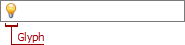
Specifies a glyph for the Office Search Box editor.
Declaration
property Glyph: TdxSmartGlyph read; write;
Property Value
| Type | Description |
|---|---|
| TdxSmartGlyph | The Smart Image container for the Office Search Box glyph. |
Remarks
Use the Glyph property to display a glyph in the TdxOfficeSearchBox editor.

Assign a Glyph at Design Time
To load and display a glyph in an Office Search Box at design time, select a TdxOfficeSearchBox editor and expand its Properties node in the Object Inspector; after, click the ellipsis button to the right of the Glyph property to open the Image Picker dialog:

Select the required image and click the OK button to close the dialog.
Tip
We recommend that you use only SVG images as UI element glyphs in applications that target high-resolution multi-monitor environments because SVG images are rendered in any target resolution without losses to quality.
Vector Glyph Display Modes
You can set the UseStrokeColorForGlyphPalette property to True or False to switch between contrast and lightweight glyph display modes:
False
True
Code Example: Display an Office Search Box in a Ribbon Form Caption
The following code example creates a TdxOfficeSearchBox editor, associates it with an existing TdxRibbon control, and embeds the created editor into the Ribbon Form caption:
uses
dxRibbonForm, // Declares the TdxRibbonForm class
dxOfficeSearchBox; // Declares the TdxOfficeSearchBox class
// ...
procedure TMyForm.FormCreate(Sender: TObject);
var
ABar: TdxBar;
ABarItem: TcxBarEditItem;
ASearchBoxProperties: TdxOfficeSearchBoxProperties;
AIconFolder: string;
begin
DisableAero := True; // Allows the DevExpress Skin Engine to draw non-client form areas
AIconFolder := 'C:\Program Files (x86)\DevExpress\VCL\ExpressLibrary\Sources\Icon Library\';
dxRibbon1.Style := rsOffice365; // Selects the Office 365 style with support for form caption toolbars
ABar := dxBarManager1.Bars.Add; // Creates a toolbar as a container for the Office Search Box
ABar.Visible := True; // Displays the created toolbar container
ABarItem := ABar.ItemLinks.AddItem(TcxBarEditItem).Item as TcxBarEditItem;
ABarItem.PropertiesClass := TdxOfficeSearchBoxProperties;
ASearchBoxProperties := ABarItem.Properties as TdxOfficeSearchBoxProperties;
ASearchBoxProperties.BeginUpdate; // Initiates the following batch change
try
ASearchBoxProperties.SearchSource := dxRibbon1; // Associates the Office Search Box with the Ribbon UI
ASearchBoxProperties.Nullstring := 'Tell me what you want to do...';
ASearchBoxProperties.UseNullString := True; // Displays the defined null string in the empty editor
ASearchBoxProperties.Glyph.LoadFromFile(AIconFolder + 'SVG Images\Icon Builder\Business_Idea.svg');
ASearchBoxProperties.Glyph.SourceWidth := 16; // Explicitly specifies the required glyph width
ASearchBoxProperties.Glyph.SourceHeight := 16; // Explicitly specifies the required glyph height
ASearchBoxProperties.ShowResultPaths := True; // Displays navigation paths to found UI commands
finally
ASearchBoxProperties.EndUpdate; // Calls EndUpdate regardless of the batch operation's success
end;
dxRibbon1.CaptionAreaSearchToolbar.Toolbar := ABar; // Displays the toolbar container in the caption area
dxRibbon1.CaptionAreaSearchToolbar.Alignment := TdxRibbonCaptionAreaSearchToolbarAlignment.Left;
end;