Use Dashboard Parameters
- 3 minutes to read
A parameter affects dashboard content or data retrieval only if you reference the parameter in dashboard logic. This connection allows parameter values to filter tile data, evaluate calculated fields, and transform data sources.
Create and configure a parameter before you reference it. Users can supply its value in the Dashboard Parameters dialog, or you can assign the value in code.
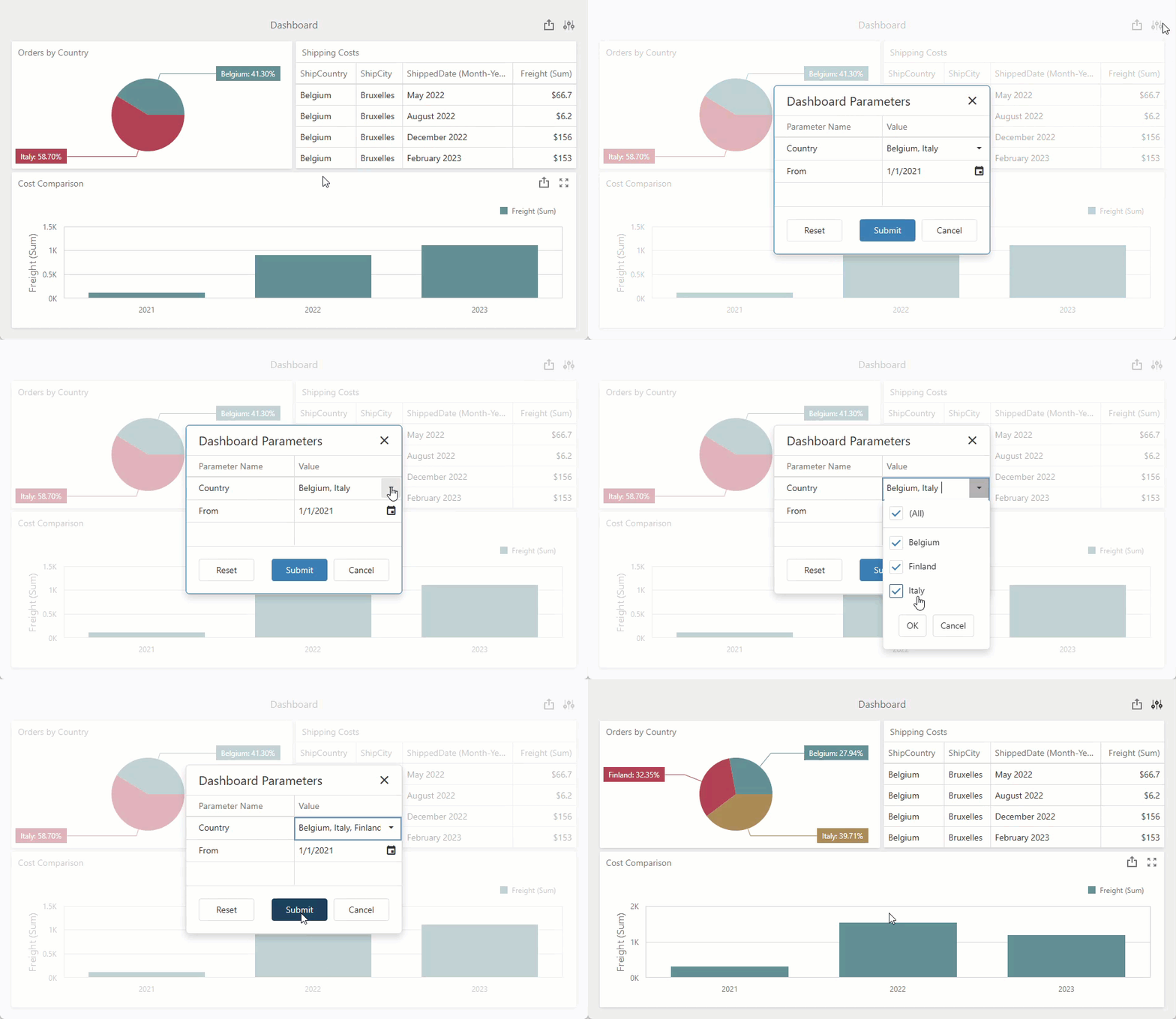
Client and Server-Side Data Filtering
You can use dashboard parameters to filter out source data based on user input. You can filter data on the client or server side depending on your preferred usage scenario:
- Client side: Tile-Level Filter
- The dashboard component loads all records from the underlying data source and applies a filter to individual tiles. This data source-agnostic technique allows you to replace data source components without parameter configuration changes. Compared to server-side data filtering, this technique requires more memory and computing resources on the client machine.
- Server side: Data Source-Level Filter | URL-Level Filter
- The remote server applies a filter to source data and sends only target records to the client. This technique is particularly beneficial for dashboard rendering on large datasets when memory/computing resources and network bandwidth are constrained on the client.
Use Parameter Values in Calculated Fields
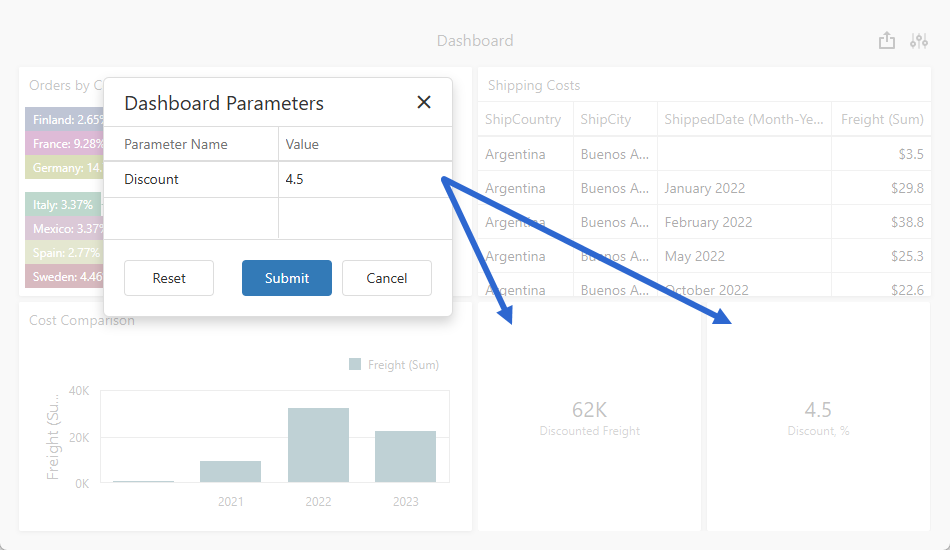
Reference parameters in calculated field expressions to display user input and compute values that combine dashboard data with parameter values.
Tip
Refer to the following help topic for detailed instructions: Use Parameter Values in Calculated Fields.
Related Tutorial
The following tutorial creates a parameter, assigns its value, and passes the value to a data source:
- Follow this tutorial to create an application that obtains data from a stored database procedure and passes a dashboard parameter as a procedure parameter.
Related GitHub-Hosted Sample Projects
This section lists all public GitHub repositories (DevExpress-Examples) that demonstrate primary usage scenarios for dashboard parameters:
- This example filters dashboard data by country name.
- This example displays sales data for a selected country. The example passes the country to the underlying SQL query as a hidden dashboard parameter.
Related Compiled Demo
To see the dashboard export functionality in action, run the BI Dashboards Designer/Viewer demo in the VCL Demo Center installed with compiled DevExpress VCL demos. Select any demo in the sidebar on the left, click the Export button, and use any export option listed in the menu.
Compiled DevExpress demos ship with source code installed in the Public Documents folder (%PUBLIC%) for all users (default). You can find all project and source code files for the BI Dashboards Designer/Viewer demo in the following folder:
%PUBLIC%\Documents\DevExpress VCL Demos\MegaDemos\Product Demos\ExpressDashboards\
Tip
Project and source code files for all compiled DevExpress VCL Demos are maintained in a public repository hosted on GitHub: