Dashboard Parameters Dialog
- 3 minutes to read
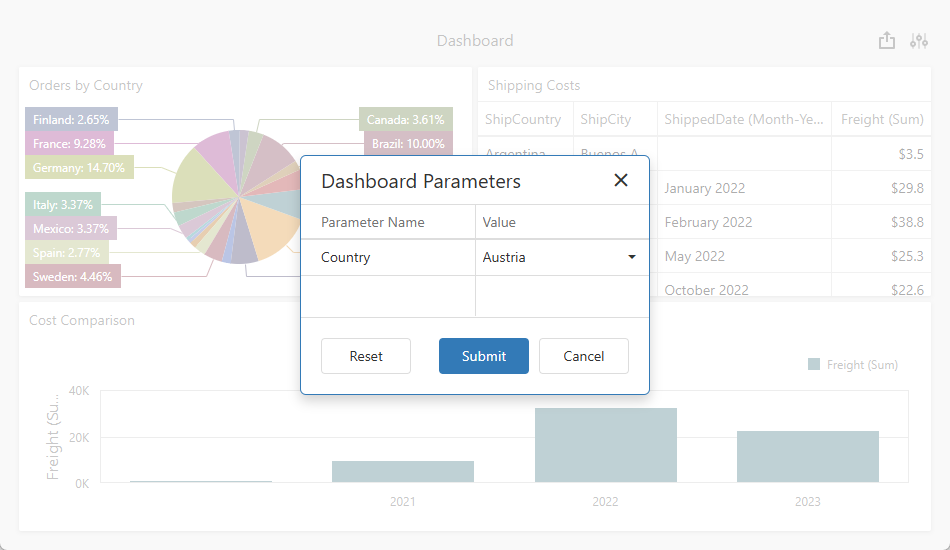
The Dashboard Viewer automatically populates the Dashboard Parameters dialog with editors (one for each visible dashboard parameter). Parameter settings determine editor type, label, layout, and available values. These editors allow users to modify parameter values and populate the same dashboard template with different data.
Hidden parameters do not appear in the dialog. You can assign their values in code. For information about how to reference parameters, refer to the following help topic: Use Dashboard Parameters.
Note
The RESET button discards pending changes in parameter editors and restores default parameter values.
Request Parameter Values Before Dashboard Rendering
Use the Request Parameter Values before Data Loading option to prompt users to specify filter values before dashboard content is displayed. This option ensures that the dashboard displays relevant data instead of null/empty or default parameters:
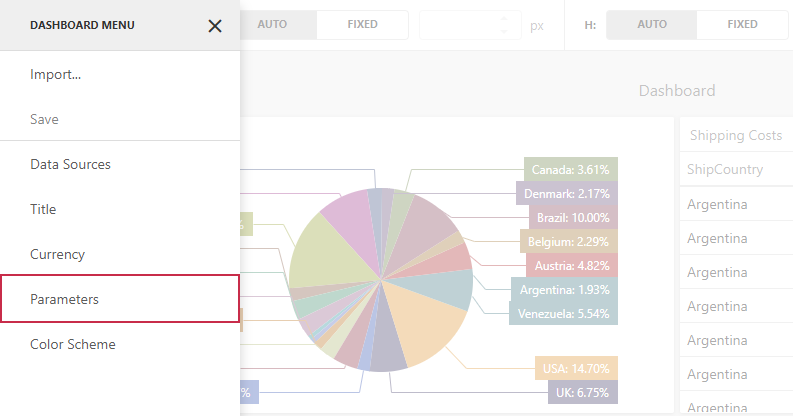
- In the Dashboard Designer, open the main menu.
Click Parameters.
Select or clear the Request Parameter Values before Data Loading option:
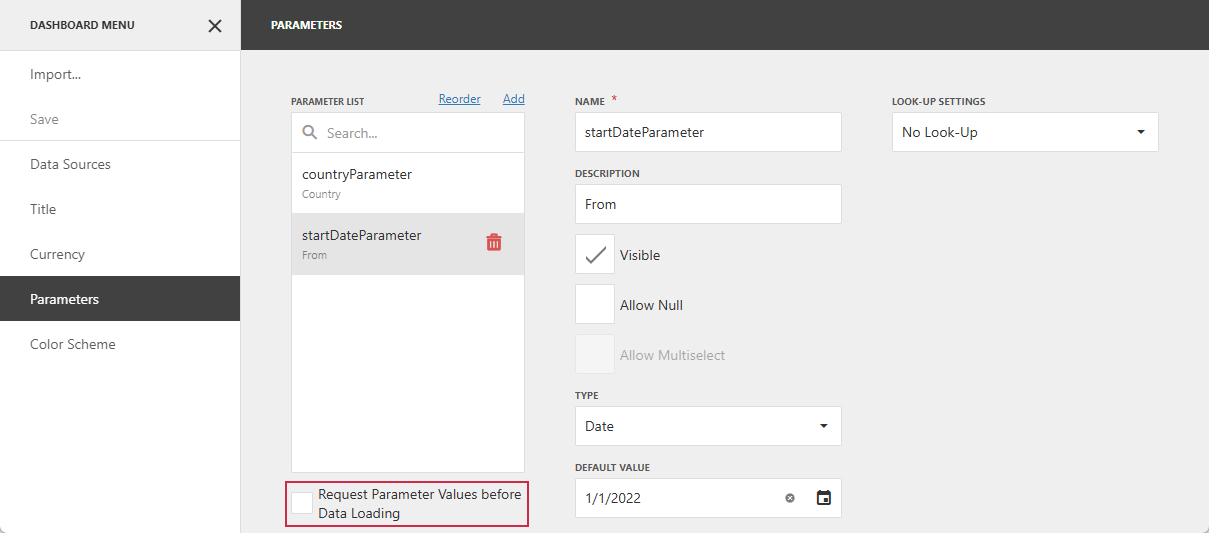
- Enabled
- The Dashboard Parameters dialog opens before dashboard content is displayed. Users must enter parameter values before they can view dashboard tiles.
- Disabled
The Dashboard Viewer displays the dashboard immediately with default parameter values. Users can open the Dashboard Parameters dialog later to change values and refresh dashboard content.

Related GitHub-Hosted Sample Projects
This section lists all public GitHub repositories (DevExpress-Examples) that demonstrate primary usage scenarios for dashboard parameters:
- This example filters dashboard data by country name.
- This example displays sales data for a selected country. The country is passed to the underlying SQL query as a hidden dashboard parameter.
Related Compiled Demo
To see the dashboard export functionality in action, run the BI Dashboards Designer/Viewer demo in the VCL Demo Center installed with compiled DevExpress VCL demos. Select any demo in the sidebar on the left, click the Export button, and use any export option listed in the menu.
Compiled DevExpress demos ship with source code installed in the Public Documents folder (%PUBLIC%) for all users (default). You can find all project and source code files for the BI Dashboards Designer/Viewer demo in the following folder:
%PUBLIC%\Documents\DevExpress VCL Demos\MegaDemos\Product Demos\ExpressDashboards\
Tip
Project and source code files for all compiled DevExpress VCL Demos are maintained in a public repository hosted on GitHub: